Checklist Templates
Overview
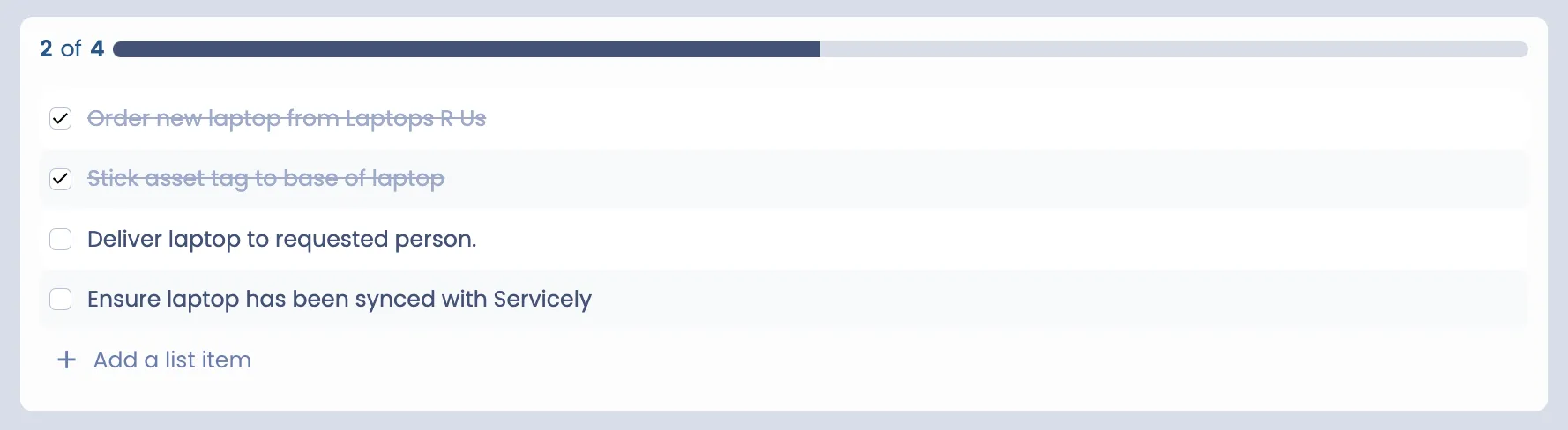
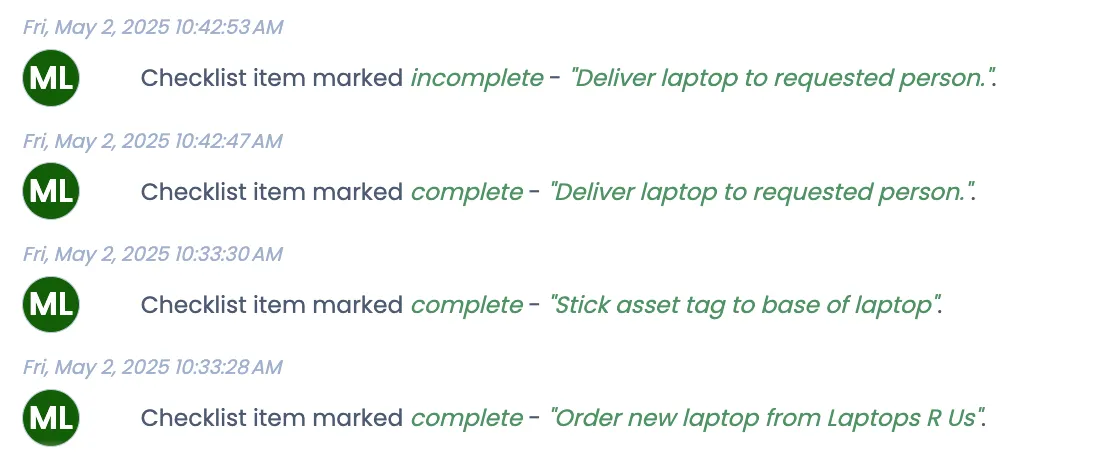
In situations where there are a number of items required to complete a task, you can now set up checklists to help with managing the progress. This will also show you in the activity log as to when items have been finished or not.
How to enable on a Table
Checklists are enabled on all tables extended from work out the box. At the moment, if you have a table that you wish to use outside of Work, it is not currently supported. If you want to show a checklist on a table, you are able to configure the layout and there is a new layout element called “Checklist”. By default, it will be empty, unless you have a template set up for the table. It should be noted that subtasks that are the same as the parent table but have the suffix “Task” can be used. Such as <TableName>Task, i.e. IncidentTask, ITSMRequestTask, ChangeTask. If you have no checklist templates, you can simply add your own items manually. If you do have a checklist table, one can be assigned once it meets the condition, but you can still manually add your items.
Checklist Template
To have checklist items automatically added to a record, it needs to meet a condition of a checklist template. To create a checklist template, you can go to the list menu Administration > Configuration > Checklist template.
Field | Type | Notes / Description | Example |
|---|---|---|---|
Name | String | The name of the checklist used to help identify it in a list. Not used on the checklist that is generated. | Provision new laptop |
Active | Boolean | Whether or not this can be automatically assigned to a record. | true |
Priority Order | Integer | The priority of this being assigned where multiple templates meet a condition. The lowest order, will be associated to the record. | 10 |
Table | Table | The table that this template can be associated with. | ITSM Request |
Condition | Condition | The condition as to when this will be associated with a record. | Classification is Provisioning > New Laptop |
Advanced Condition | Script | The advanced scripted condition as to when this will be associated with a record. | answer = current.Classification.value() == “c0a8016c680c132481680c9502de0150” |
Checklist Item Templates | Related list [Checklist item templates | The list of items that will be associated with a record once the condition meets. |
|
Checklist Item Templates
These are the items that will be associated with a record.
Field | Type | Notes / Description | Example |
|---|---|---|---|
Checklist Template | Reference (Checklist Template) | This is the checklist template that a record is associated with. | Provision new laptop |
Short Description | String | This is the checklist item that will be added to the record automatically upon the condition of the template matching. | Ensure laptop has been synced with Servicely |
Active | Boolean | This is whether or not if it will be added | True |
Notes | String | Any additional notes that are not shown anywhere, other than this record to show as to why you made this item. | This is required to ensure that is has been enrolled correctly in InTune. |
Scripting and Other Considerations
Once a checklist template has been associated with a record, another cannot be added. You can see what checklist has been associated with the record by the Checklist template field on the Work table. If you wish to script to understand the answers or if they have all been checked, there is a table called “ChecklistItem”, which you can query and manipulate to see which records (with the parent record field) have been checked or otherwise.