SOFI Pro on Microsoft Teams
Overview
SOFI's connectivity via Microsoft Teams puts a Servicely AI Agent into multiple communication channels such as Microsoft Teams so users have the option to ask for help in the chat tool they have instead of coming into the Servicely self service portal.
This replaces the earlier version of SOFI's implementation with Microsoft Teams
How to configure
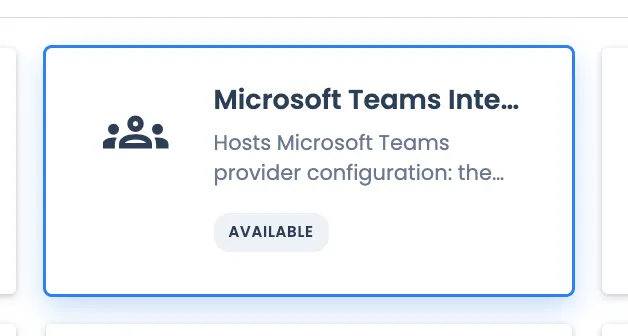
On Servicely, install the "Microsoft Teams Integration" application (backend name is "Integration_microsoft_teams", from the Available application list.
Go to your Microsoft Azure portal and Register a new Entra ID application via App registration page and set the below information
Field name | Description |
|---|---|
Name | E.g. Servicely Teams Bot (Production) |
Supported account types | Select Single tenant only |
Redirect URI | Leave blank |
Click on the Register button and note both the "Application (client) ID" and "Directory (tenant) ID" of the application from its Overview page.
Still on the Overview page, setup a new Client secret and copy its value.
For more information, you may refer to Microsoft documentation on Azure Bot resource creation (link accurate and relevant at time of writing): https://learn.microsoft.com/en-us/entra/identity-platform/quickstart-register-app
Create an Azure Bot and set the below information
Field name | Description |
|---|---|
Bot handle | A unique handle for the Azure Bot Definition. Used only within the Azure Portal as a name. Will not become the name of the bot in teams (this will be defined elsewhere). |
Subscription | This needs to be a valid Azure Cognitive Services Subscription |
Resource group | This needs to be a valid Azure Cognitive Services Resource Group |
Type of App | Select Single-tenant |
Creation type | Select "Use existing app registration" and then point it to the App registration you did in the previous step |
Then, go to the Bot's Channels menu to view the Available channels list. Click on "Microsoft Teams" and click on Apply.
For more information, you may refer to Microsoft documentation on Azure Bot resource creation (link accurate and relevant at time of writing): https://learn.microsoft.com/en-us/azure/bot-service/abs-quickstart?view=azure-bot-service-4.0&tabs=userassigned
Still on the Azure Bot, go to its Configuration menu and set its Messaging endpoint.
The format should follow the below
https://<instance-name>.servicely.ai/_mesaging/v3/teams/{accountId}
accountId is the record ID of the Servicely's Messaging account record named "Microsoft Teams".
Example of messaging endpoint URL:
Click on the "Apply" button.
Allow for several minutes for the changes to propagate.
Back on Servicely. Go to the "Microsoft Teams" messaging account record, populate the required information:
Field name | Description |
|---|---|
Tenant Id | Directory (tenant) ID. From Step 2. |
App Id | Application (client ID) of the registered Entra ID application. From Step 2. |
App secret | Client secret for the registered Entra ID application. The secret value, not the ID. From Step 2. |
Email Fallback Enabled | When user's ActiveDirectoryID is blank, the platform reads the sender's Microsoft 365 email from Teams and matches it against their Email stored on their Servicely user account record. If this is set to No, ActiveDirectoryID is required to be populated upfront. |
Persist Matched Identity | After a successful email match the platform writes the user's Azure AD object id onto the user's ActiveDirectoryID, so future messages skip the email lookup. Set to No if you prefer the synch from Entra ID to remain remain the only source for users' ActiveDirectoryID. |
Active | Set to Yes, after all other fields in the Messaging account record are populated. |
Save your changes.
On Servicely's "Microsoft Teams" messaging account record, click on the "Test Connection" button. This is to prove that the credentials setup are valid and accepted by Microsoft.
Now, to publish the bot into the Servicely Test Teams Tenant, we must add the bot into Teams.
- Go to Teams Developer Portal and create a new App. You may refer to the Microsoft's documentation: https://learn.microsoft.com/en-us/microsoftteams/platform/concepts/build-and-test/teams-developer-portal
- Go to the "App features" menu, select Bot and update its Bot ID to be the same as the Entra application's ID and also update the Bot's permissions to allow for:
- Upload and download files
- Personal scope
- Go to the App validation menu and follow the prompts to eventually publish it to your org
- The app will then appear in under the list of apps pending approval for installation. You can click on the app and then publish it to the Teams tenant
- The bot can now be installed by/for users in the Teams tenant
Finally, back on Servicely, edit the "Microsoft Teams" Messaging account record and set its Manifest Id to be the App ID of the App created on Step 7 above. You can find this App ID under the App's Basic information page.
How to use
Available AI assistants
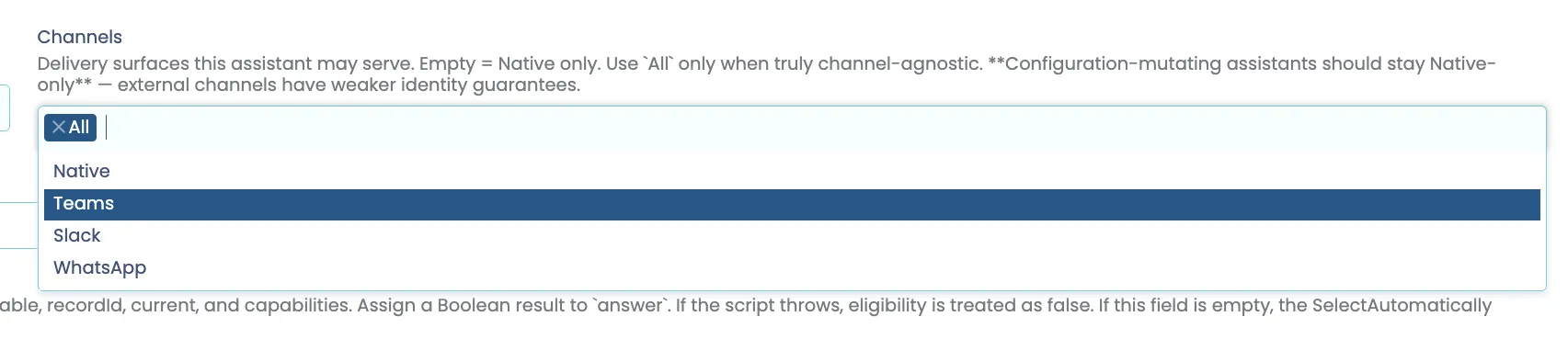
AI assistants available in "All" or "Teams" channels will be available to use on Microsoft Teams
Screenshot below shows the Channels configuration of an AI assistant on Servicely:
User account pre-requisite
They need to have their Servicely user record's Active Directory ID field populated with the objectid of their Entra ID user account. If the Servicely user account is synch-ed from Entra ID (example via SCIM), then the synch mapping needs to have the Active Directory ID auto populated.
Reset commands
The following commands can be entered into your chat with SOFI to reset the chat:
/newchat
/clear
/endchat
Result of a chat with SOFI
A chat with SOFI does not always result in a support ticket created for the user. This is dependent on the AI agent that the users are communicating with and if for example the agent was not instructed to raise a ticket, e.g. Interaction.