What is an Application?
Applications are an easy way to logically separate different tables and functionality to assist in a logical separation of administrative capabilities or otherwise. For the average user within the platform, this is not a concept they need to worry about and is a concept more so for the system administrator. Applications can be upgraded and deployed separately, which allows you to test and plan upgrades of different upgrades when is convenient for each group.
Recommended Practice
When creating an application, it is recommended that it is set out in a way for a logical set of functionality (such as emails) or business unit (such as Human Resources). A simple way to determine if a new application makes sense is if you need to have a different role / permission set for the people who are fulfilling the processes.
An example of this is that your Human Resource term will be focused on cases around payroll or other workplace requests, but they would likely not be fulfilling IT requests. Therefore, separating these two processes in two separate applications make sense. Contrarily if you have a different process, such as to deal with training requests, but the Human Resource team are the ones that fulfil these requests. It may make sense to put them within the same application.
The more the processes differ, the more it make sense to separate them into two different applications, even if it is the same team fulfilling the requests. An example of this is that an occupational health and safety processes are often quite varied from Human Resource processes, so even though it may be the same team who needs to handle both requests, it would make sense to create a new application.
Finally, to assist with differentiating your applications with the standard Servicely applications, it is recommended you prefix it with your company name for the namespace.
Creating a New Application
To create an application, you need to follow the subsequent steps.
On the left menu, found under the "Application" application menu and section, select the "Applications" menu item.
- Press the "New" button.
- The majority of recommended information will be defaulted. The only fields we recommend you change and enter are as follows:
- Namespace: We recommend the following format <company_name>.<application_name> . For example "acme.ohs".
- Name: The name of the application. As applications are an admin concept, we recommend keeping it lower case and separating words with underscores to assist with scripting.
- The other fields will be automatically changed and populated as you install and manage your application.
- All done. At this point you can select the application via your user profile.
Selecting your application
Once you have created your application, you should then select it for your user to ensure that configuration done for that application, is placed in the application.
To view selected application, please view under the Change set mode options, next to your user's first name. Example below showing the "platform" application selected:
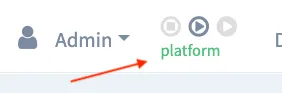
To select another application, please follow the steps below:
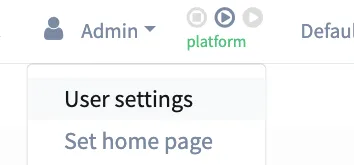
Click your name in the top menu item to view the available menu actions and click on "User settings"
Once done, there will be an application drop down. From this drop down, select the application.
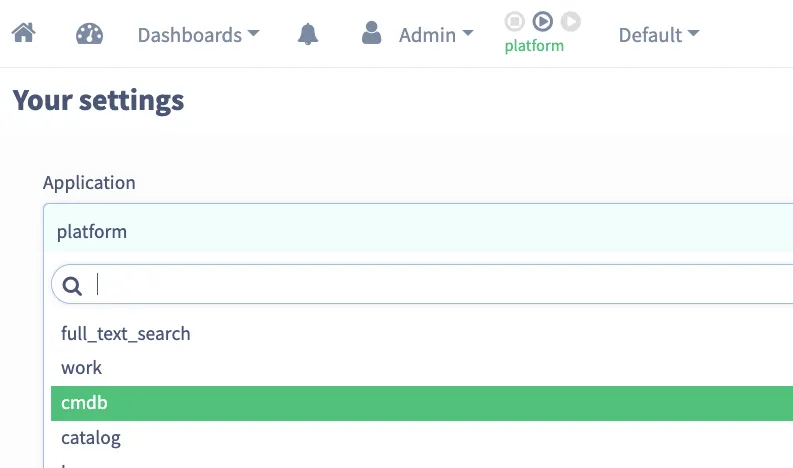
Press the "Save" button at the bottom of the screen and your selected application will be what you chose on the previous step
New configurations you perform such as creating new Field or Trigger or Table Operation, etc will result in those configuration record associated to your user's selected application.