SOFI on Microsoft Teams
Overview
SOFI can be connected to your Microsoft Teams tenant so that you and your colleagues can chat with SOFI on a Teams channel instead of on the Servicely Portal. This means that all of the existing conversation flows a user could use in the Self Service Portal (Password Reset, etc.) are all available via Teams.
Steps to enable connectivity
Access the Azure portal by going to https://portal.azure.com/#home. Ensure you are in the right tenant, by looking at the top right with your username.
In the top search bar, search for Azure Bot, and select the offering underneath Marketplace
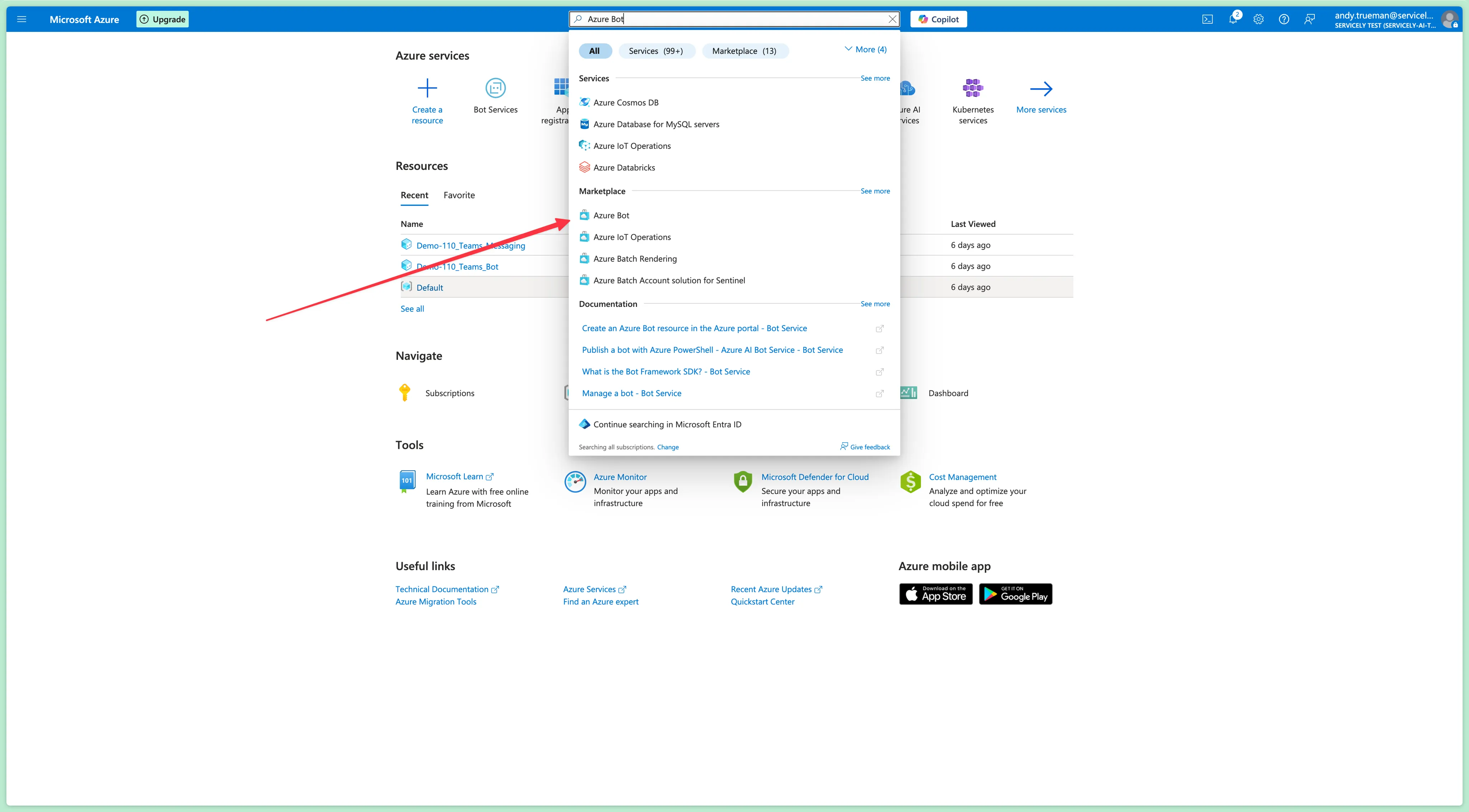
Configure the Bot as per the below table. Once complete, click Review + Create to continue.
Setting | Description |
|---|---|
Bot handle | A unique handle for the Azure Bot Definition. Used only within the Azure Portal as a name. Will not become the name of the bot in teams (this will be defined elsewhere). A suggestion is the prefix "SOFI" with the name this after your instance. |
Subscription | This needs to be a valid Azure Cognitive Services Subscription - select Azure Subscription 1 |
Resource group | This needs to be a valid Azure Cognitive Services Resource Group - select Default |
Data residency | Currently leave as global |
Pricing | The pricing tier to use. You can change this to "Free" |
Type of app | Single tenant |
Creation type | Leave as "Create new Microsoft App ID' |
Once complete, click Create and wait for the deployment process to finish. You can tell it’s finished when there’s a Go To Resource button on the screen, as per the below screenshot. Click Go to Resource to configure the newly created Bot.
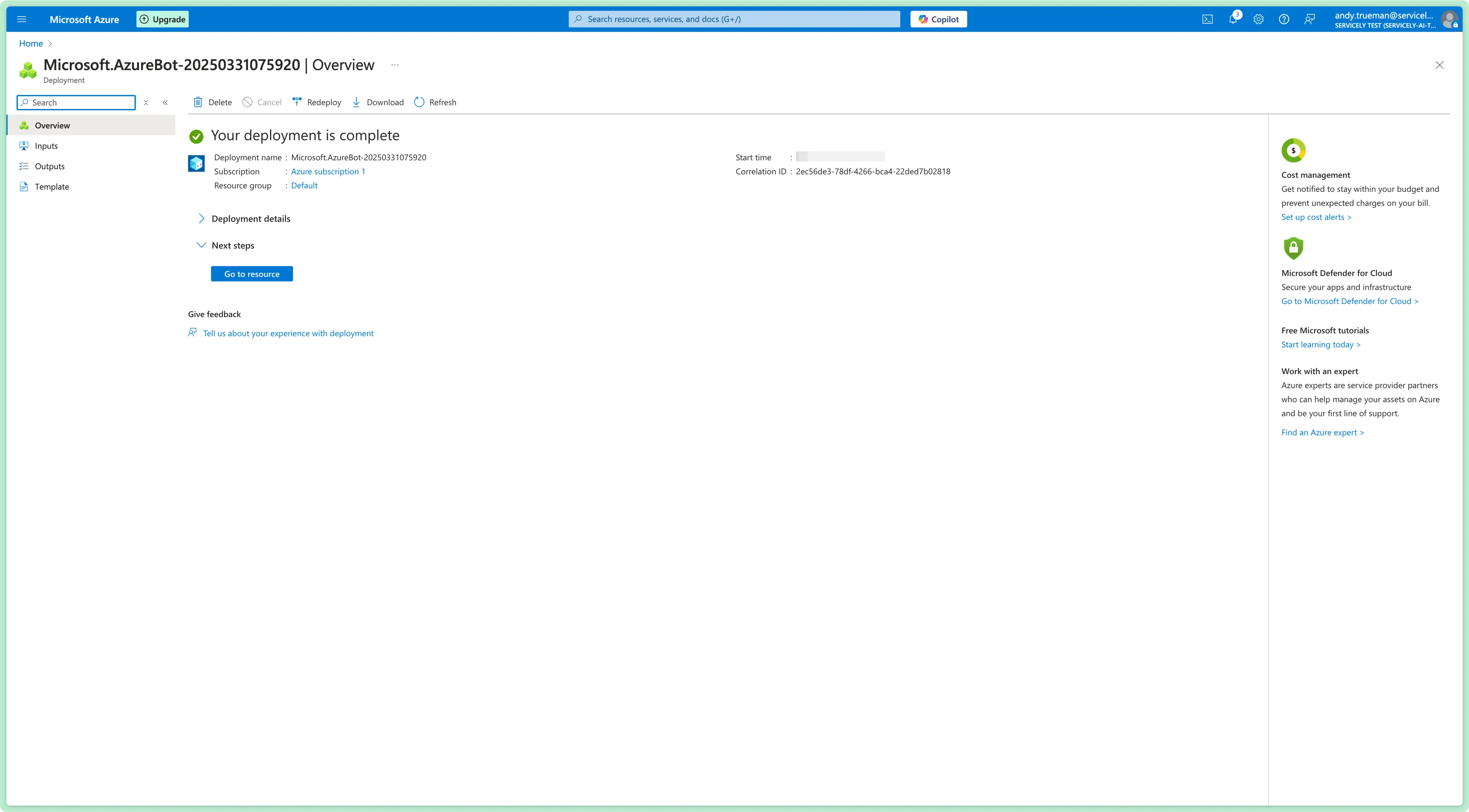
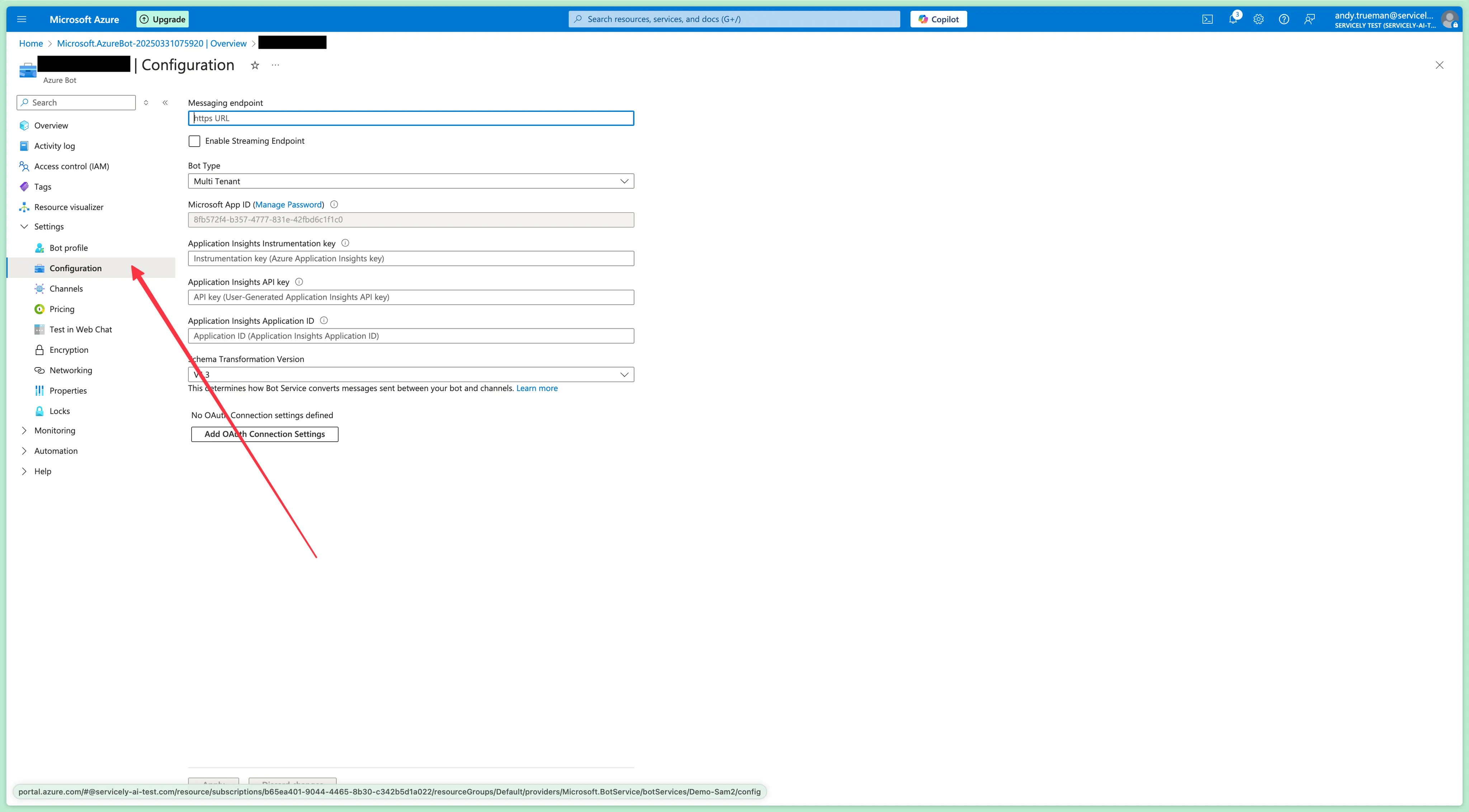
Now, we must configure the bot so it knows how to communicate with Sofi. Do so by clicking Settings → Configuration in the left hand menu
Now, open a new Tab and navigate to your instance. We need to create a Conversation Provider configuration record so the instance and bot can communicate with each other. Do so by searching for Conversation Providers, and clicking New in the list
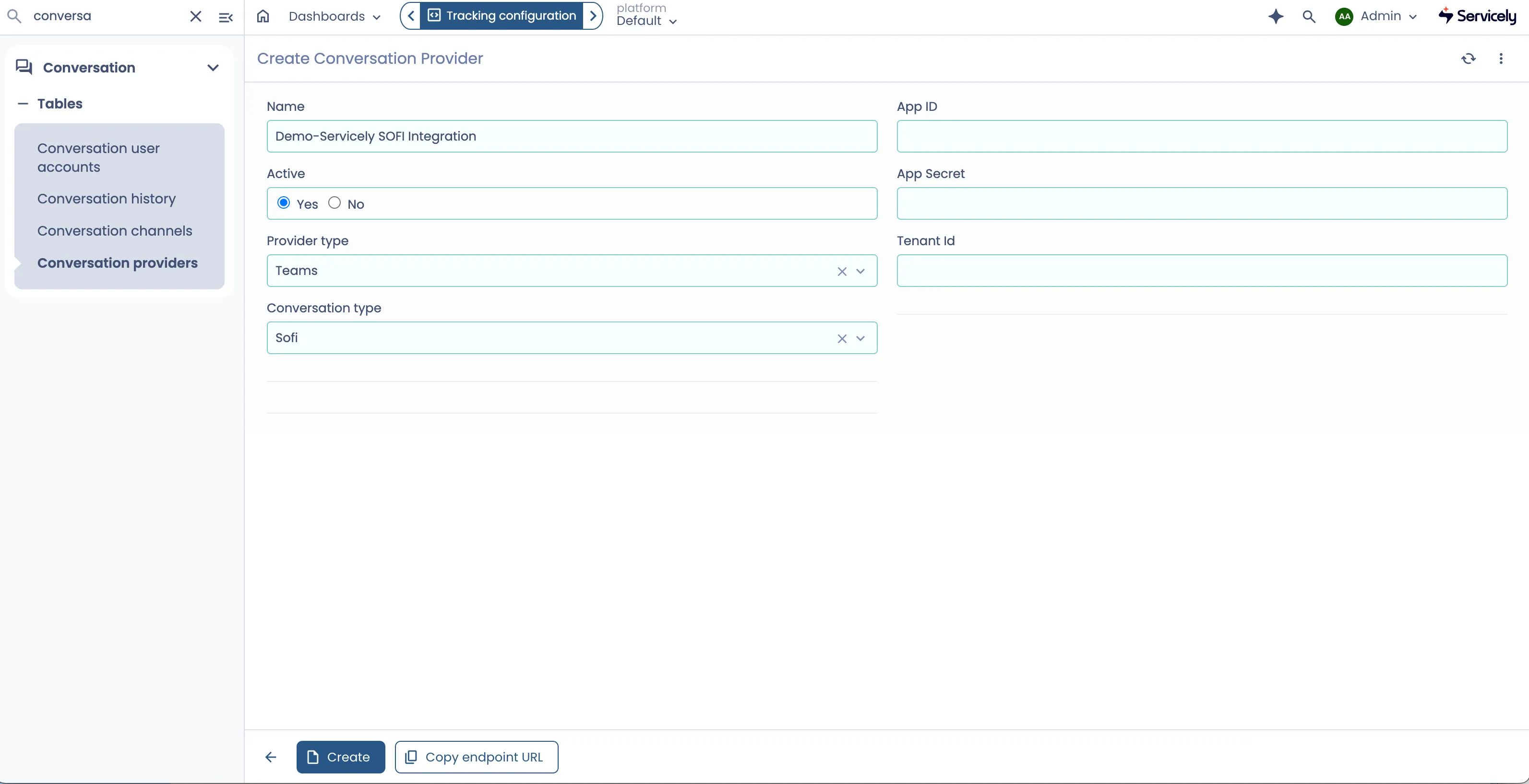
Configure the Conversation Provider as per the below table. Once complete, hit Create to save the record
Setting | Description |
|---|---|
Name | A memorable name for the Conversation Provder - has no end-user visibility. E.g., Demo-Servicely SOFI Integration |
Provider type | Select Teams |
Active | Select Yes |
Conversation type | Select Sofi |
App ID | Leave blank for now |
App SecretL | Leave blank for now |
Tenant Id | This can be entered now if you have it and is specific to your tenant |
Once saved, you can click the Copy Endpoint URL button at the bottom of the Servicely Conversation Provider configuration record to copy the value we need to upload into the Azure Bot in the next step
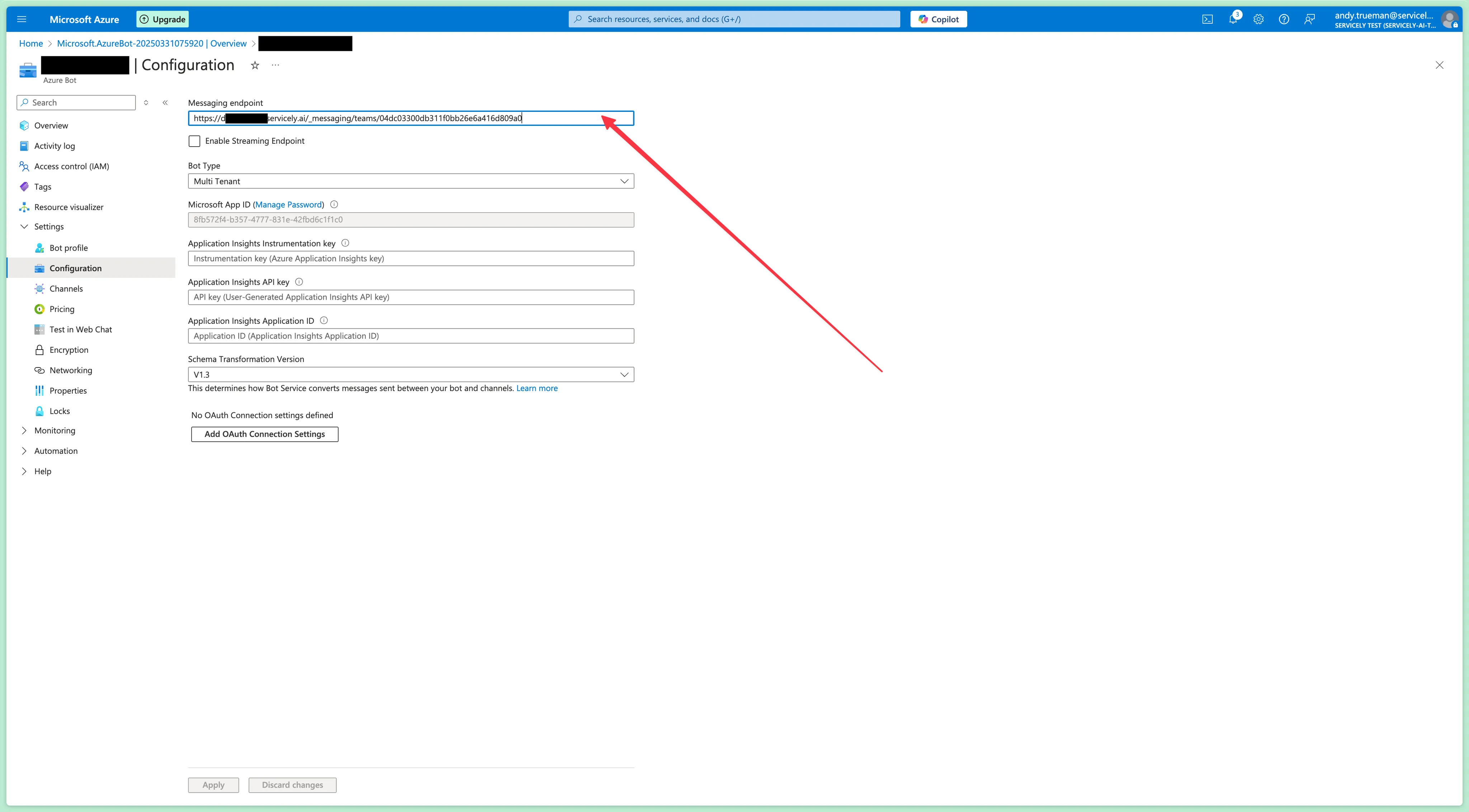
Back in Azure, we can now paste the Endpoint URL from the previous step into the Messaging Endpoint URL input in the Azure Bot’s Configuration
While here, copy the Microsoft App ID and store it safely for later use:
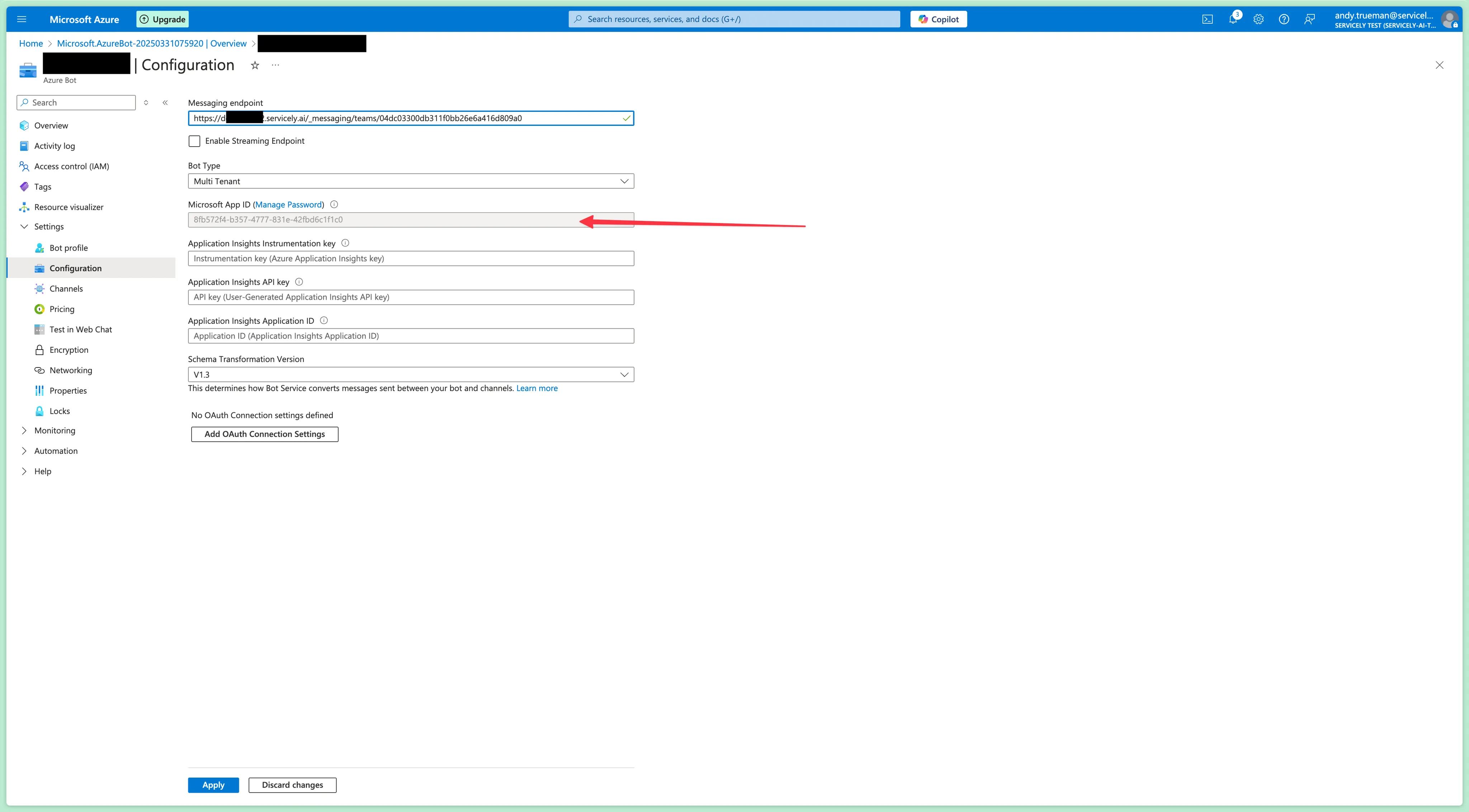
Click Manage Password immediately above this field so we can create some credentials for Servicely to use to communicate with the Azure Bot.
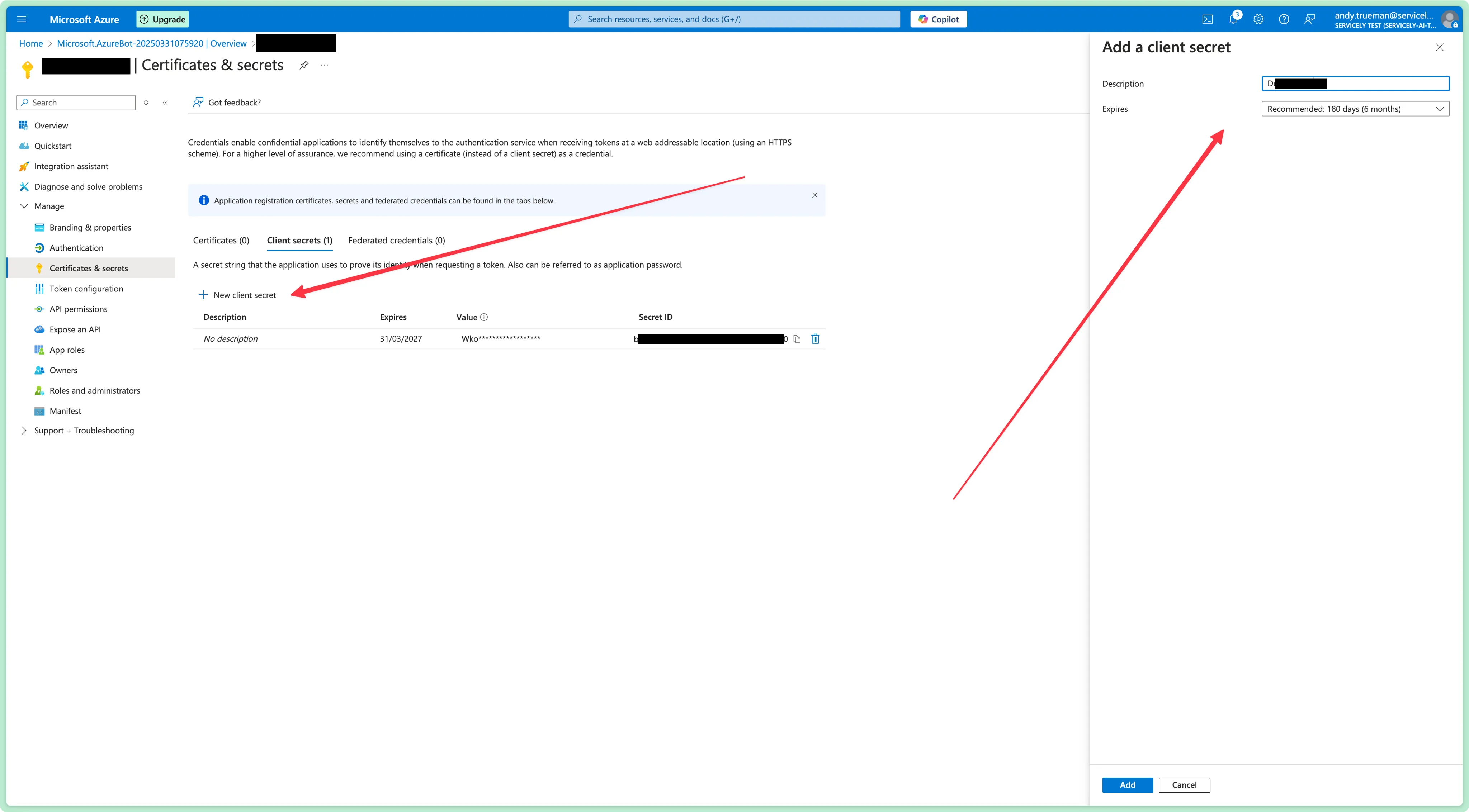
Click New Client Secret on this page to generate a new Client Secret. Provide a useful description, and leave the expiry at it’s default (6 months). Once complete, click Add and copy the Value - store it safely for later.
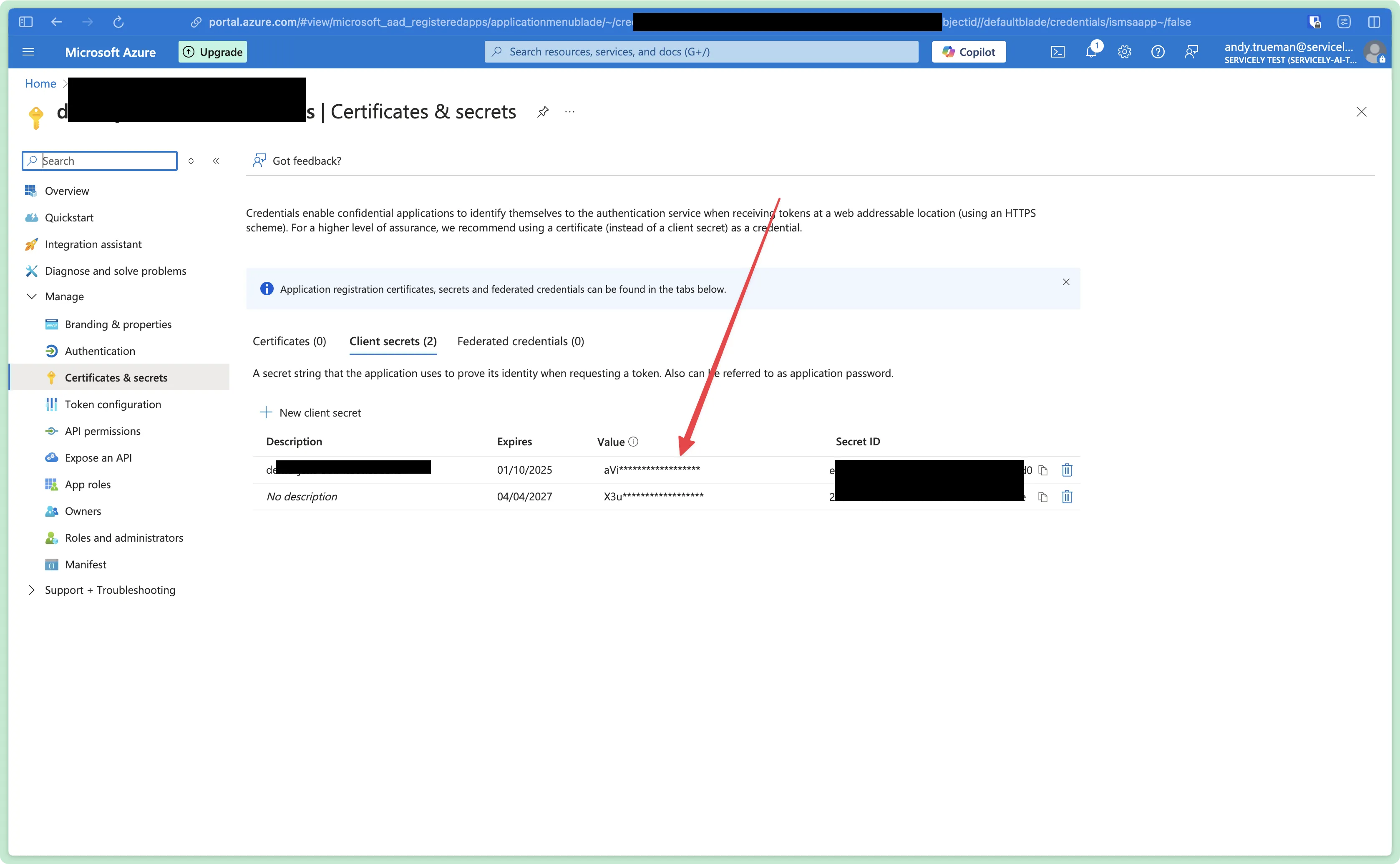
Back within your Conversation Provider in Servicely, populate the fields we’ve copied over as below:
Setting | Description | |
|---|---|---|
App ID | The copied Microsoft App ID from Step 10 | |
App Secret | The copied Client Secret Value from Step 12 | |
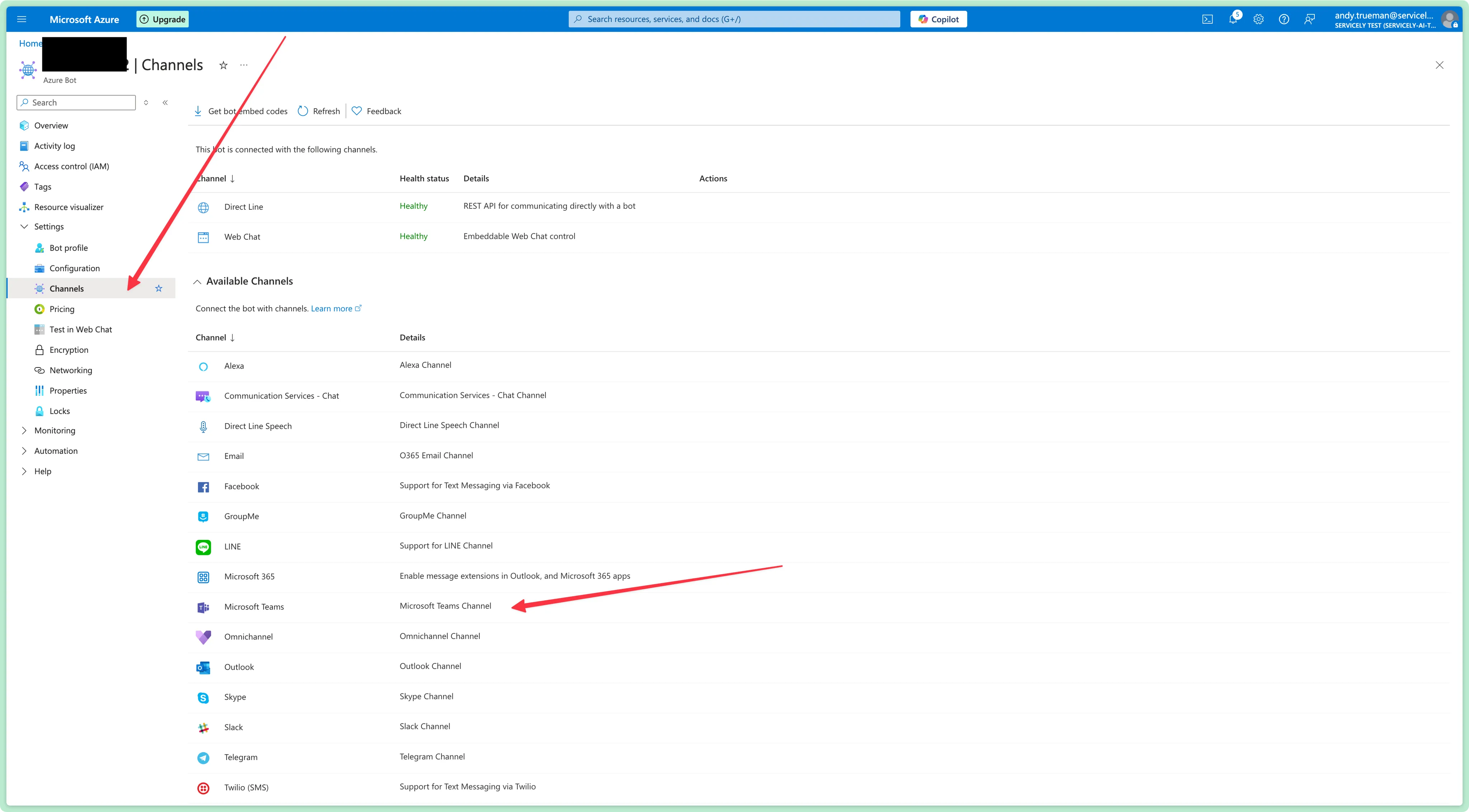
To configure this Azure Bot to be visible within Teams, we must add the Teams Channel. Do so by clicking ‘Home’ (top left corner). Select your Azure Bot under ‘Recent’. Then click the Settings → Channels menu item in the Azure Bot Configuration, and selecting the Microsoft Teams channel from the Available Channels list:
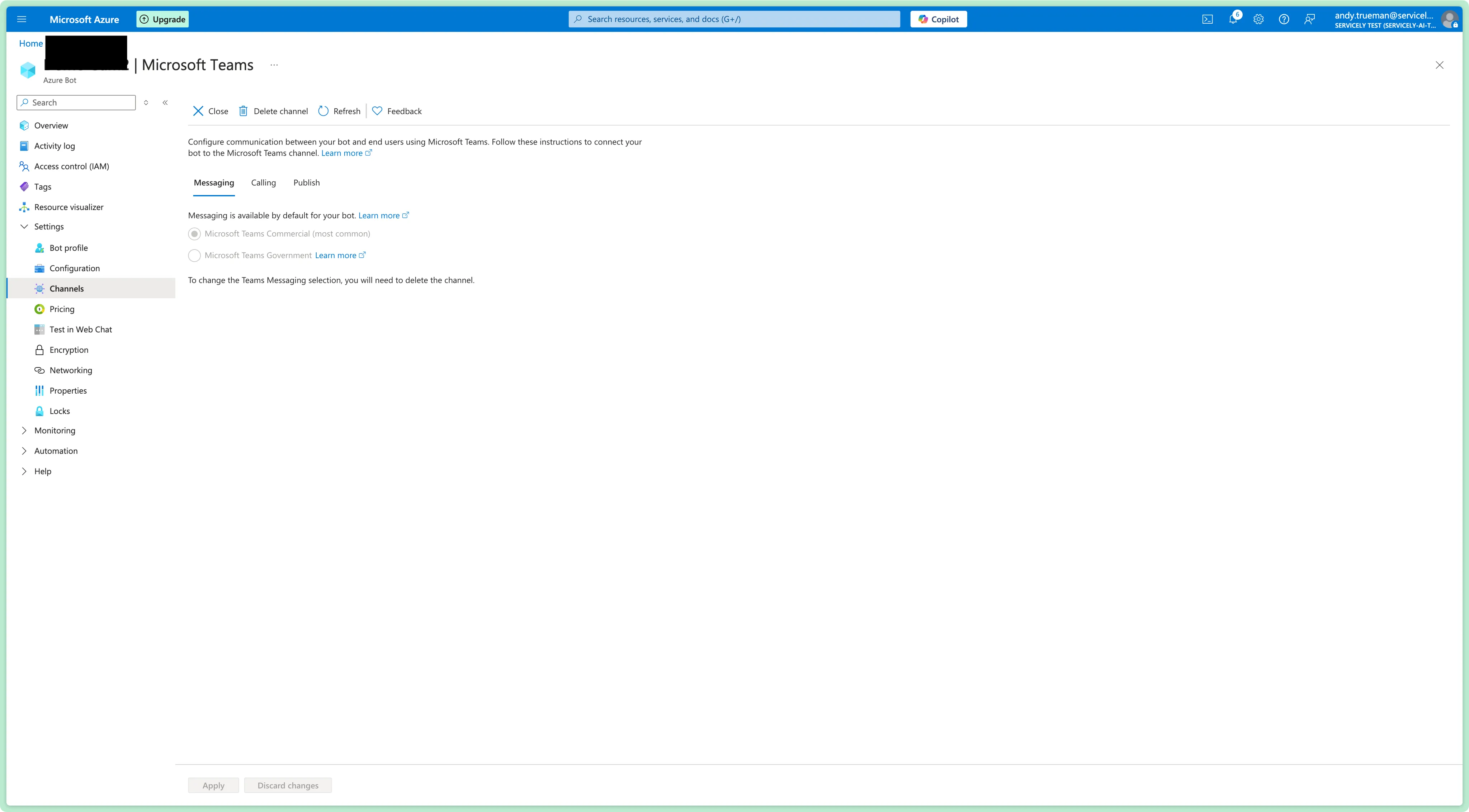
Accept the Terms of Service, and use Microsoft Teams Commercial for the Messaging option. Click Apply and wait for the changes to be saved:
At this point, you can test if the Bot can communicate with your instance by clicking Test in Web Chat. You’re likely going to encounter an error like the below - this is normal for now!
Sorry… But I don’t know how to match up your Teams and Servicely accounts

User not found for id [null] [teams:a253bdda-21b4-46e9-a29a-adfec6f2638z]
Note: It can take hours before the Teams Apps are published to the tenant. So, once having completed steps 17 to 25 it might some time before you can complete step 26.
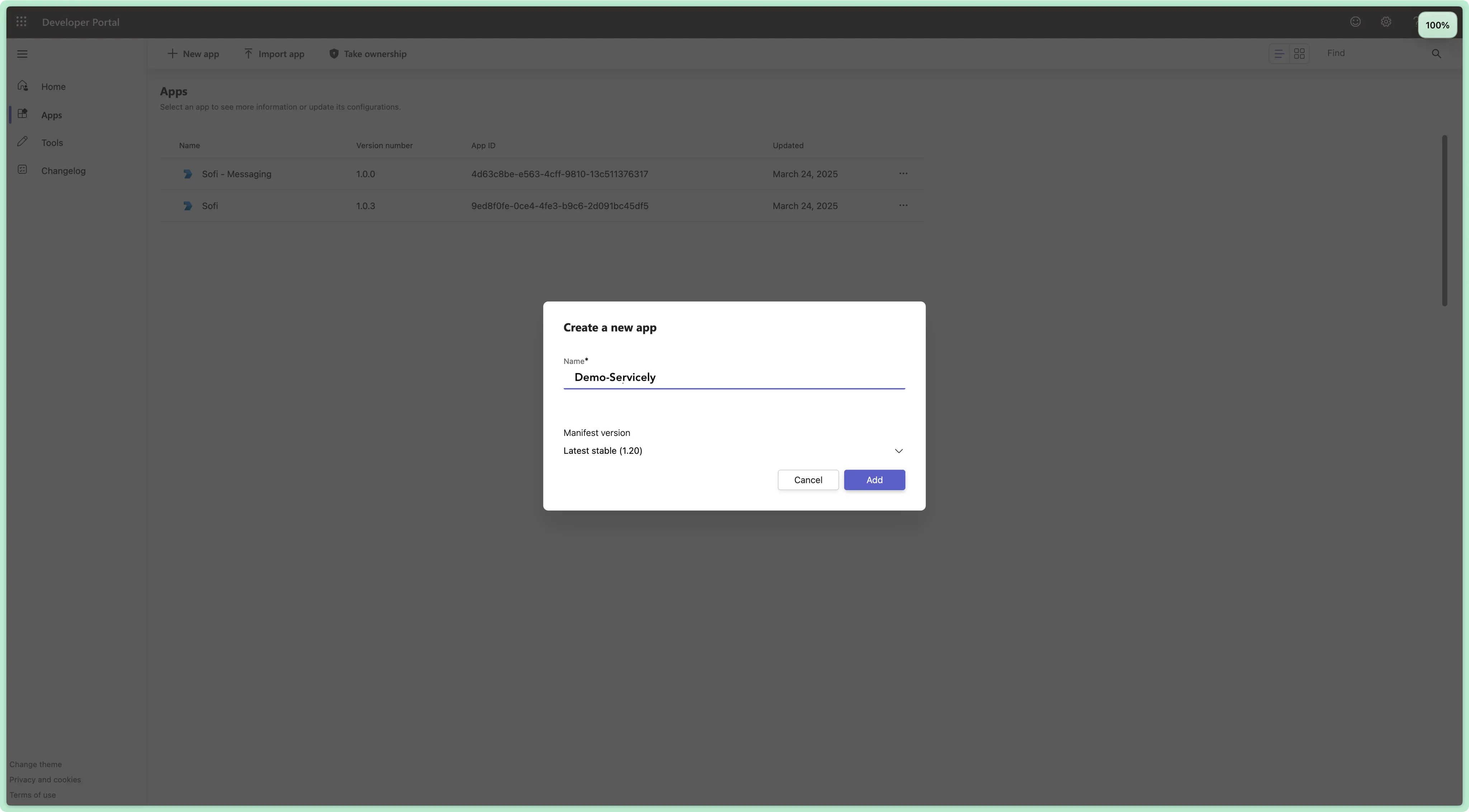
Now, to publish the bot into the Servicely Test Teams Tenant, we must add the bot into Teams. Open the Teams Developer Portal in a new tab, navigate to Apps → New App, and provide a memorable name for your App - e.g., Your instance name. We’ll override this to something user-facing in a moment.
On the Basic Information page, populate the following fields. Hit Save once finished
Setting | Description |
|---|---|
Short Name | Memorable Name from Step 17 |
Full Name | User-facing Name: e.g. SOFI (Demo-Servicely) |
Short Description | User-facing Short Description e.g. SOFI Intelligent Agent |
Long Description | User-facing Long Description e.g. SOFI Intelligent Agent |
Website | Instance URL |
Privacy Policy | Instance URL |
Terms of Use | Instance URL |
Application (client) ID | Paste the App ID from the Conversation Provider |
Developer Name | Enter the Instance Name for ease of use |
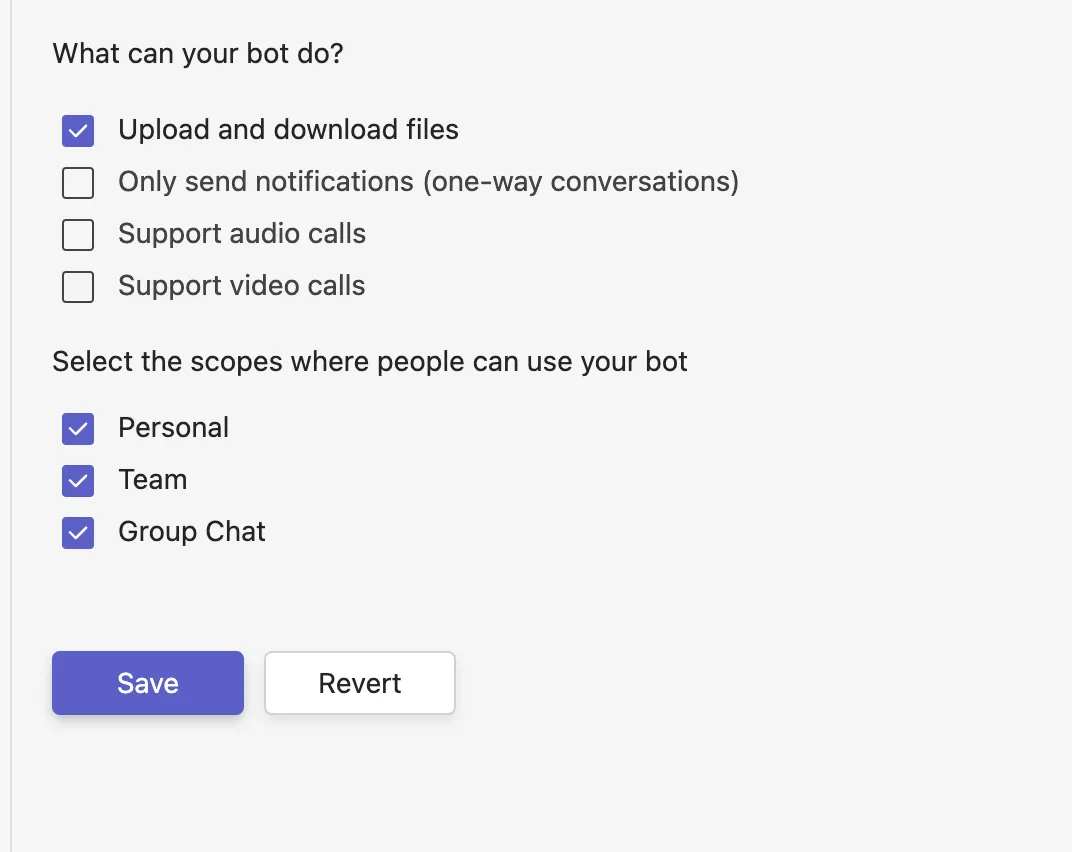
Navigate to App Features → Bot to configure the specific permissions of the bot
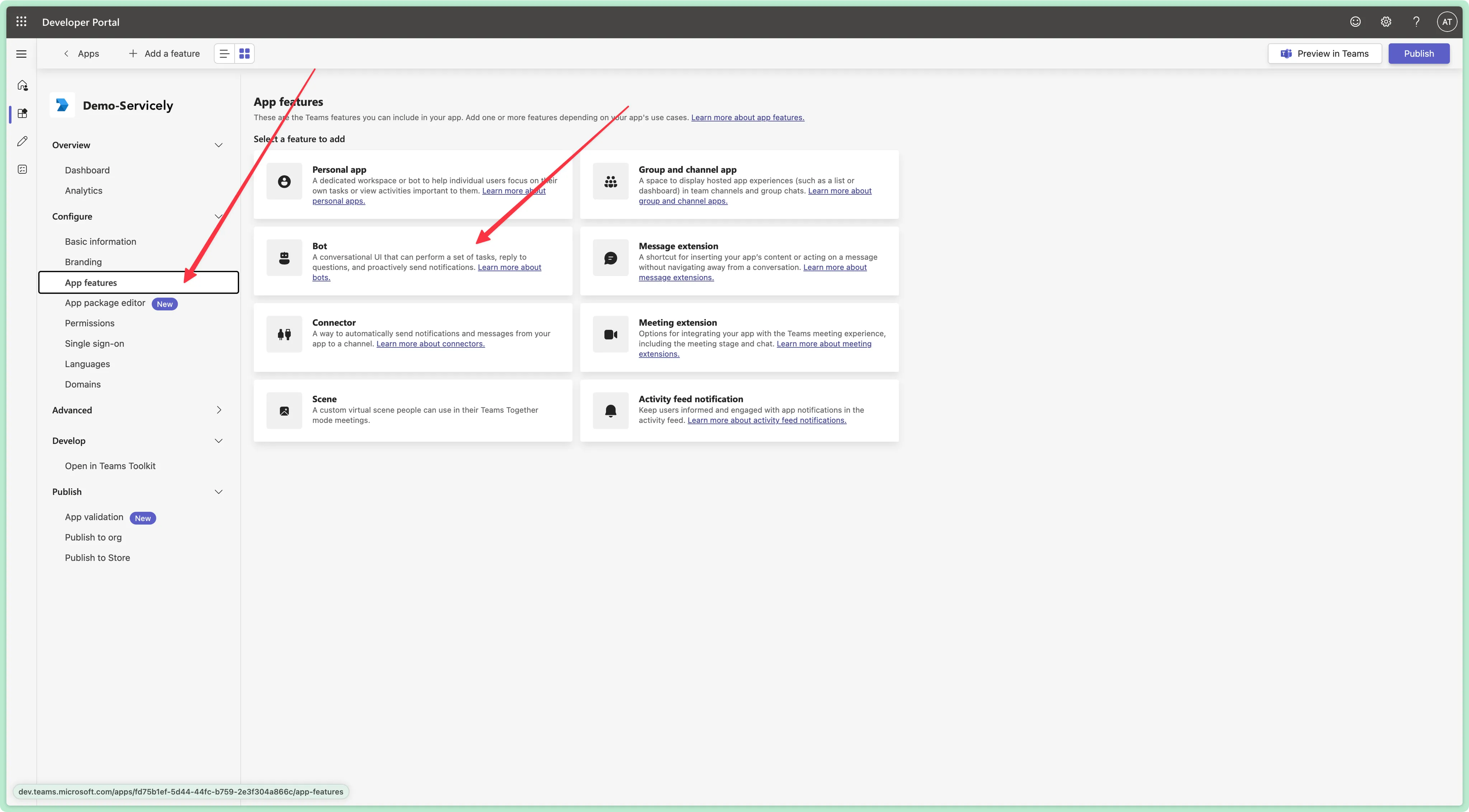
In the Enter a Bot ID field, populate the App ID from the Conversation Provider in Servicely, and ensure the following permissions have been selected. Hit Save to continue with the configuration.
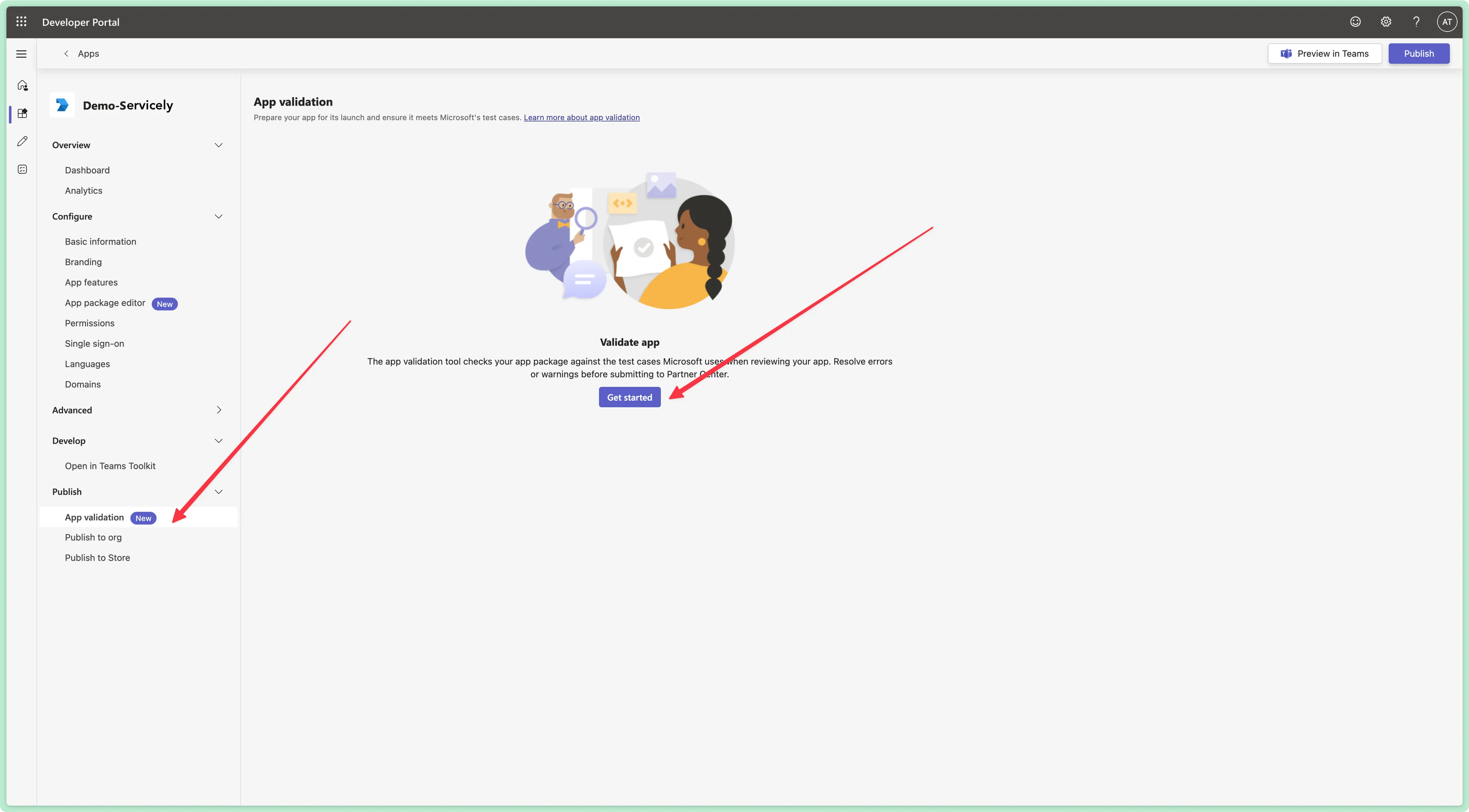
Navigate to App Validation and hit Get Started to confirm the configuration is correct:
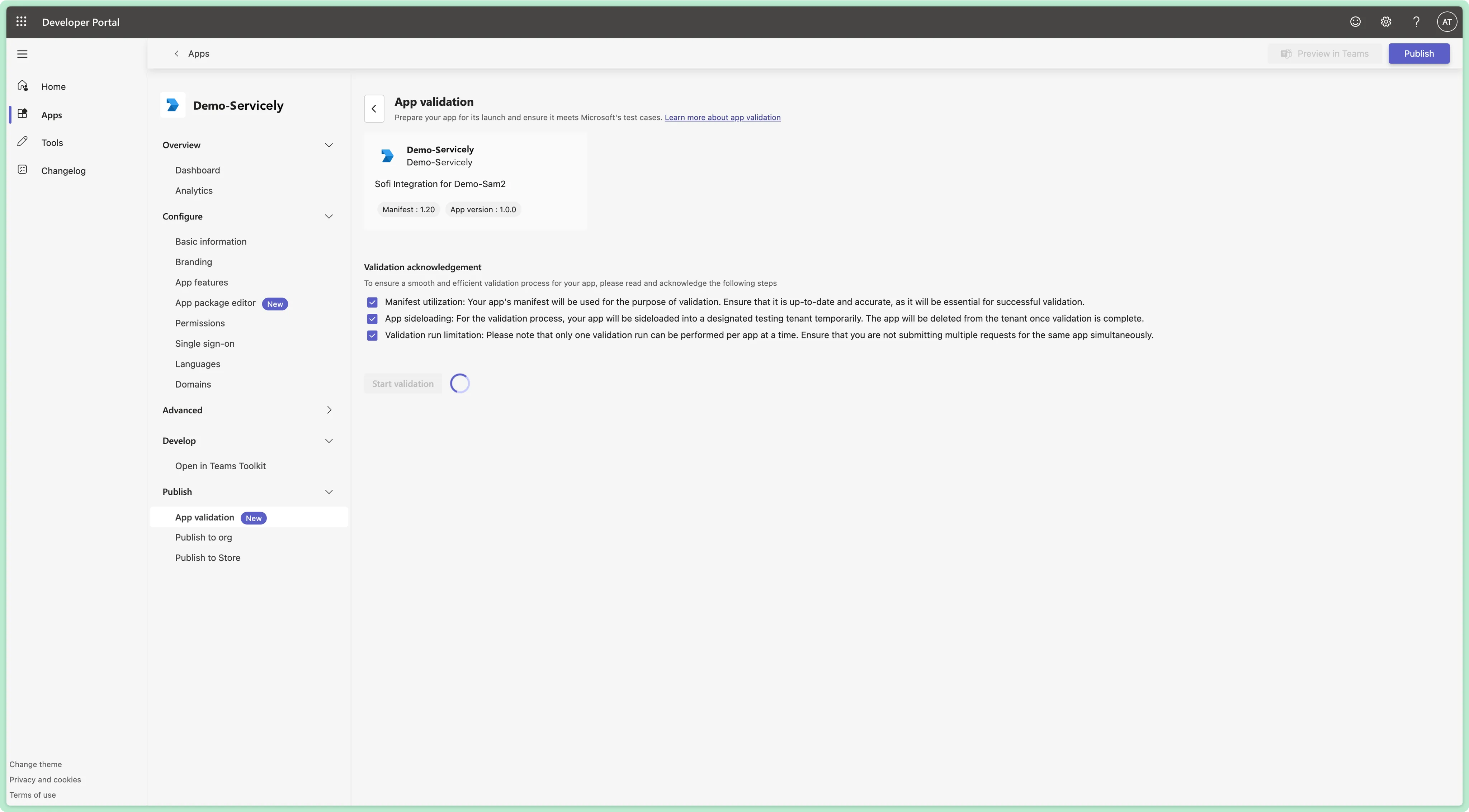
Select all the acknowledgements, and run the validation. This will advise if there are any issues with the bot:
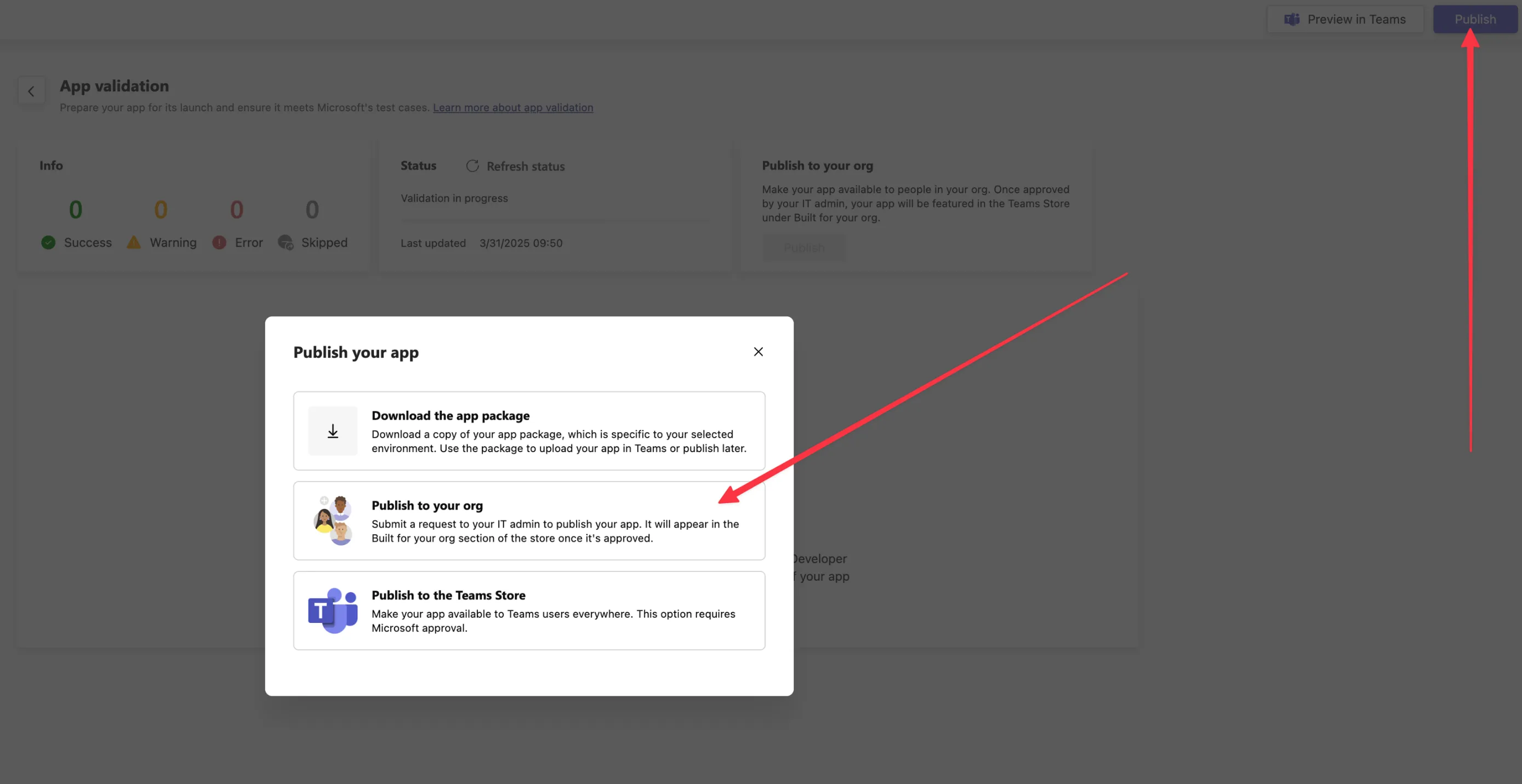
Once validated, you can click Publish in the top right of the screen, and select Publish to your Org to make the App available in the Teams Admin Center
Finally, the app can be approved for installation by navigating to the Teams Admin Center and reviewing the apps that are pending approval. In the Teams Apps → Manage Apps dialog, search for your App Name and select it:
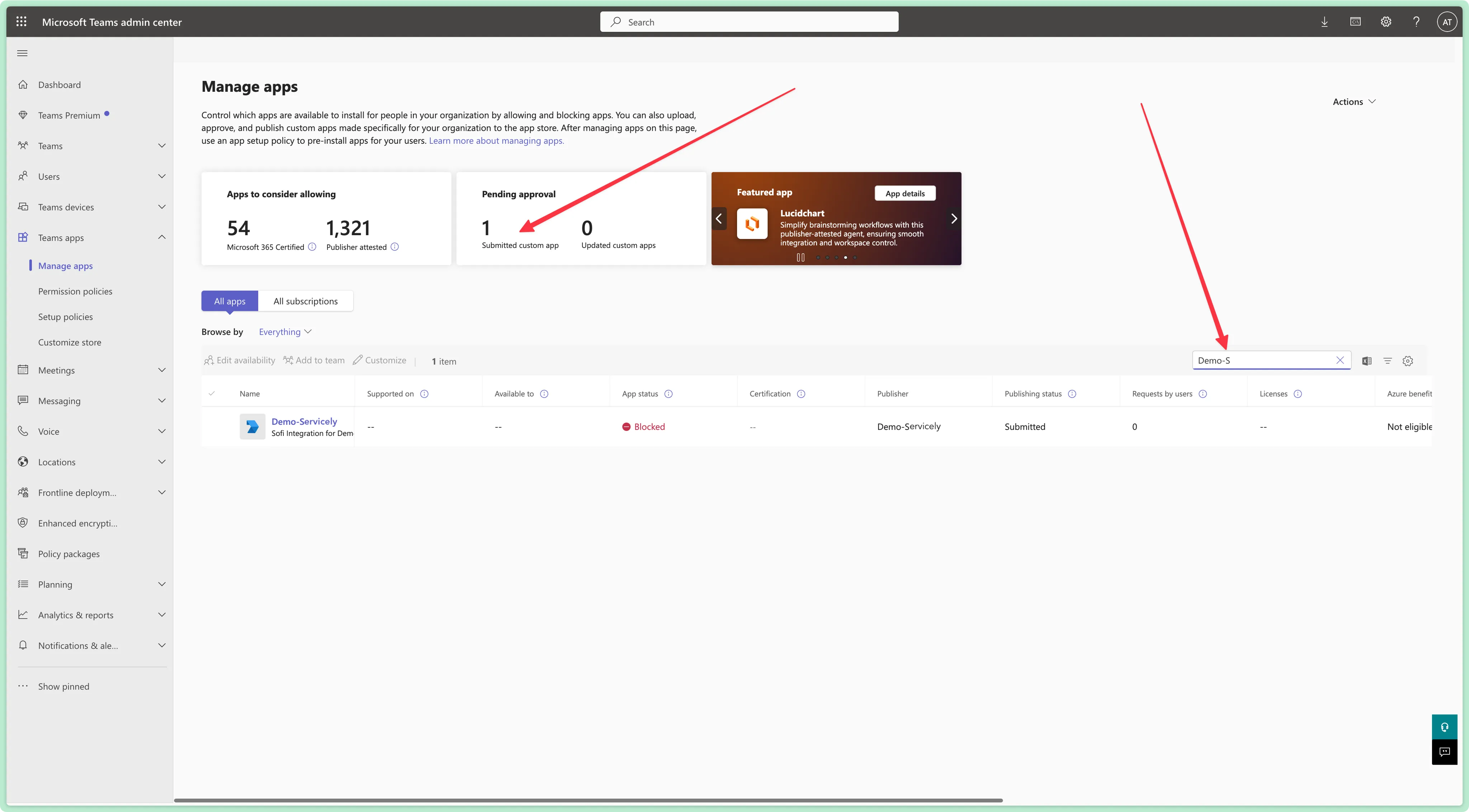
On the next page, hit Publish to make the app available for installation in the Test Tenant. Once complete, the page should show something that looks like the below:
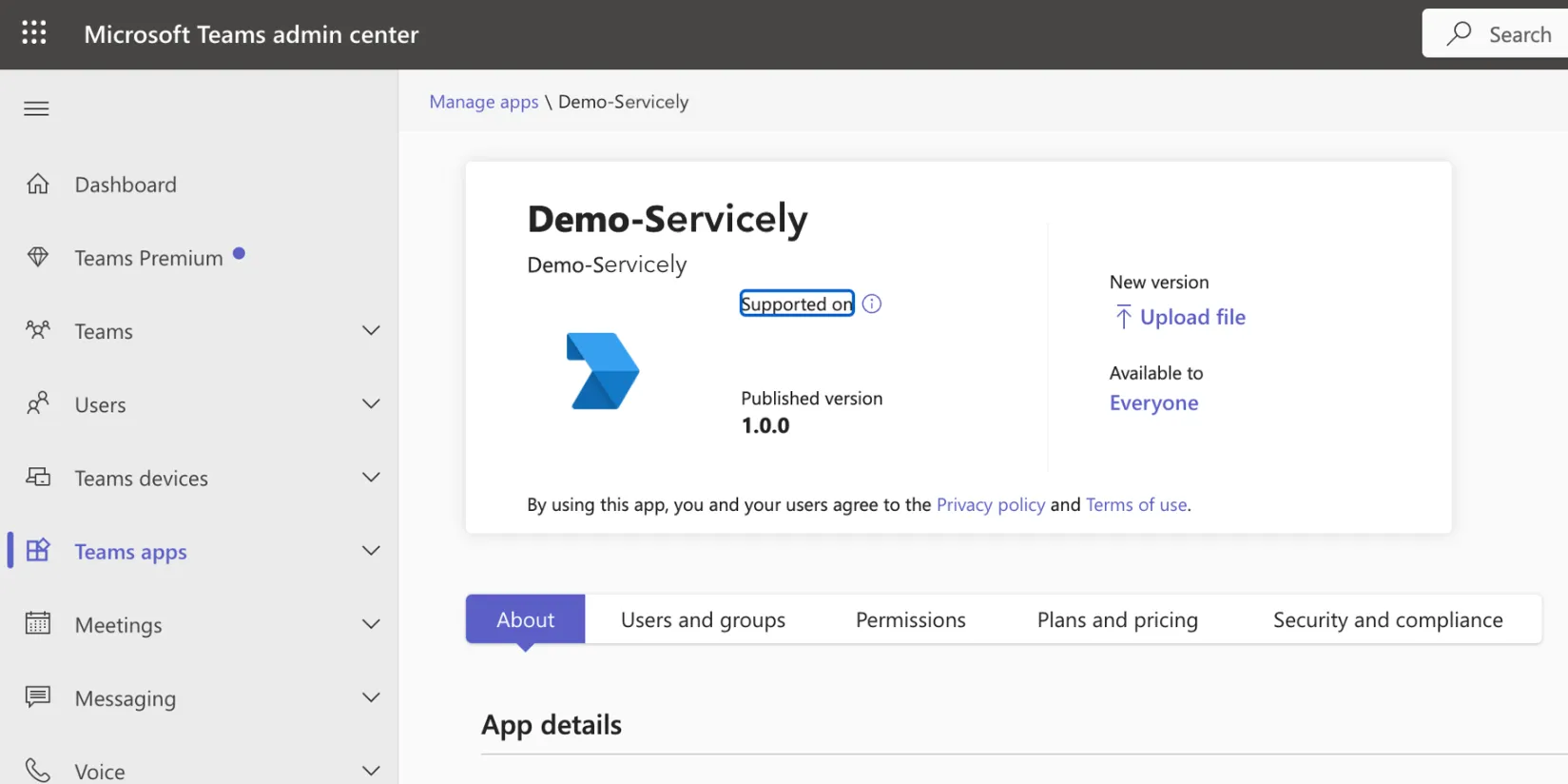
The app can now be searched for and installed in your organisation Microsoft tenant
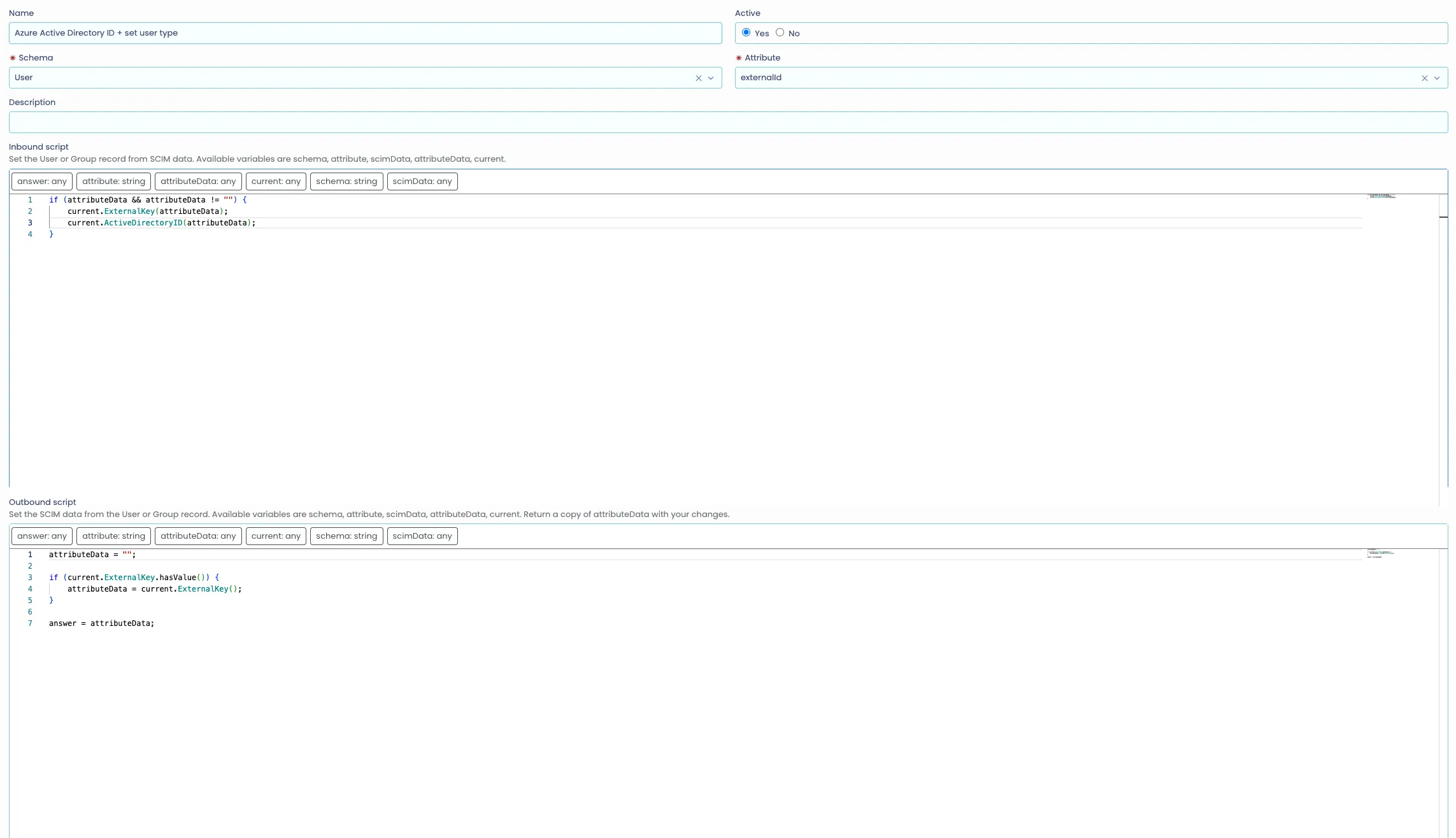
Finally, in order for the Azure App to correlate users in Servicely with their EntraID identity, we need to populate the Active Directory ID field of the user records. You can do this by modifying your SCIM Integration for Users & GroupsSCIM configuration mapping to copy the user's objectid to the Active Directory ID field. Sample mapping below:
You can now test your SOFI via Teams integration