Azure configuration
4 min
Setting up a Microsoft OAuth2 Provider For Email Authentication
More information can be found in Microsofts documentation listed below. This page will just show the high level flow of the configuration.
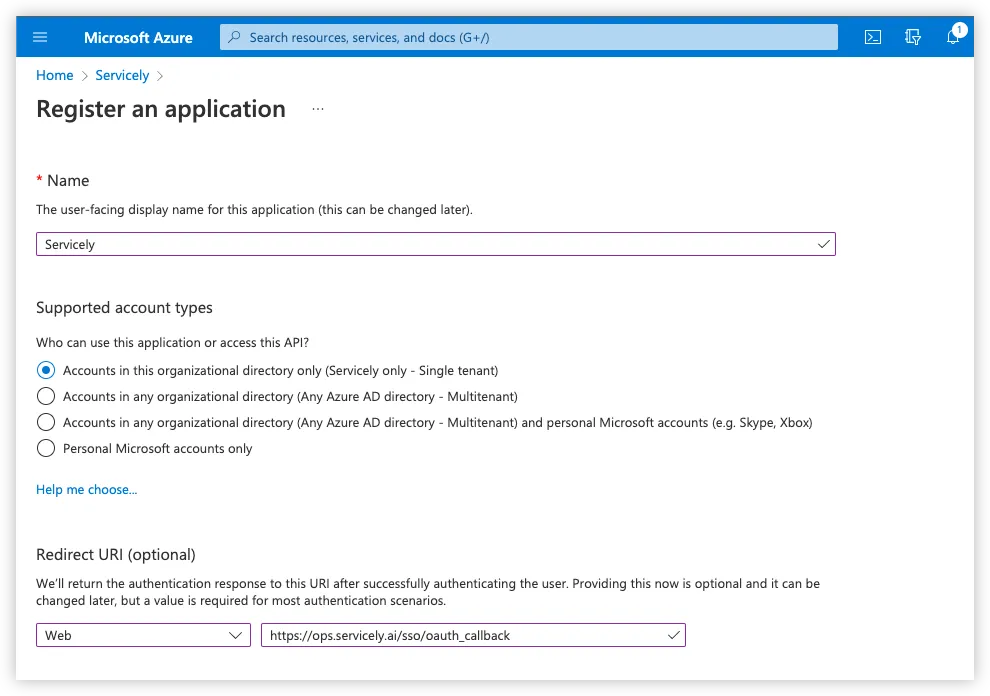
Register an application
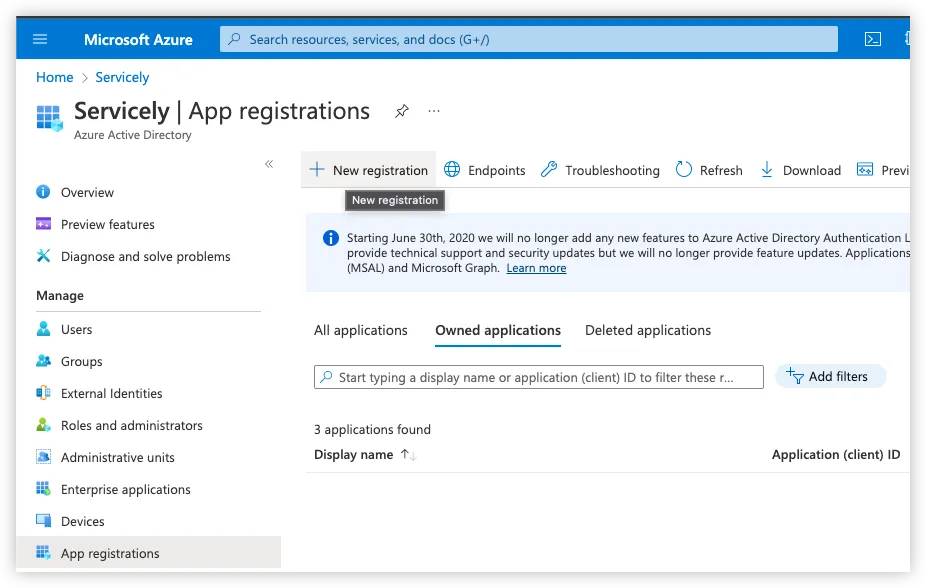
Add new application
Goto Azure Portal → Active Directory → App Registrations
Redirect URL
You will then need to place a Redirect URL onto the Azure application. To do that, please follow the steps below:
- Go to Azure’s Application registration’s Overview page and you will find the “Redirect URIs” link on the right hand side. It looks like the following:
- On the “Redirect URIs” page, click on the “Add a Redirect URI” link, and on the resulting page, click on “Add a platform” and click on the “Web” option.
- Save your changes.
- Back on the Application registration’s Overview page, you will then see the “Redirect URIs” link now showing “1 web”.
Add a client secret
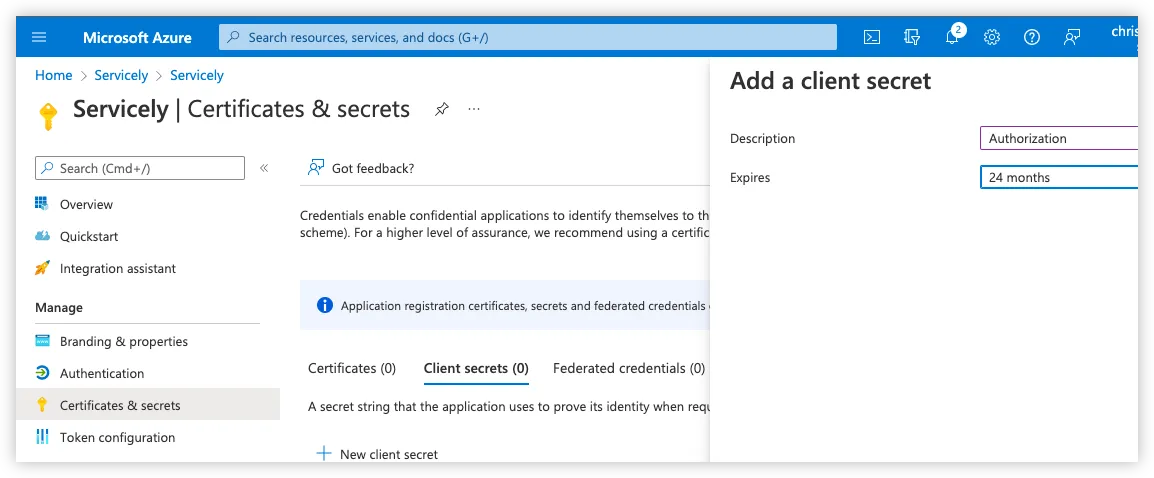
Goto Certificates & secrets and add a new Client Certificate.
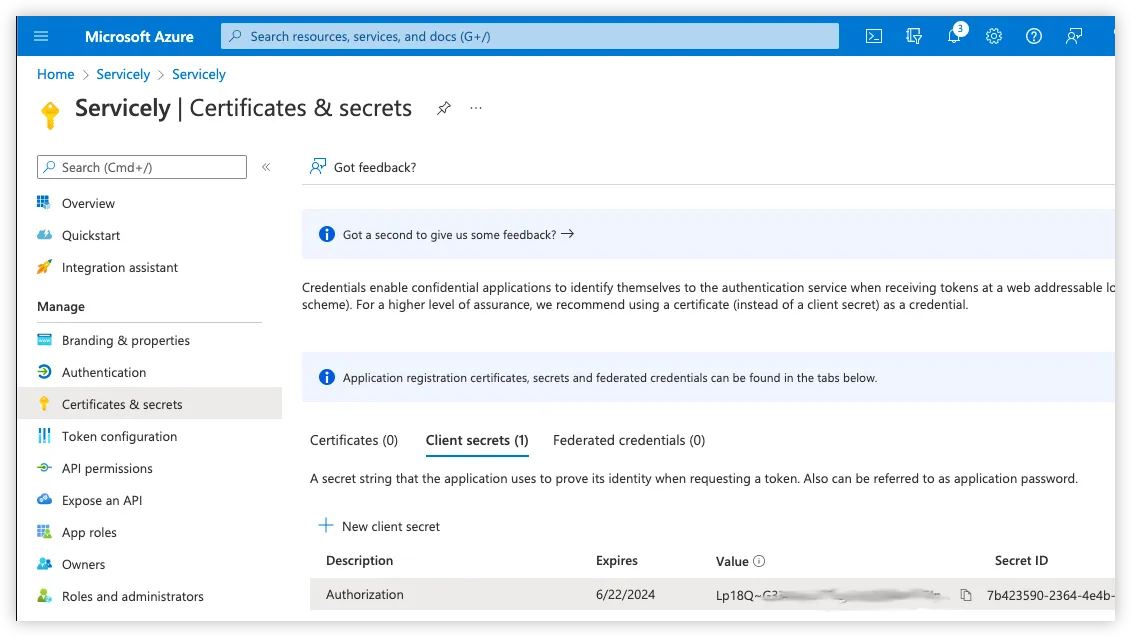
You will need to record and save the value of the generated Client Secret and then place it into Servicely’s corresponding “System OAuth Provider” record’s Client Secret field.