IP Filtering
You can restrict which IP addresses, devices should use, to connect to your Servicely environment. For example, if you have to access Servicely from your office’s network or a particular VPN network. This is achieved by configuring IP filter restrictions.
Please perform changes outlined in this page, out of business hours or when there is the least anticipated impact, should issue arises. Any question prior to this, please check with our Support team.
Enabling IP filter restrictions
Install an application called “ip_range_restriction” by navigating to Application > Application > Applications
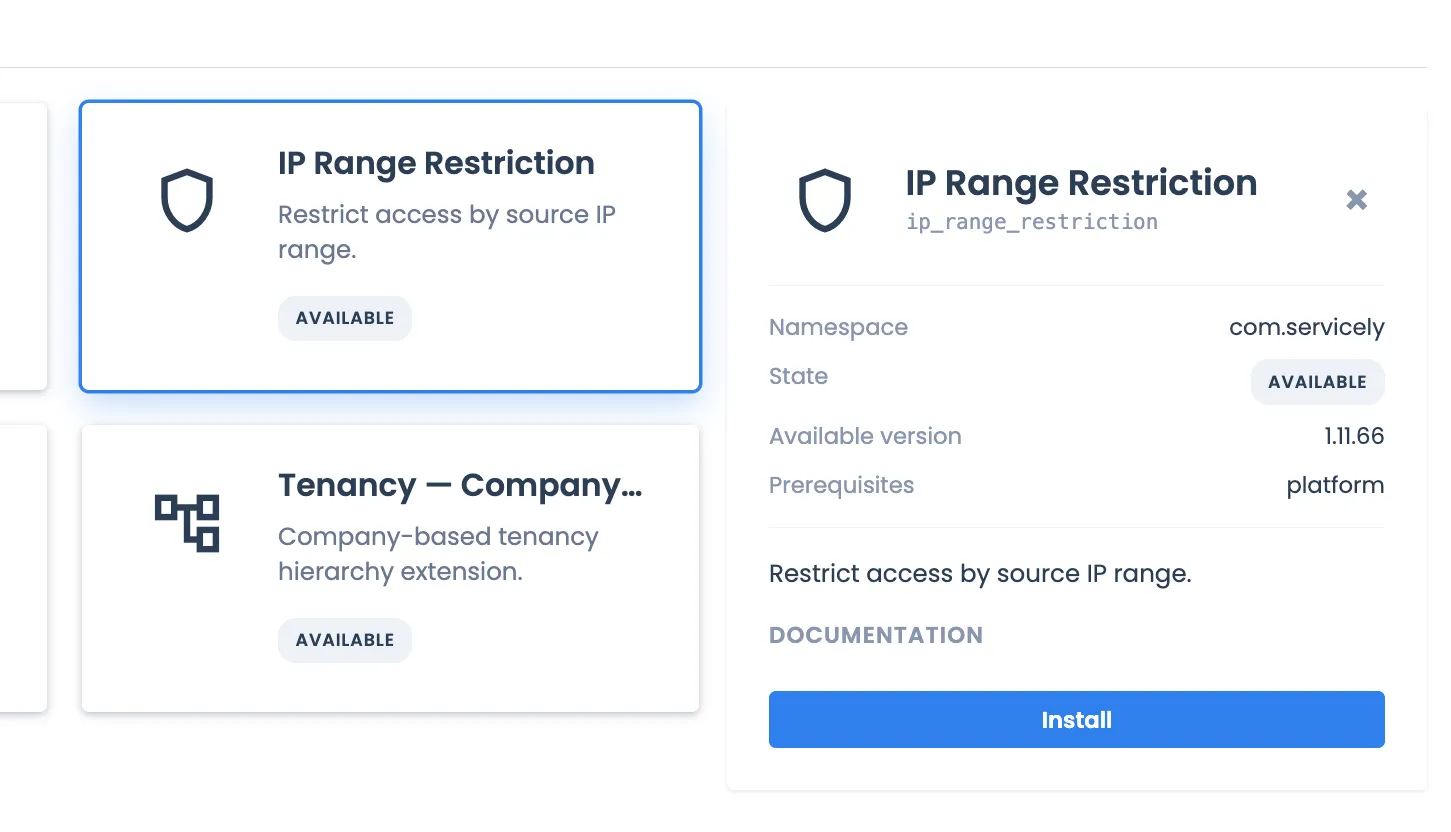
You can then click on the “Install Application” button at the bottom of the form
Configuring IP filter restrictions
To configure, navigate to Administration > Permissions & Security > System IP filter restrictions
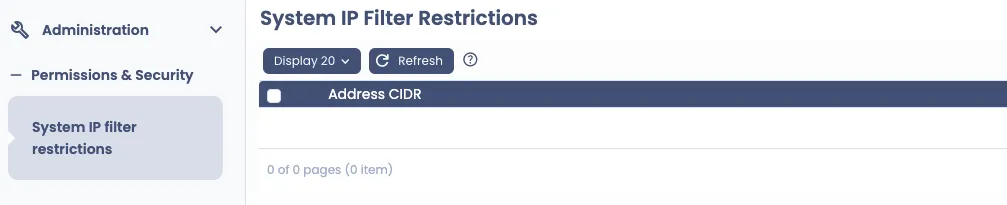
You can create restriction rules for the relevant IP addresses as required
BEFORE you configure any System IP Filter Restrictions with Access type of “Deny”, please ensure that you already have Active System IP Filter Restrictions record(s) for the network you want to allow with Access type of “Allow”. Please also ensure the “Allow” type restriction includes IP address that you are currently accessing Servicely from.
Field Name | Description | Sample Field Value |
|---|---|---|
Access type | Whether to allow IP address(es) in this entry, or to deny | Allow |
Active | Whether the rule is to apply or not | Yes |
Address CIDR | The IP address(es) for the rule | 10.12.14.0/24 |
Order | Order the rule applies, relative to other rules | 100 |
Description | More information about the rule | Office network |
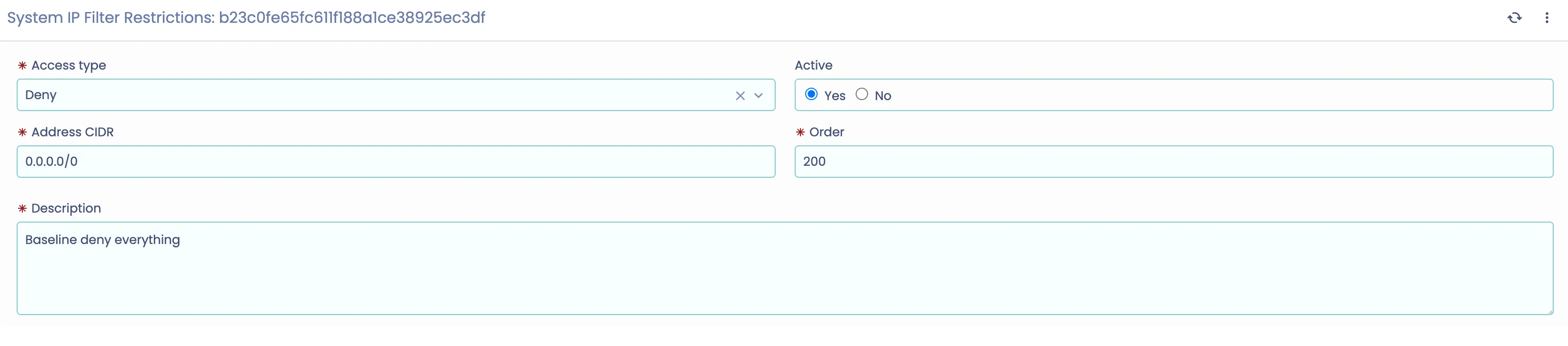
If you want to allow certain IP addresses but deny everything else, then you will need a baseline rule to deny everything that runs on higher order over the other Allow rules. Example below is a Deny rule that can be configured, if all other Allow rules run on Order less than 200:
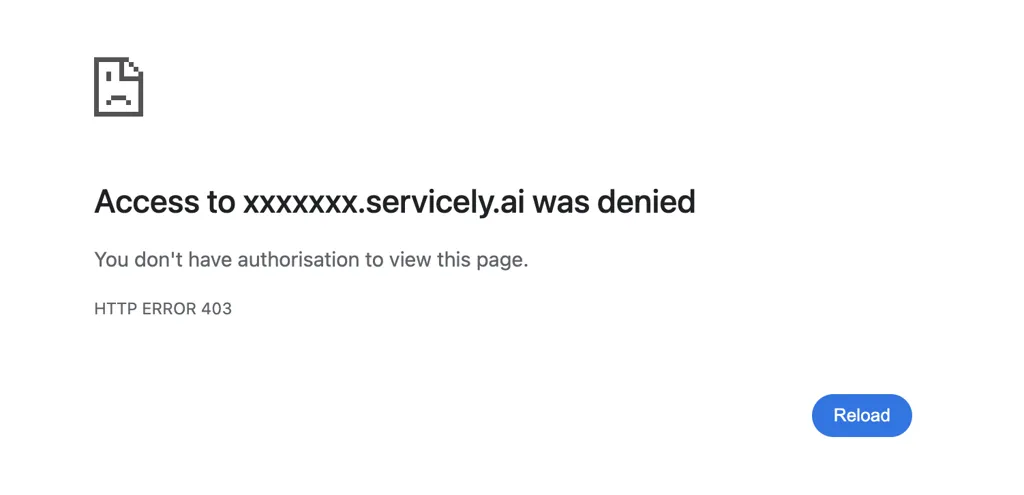
Once the IP filter rules have been enabled, any users who attempt to go to the instance will be shown this error.