Reverse Proxy
A reverse proxy can be set-up on your own/managed web servers to serve your Servicely instance’s content from your own domain. This will allow you and your users to be able to navigate to and interact with, for example, https://<yourdomain>.com that serves content from https://yourinstancename.servicely.ai
Note that reverse proxy is different than redirecting from your own URL to a Servicely URL. A redirection always shows the Servicely URL as the URL displayed on the web browser once the webpage has finished loading.
We are not responsible with your reverse proxy configuration nor its ongoing support, uptime and maintenance. Therefore, please ensure you have a dedicated team and process to look after the setup. Please be advised that Servicely will not be accessible through your reverse proxy URL if there is an outage with your reverse proxy setup.
Possible solutions
Deciding on which solution you use is not something we can recommend. It is something that should be dictated by your organisation’s requirements on hardware/software, performance as well as security and best practices.
When configuring the solution, always consult with the product documentation of the respective software/product.
There are a variety of possible solutions out there that can do reverse proxy. Some examples as an idea (not limited to):
- Apache HTTP Server
- NGINX
Servicely configuration
Please notify us should you decide to proceed so we are aware.
The configuration steps outlined in this section, if to be done on a live Servicely environment, should only be performed outside business hours or a time window where number of users impacted will be minimal. This is because the steps involve changing Single sign on Identity provider and your BaseURL configuration.
Once you have the reverse proxy set-up, you will need to update the following on the Servicely side:
Our example below refers to a domain but you can also use a subdomain to serve Servicely content as long as you provide the full URL in the configs below as well as in your reverse proxy set-up.
Base URL
- Go to the Application propertiesApplication properties called “system.baseurl”.
- Change the property value from https://yourinstancename.servicely.ai, to the URL that you are using to serve your Servicely instance’s content e.g. https://#).
Single sign on (SSO)
If you have Single Sign-on - SAML 2.0Single Sign-on - SAML 2.0 set-up prior to configuring the reverse proxy, you need to:
- Re-do the Identity provider set-up by clearing your set-up on the Servicely “Authentication Identity Provider” record:
- Clear the Login URL field
- Clear the IDP Metadata XML field
- Clear the SP Metadata XML field
- Save the record
- Re-do the set-up on your identity provider by updating the following URLs and replacing the Servicely URLs with yours while keeping the rest of the URL parameters the same as they were before:
- Identifier/Login - to be, for example - https://<yourURL>/idp_callback?client_name=
- Reply - to be, for example - https://<yourURL>/idp_callback?client_name=
- Logout - to be, for example - https://<yourURL>/idp_callback?logoutendpoint=true&client_name=
- Download the metadata off your identity provider settings and copy the content
- Place the content in the metadata file onto the Servicely “Authentication Identity Provider” record’s IDP Metadata XML field and click on Save.
- You may then re-test the SSO.
If you are configuring SSO after the reverse proxy is set-up, please also ensure that you use your own URL instead of Servicely’s just like identified in step #2 above when it comes to setting up the URLs on the SSO’s identity provider side.
System configuration script
You need to ensure that a system configuration script that runs during an instance node startup, always try to set the desired URL you need.
First, please find an Out of box system configuration script called “Set initial BaseURL System Property”, alternatively navigate to https://<yourinstancename>.servicely.ai/#/SystemConfigurationScript/0a00000a6d5d1809816d5df4c92b1f08
Note, to get to a list of System Configuration Script, you may navigate to Administration > Business Logic > System configuration scripts
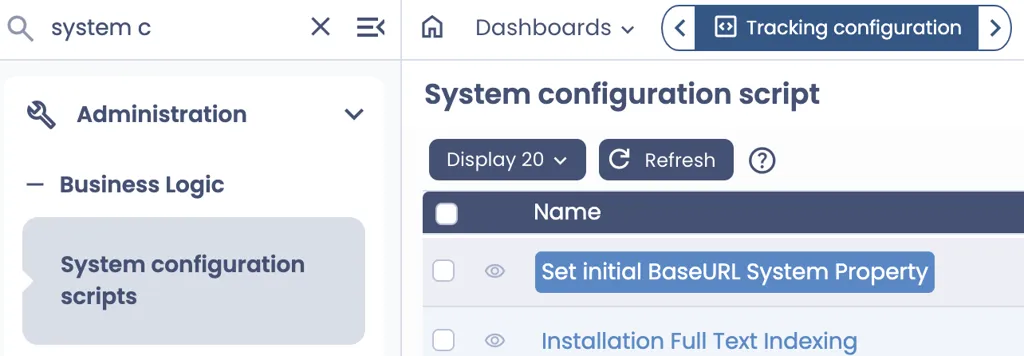
Review the below script and make the required changes relevant to your Servicely configuration. For example, for the line where it has https://<yourinstancename>.servicely.ai, you need to replace it with your Servicely URL.
// See if the property already exists
let propertyRecord = ApplicationPropertyManager.getGlobalPropertyRecordByKey("system.baseurl");
let generatedBaseURL = ApplicationPropertyManager.generateDefaultBaseUrl();

let PROD_INSTANCE_BASE_URL = "https://<yourinstancename>.servicely.ai"; // Replace with your Servicely URL
let BASE_DESIRED_PROD_URL = "https://<yourURL>"; // Replace with your Reverse Proxy URL

if (propertyRecord == null) {
    // It doesn't exist, so create the property
    ApplicationPropertyManager.createGlobalPropertyRecord(
        SYSTEM_BASEURL_PROPERTY,
        generatedBaseURL,
        "string",
        "The base URL to use for URL construction (e.g. creating external links)"
    );
} else {
    // The record already exists, so update it to a new value if appropriate
    let currentValue = propertyRecord.Value();

    if (generatedBaseURL == PROD_INSTANCE_BASE_URL) {
        // We want this to be the "desired URL"
        if (currentValue != BASE_DESIRED_PROD_URL) {
            propertyRecord
                .Value(BASE_DESIRED_PROD_URL)
                .update();
        }
    } else {
        if (currentValue != generatedBaseURL) {
            propertyRecord
                .Value(ApplicationPropertyManager.generateDefaultBaseUrl())
                .update();
        }
    }
}
Notes for Cloudflare Users
Additional considerations to the above should be taken when configuring Reverse Proxies via Cloudflare, specifically:
- Host Header Rewrite (Enterprise/Specific Use Cases): Use Rules > Page Rules to rewrite the host header to the origin's expected domain, or use Transform Rules for header modification.
- Alternative (Workers): For more complex scenarios, use Cloudflare Workers to act as a programmable reverse proxy, allowing header manipulation, which may require a paid quota.