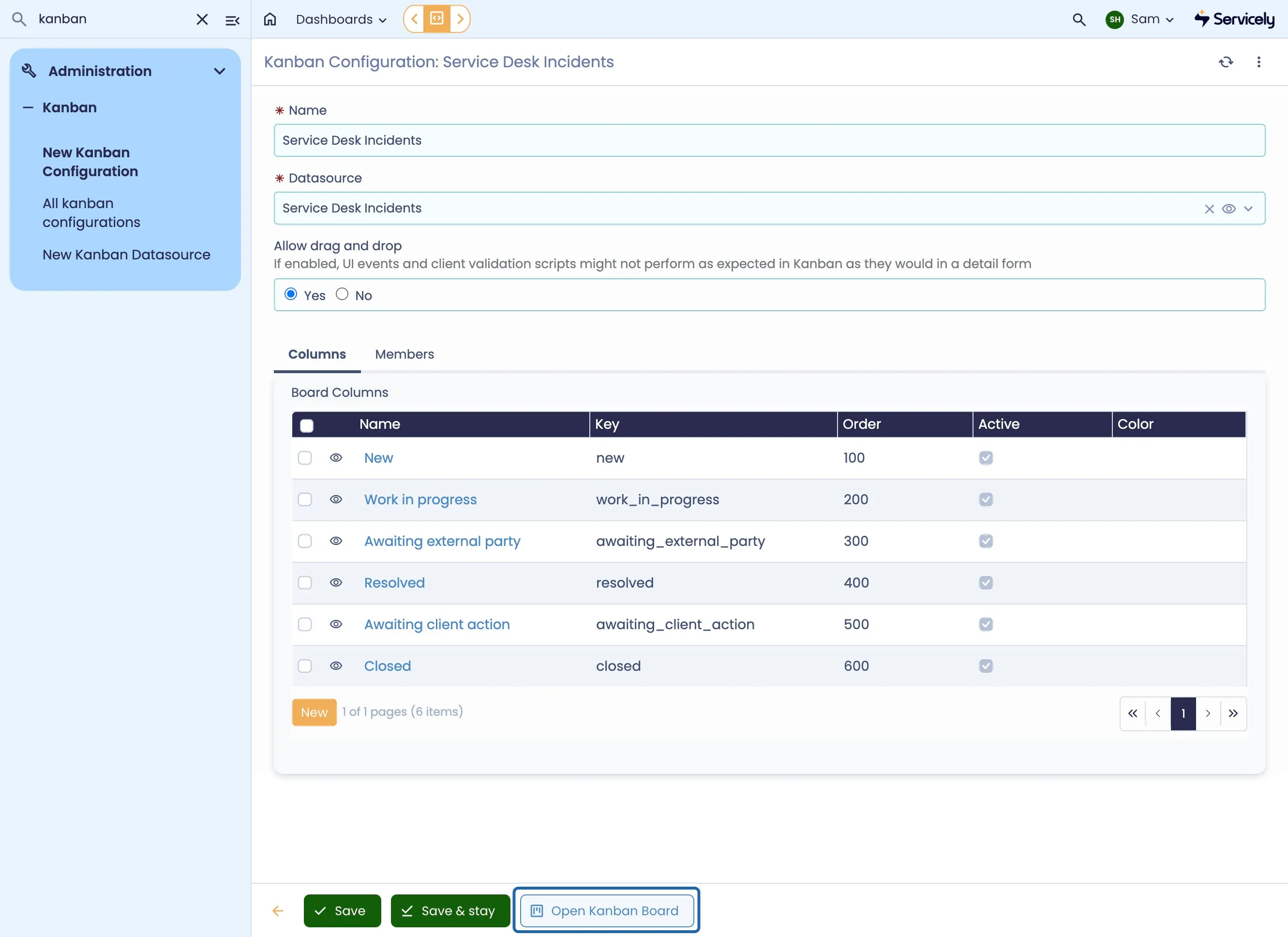
Kanban
Kanban offers an alternate means to visualising data within the Servicely platform - through configurable or data-driven cards. Kanbans are a powerful way to show the status of work in progress, and provide a granular, card-centric means of managing work.
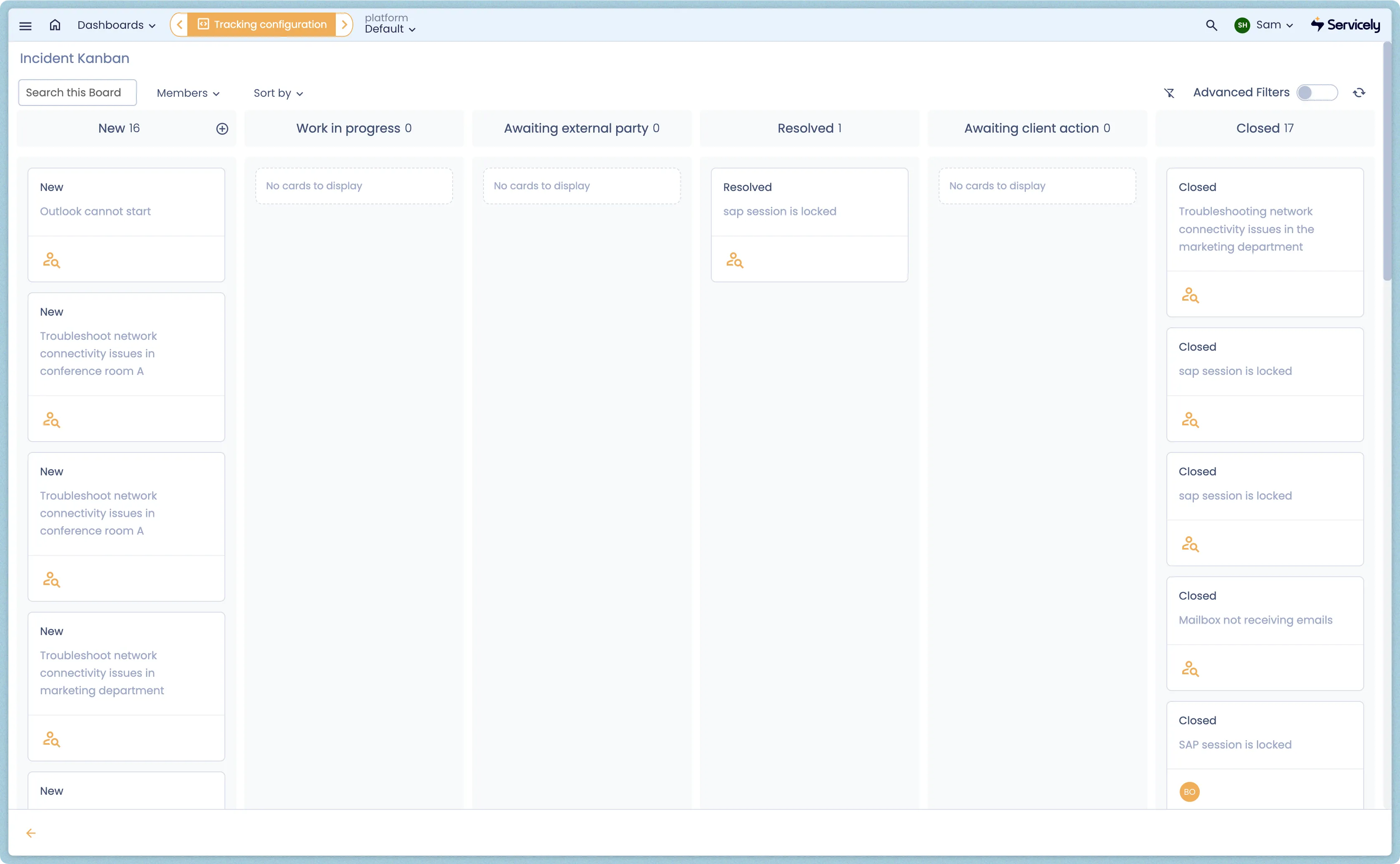
Kanbans are populated via a Kanban Datasource, a visual editor for filtering Records to display via Kanban.
Kanbans natively support Drag-and-Drop, Card Previews, and Role-Based Access Control - making them a dynamic and adjustable means to visualising
Kanban Datasources
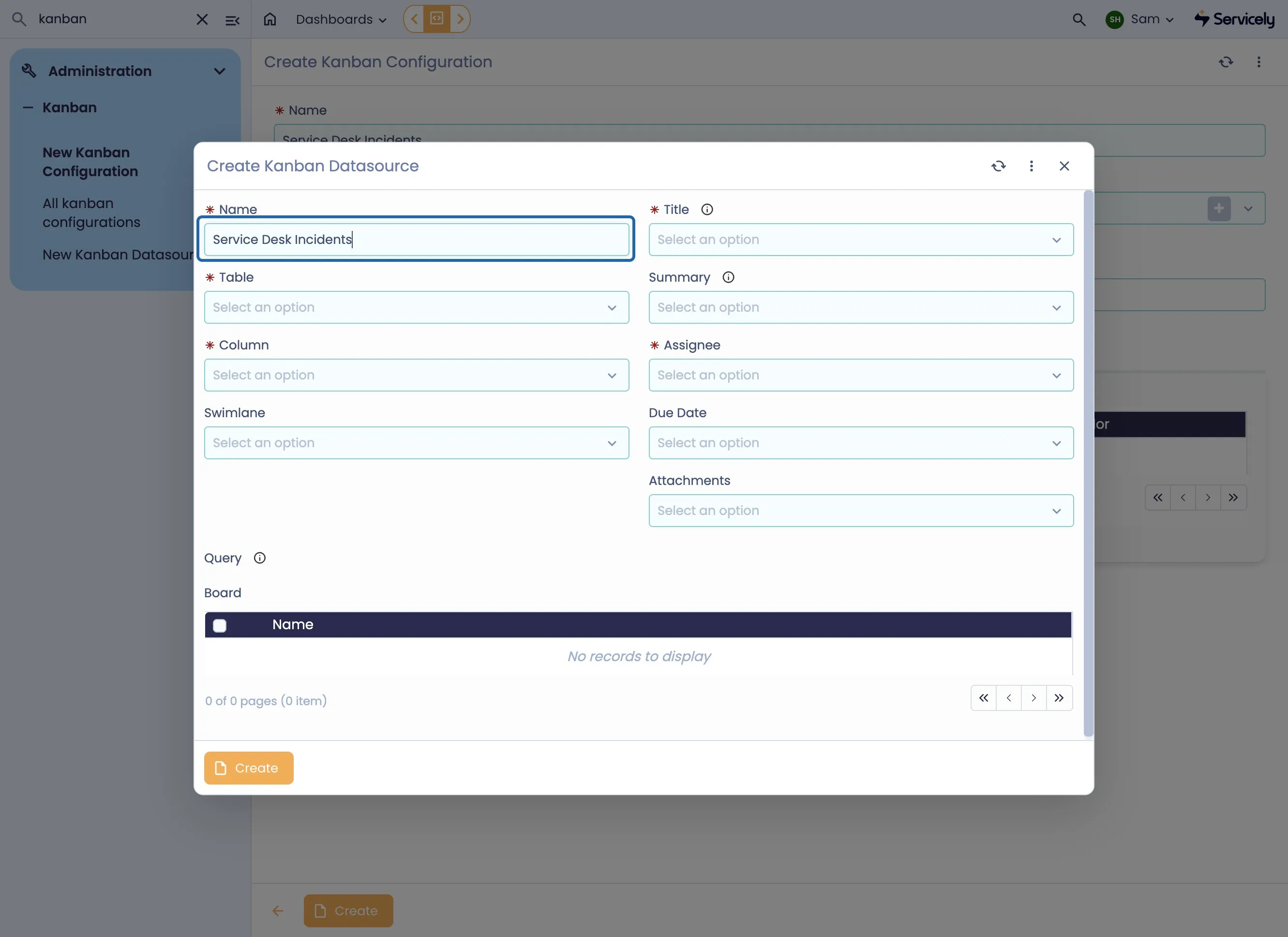
Kanban Datasources are the means to create reusable filters for data to be rendered via Kanban
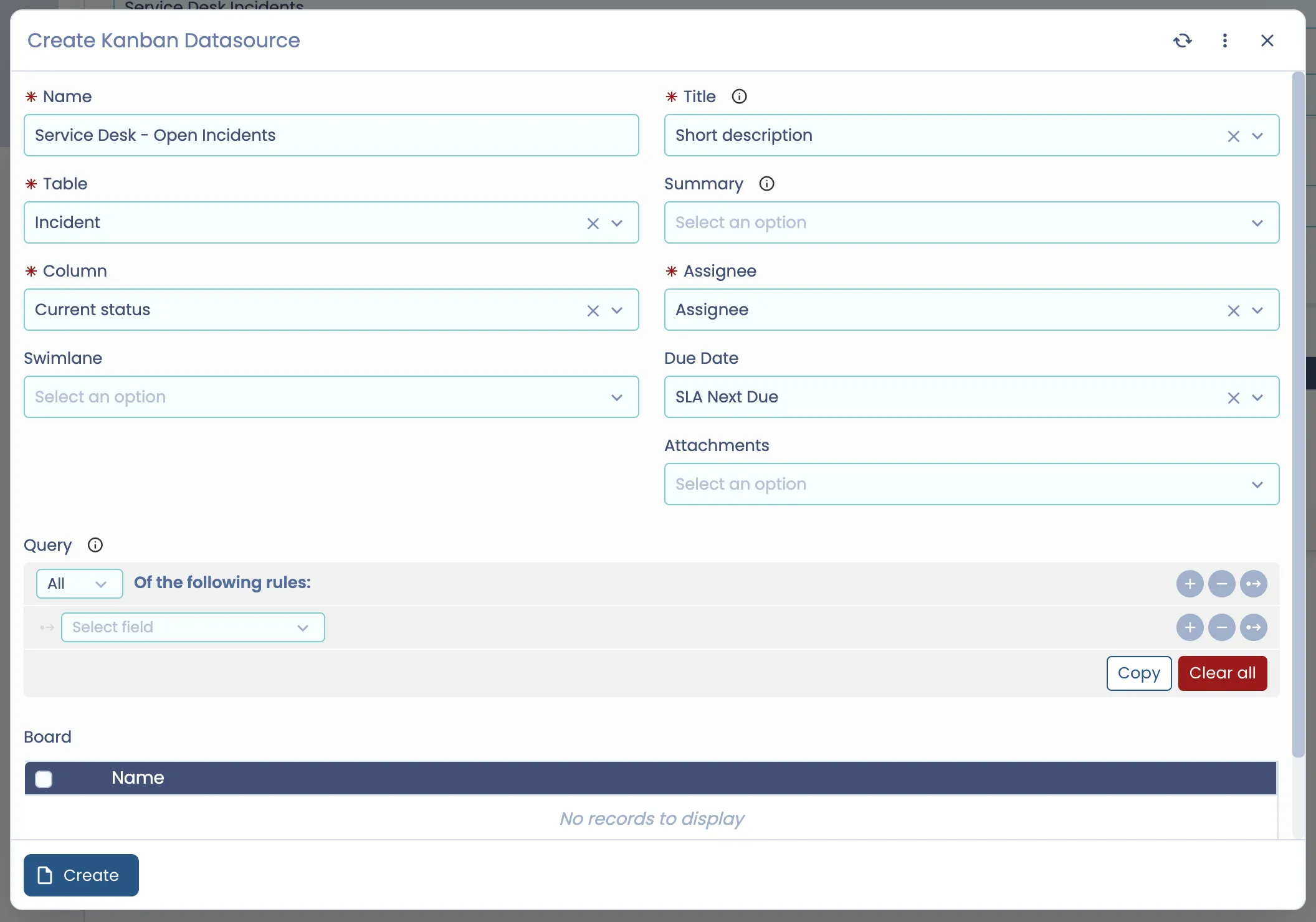
Kanban Datasource Configuration
Field Label | Field Type | Purpose |
|---|---|---|
Name | String | The name of the Datasource |
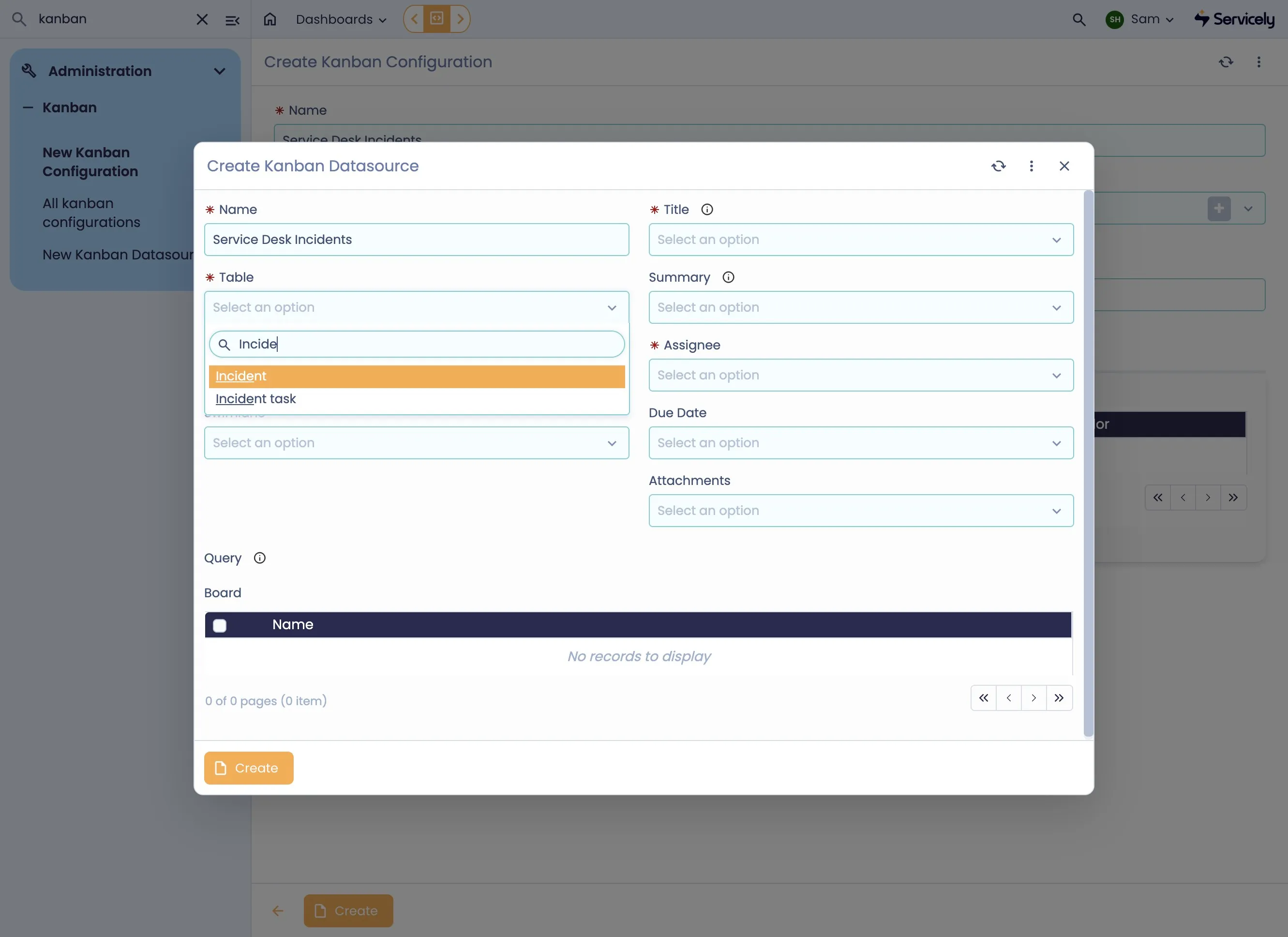
Table | Reference (Table) | The table the data source is pointing to |
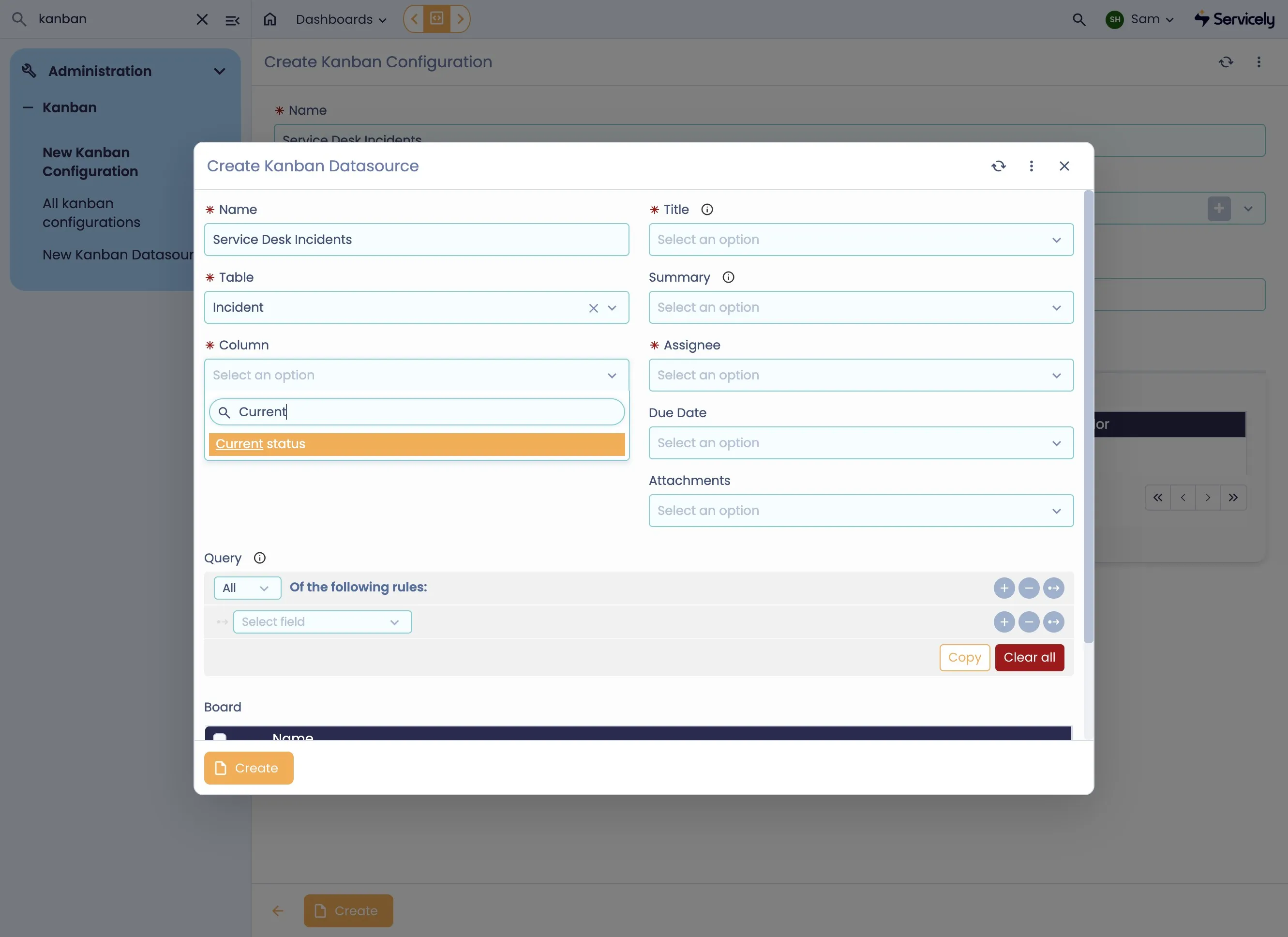
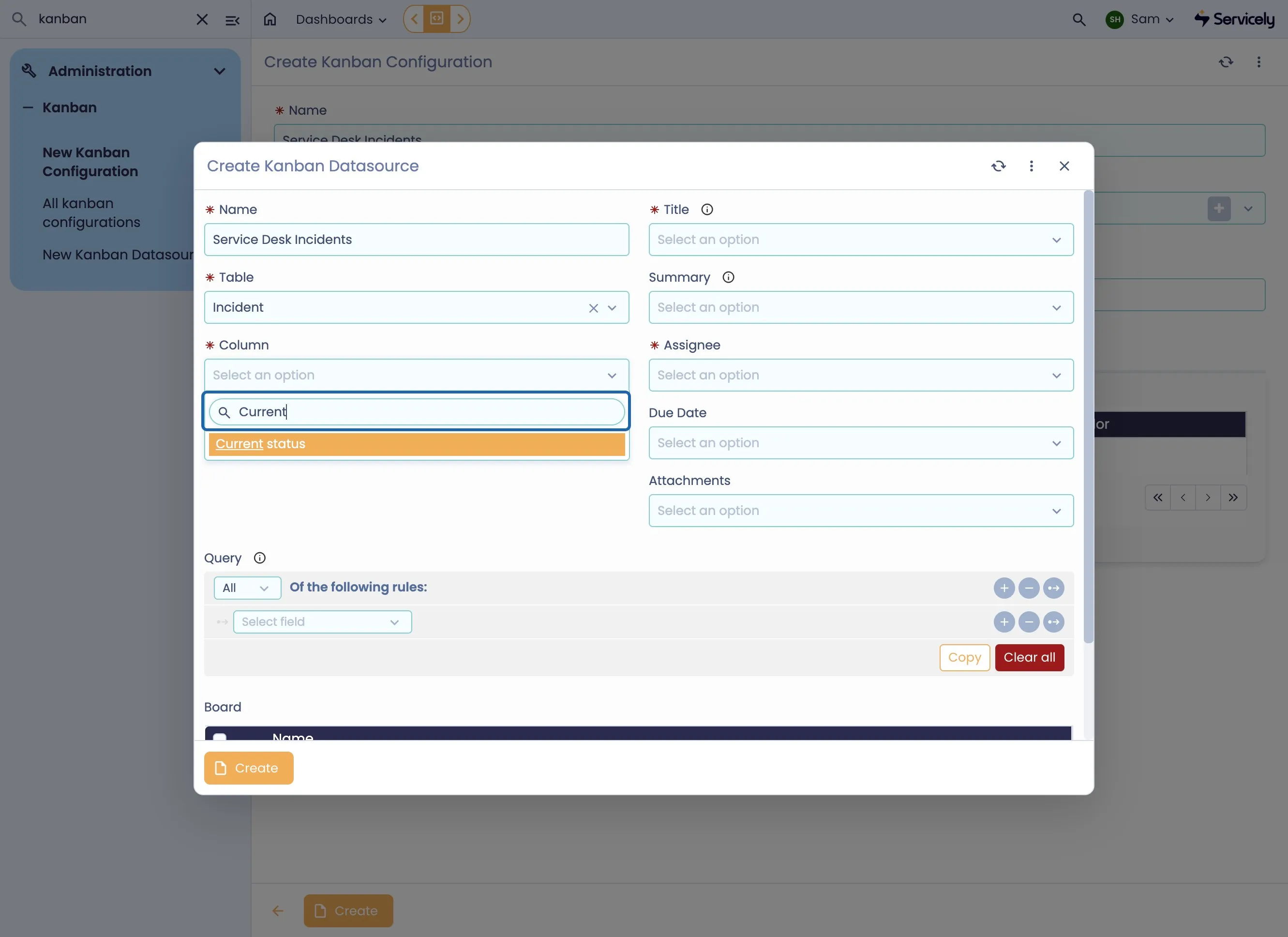
Column | Fields | What field should make up the columns of the Kanban - typically this is Current Status or Priority |
Swimlane | Fields | (Optional) What fields should be used to split the columns into Swimlanes - typically this is Assignee or Assignment Group. |
Title | Fields | What field from the record should be used for the card title - typically Short Description. |
Summary | Fields | (Optional) What field should be used for the card summary |
Assignee | Fields | What field is used to denote the assignee of the record - typcially Assignee |
Due Date | Fields | (Optional) Due Date to indicate records that are due soon. |
Attachments | Fields | (Optional) Attachments field to show attachments at the card level |
Query | Filter | Configurable Filter to restrict Card results |
Board | Related List | Auto-configured list of boards this Kanban Datasource is assocaited to. |
Kanban Configuration
Field Label | Field Type | Purpose |
|---|---|---|
Name | String | End-user Visible name for the Kanban Board |
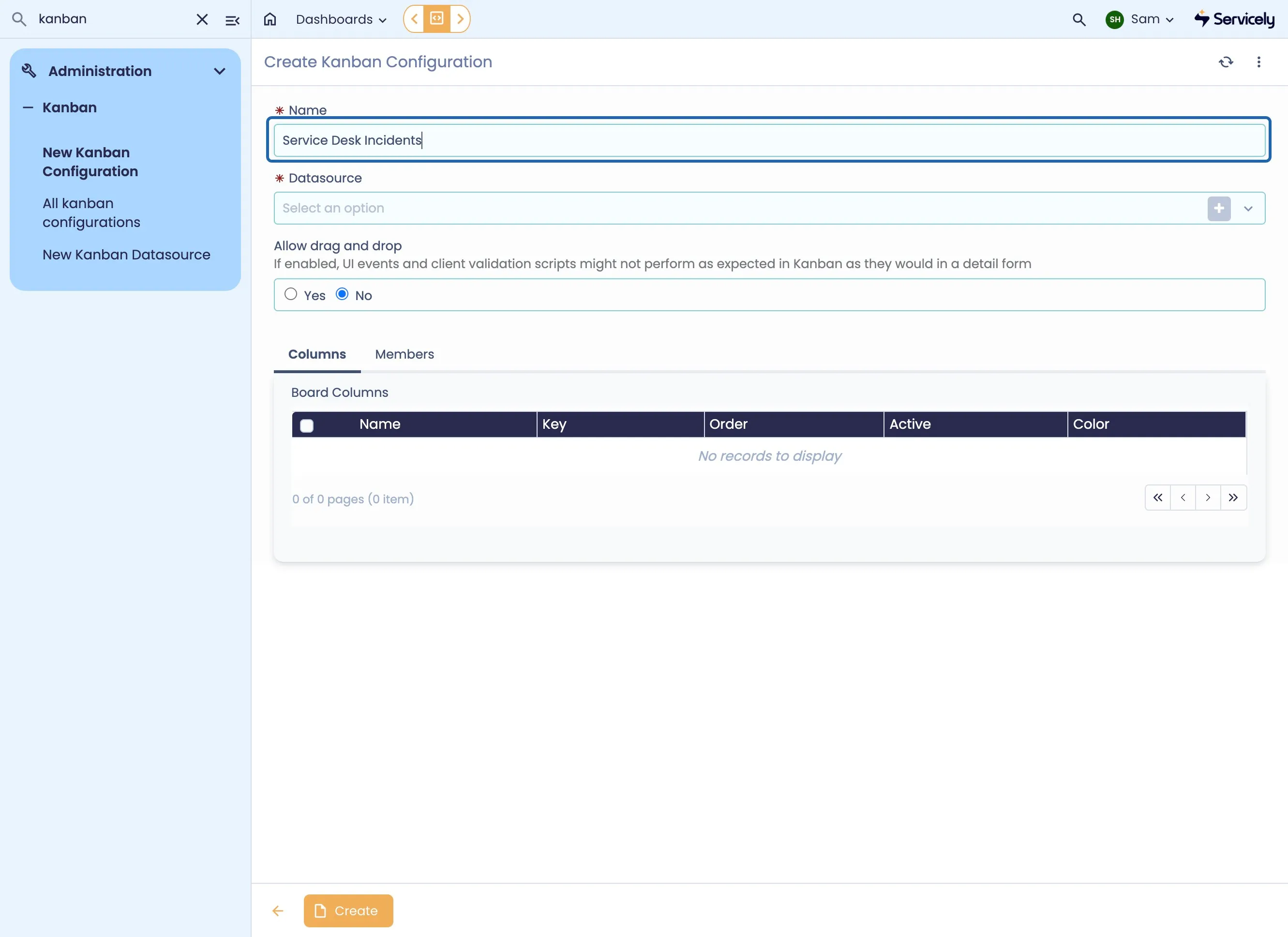
Datasource | Reference | Link to the appropriate Kanban Datasource |
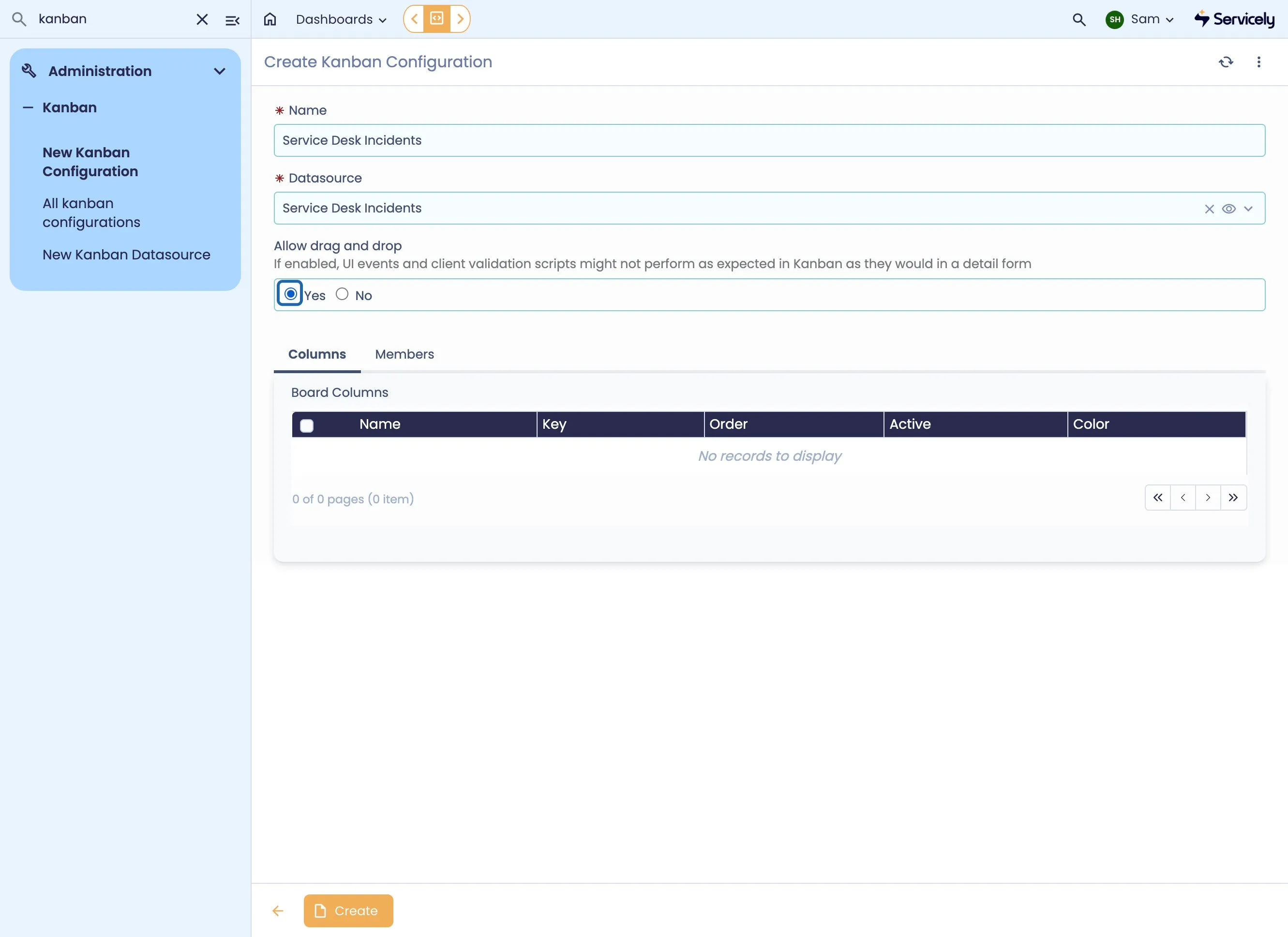
Allow drag and drop | Boolean | If enabled, UI events and client validation scripts might not perform as expected in Kanban as they would in a detail form |
Columns | Related List | Each of the columns available to the Kanban |
Admins | Related List (Users) | Users who have configuration access to the Kanban Board |
Members | Related List (Users) | Users who can access the Kanban Board. |
Creating a new Kanban
Log into your Servicely Instance
Type "kanban" to filter down the results to show Kanban fields
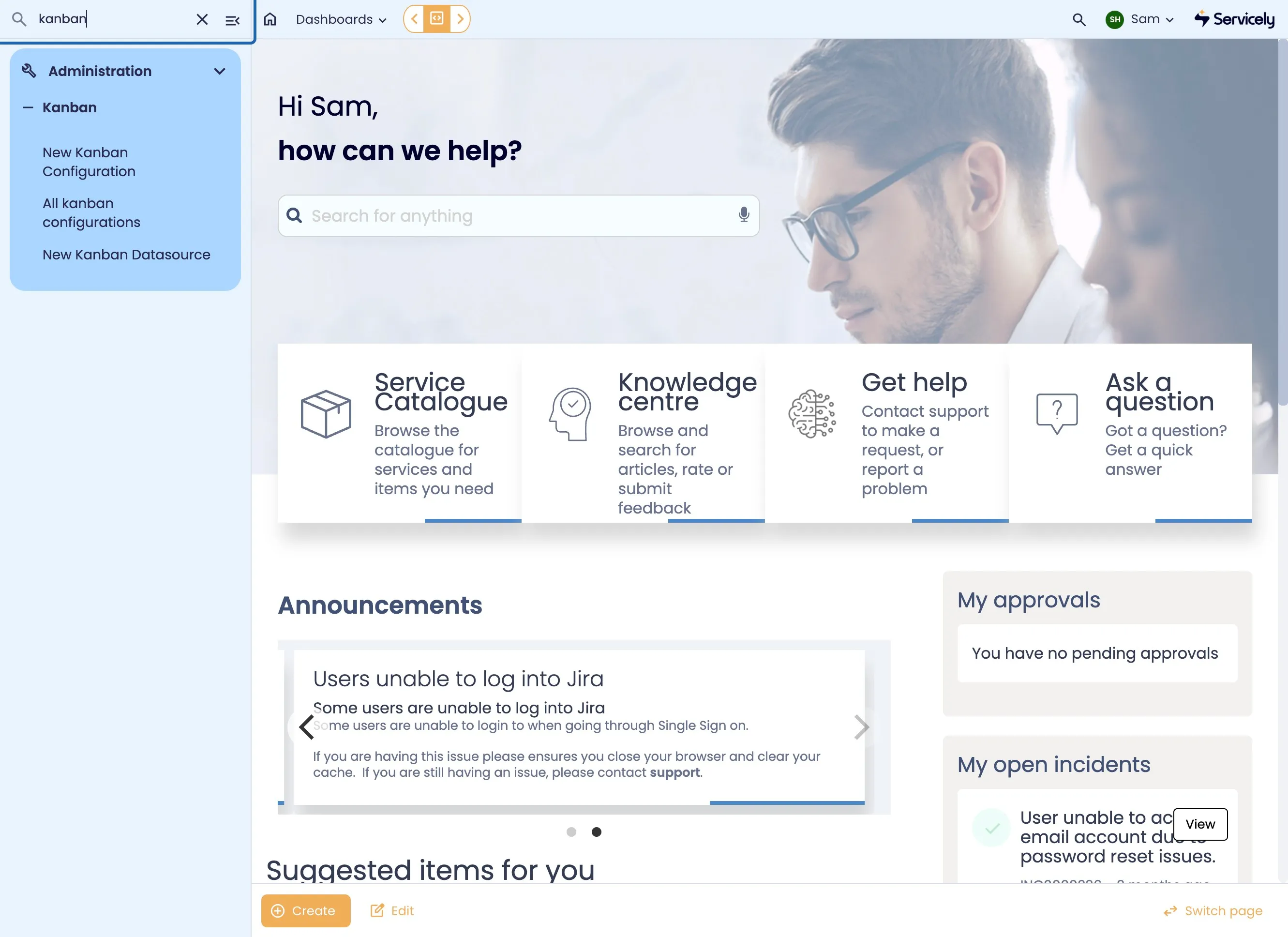
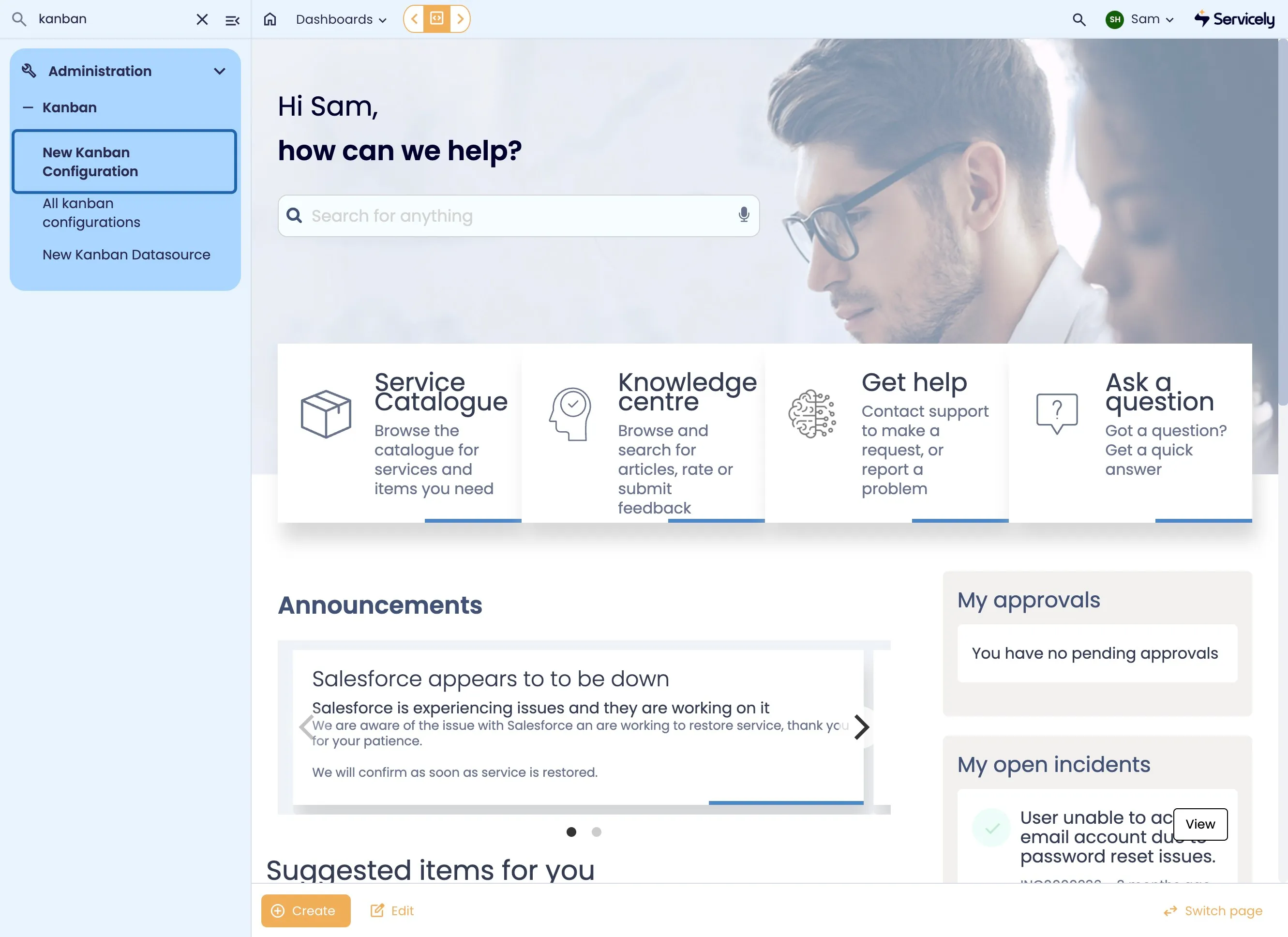
Click on New Kanban Configuration
Provide a name for the Board
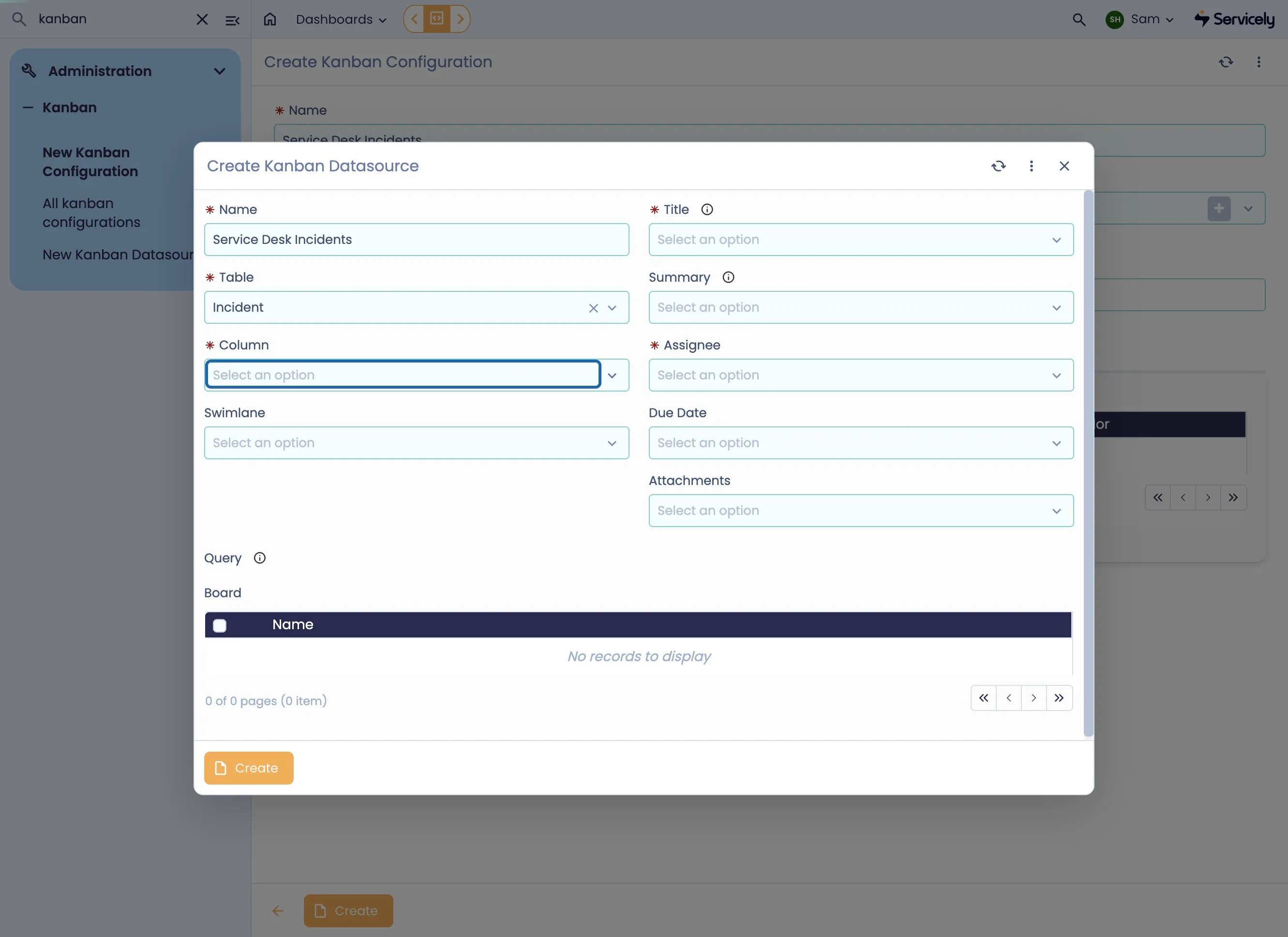
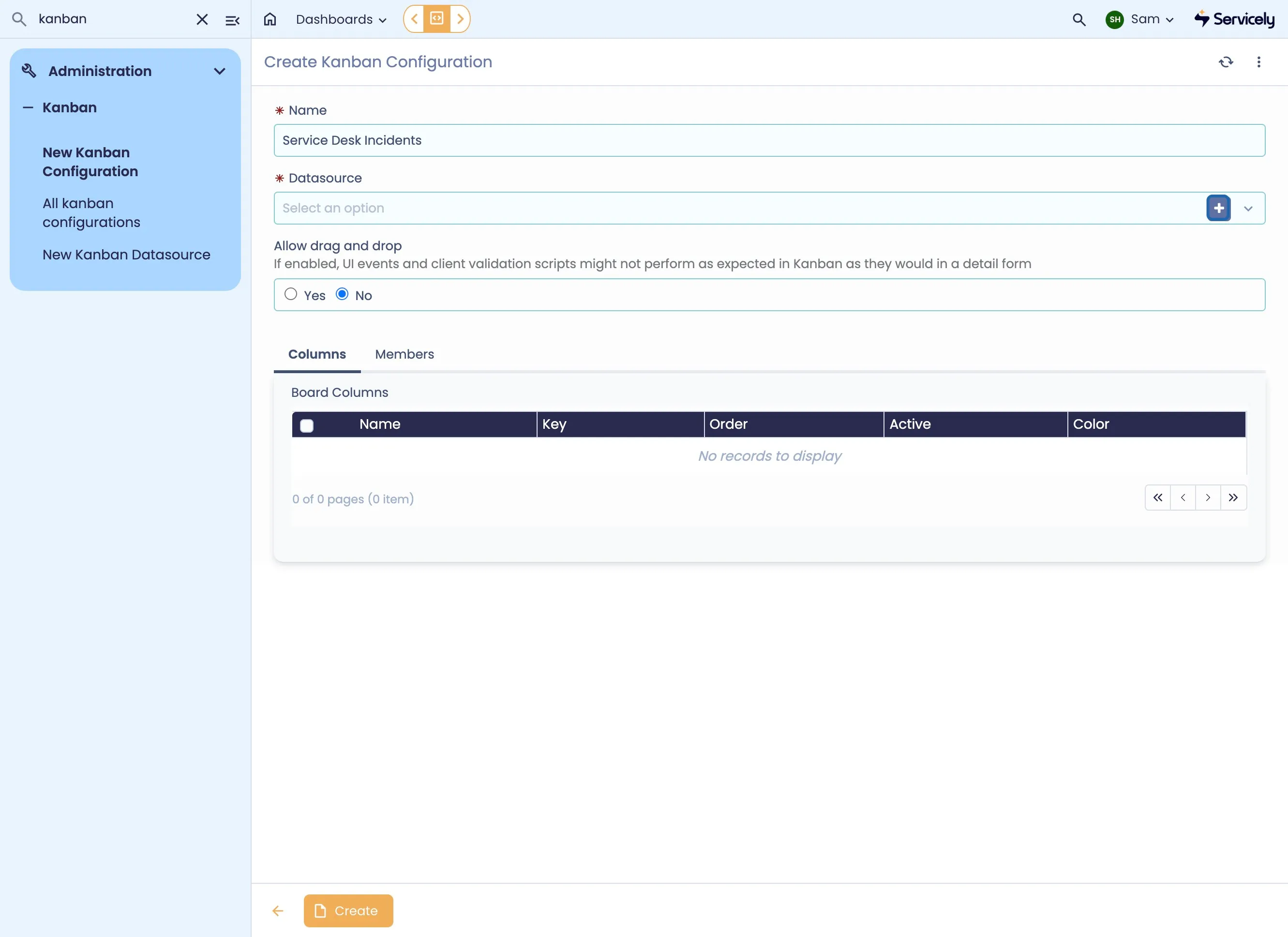
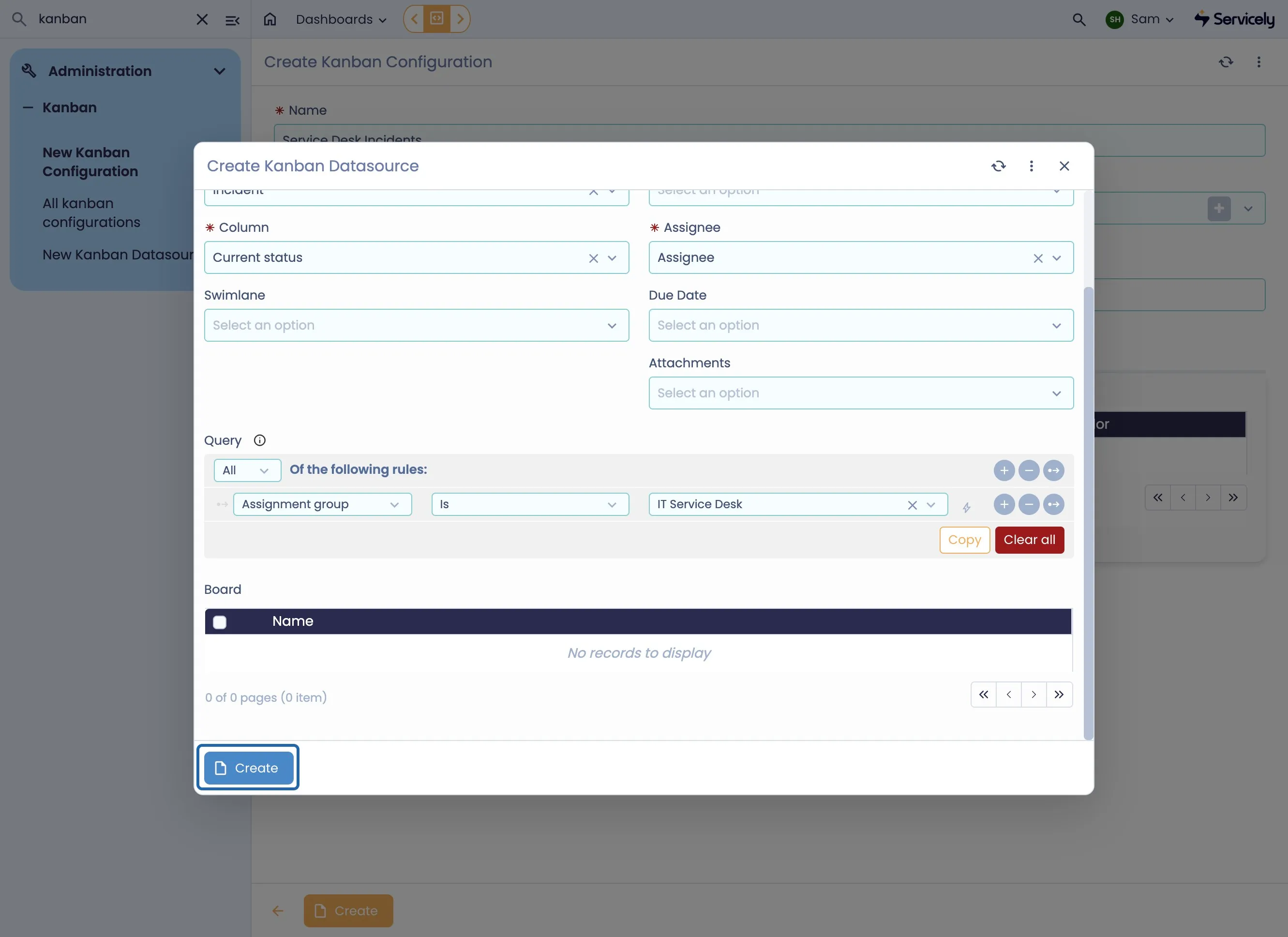
Click on New in the Datasource reference to create a new Datasource
Populate the Mandatory Fields
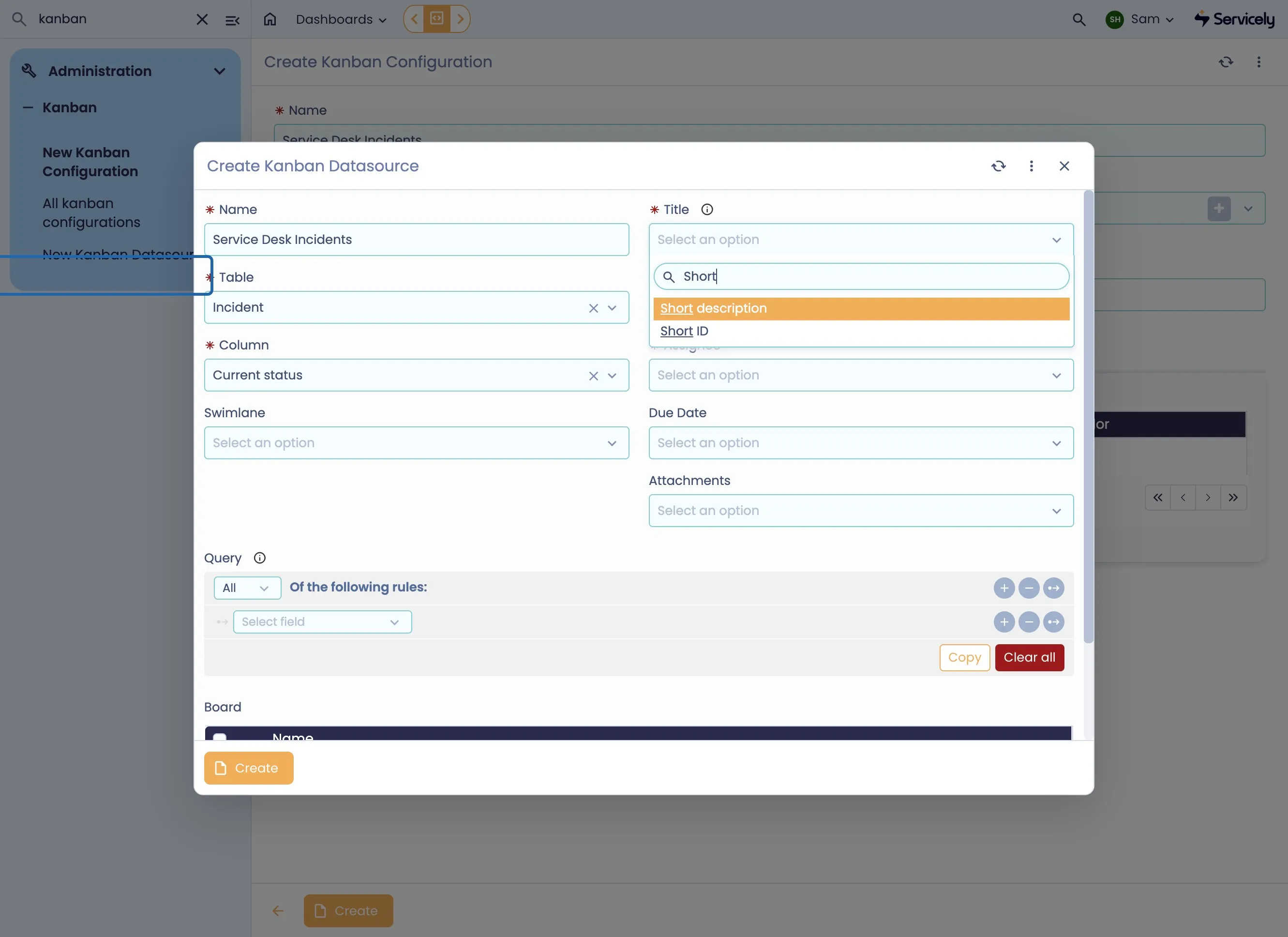
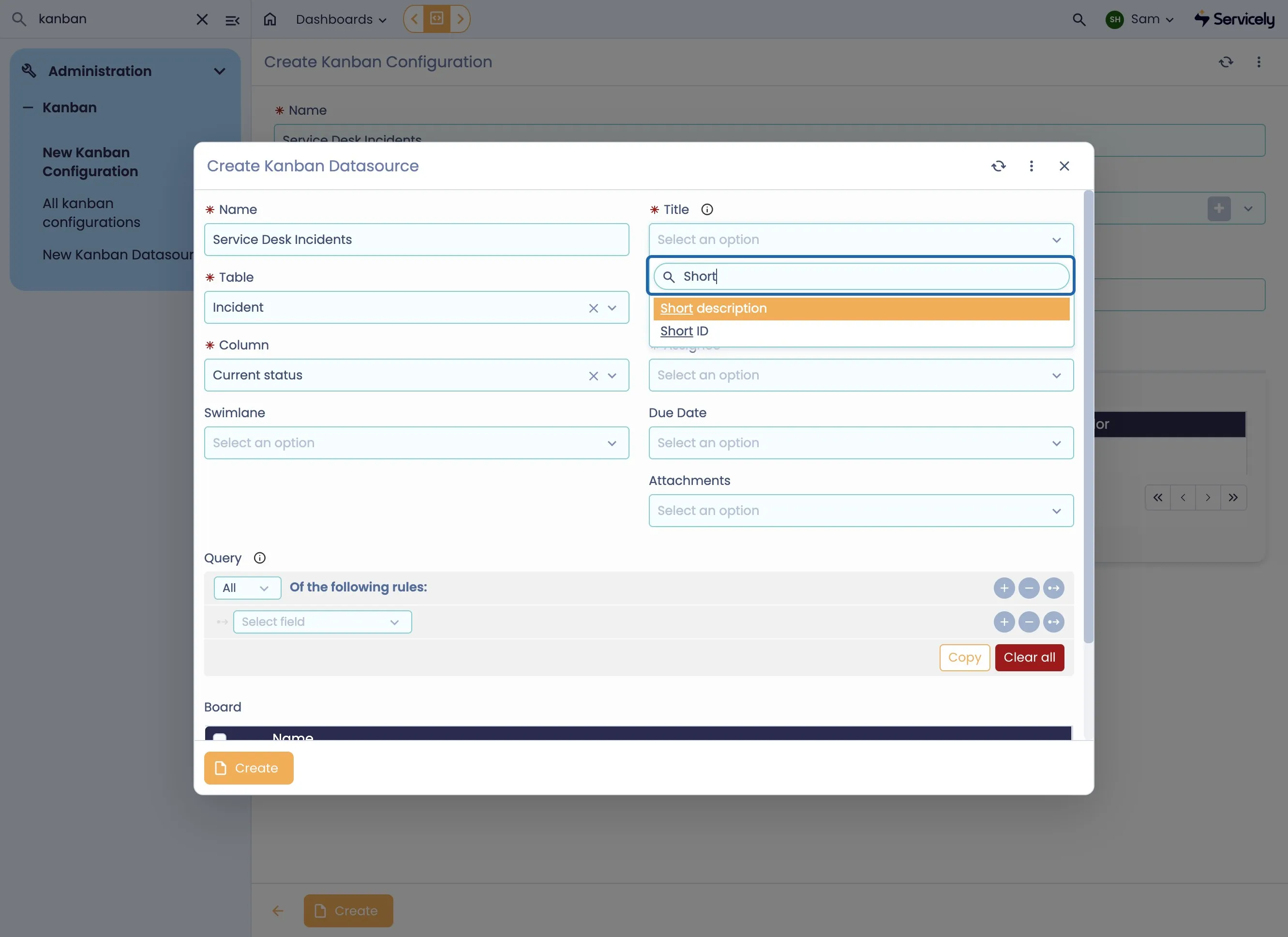
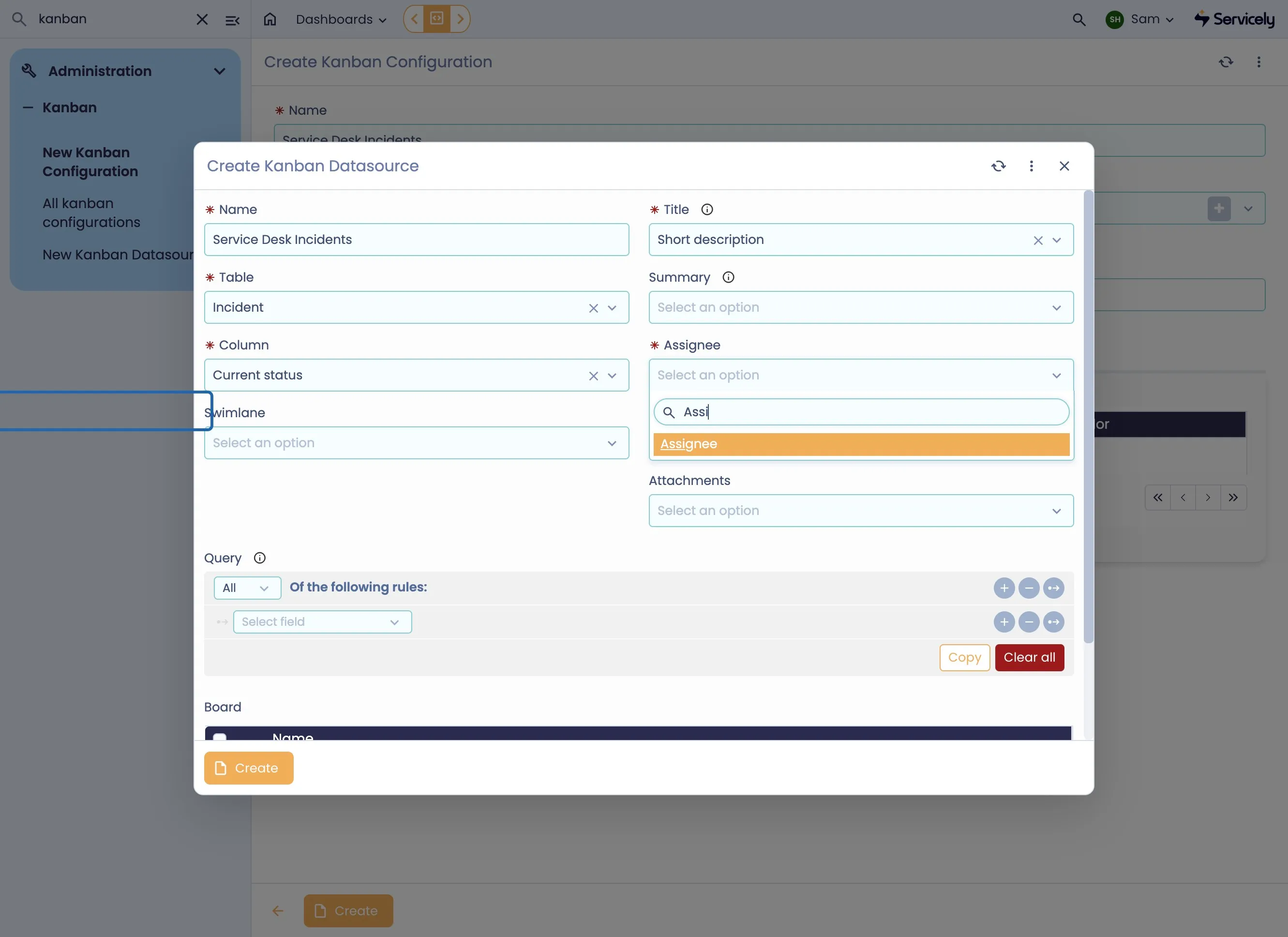
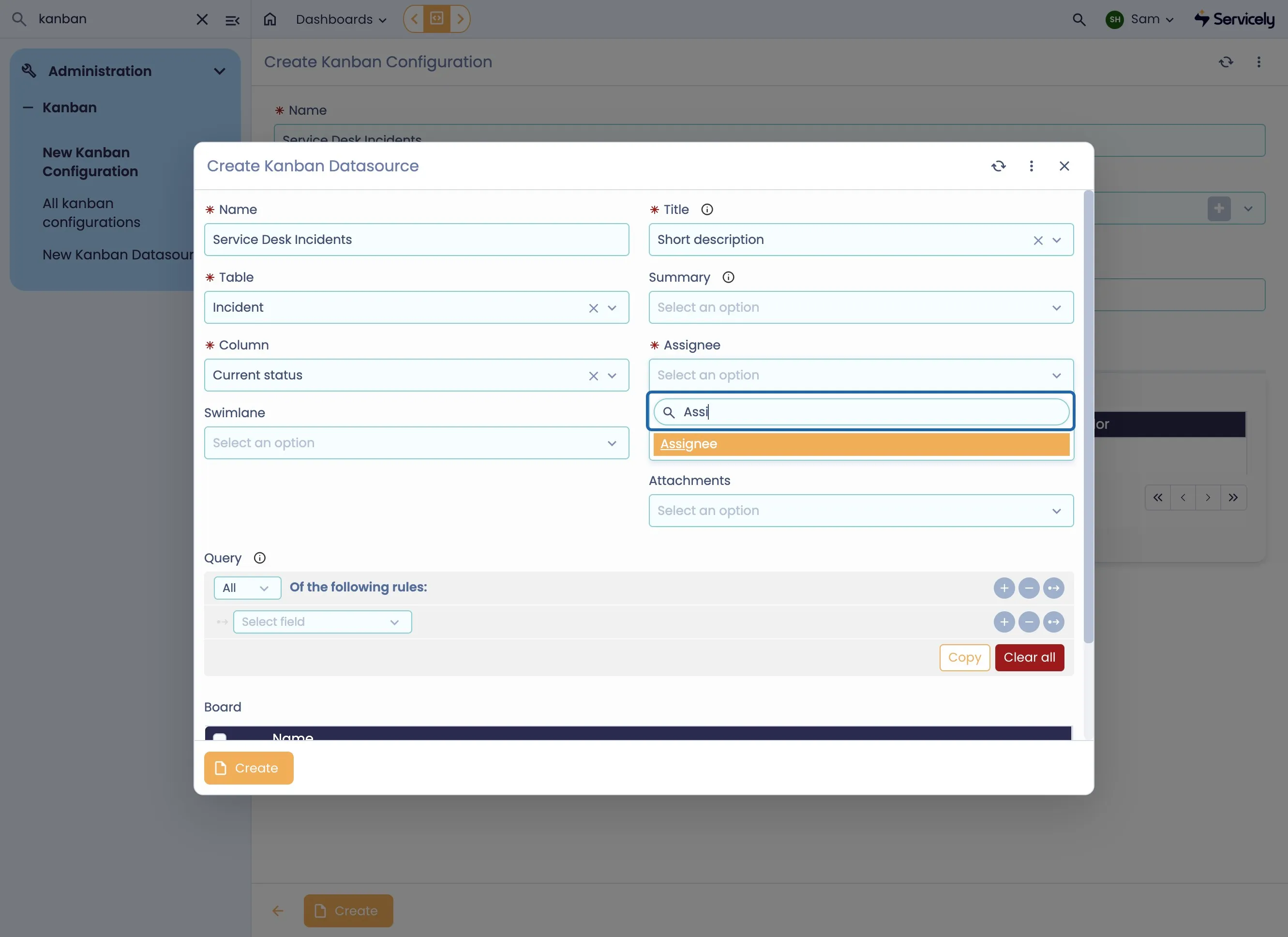
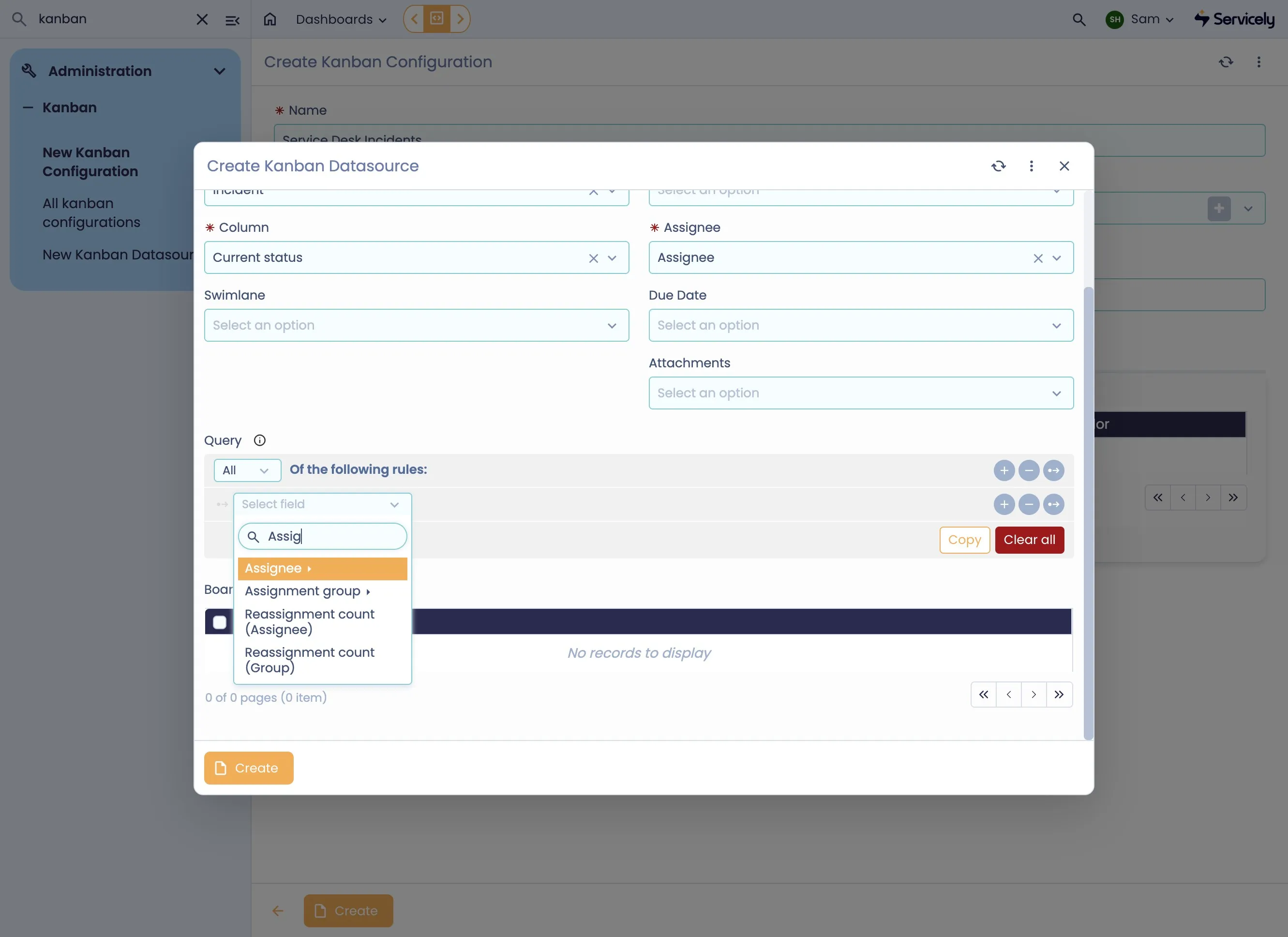
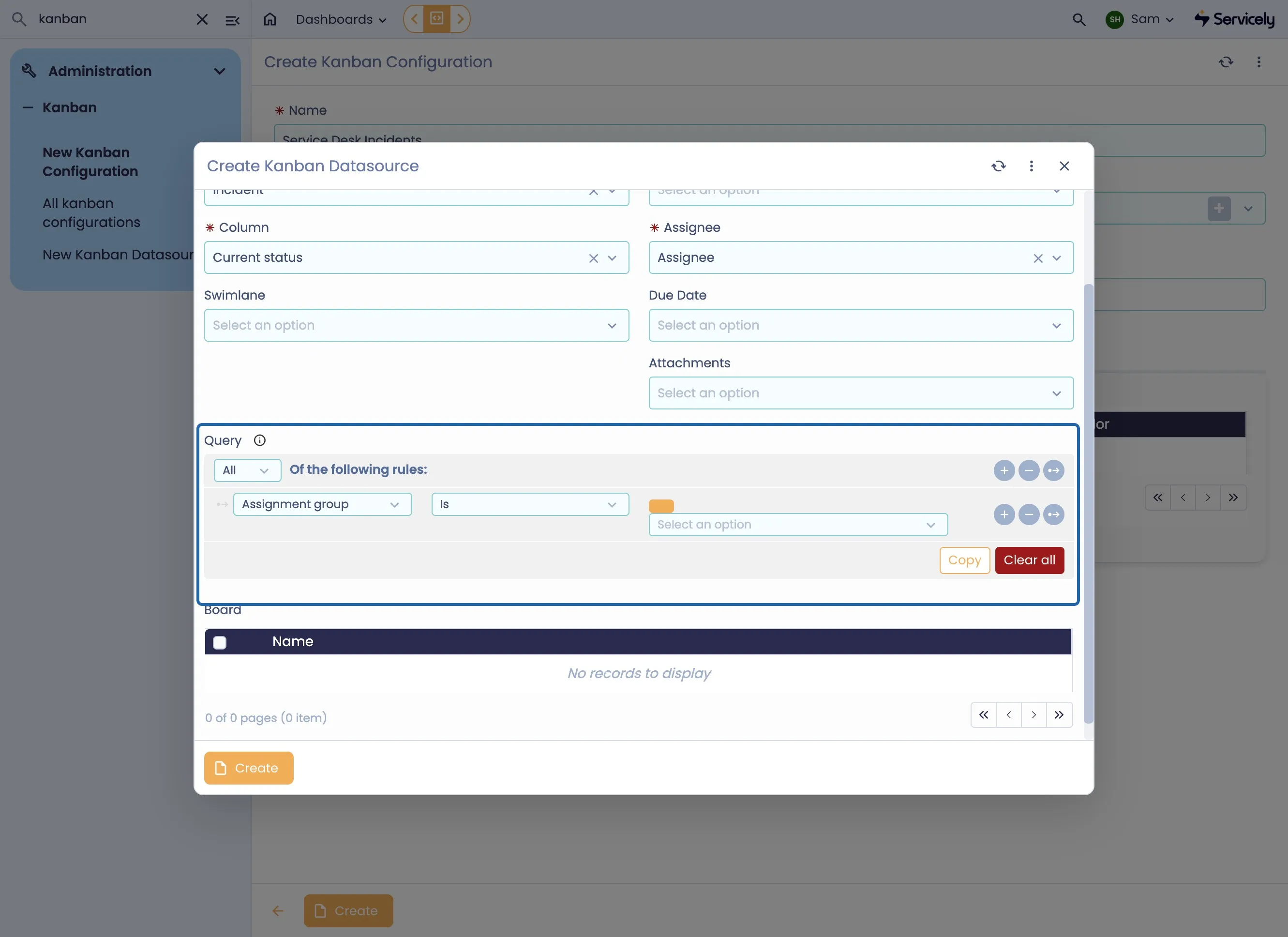
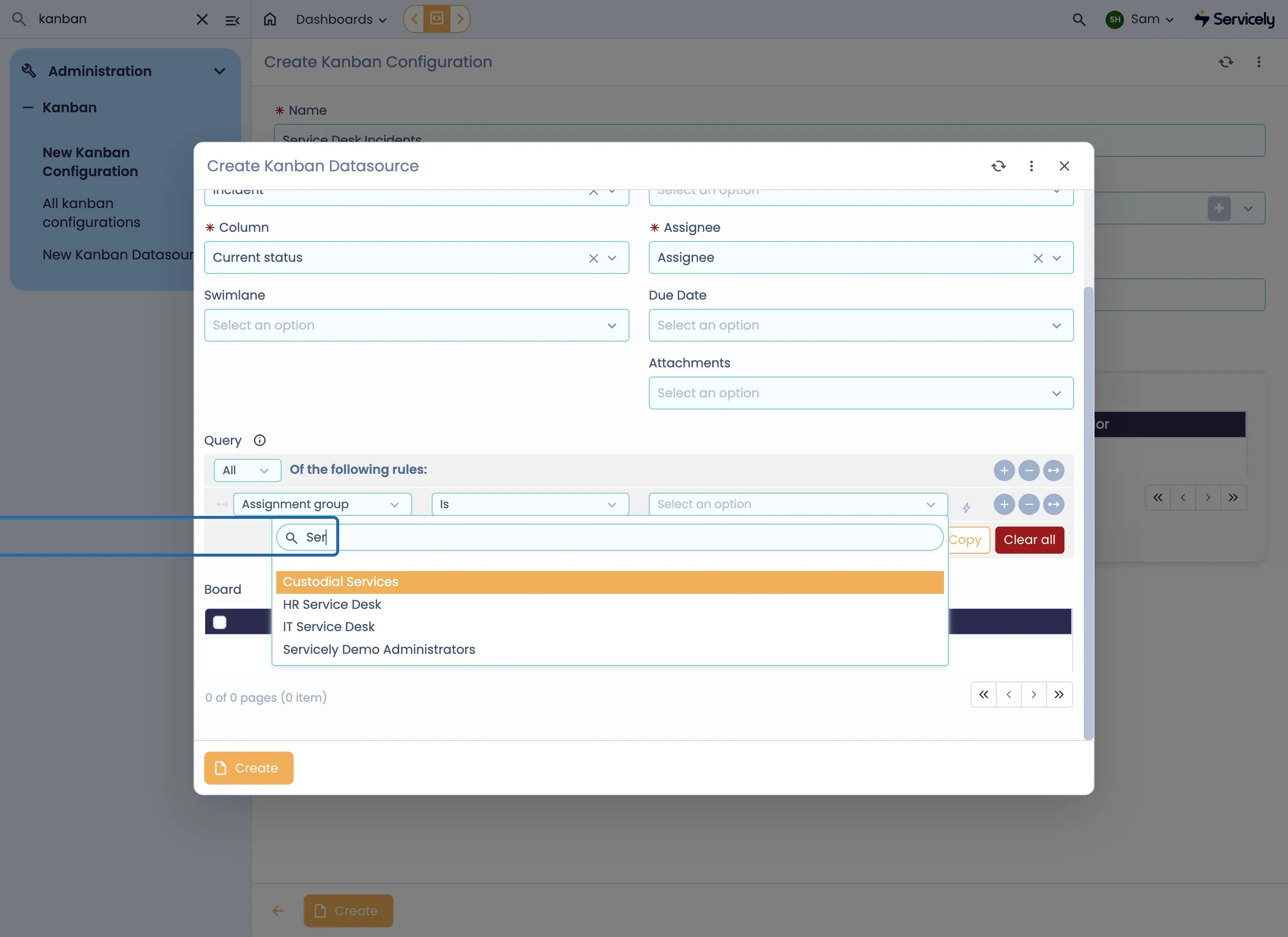
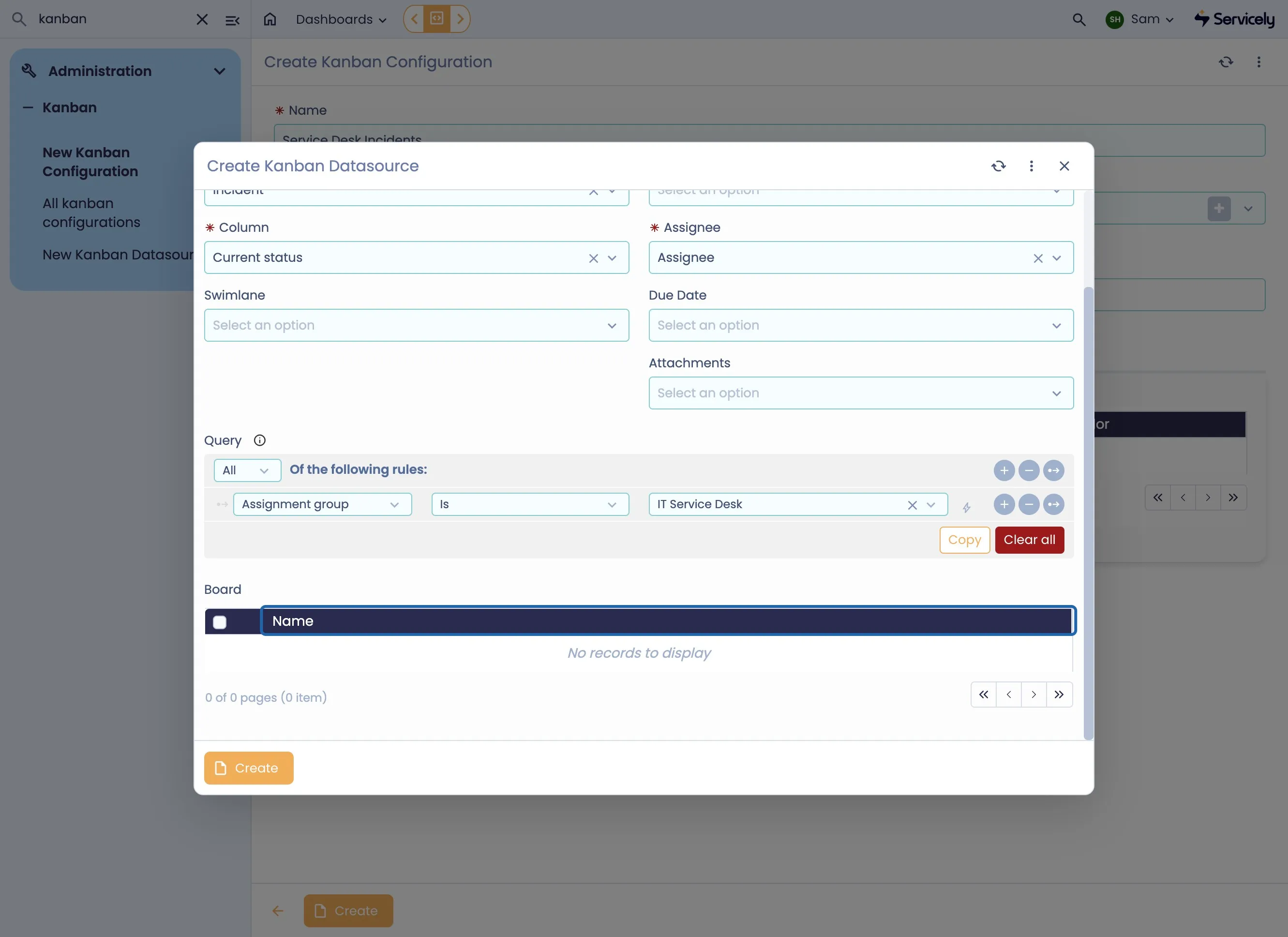
Once finished, hit Create to save the Datasource
Determine if the Drag & Drop should be enabled
Finally, hit Complete to create the record
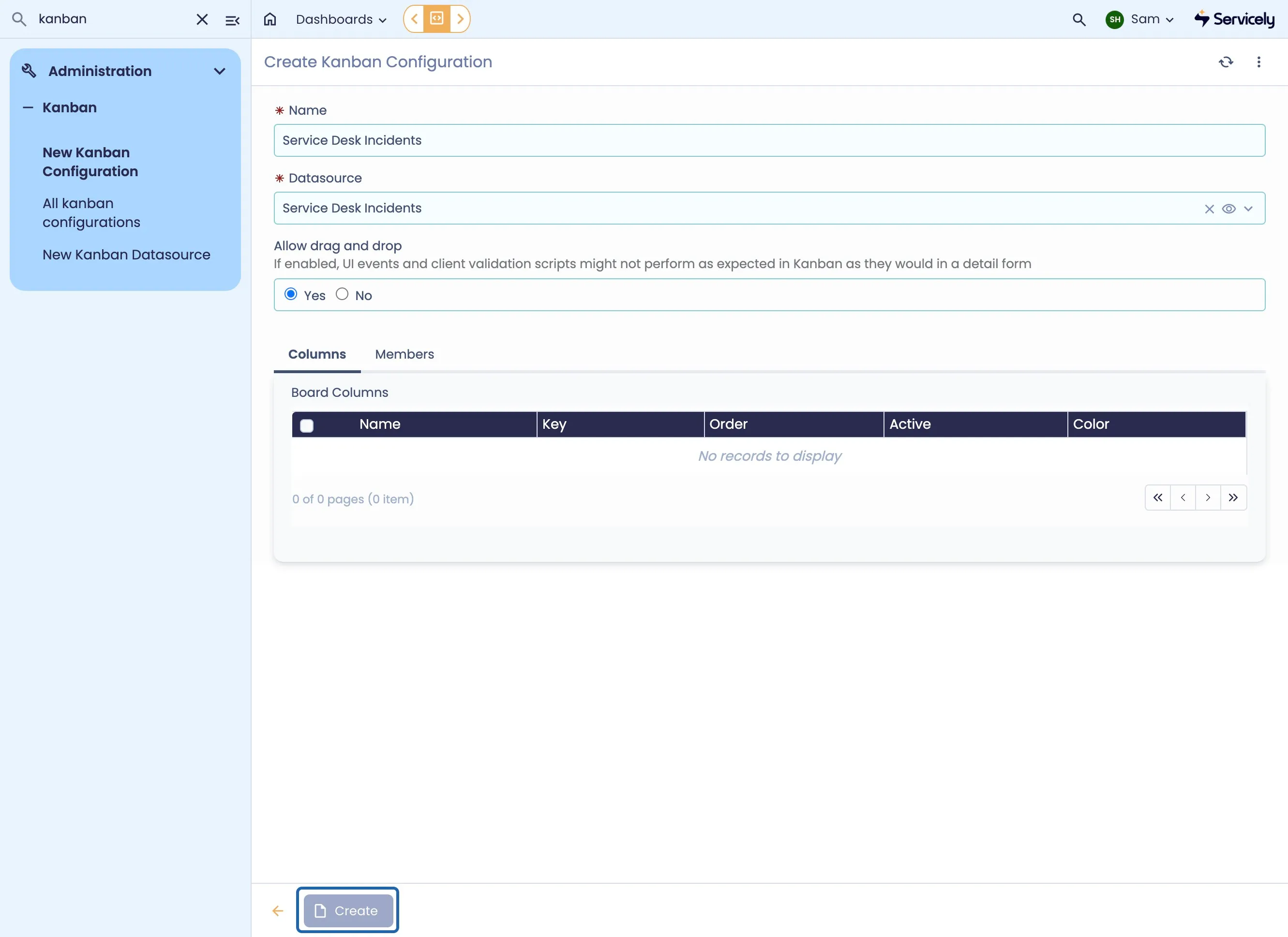
Upon creation, the Board Columns will be automatically created and the Kanban is accessible via the button at the bottom of the screen.