Question sets
Catalog questions can be re-used by one or more catalog items/bundles through the use of Question sets. This speeds up catalog development when you have one or more questions that multiple catalog items need to use for the same or similar outcome.
Configure a Question set
Go to Administration > Catalog > Question sets menu

Click New on the list of Question sets
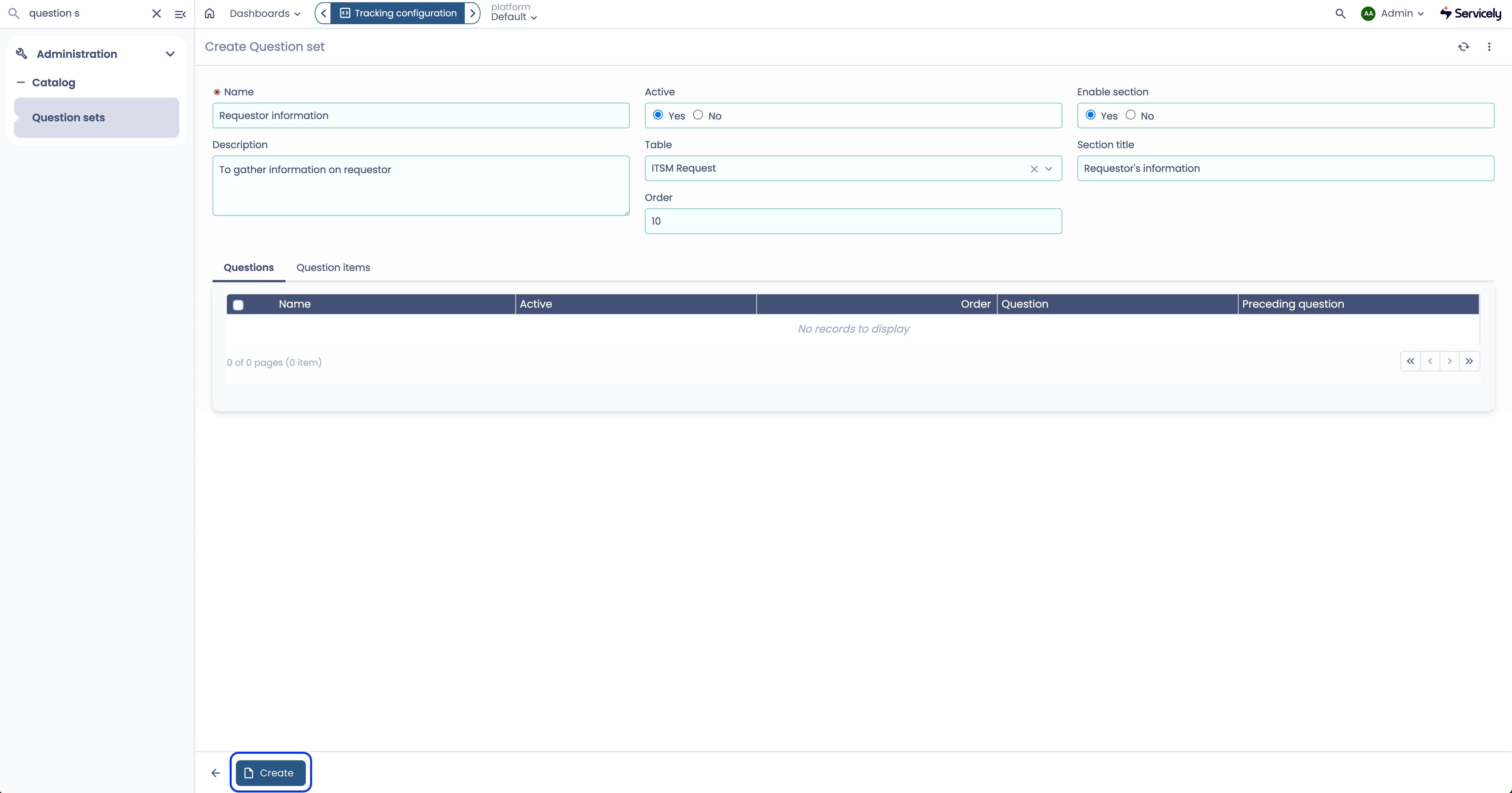
On the Create screen, populate the following
Field name | Description | Example value |
|---|---|---|
Name | Name of Question set as it appears in Catalog configuration | Requestor information |
Description | For administrative purposes, more information on the Question set | To gather information on requestor |
Active | Set to Yes to make this visible on the Catalog item that uses this Question set | Yes |
Enable section | Whether or not all questions in this Question set is part of a Section display in the Catalog form using this Question set | Yes |
Section title | Title of Section for the Question set, should the Enable section is set to Yes | Requestor's information |
Table | This is optional, but this is used by the associated questions' mapping to target table. The mapping is defined in the question's field called "Record field" | ITSMRequest |
Order | Default order for the Question set when it is included in a Catalog item, relative to the Catalog item's other Question set(s) and questions. | 10 |
Click Create (Screenshot below shows an example of a Question set)
Adding Questions to a Question set
View the Question set you want to add Questions to=
Click "New" on the Questions related list
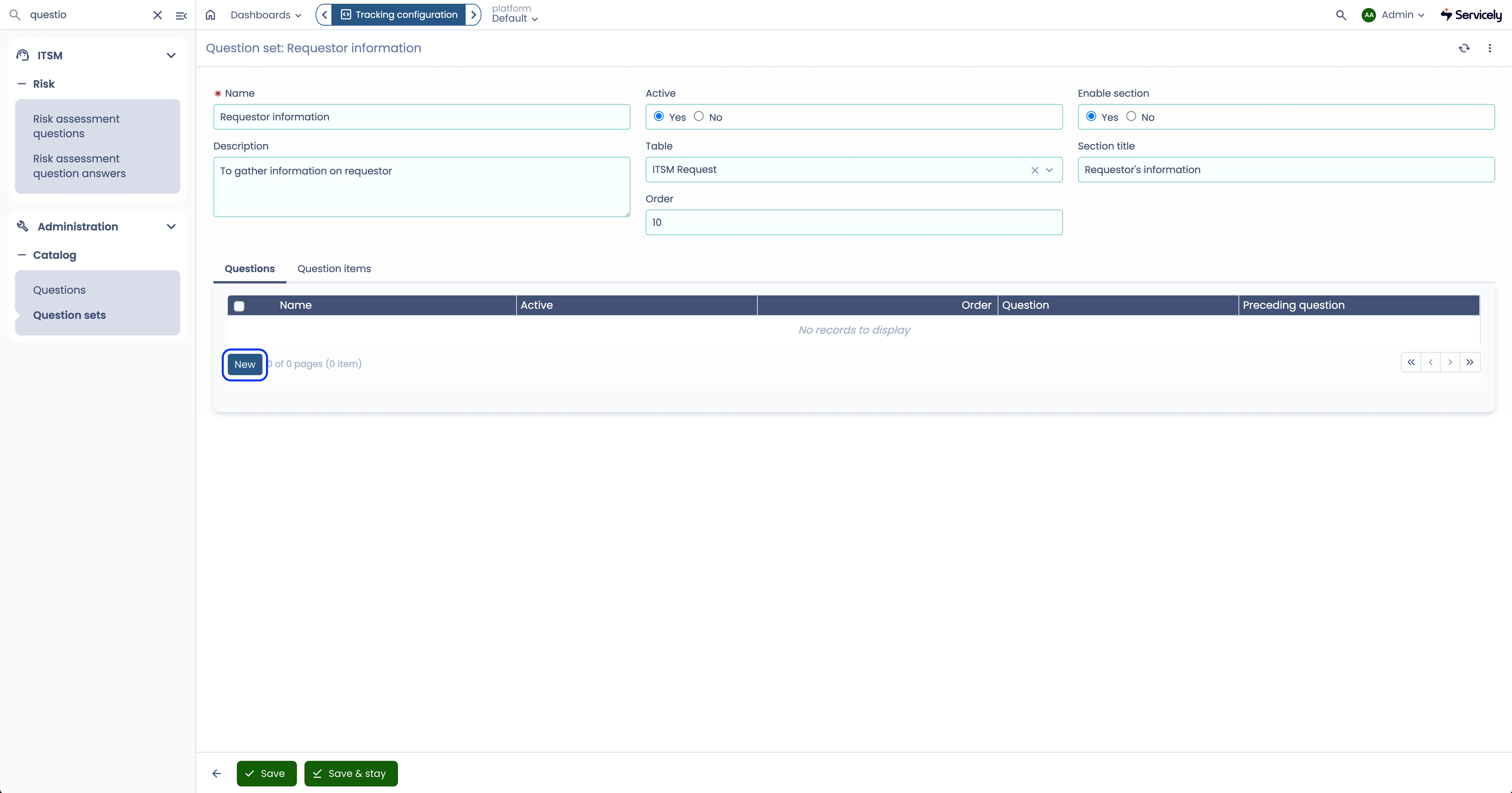
Fill in the required details in the resulting pop-up window to create your Question. For more information on creating Question, please refer to Questions page. Once you have finished configuring the new question, click on Create on the pop-up window.
To add another question to the Question set, click the New button on the Question set's "Questions" related list again and repeat step above.
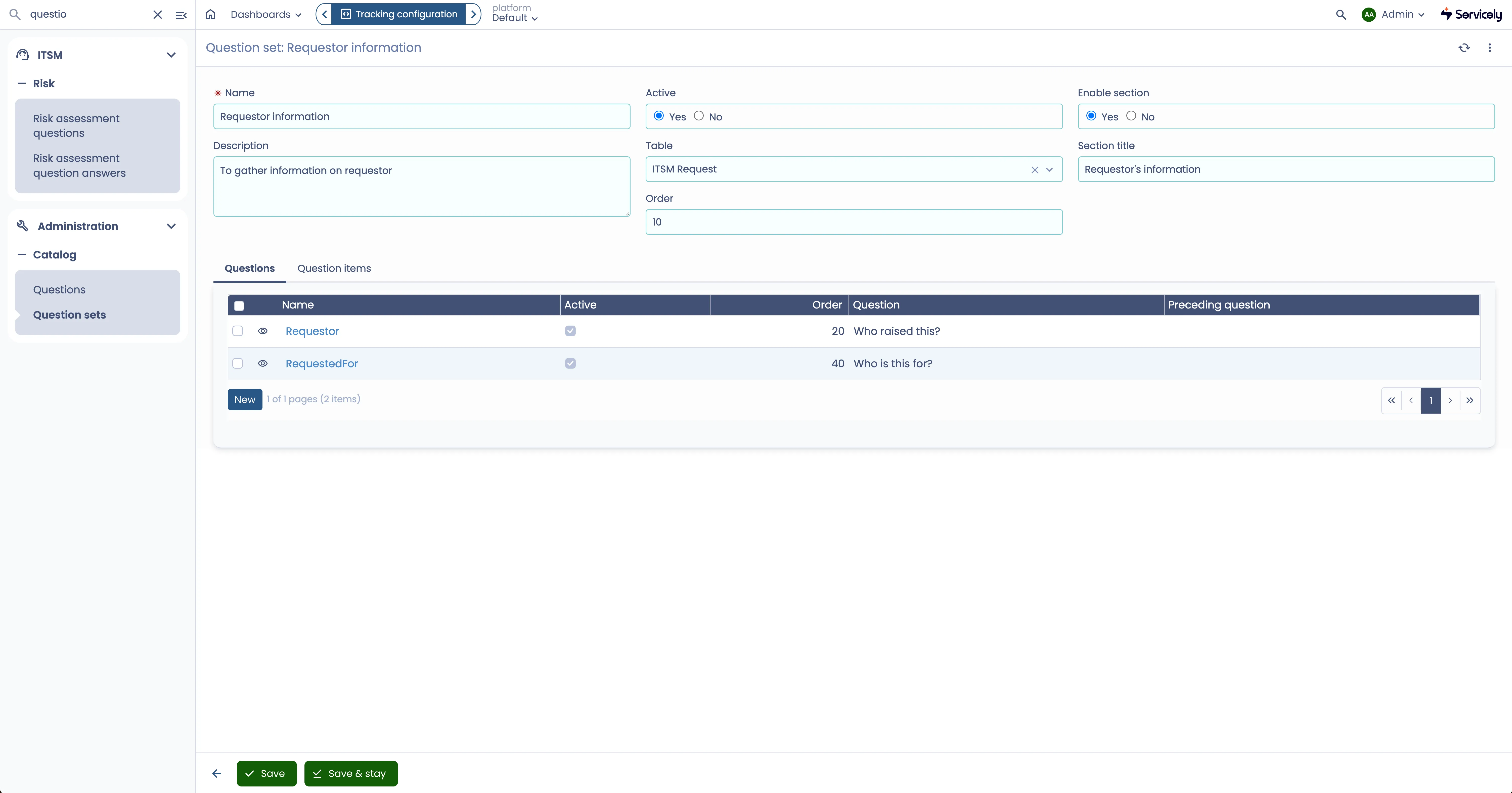
Once you are done adding questions to the Question set, you should see all those questions in the "Questions" related list. Example below:
Adding a Question set to a Catalog item
A Question set can be added to one or more Catalog items. Here is how we do that:
Go to the catalog item you want to add a Question set to
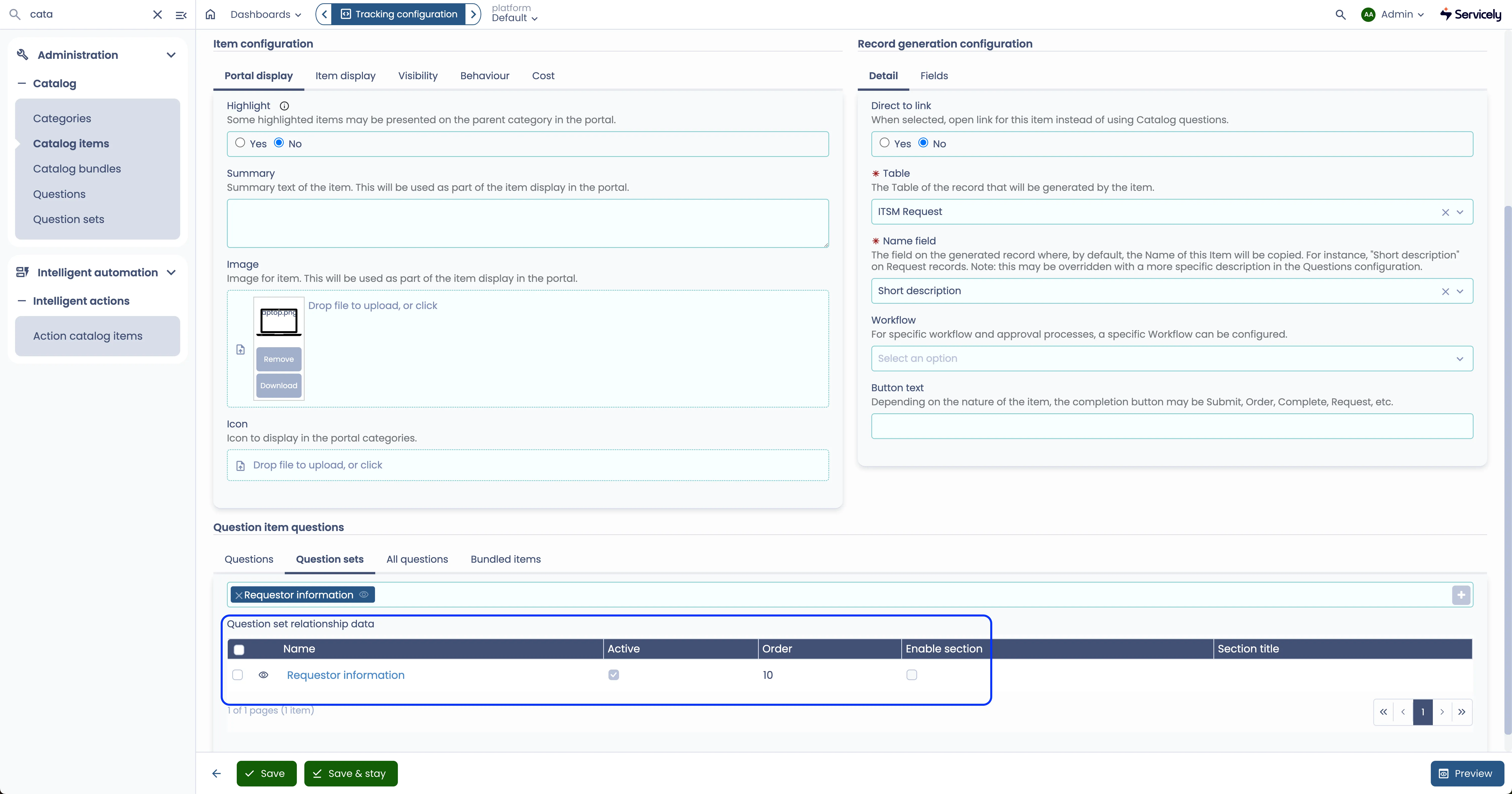
Go to its "Question sets" tab, and then select one or more of the available Question sets to add to the Catalog item.
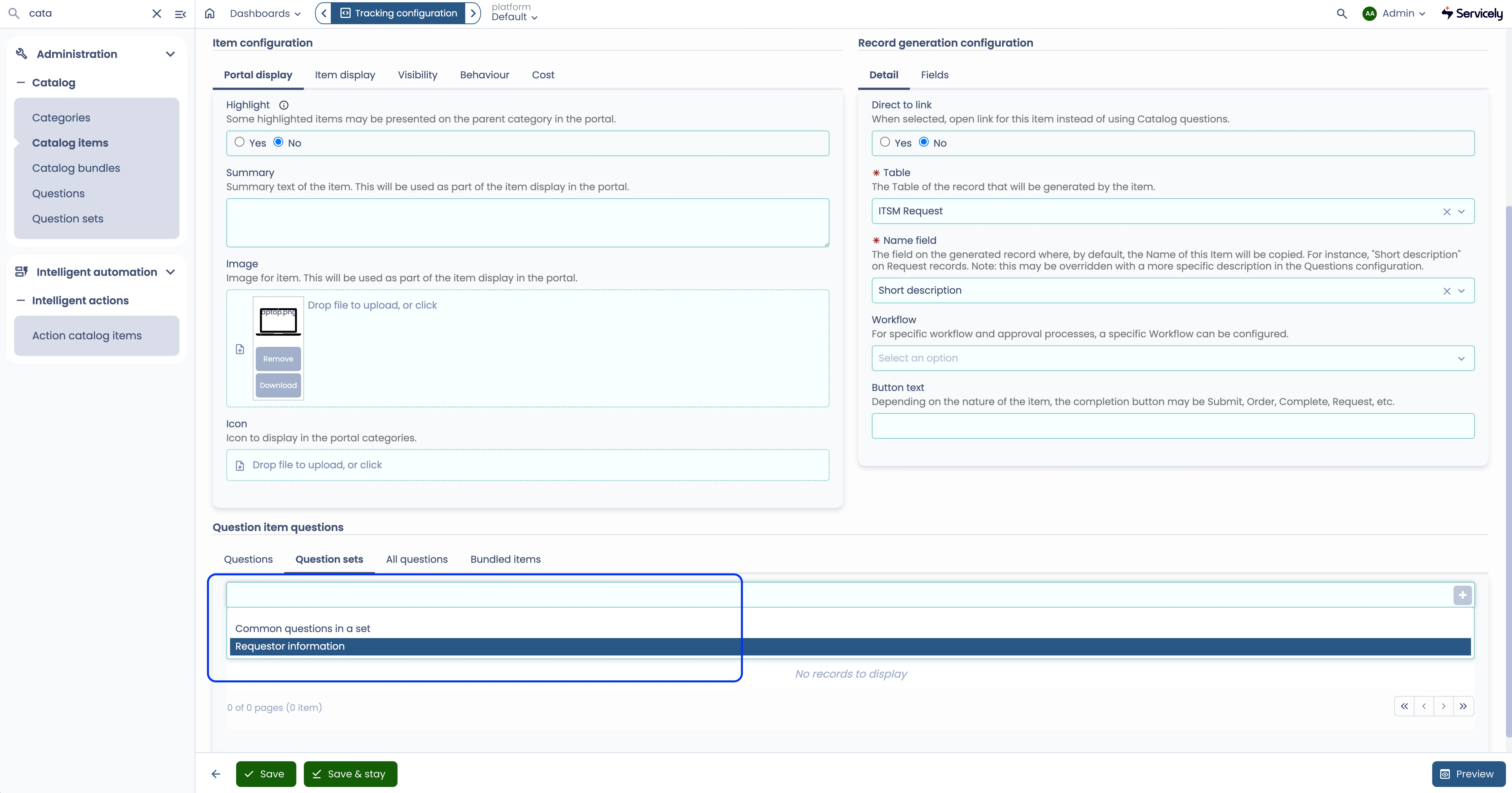
Save your change on the Catalog item and the selected Question set will also appear on the related list below the Question set picker.
Question set display
Question set's questions are individually displayed the exact same way as if they were configured directly for a Catalog item (i.e. not reusable for other Catalog items). Few things to note however:
- When a Question set is configured to display its questions in a section, it is displayed the same way as a Catalog item's questions in a section
- The questions in a Question set will be displayed together, i.e. one after another, as a group of questions. The order of the group of questions is displayed in, is using the Order defined for the Question set and that Order respects the Catalog item's questions Order. So, if there a catalog item has two questions of orders 10 and 100 and a question set of order 20, then they will be displayed as below in order (top to bottom):
Questions/Question sets | Order |
|---|---|
Question 1 | 10 |
Question set A | 20 |
Question 2 | 100 |
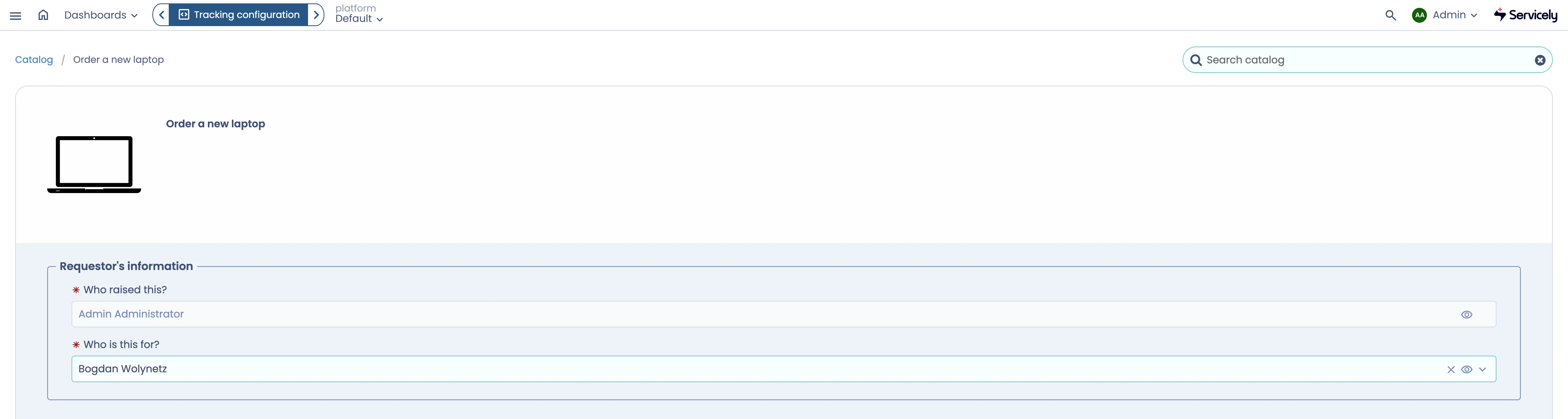
Below shows an example of a catalog item with a Question set as its first section (this is using all the example configurations in this documentation):
Override Question set on a Catalog item
You can override some of a Question set's default configuration specific to a catalog item:
- Order
- Section
To do so, please follow the steps below:
Go to the Catalog item that has the Question set that you want to do override configuration on.
Go to its Question sets tab and view the Question set on the related list.
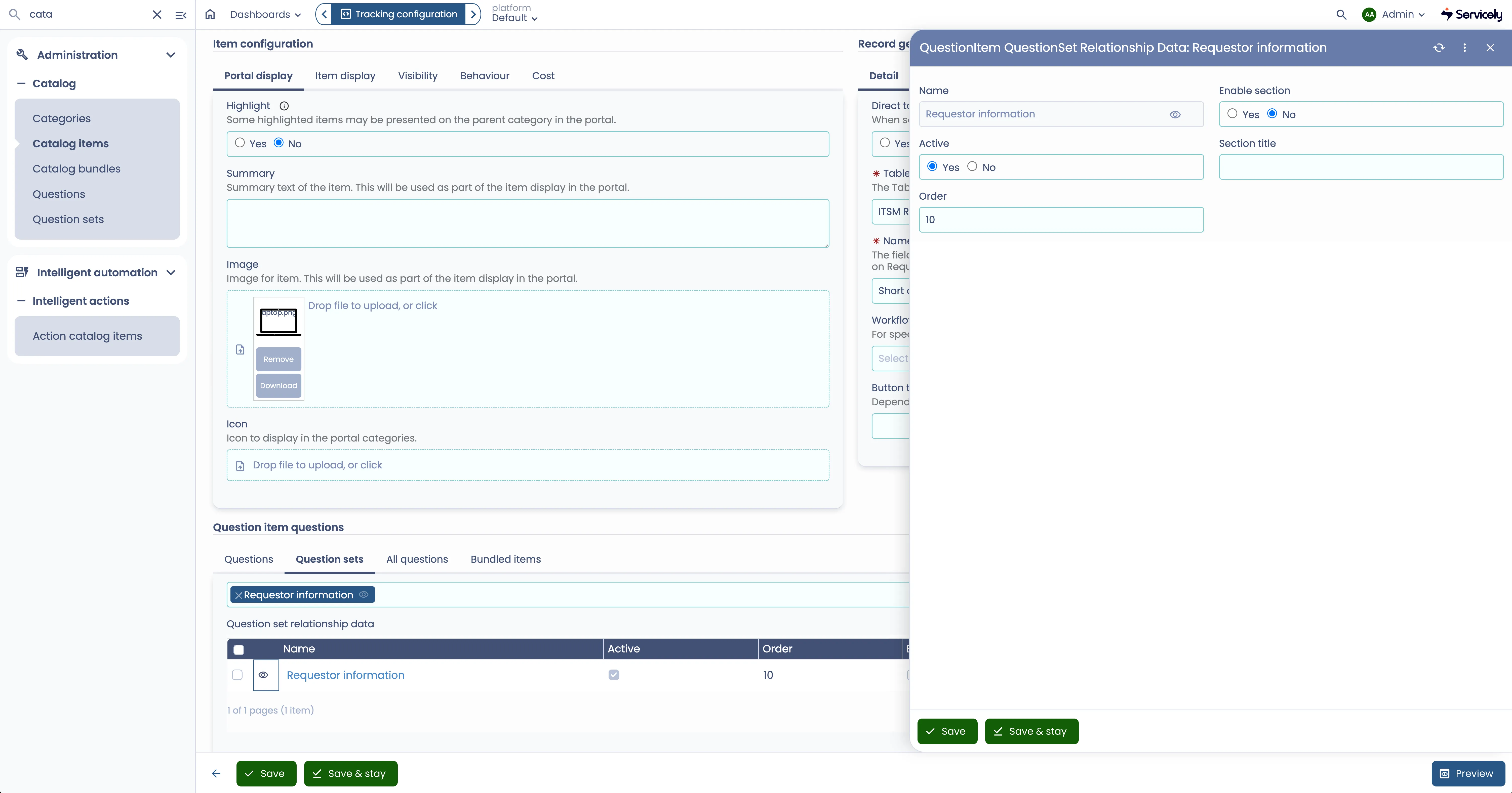
Update what you need, e.g. Order and/or Section title. For Section, please ensure you set "Enable section" to "Yes".
Save your changes.
Override Question set's Question configuration on a Catalog item
For every Question set's question, there are a number of its attributes that can be configured to behave in a certain way on a specific catalog item, without affecting other catalog items using the same Question set and its questions. Examples/use cases includes:
- A question should not display for certain catalog item
- A question's order within the Question set is to be different for a certain catalog item
- Default value for a question is different on a catalog item compared to other catalog item the question's Question set that are part of.
To configure overrides, follow the steps below:
Go to the Catalog item you want the override for
Go to the "All questions" tab
You will see a related list of questions that the Catalog item has, from both its Question set(s) as well as questions defined directly for the Catalog item (not via Question set)
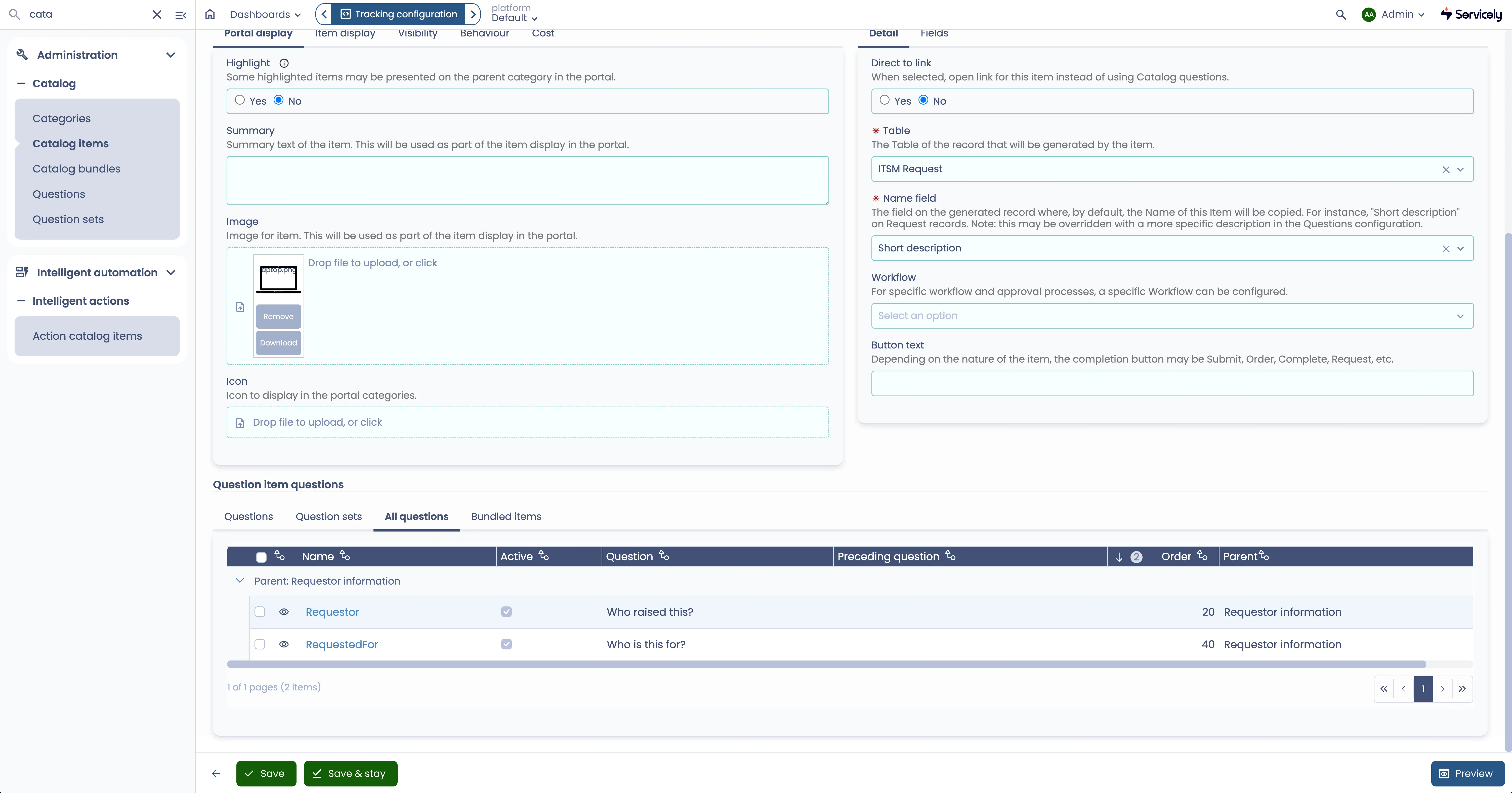
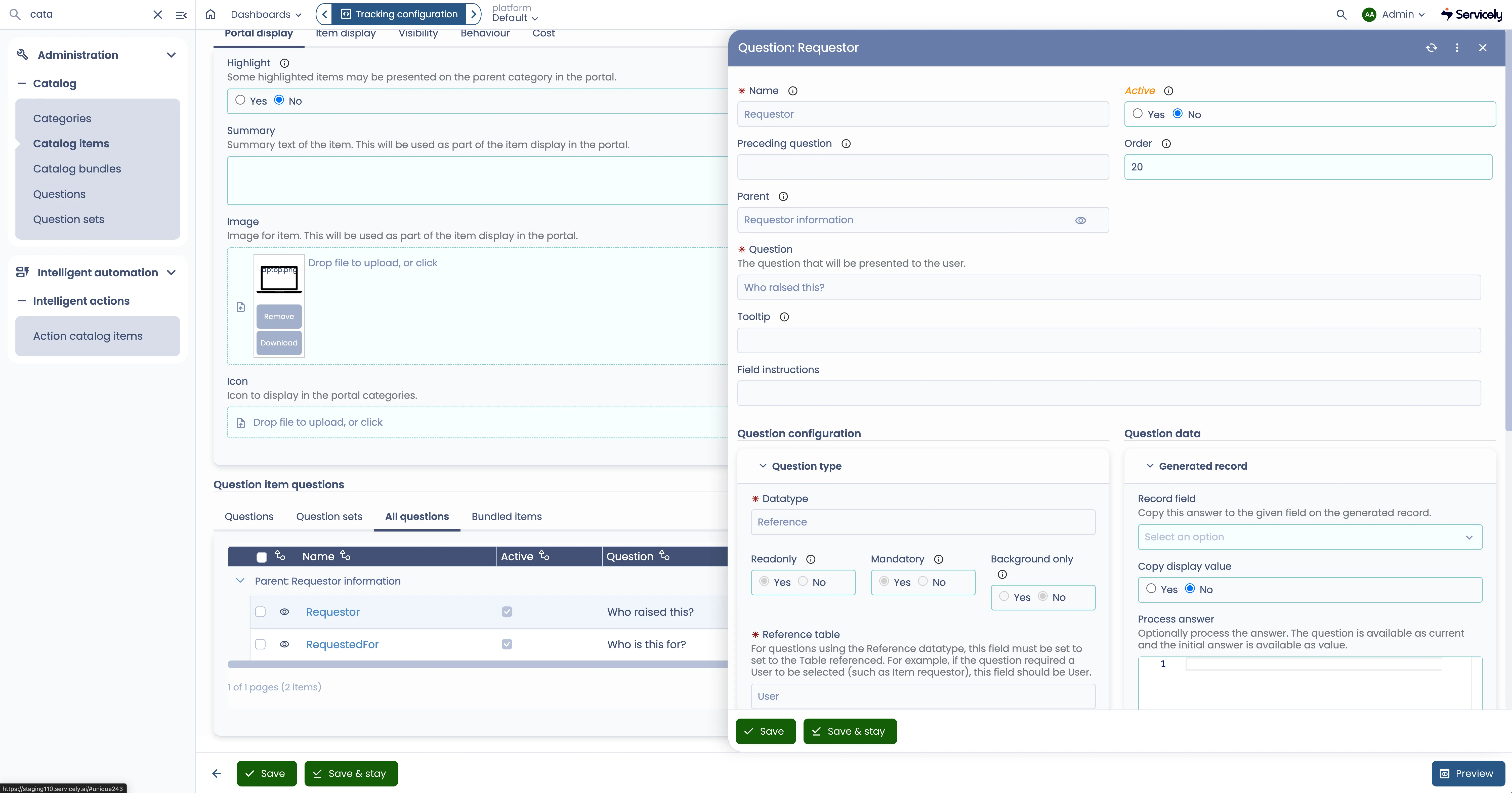
For a question you want to do an override configuration on, click on the eyeball icon next to the question's Name.
A flyover window will appear and everything on the Question form that is editable are the ones that we can have override for.
Anything you update here, will result in the field label changing to the style shown in the example screenshot below. Note the "Active" field. This is to visually show that for this one catalog item, that Question set's question configuration (e.g. its Active flag) is an override to what is originally defined on the question for the Question set.
Once you have finished making your changes, save your changes.
Advanced configuration
Scripts in a question, has access to all questions within a catalog item. This is irrespective of how the questions were configured, whether or not they were directly configured for the catalog item or for a question set associated to the catalog item.