Catalog Categories
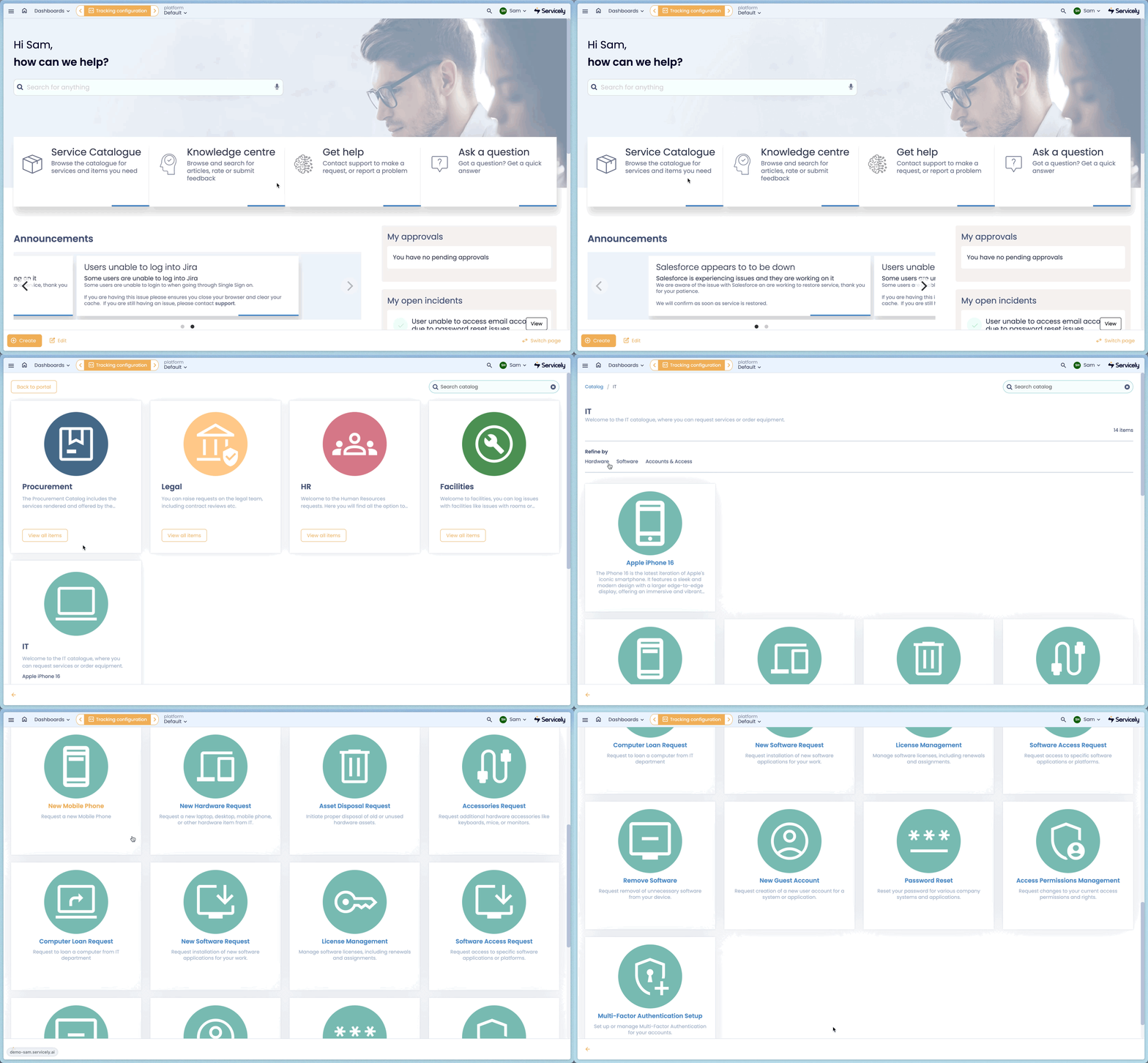
Categories within the Portal allow for organisations to strucutre their Portal Catalogs into logical clusterings, and apply visibility rules and details to drive user experience.
Categories act as the Parent to Catalog Items, creating a taxonomy for self-service that becomes visible to end users when navigating the appropriate portal.
Categories can either be directly paired to Catalog Items, or can include sub-categories additional categories to further drive the taxonomy.
Portal Taxonomy
The options surrounding how you strucutre your portal are endless, however here are a few suggestions to consider:
- Business-Unit Centric Taxonomy
- Each Business Unit has it's own Category, and relevant sub-categories, with BU specific Catalog Items underneath
---
title: [Portal Categories]
## Do not modify the Theme Variables
config:
  theme: base
  themeVariables:
    primaryColor: '#AFD3F0'
    secondaryColor: 'white'
---
flowchart TD

    classDef portal fill: #FDAA43
    classDef subcat fill: #02012D, color: white
    class Z category

    Z{Service Portal}
    Z:::portal --> A(Accounting):::subcat
    Z --> B(Finance):::subcat
    Z --> C(IT Services):::subcat
    A --> A1((Expense <br>Reimbursement))
    A --> A2((End of Month<br>Summary))
    C --> CA(End User <br>Compute):::subcat
    C --> CB(Service &<br>Storage):::subcat
    CA --> CA1((Request New<br>Hardware))
    CA --> CA2((Report a Fault))
- Capability Centric Taxonomy
- Instead of dividing by Business Unit, the Taxonomy is structured by Capabilities across the Organisation
---
title: [Portal Categories]
## Do not modify the Theme Variables
config:
  theme: base
  themeVariables:
    primaryColor: '#AFD3F0'
    secondaryColor: 'white'
---

flowchart TD
    classDef portal fill: #FDAA43
    classDef subcat fill: #02012D, color: white

    Z{Service Portal}
    Z:::portal --> A(Human Resources):::subcat
    Z --> B(Customer Support):::subcat
    Z --> C(Operations):::subcat
    Z --> D(Marketing):::subcat

    A --> A1((Employee<br> Onboarding))
    A --> A2((Policy & <br>Compliance))
    B --> B1((Troubleshooting))
    B --> B2((Request for<br> Assistance))
    C --> C1((Logistics <br>Management))
    C --> C2((Vendor <br>Management))
    D --> D1((Campaign <br>Management))
    D --> D2((Social Media<br> Monitoring))
Category Configuration
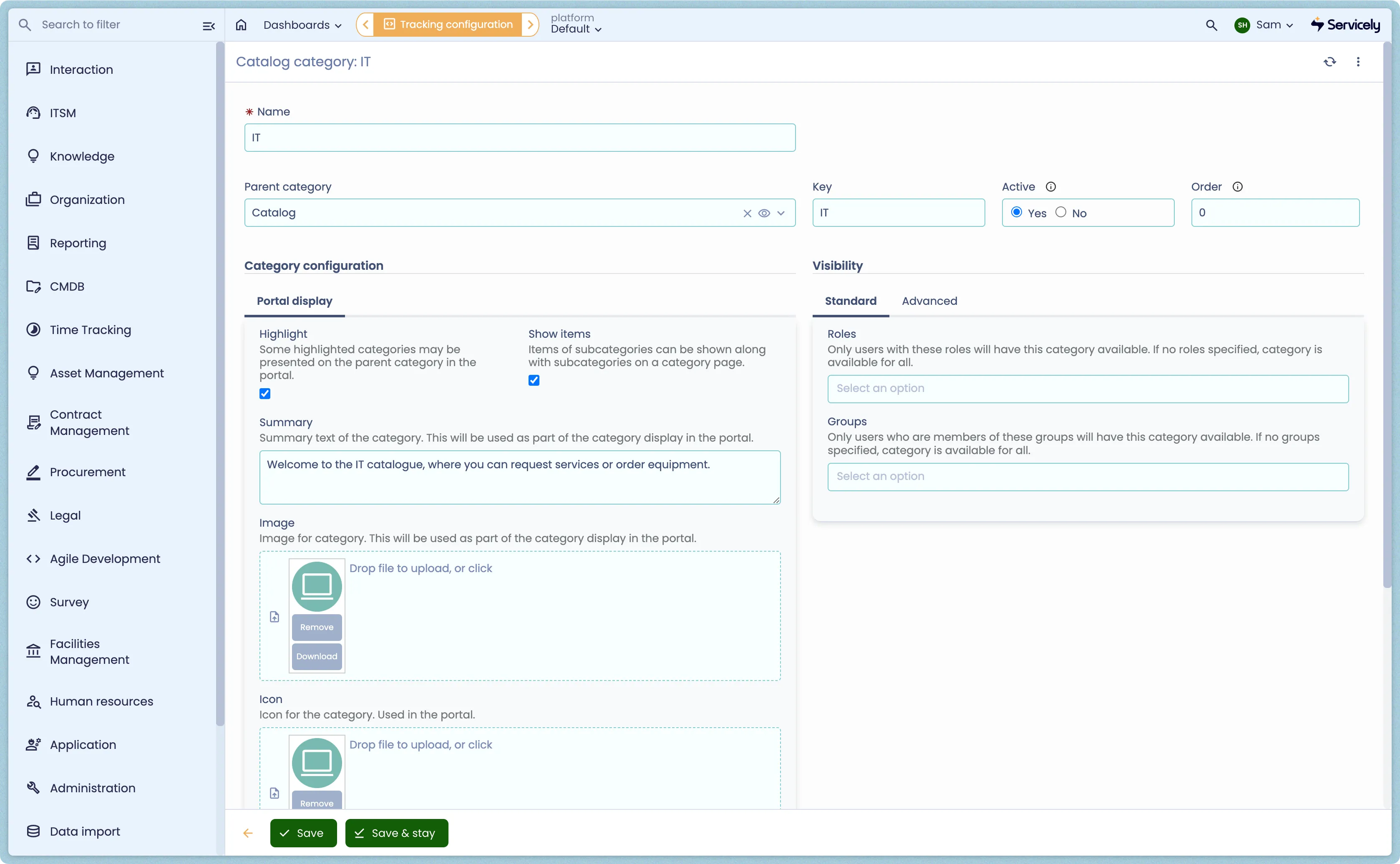
Each Portal Category has the following fields for configuration:
Field Label | Field Type | Purpose |
|---|---|---|
Name | String | The name of the Category - visible to end users when navigating the Portal, and indexed for Search. |
Parent Category | Reference | (Optional) Parent Field to create a multi-level taxonomy of categories. |
Key | String | (Optional) Unique identifier for advanced scripting |
Active | Boolean | Flag to enable or disable the entire category (and it's childen Catalog Items) from the portal. |
Order | Integer | Numerical order of appearance for categories within the parent - smallest number will be the first appearing Category. |
Highlight | Boolean | Allows for visual distinction of Categories within the Portal - useful for new offerings or changes to Portal Taxonomy. |
Show Items | Boolean | Items of subcategories can be shown along with subcategories on a category page. |
Summary | Text | Summary text of the category. This will be used as part of the category display in the portal. |
Image | Attachment | Image for category. This will be used as part of the category display in the portal. |
Icon | Attachment | Icon for the category. Used in the portal. |
Roles | Multi-Reference | Only users with these roles will have this category available. If no roles specified, category is available for all. |
Groups | Multi-Reference | Only users who are members of these groups will have this category available. If no groups specified, category is available for all. |
Entitlement Script | Script | Complex entitlement rules may be scripted. The script should result in a boolean true/false, or set the the answer variable. |
Subcategories | Related List | Related List of all Categories with the current Category listed as the Parent. |