System Controllers
System controllers allow complete control over inbound integrations. System controllers allow you to script any logic, and return any type of data back to the caller. It can either be API call from an external system or from Servicely’s client side scripting.
With the scripting, you have access to perform Table operations (refer to Table API (Server) ) on any table your API authenticated session allows (refer to Authentication (Inbound)) or your current user session if the controller is called as part of a client side operation. You can also call Script Library functions as required.
URL format
To access a controller, the URL endpoint is https://<instancename>.servicely.ai/controller/<controllername>
Example if the instance name is testinstance and the controller name is UpdateIncidentTST, the URL will be https://testinstance.servicely.ai/controller/UpdateIncidentTST
Authentication
Possible authentication methods, refer Authentication (Inbound) for more information
- Basic username & password
- Bearer token
- HMAC header validation
- HMAC body validation
Accessing inbound payload’s attributes
For the following sample payload:
{
    "id": "b4321",
    "name": "Bob the builder",
    "phone": "0404111222",
    "relateddata": {
        "managerid": "a1234"
    }
}
You can either access the attribute directly in your controller script, e.g.
OR you can access the entire payload with the _data variable
Customising the response format
In version 1.10.63, the ability to customize the response format of a system controller was introduced. The addition to the API allows you to customize the message format, the content type, HTTP status, and add headers to the SystemController response.
Controller object
The ‘controller’ object allows customisation of the message header. If the ‘setBody’ or ‘setJsonBody’ methods are called, these override the V1 functionality of using the ‘answer’ variable. The available methods are listed below.
Function | Returns | Description |
|---|---|---|
setBody(body: String) | Reference to controller object | Sets the body of the response to the explicit string provided. The body will not be modified or interpreted in any way. |
setJsonBody(obj: Any?) | Reference to controller object | Sets the response as a JSON object. The passed object will be serialised to a JSON object directly (will not be contained under the ‘data’ property of the V1 API) |
setContentType(contentType: String) | Reference to controller object | Sets the HTTP ‘Content-Type’ header to the requested MIME type. |
setStatus(code: Number) | Reference to controller object | Sets the HTTP Status Code for the request. |
setHeader(name: String, value: String) | Reference to controller object | Sets the specified HTTP Header to the requested value. |
Examples
The examples below are split into the source that is calling the Controllers based on the typical use cases. There is no difference in syntax and requirements of parameters that can be passed into the Controller as well as its return values.
Example - API from external systems
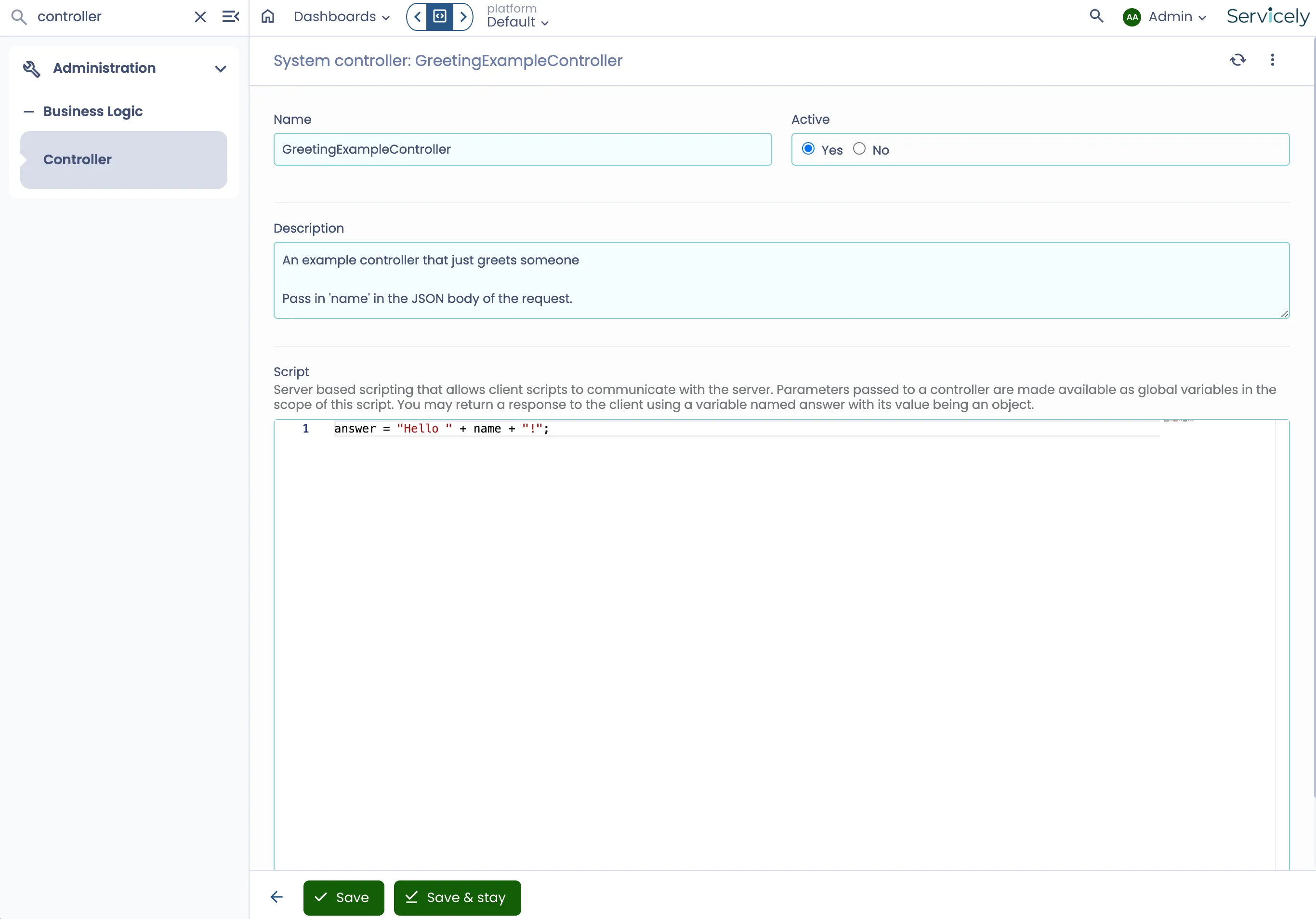
Below is an example of an API payload sent to a Servicely environment that replies with a greeting. The Servicely screenshot below shows how such Controller can be configured.
➜  ~ https -v sandbox.servicely.ai/controller/GreetingExampleController name=Bob

POST /controller/GreetingExampleController HTTP/1.1

{
    "name": "Bob"
}


HTTP/1.1 200 OK
Content-Length: 28
Content-Type: application/json

{
    "data": "Hello Bob!"
}
Example - For client side script’s request
Below is an example of a Controller script that is intended to get a user record’s Location ID and Name for the purpose of a client side scripting (such as UI Event).
Assumptions:
- Client side scripting will pass a parameter called “userId”
- Client side scripting will handle the returned payload that has two attributes of “locationID” and “locationName”
answer = {};

// Query the User table for the record with the provided userId parameter.
if (userId) {
    let userRec = Table("User", userId);
    if (userRec) {
        if (userRec.Location.hasValue()) {
            answer.locationID = userRec.Location.value();
            answer.locationName = userRec.Location.displayValue();
        }
    }
}

answer;
Example - Version 2 API to provide a custom JSON format (no ‘data’ element)
…will result in the complete message…
Example - Version 2 API to provide a custom XML response
…wil produce..
Example - Script to create an Incident with classification and error handling
Example of a Controller script to create an Incident ticket from an external source with a level of classification mapping and a level of error handling:
/*
 * Sample incoming payload:
 * {
 *     "issueSummary": "Unresponsive DB",
 *     "classification": "DB access"
 * }
 *
 * Sample return payload:
 * {
 *     "data": {
 *         "status": "200",
 *         "message": "INC0001234 created.",
 *         "servicelyID": "b1d4dc612b4c11ee857dea22dfa25102"
 *     }
 * }
 */

let answerPayload = {};
if (issueSummary) { // check if summary was provided in the inbound API payload
    // 1. Map ticketClassification
    let ticketClassification = "1234"; // default classification ID
    switch(classification) {
        case "DB access":
            ticketClassification = "5678";
            break;
        case "Server performance":
            ticketClassification = "a6d5";
            break;
        default:
            break;
    }
    // 2. Create incident
    try {
        let newInc = Table("Incident")
                         .newRecord()
                         .Requestor(user.getID()) // Example, IF we are defaulting Requestor to current user used by the integration's authentication
                         .ShortDescription(issueSummary)
                         .Classification(ticketClassification)
                         .create();

        answerPayload.status = "200";
        answerPayload.message = newInc.Number() + " created.";
        answerPayload.servicelyID = newInc.getID(); // unique Servicely DB ID for the newly created Incident record
    } catch (_e) {
        log.error("Exception with controller TestIncidentCreate. Exception message: " + _e);
        answerPayload.status = "500";
        answerPayload.message = "Exception with controller TestIncidentCreate. Exception message: " + _e;
    }
} else {
    answerPayload.status = "500";
    answerPayload.message = "Issue summary not provided.";
}

answer = answerPayload;  // set the return payload