Creating a new Catalog Item
Overview
Creating a catalog item in Servicely is an easy and quick way to gather structured information for any type of Record within the platform. Most commonly, Catalog Items are used to create Work Records (e.g., ITSM Request) with additional information to ensure the record can be addressed quickly and efficiently.
Creating the Catalog Item
Log into your instance as an Administrator
Catalog Item development should be done in a subproduction environment within Change Sets to ensure migration between environments effectively.
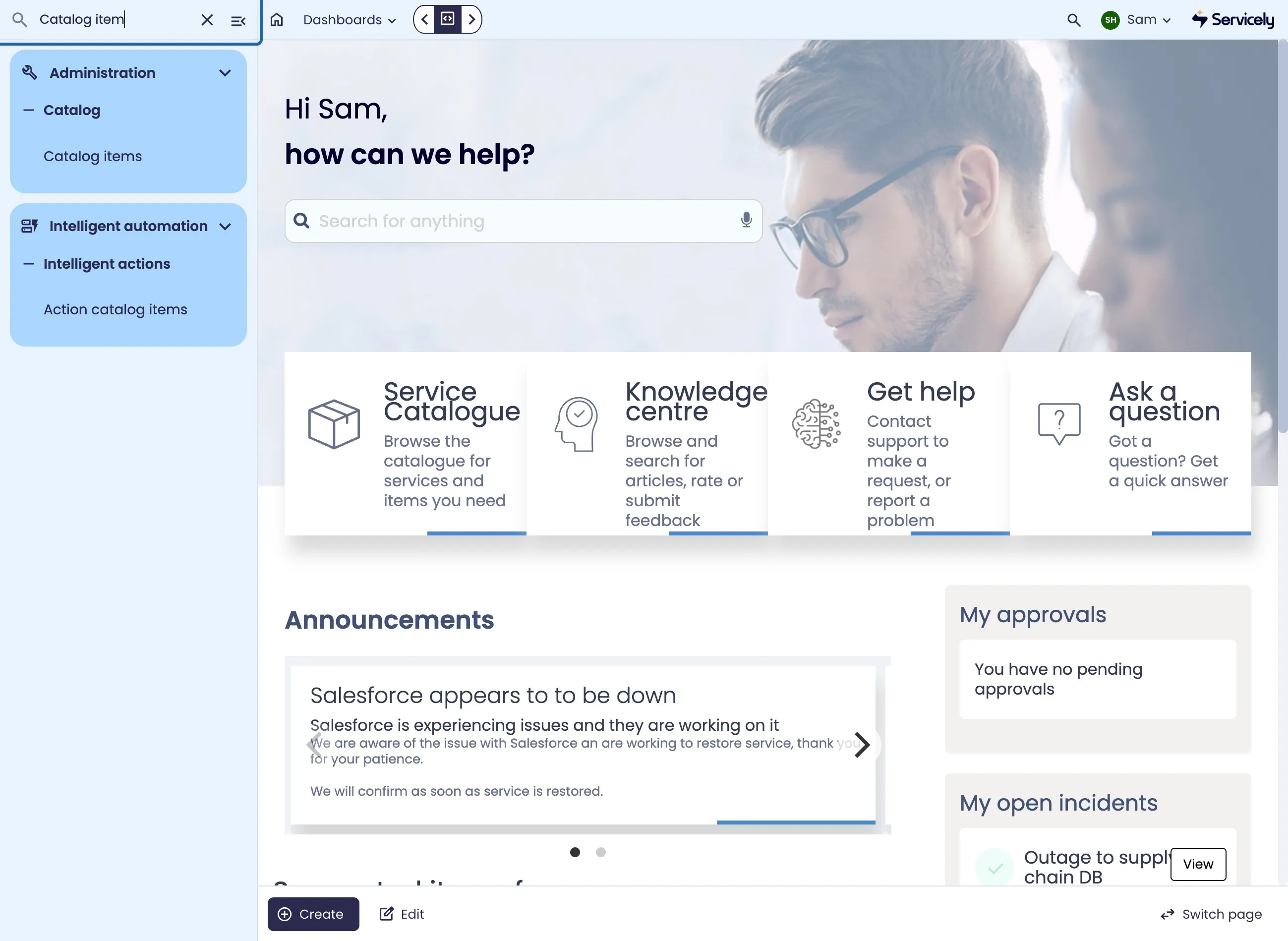
Type "Catalog item"
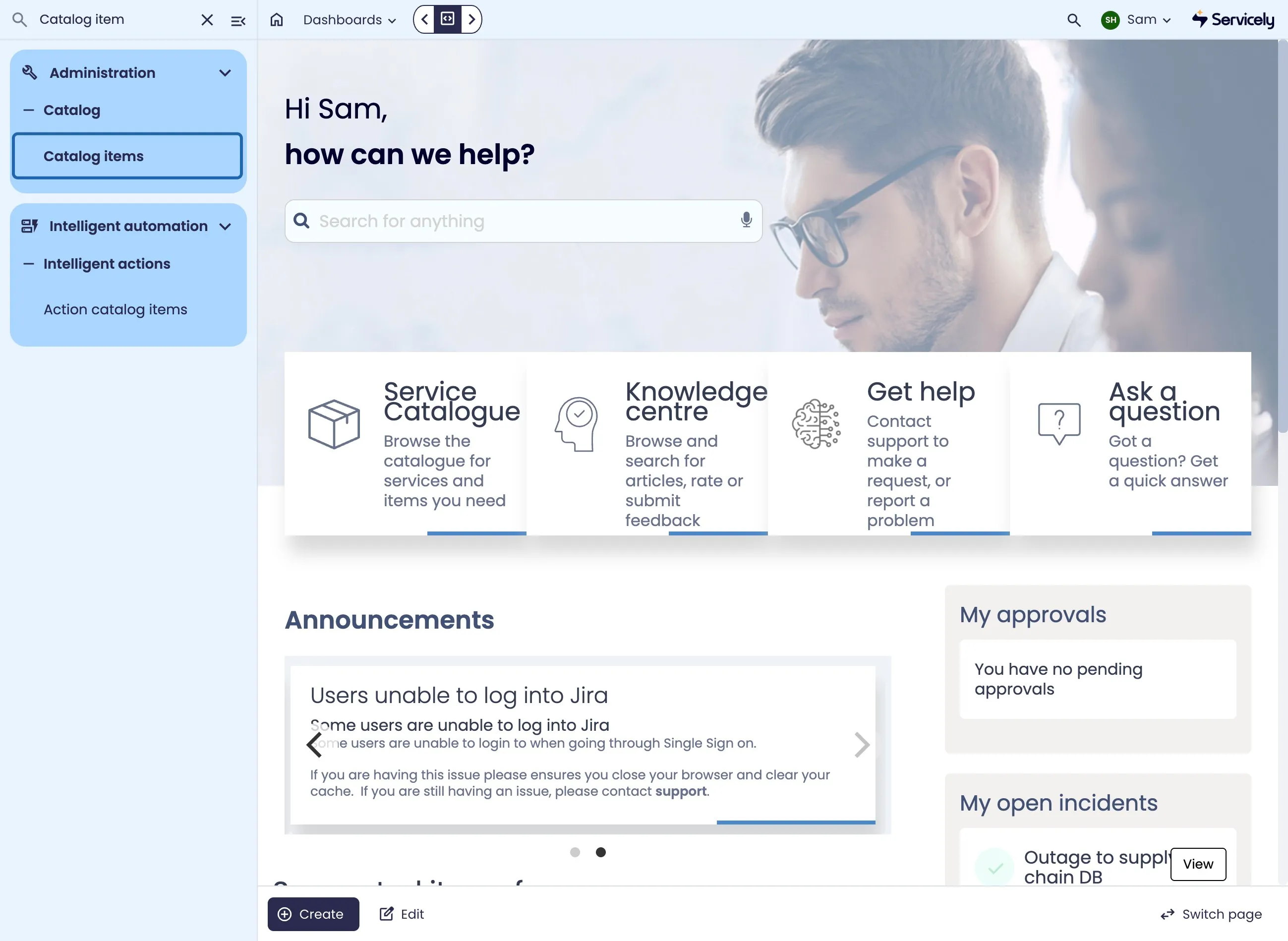
Click on Catalog items
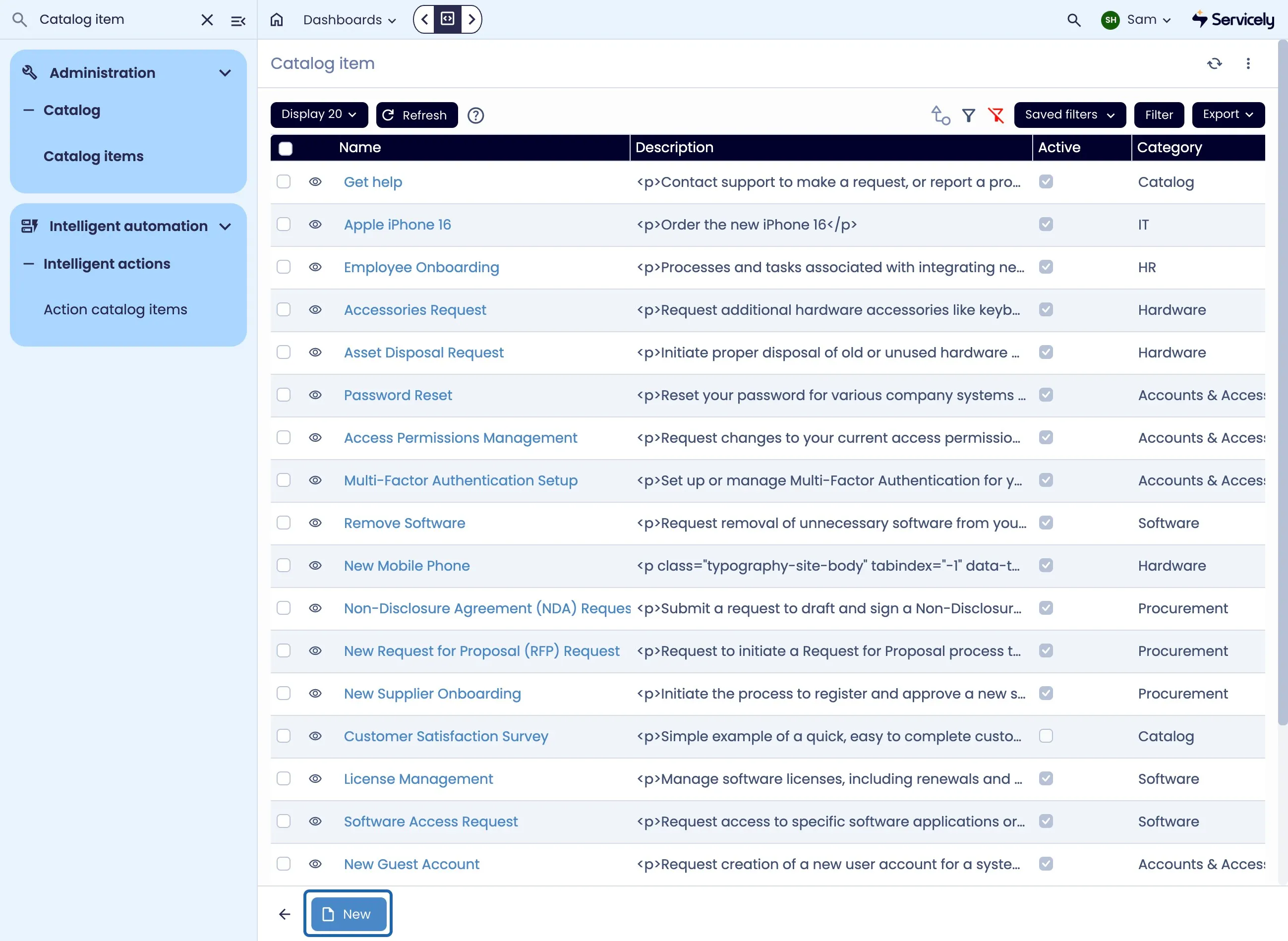
Click on New to create a new Catalog Item
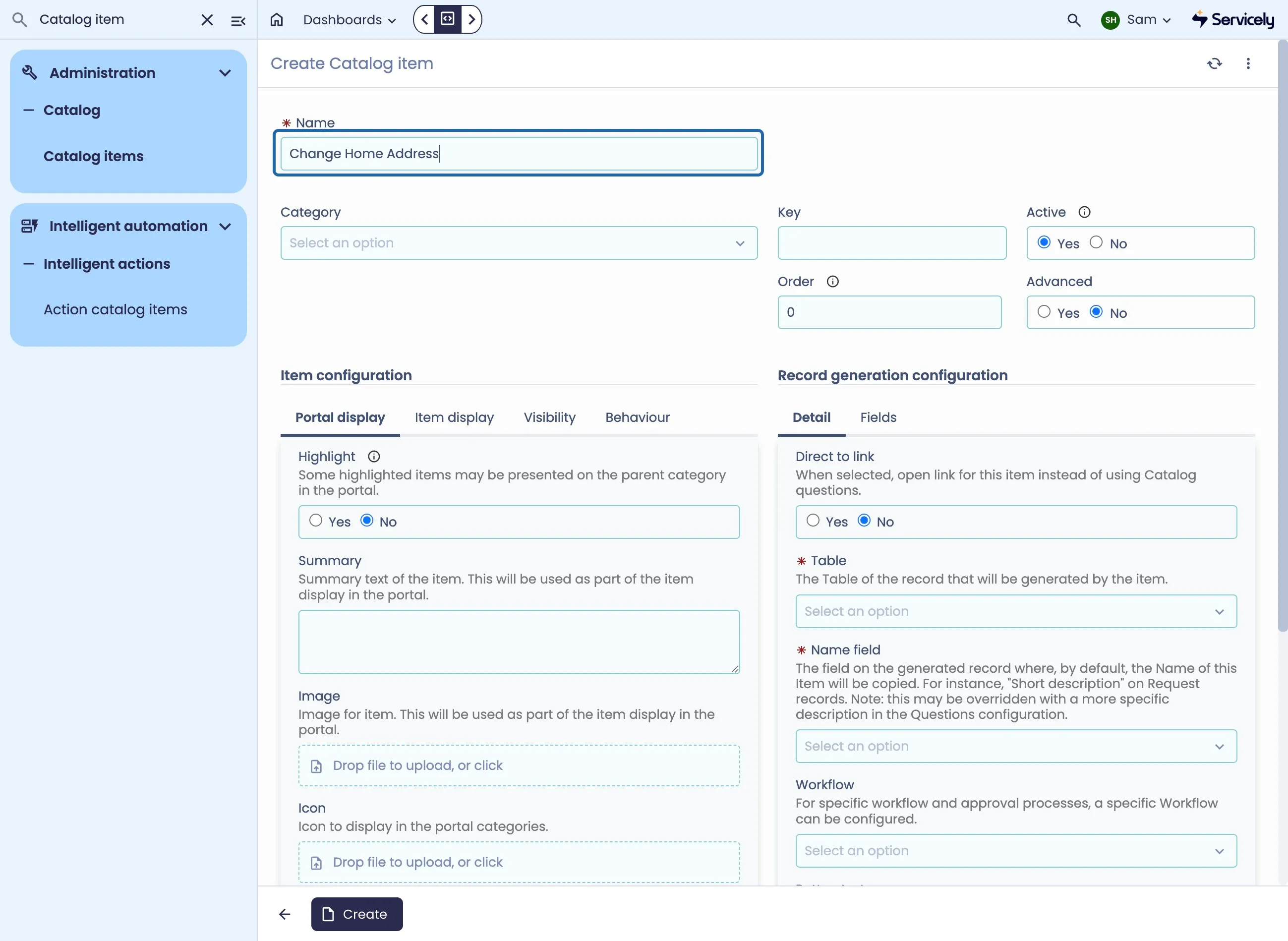
Populate the form to specify the Catalog Item's parameters
The Name field will be shown to end users, and is indexed for search
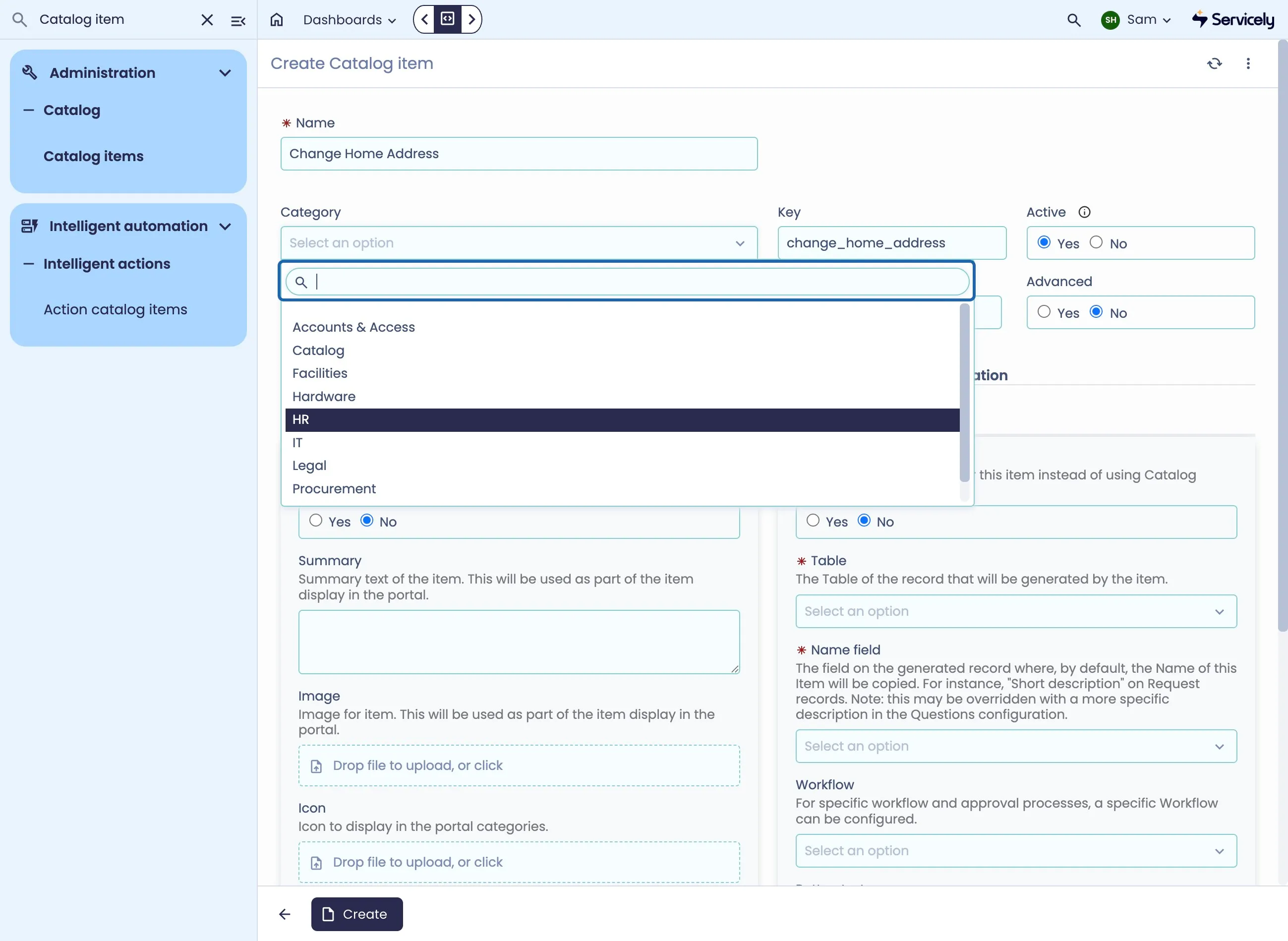
The Category field allows you to specify where in the Portal Catalog Categories the item will be visible.
Provide a summary - this is visible on the Catalog Item form
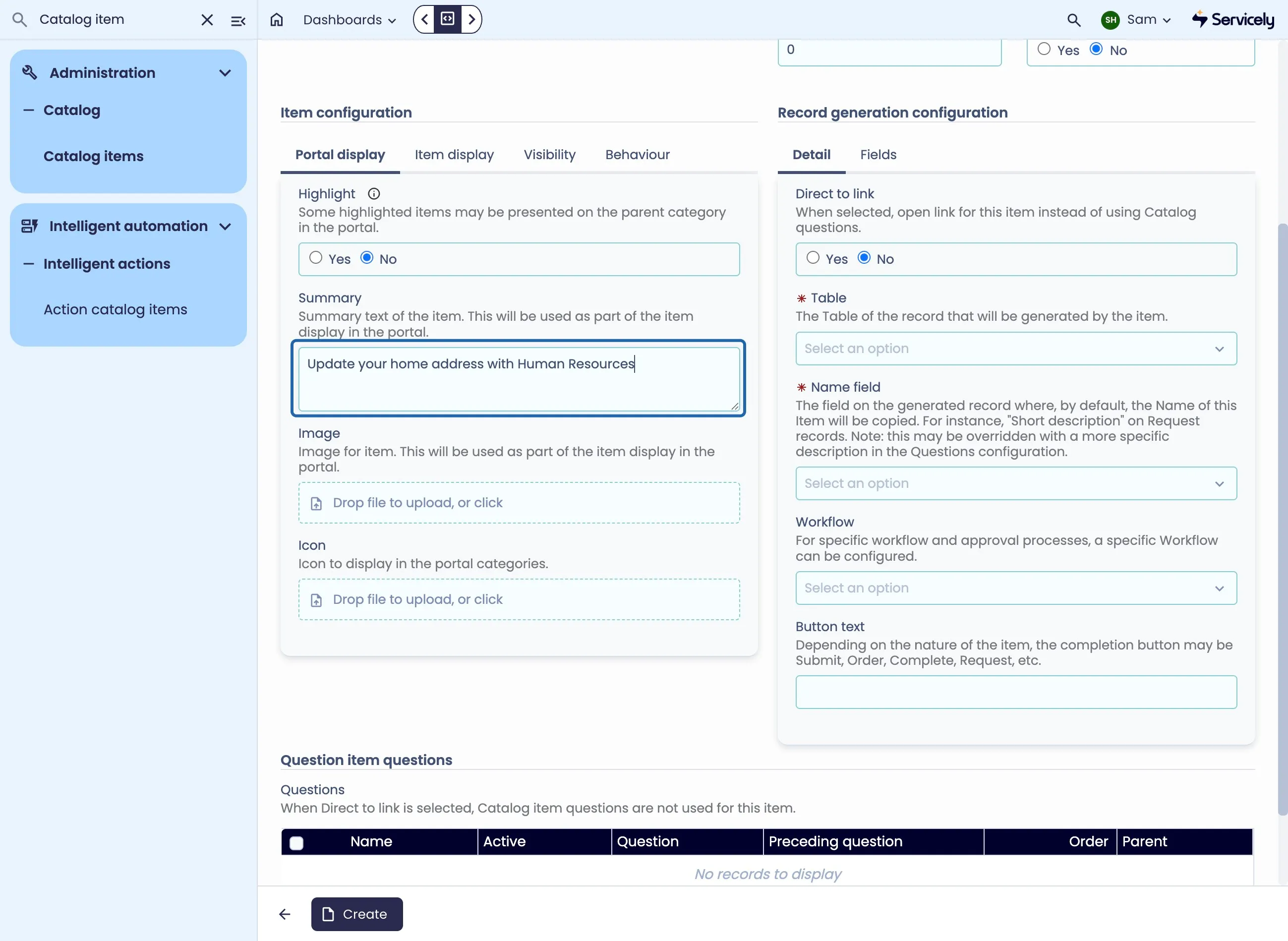
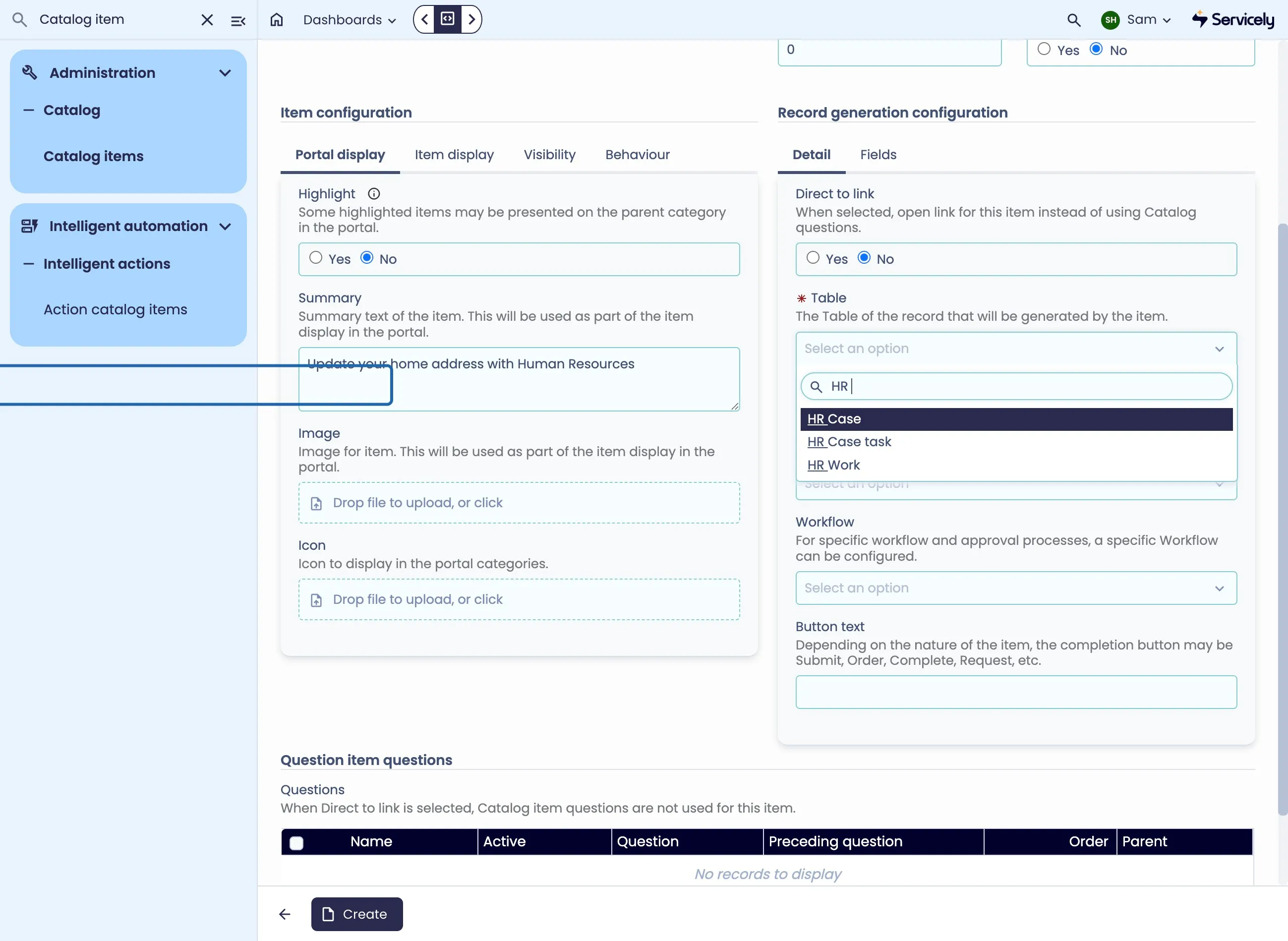
Specify the Target Table - this is what Record will be created upon the submission of the form.
In Servicely, Catalog Items can create any record!
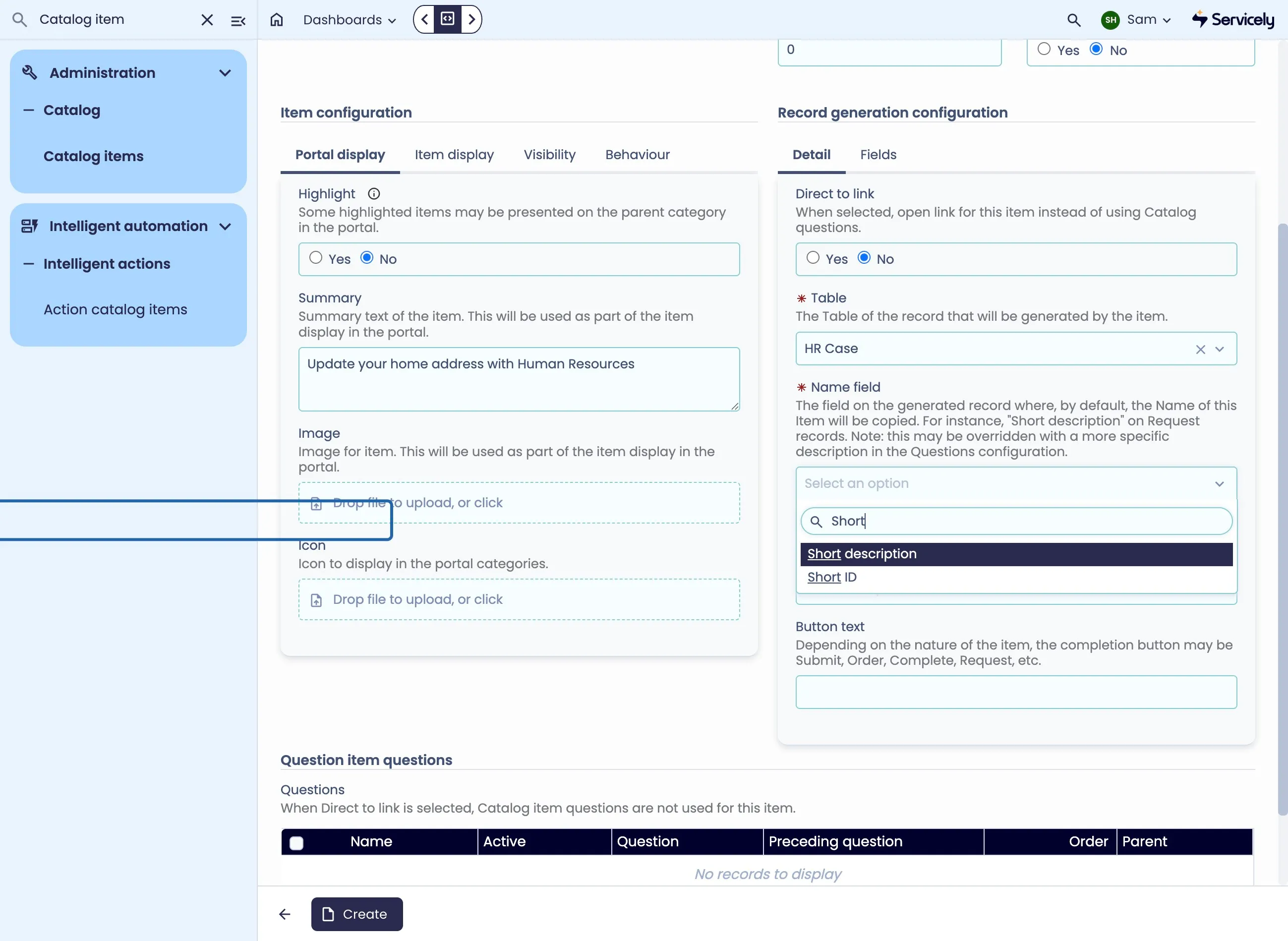
Poplulate the Name field - this is the form on the Record that will be populated with the Catalog Item's Name. In our example, this will be "Change Home Address" as set in Step 5.
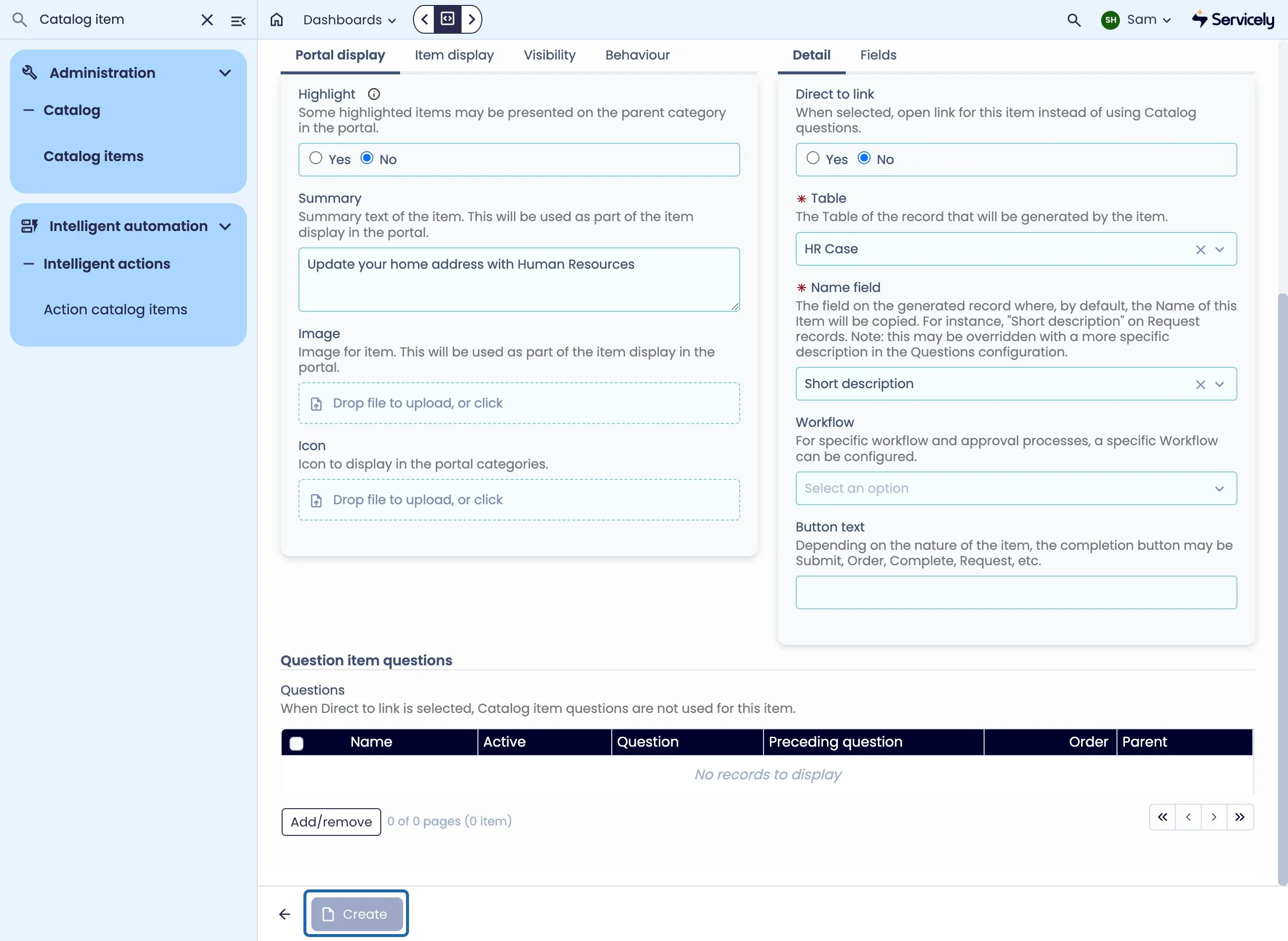
When finished, hit Create to create the Catalog Item
Creating Catalog Item Questions
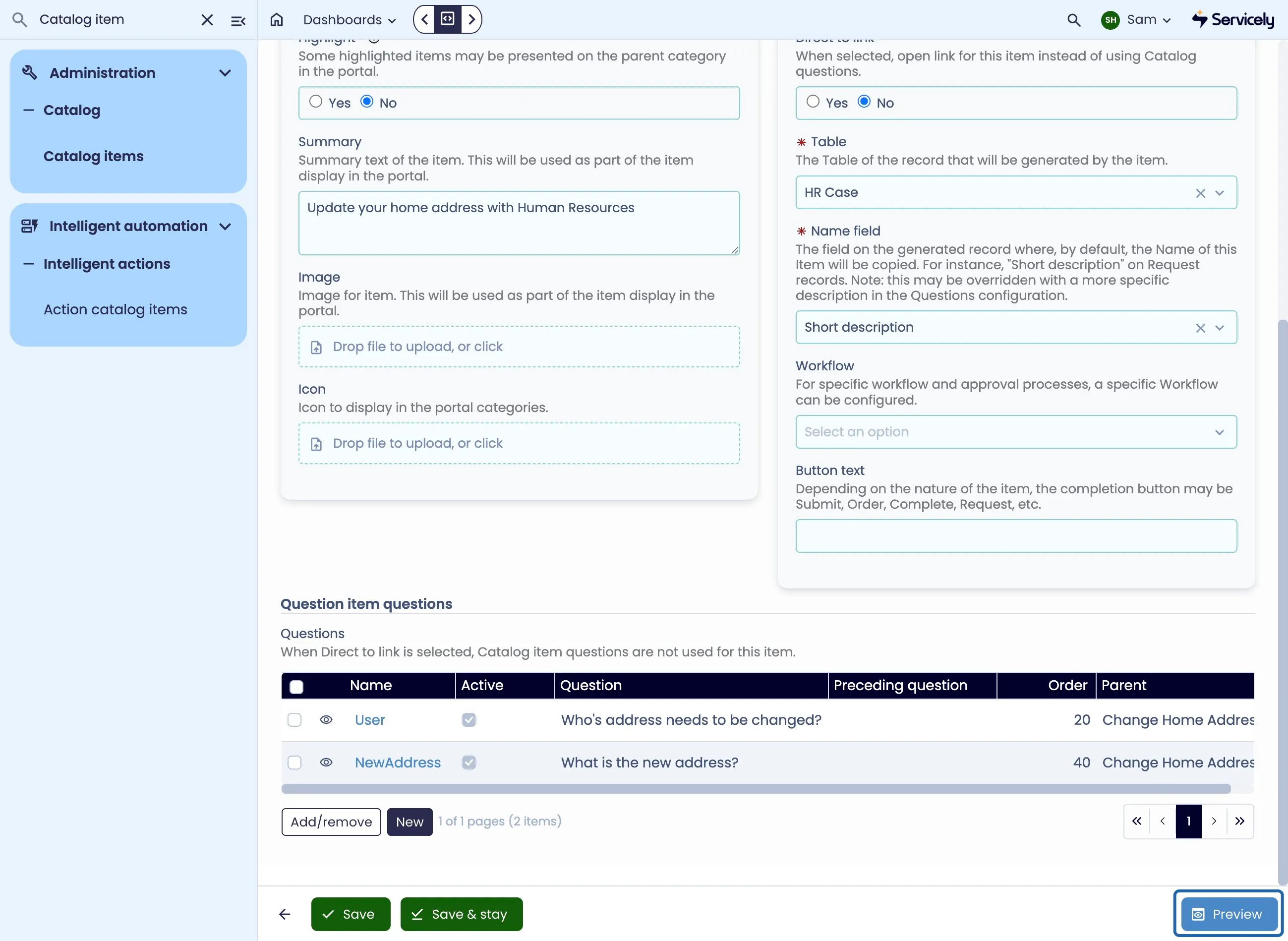
Questions allow us to capture the specific information we need to automate or resolve the catalog item without needing additional details in follow-up messages.
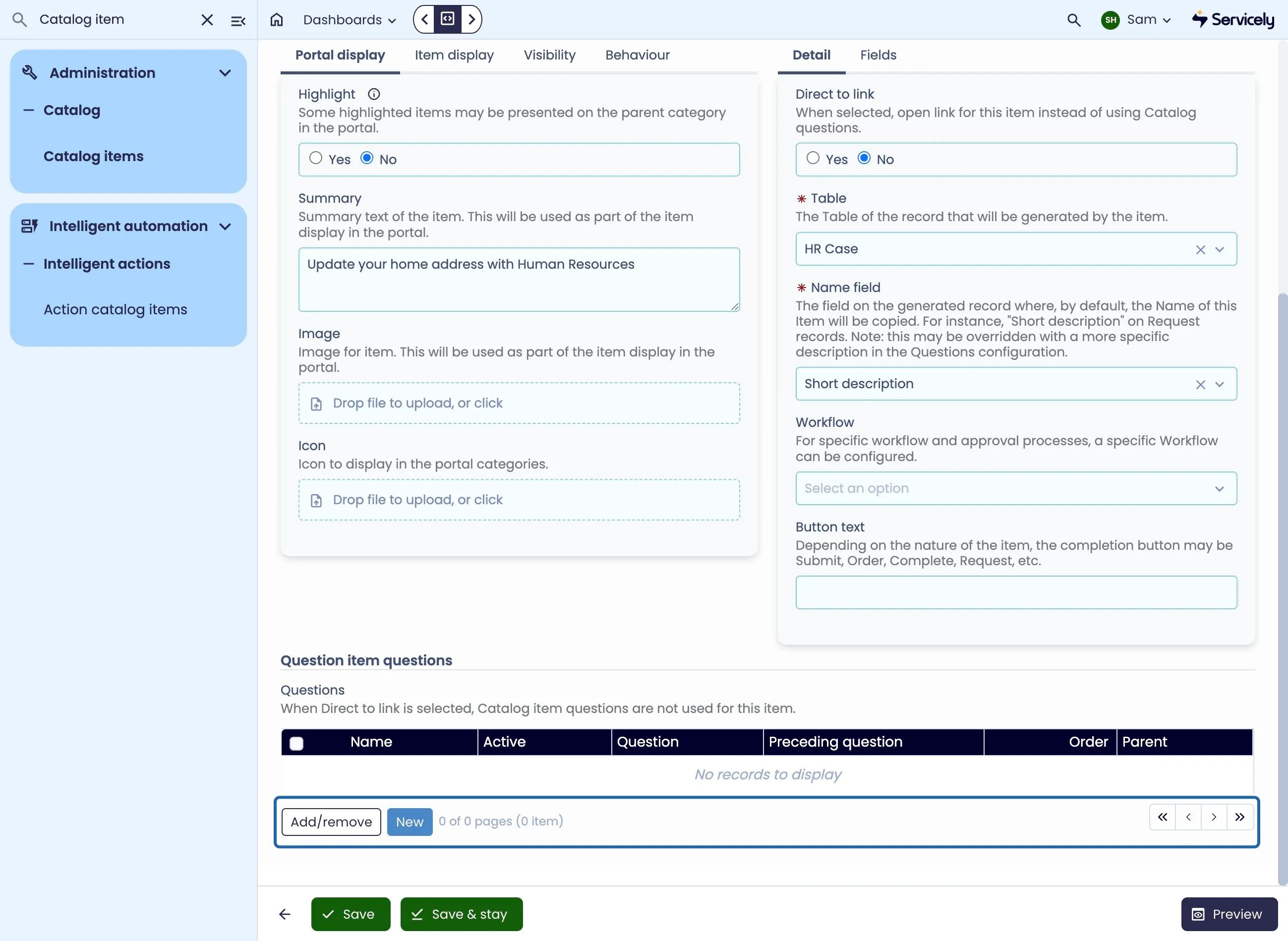
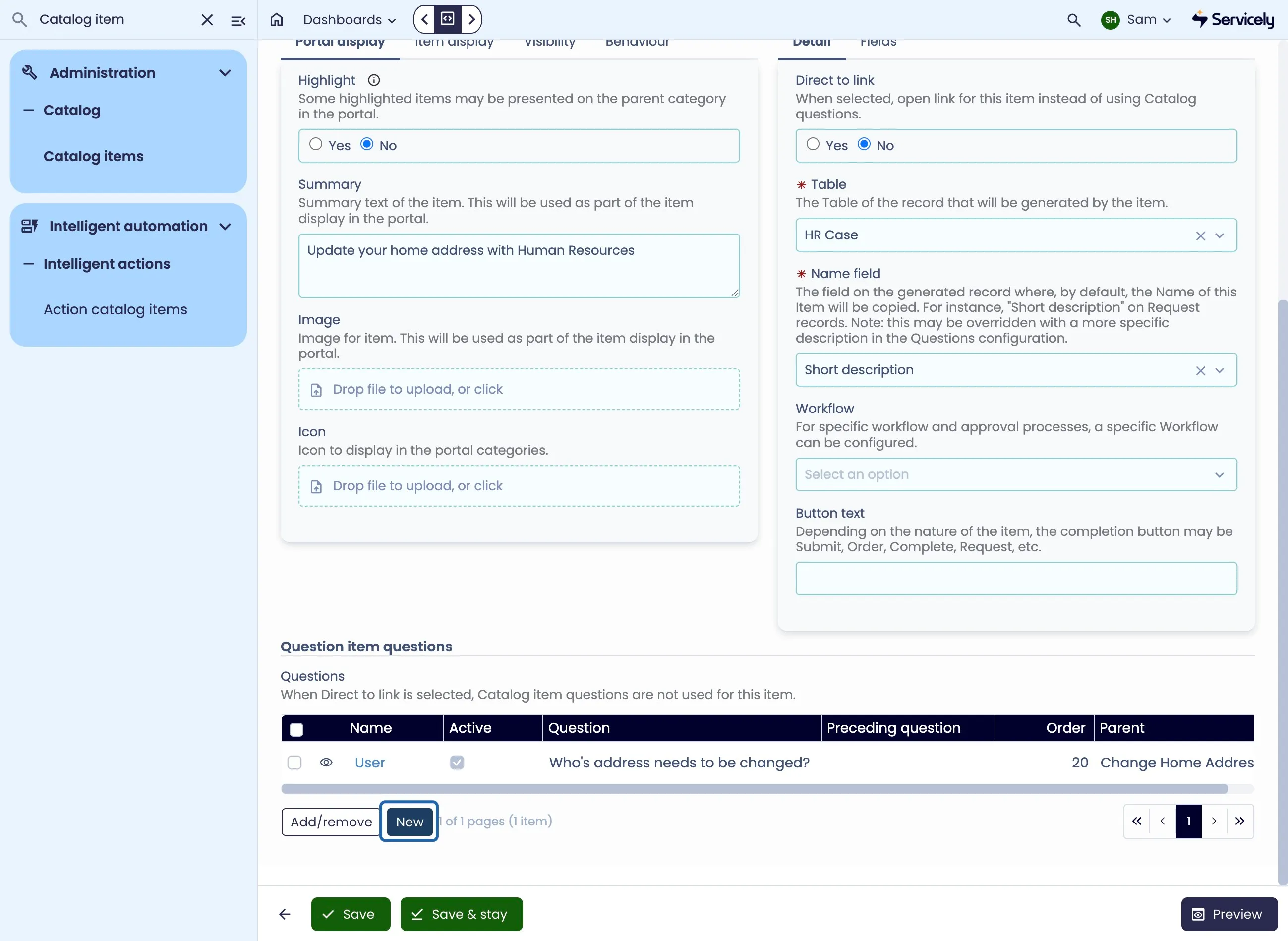
On the Catalog Item, click New under the Question Items
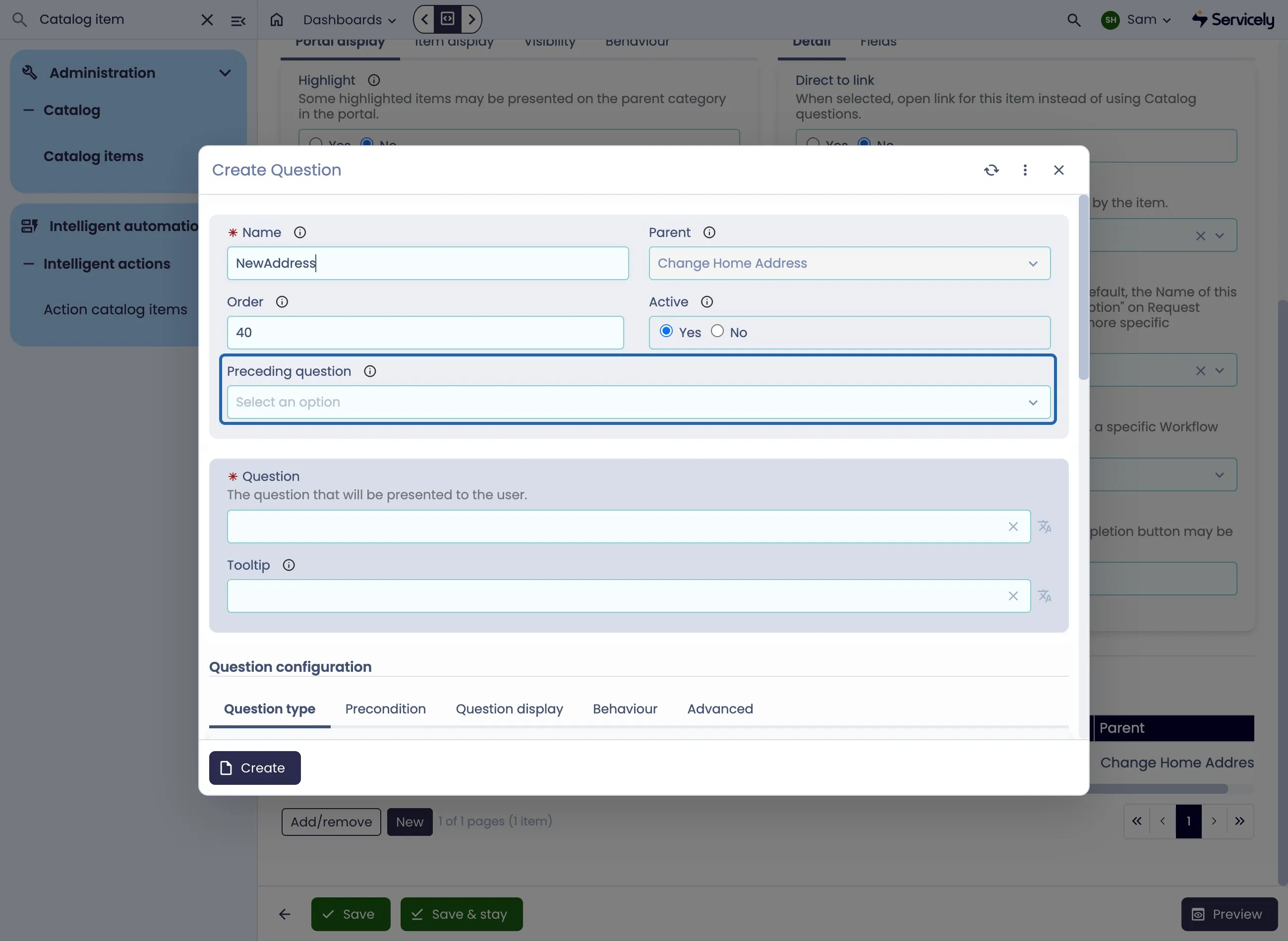
Provide the Question with a Unique Name
This is the system name, and is used for any conditional logic or complex scripting.
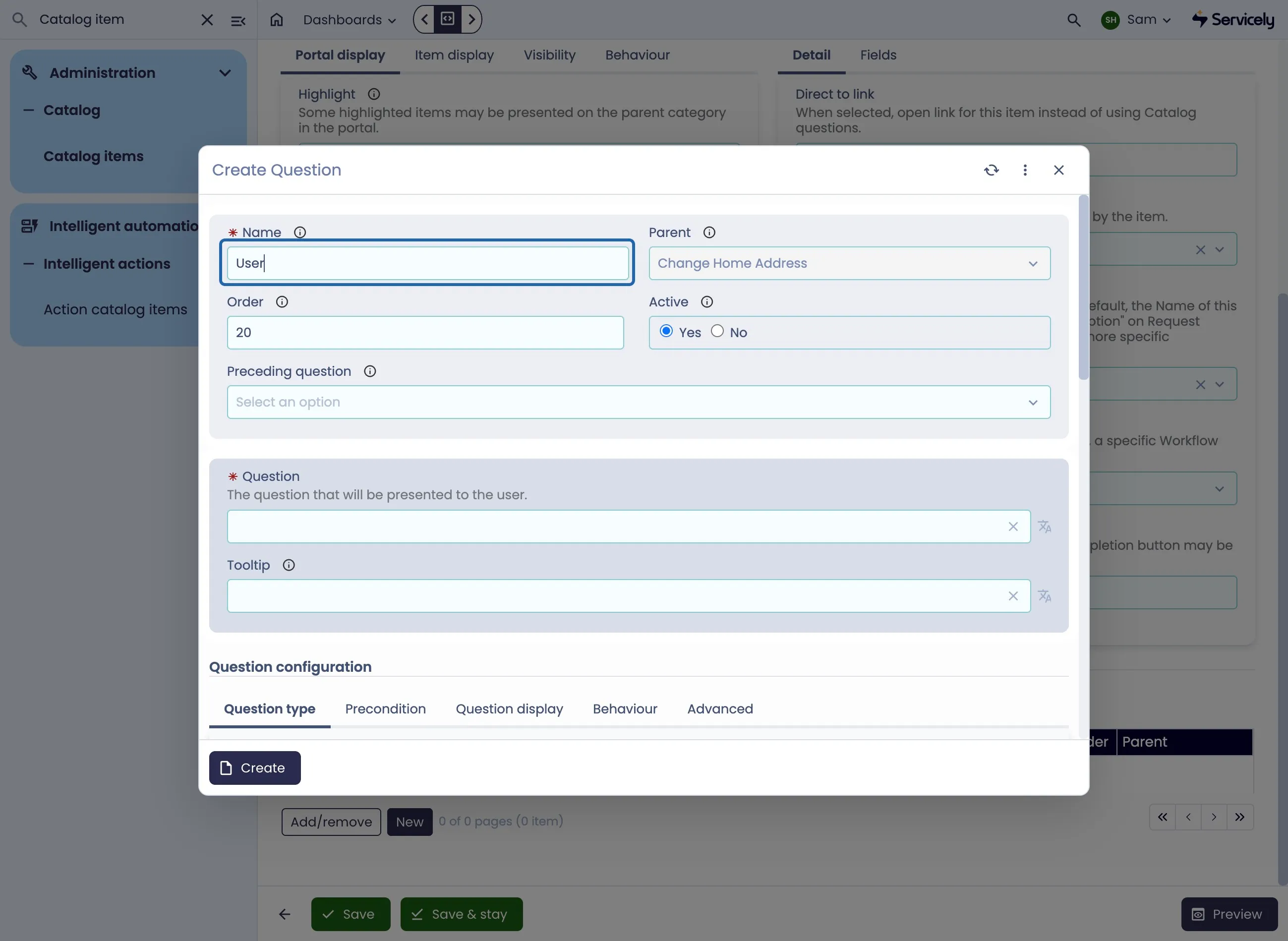
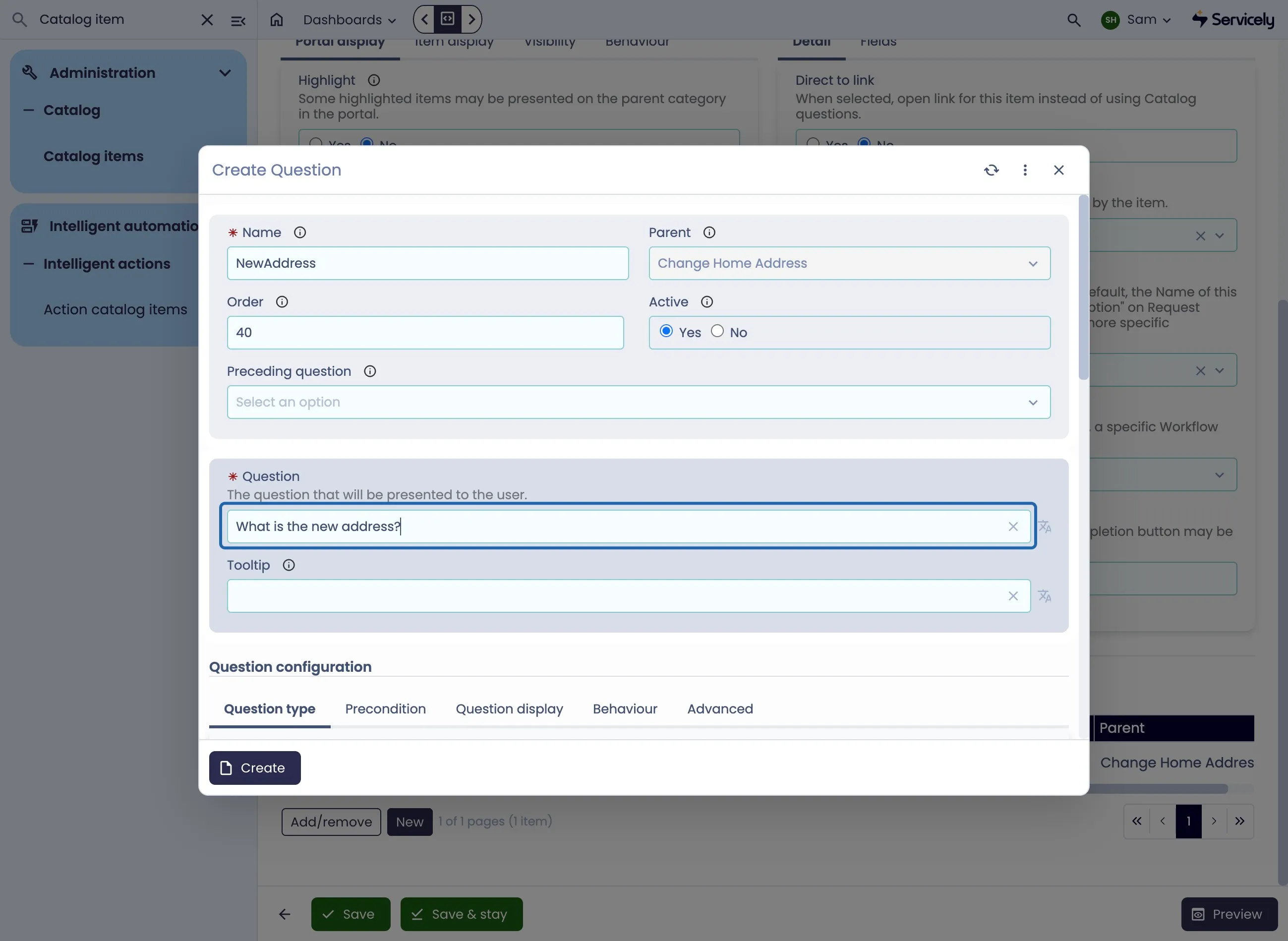
Provide the question iteself
This is the question that is visible to the end user.
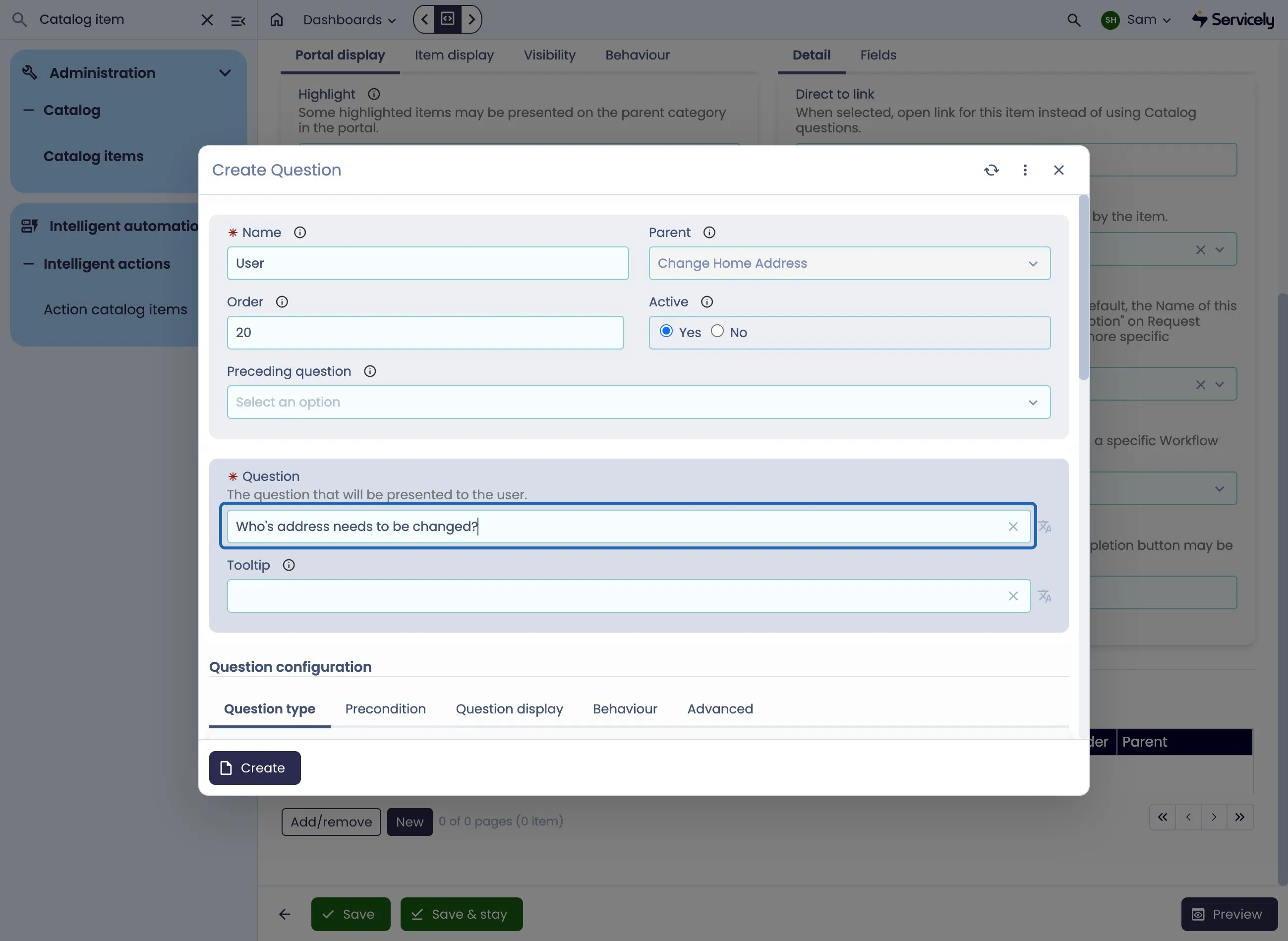
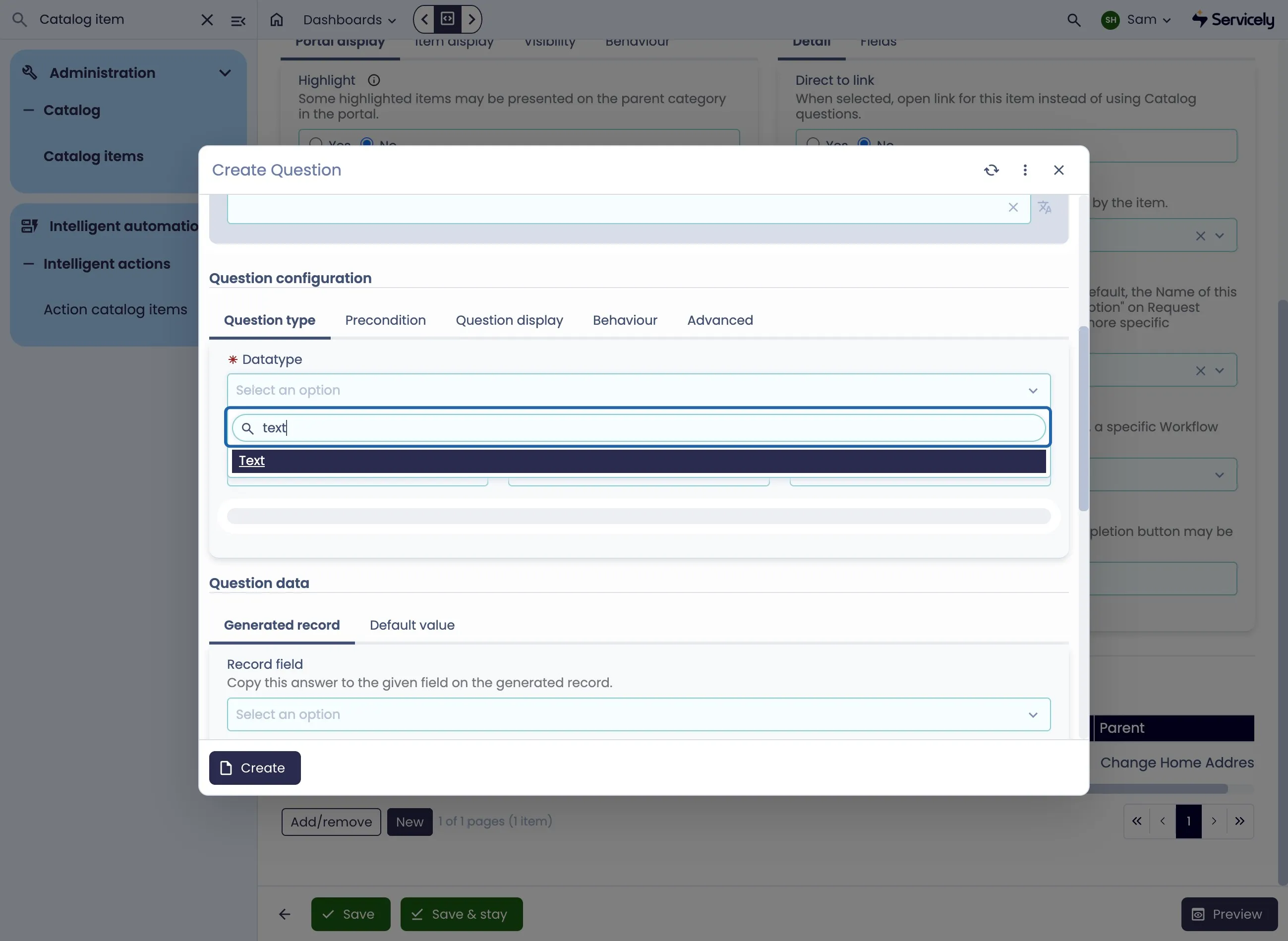
Specify the Question Type
In this example, we want to populate the field with the User who is submitting the quesiton, so we select the Reference field type
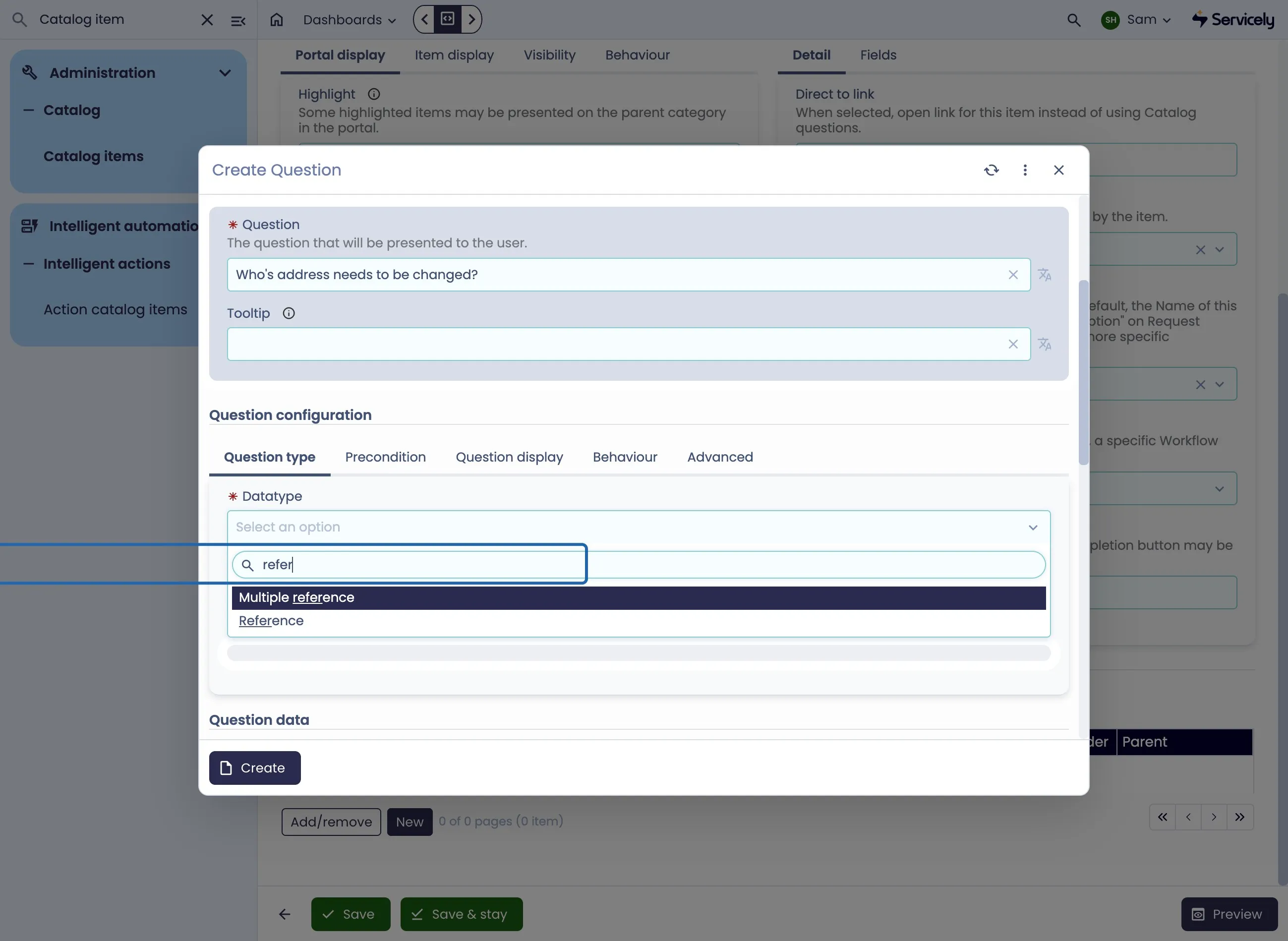
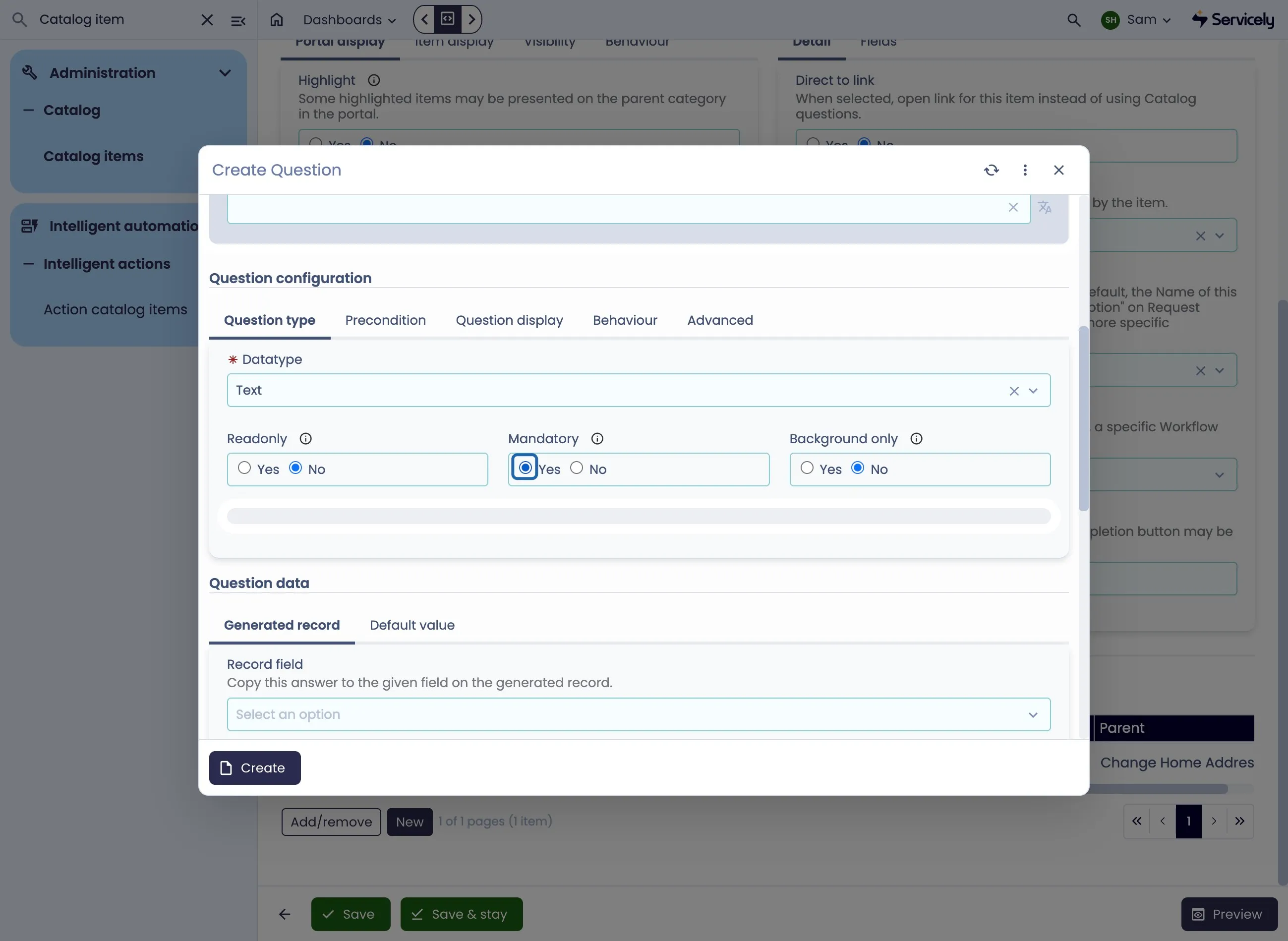
We can use the additional options under the field type to describe the fields behaviour: should it be Readonly, Mandatory, or invisible to the user (helpful for scripting)?
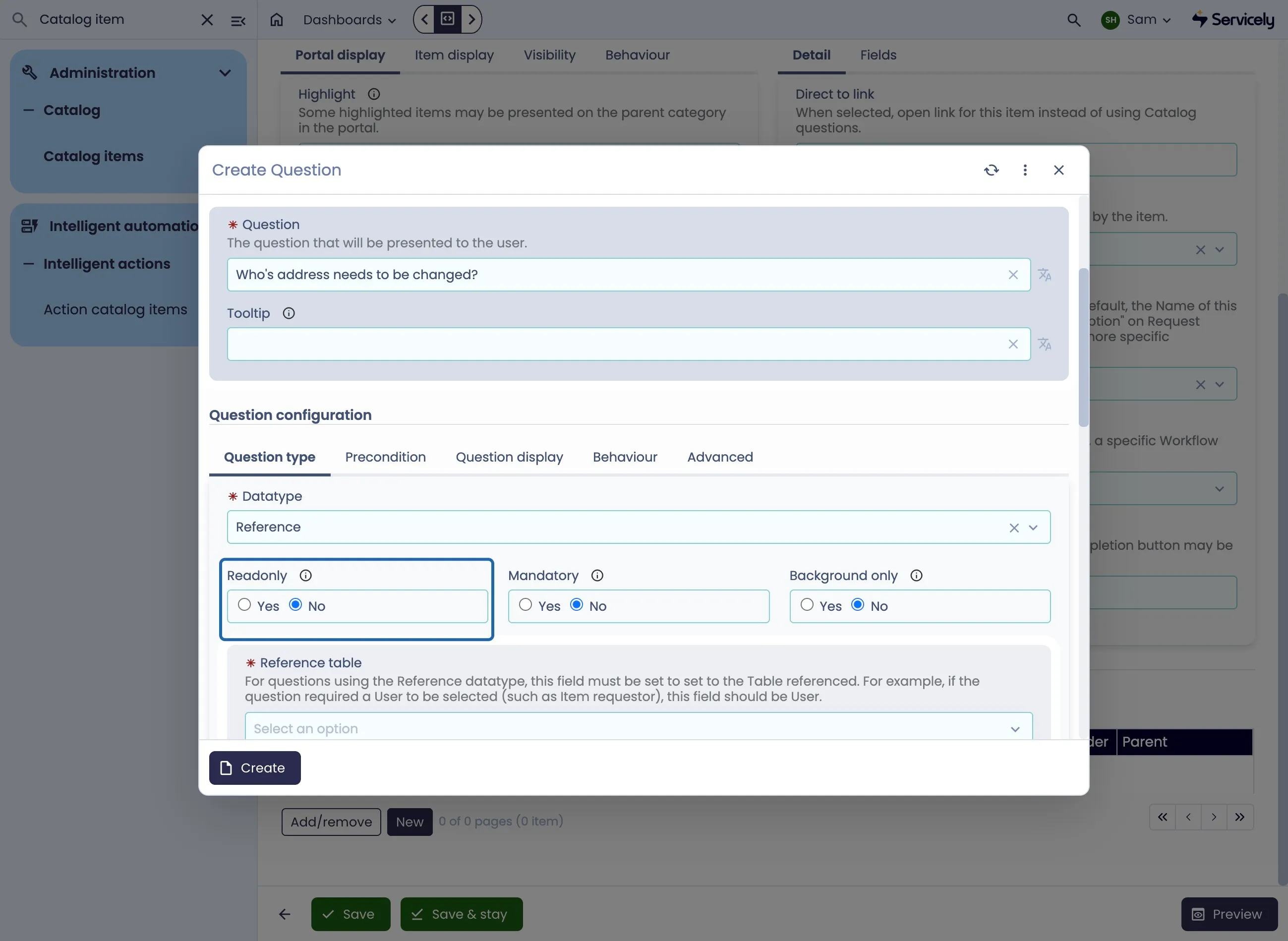
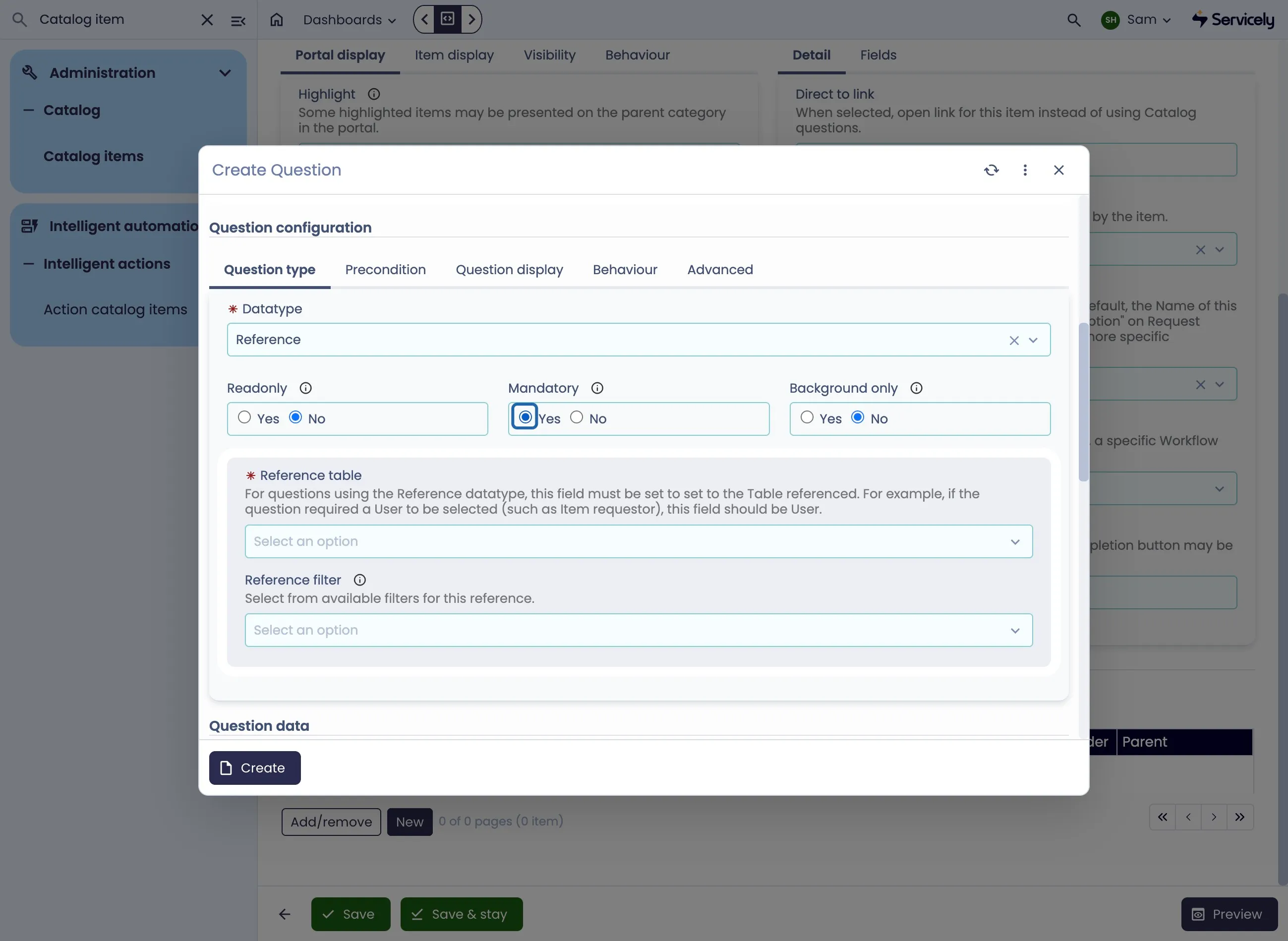
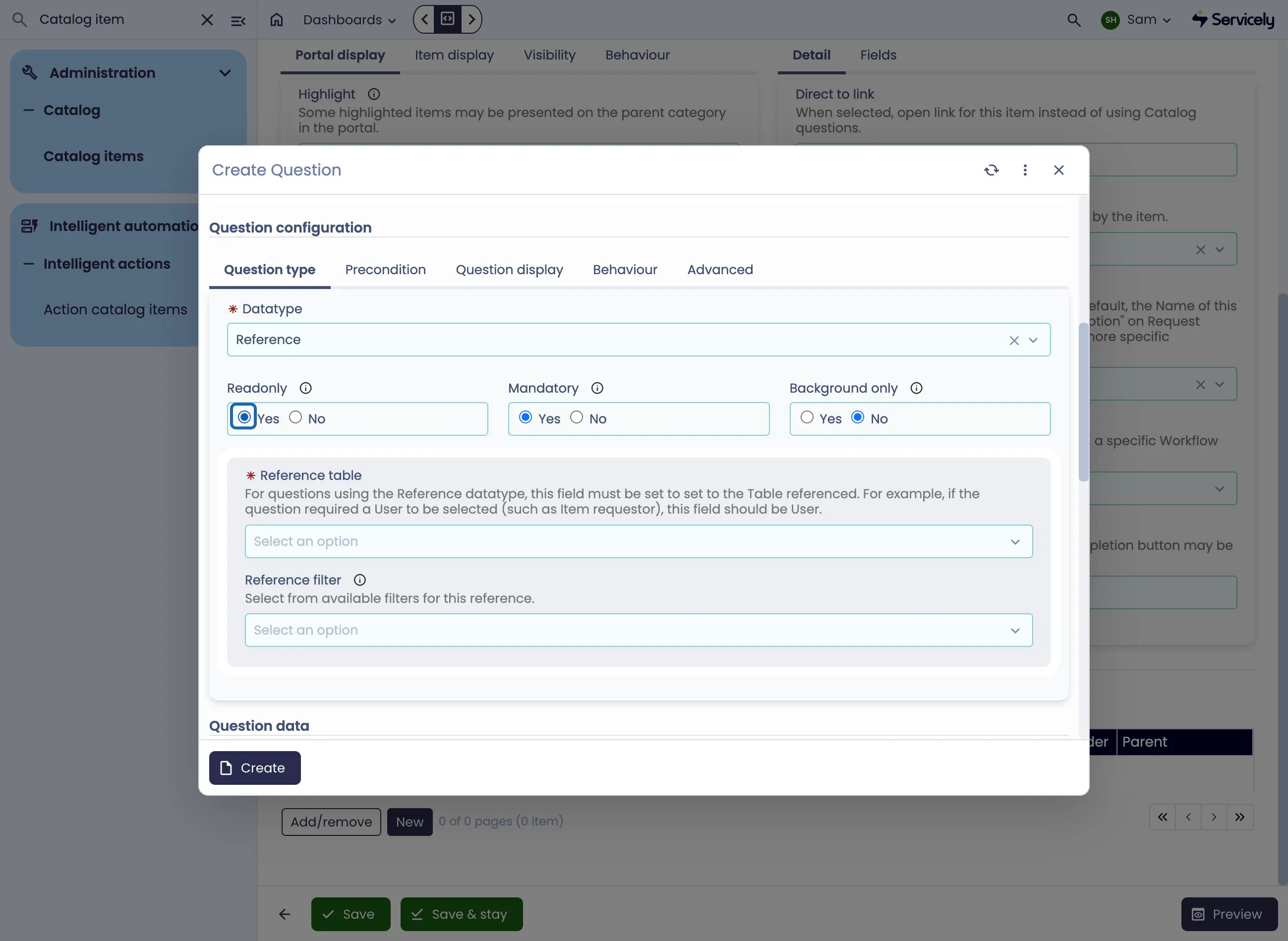
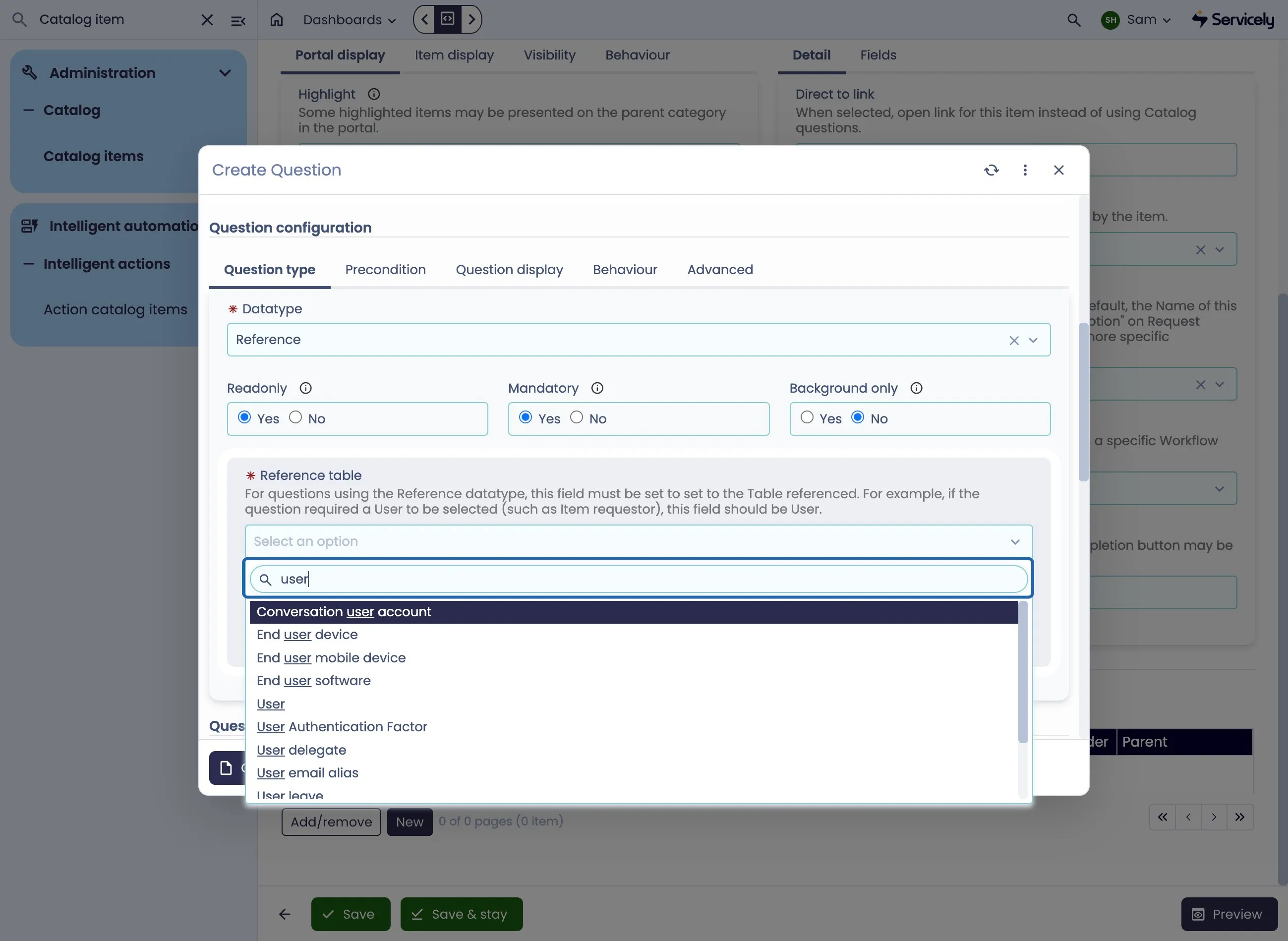
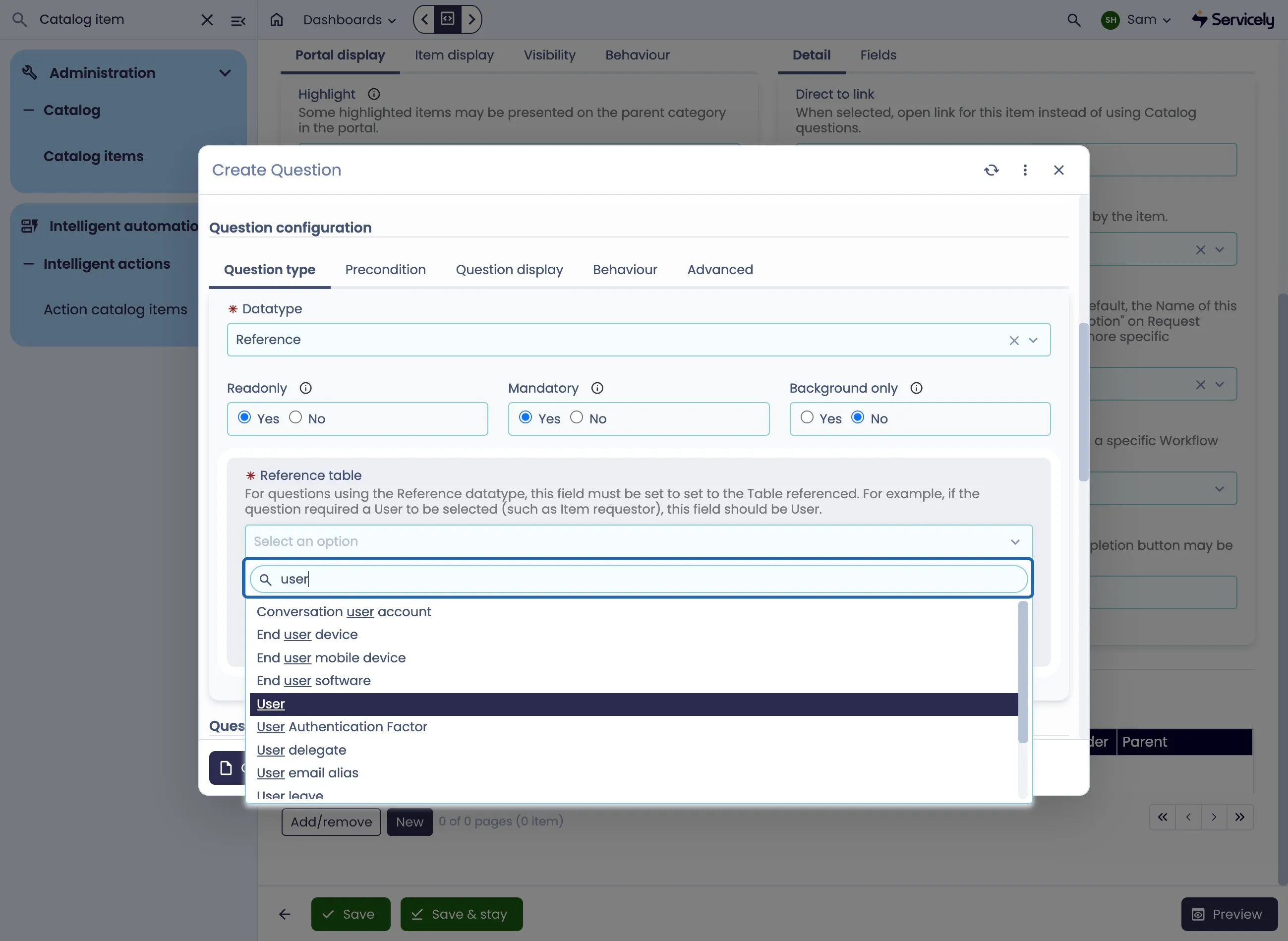
For the Reference Field type, pick the Table we're referring to
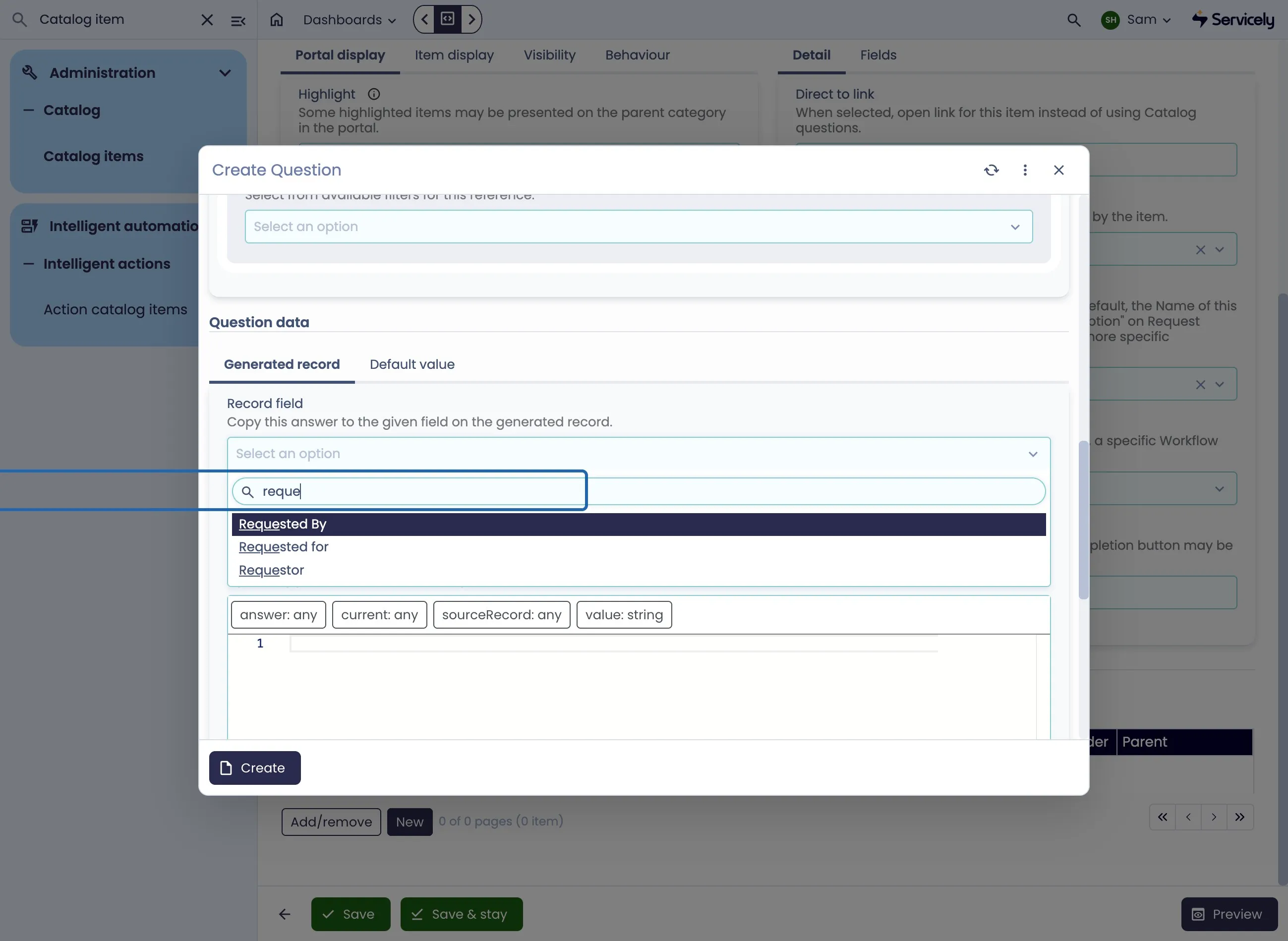
Determine how we're going to populate the record
Our questions can be stored directly as Question Answers against the Record, or we can populate fields on the Record itself. In this example, we want the user who the form is being submitted for to be the Requested For on our HR Case Record.
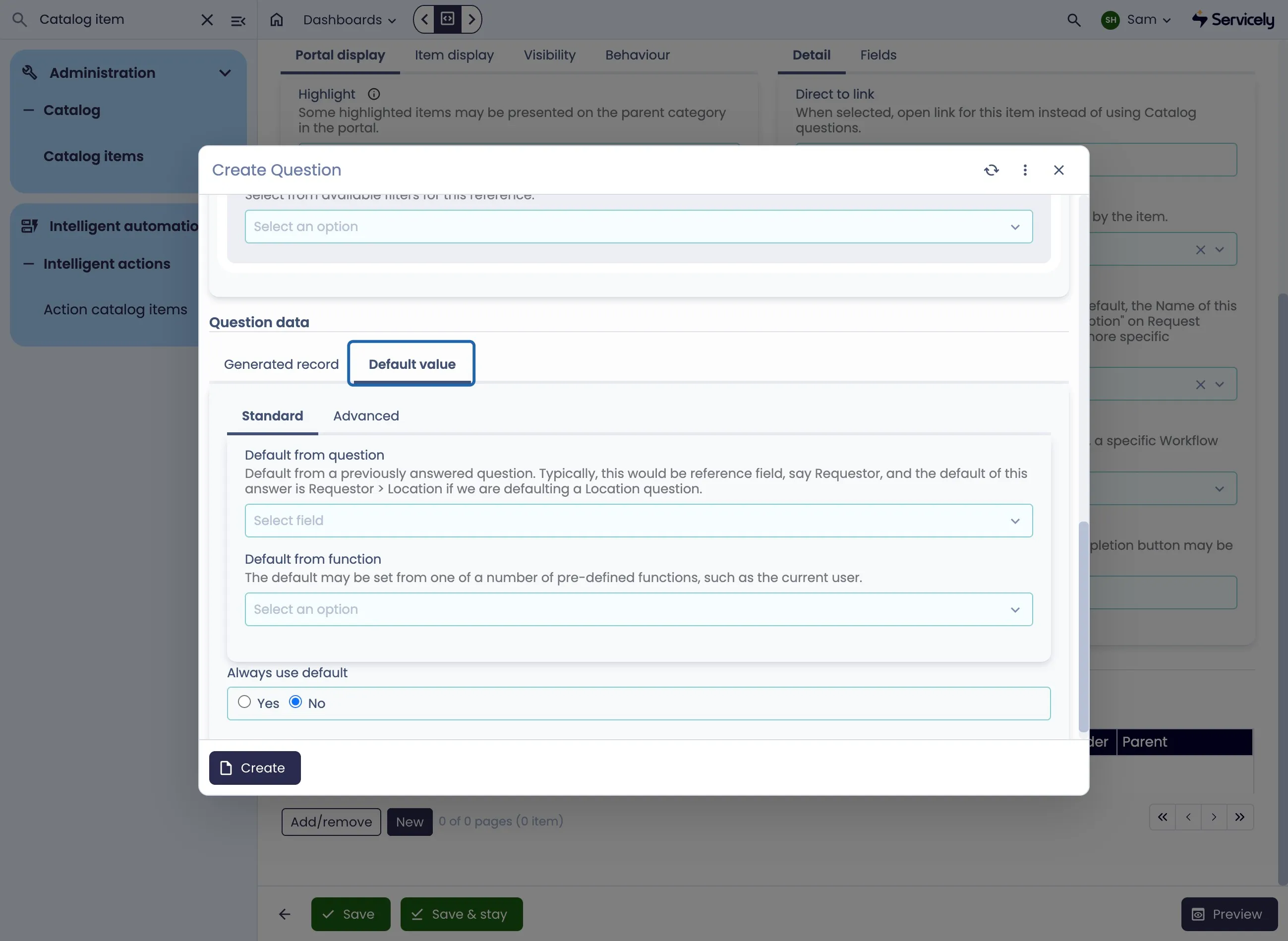
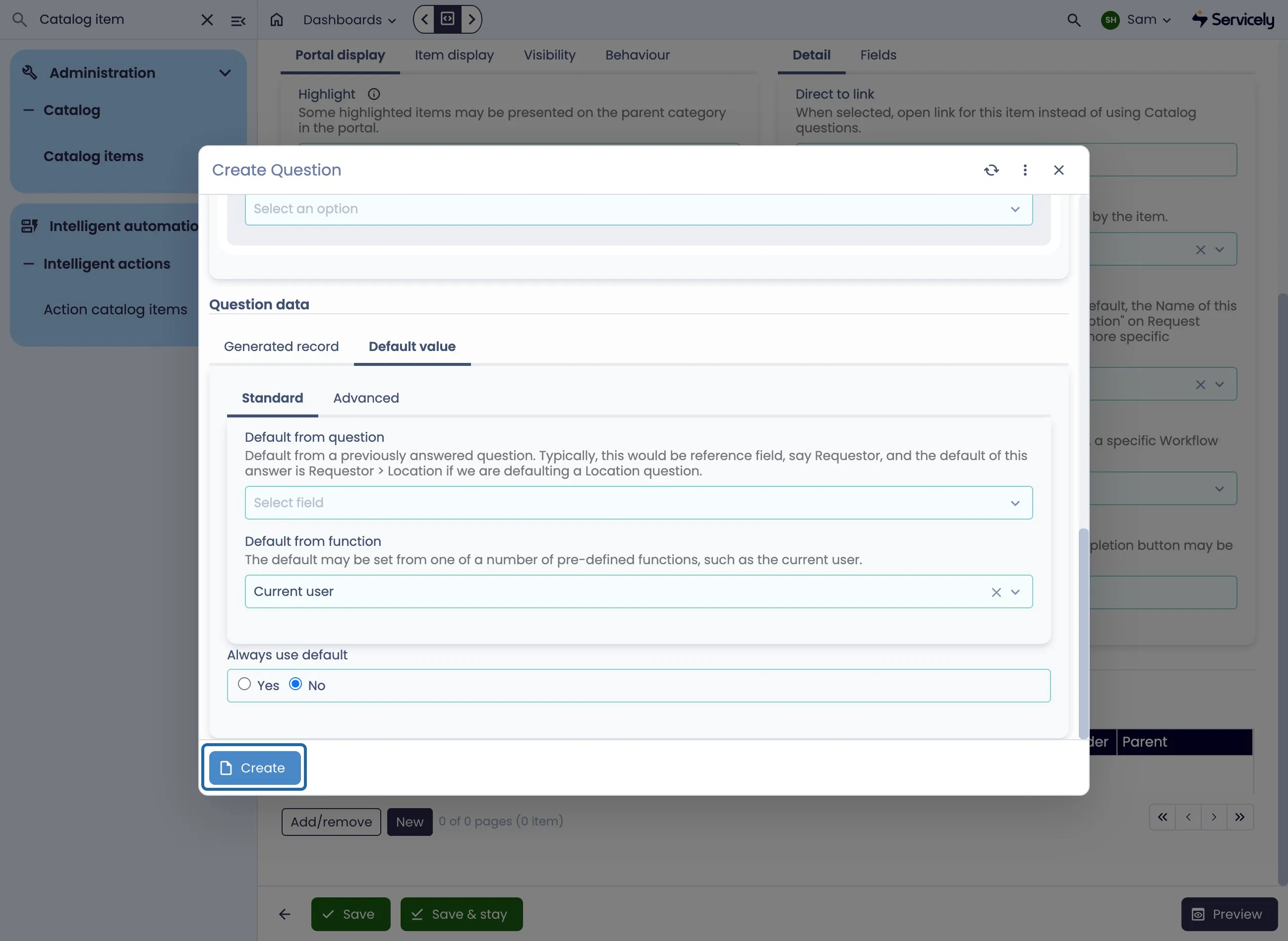
Question Data can also be Defaulted
We can populate a Default field for any of the Question Types - Reference Fields against the User table can also be defaulted Dynamically from a function, meaning we can pre-populate the field to be the Current User.
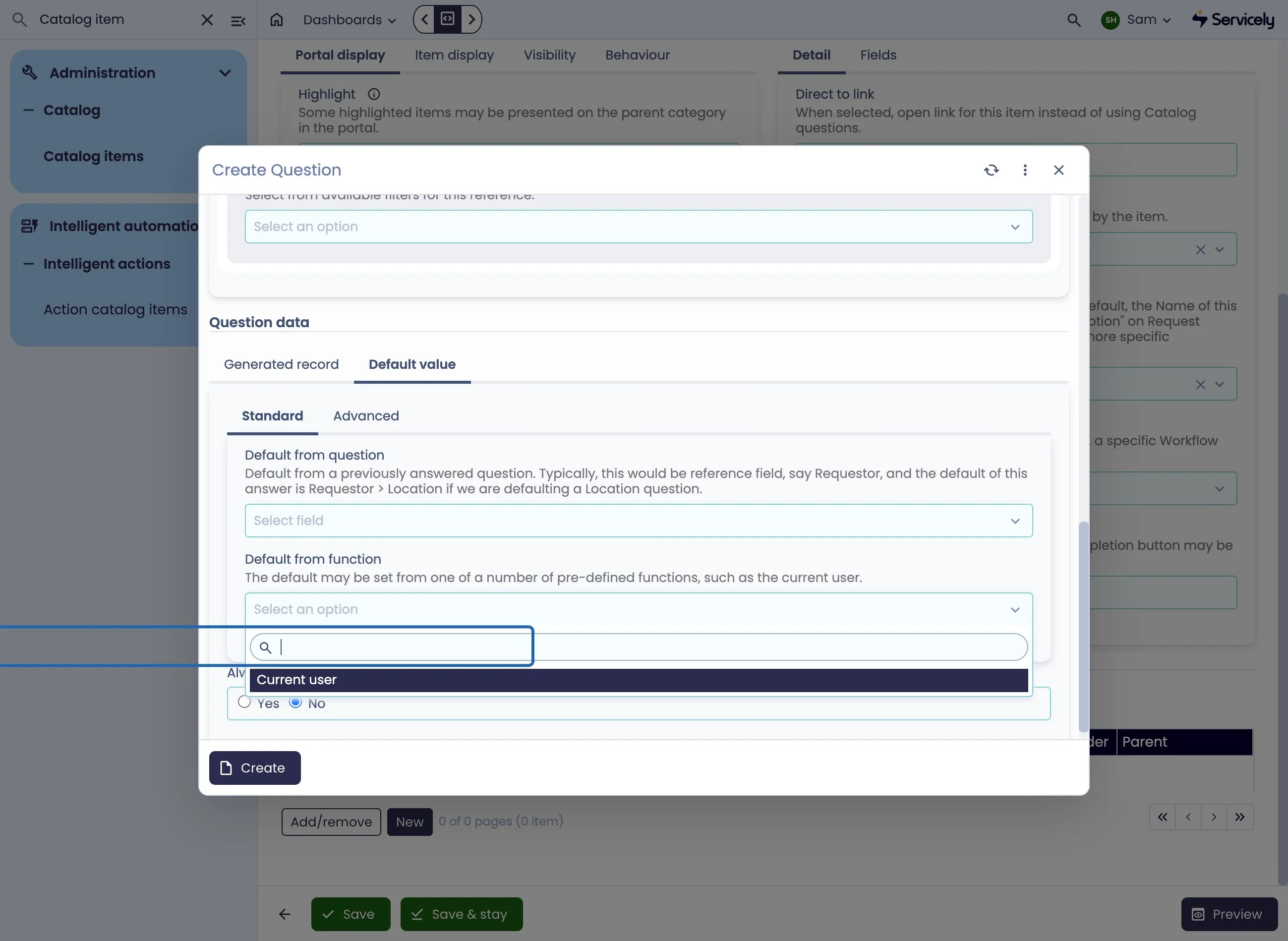
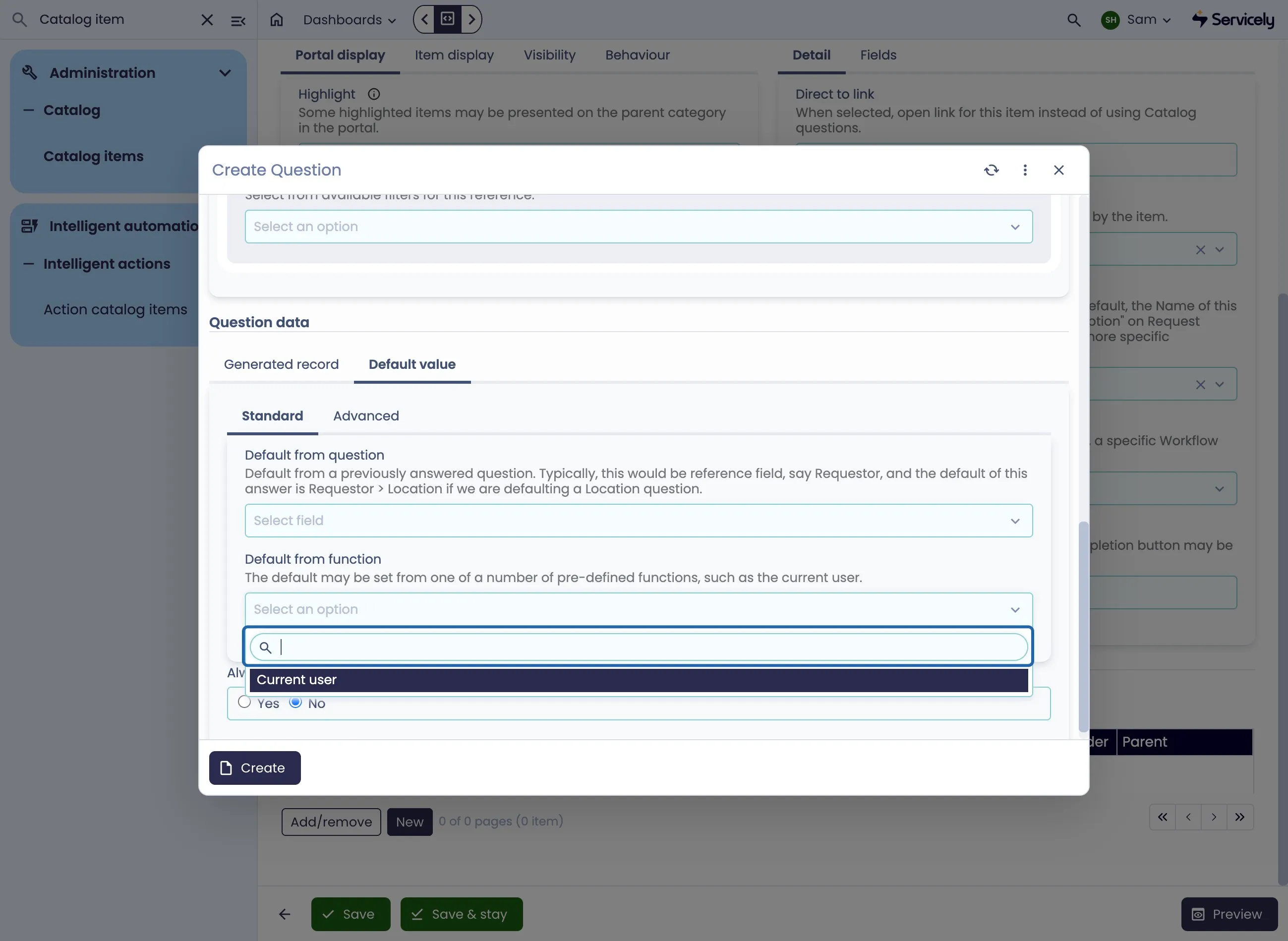
When finished, click Create the populate the question
Repeat for each additional Question
Previewing your Catalog Item
Upon completion, ensure you hit Save & Stay to commit the changes to the system.
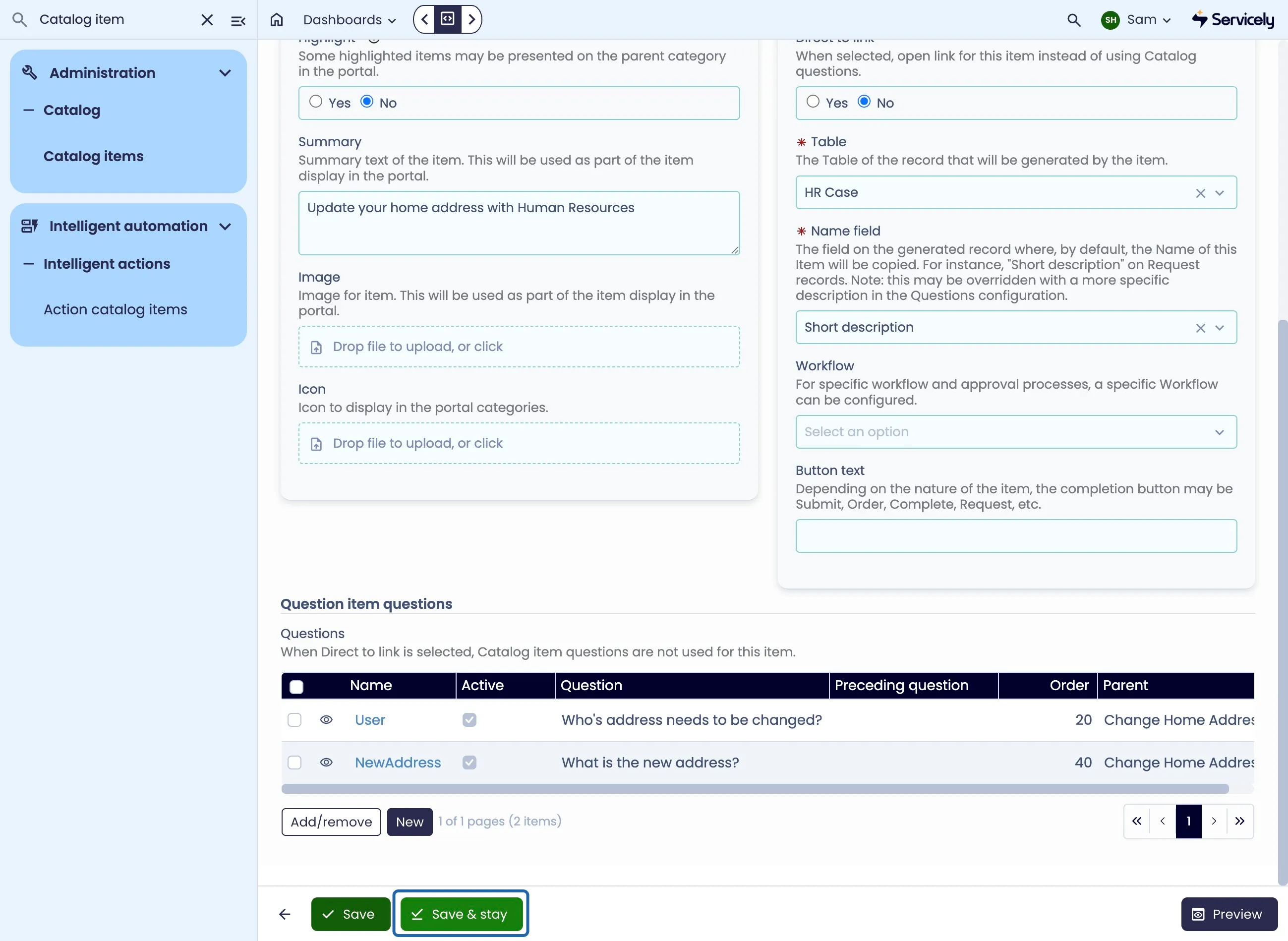
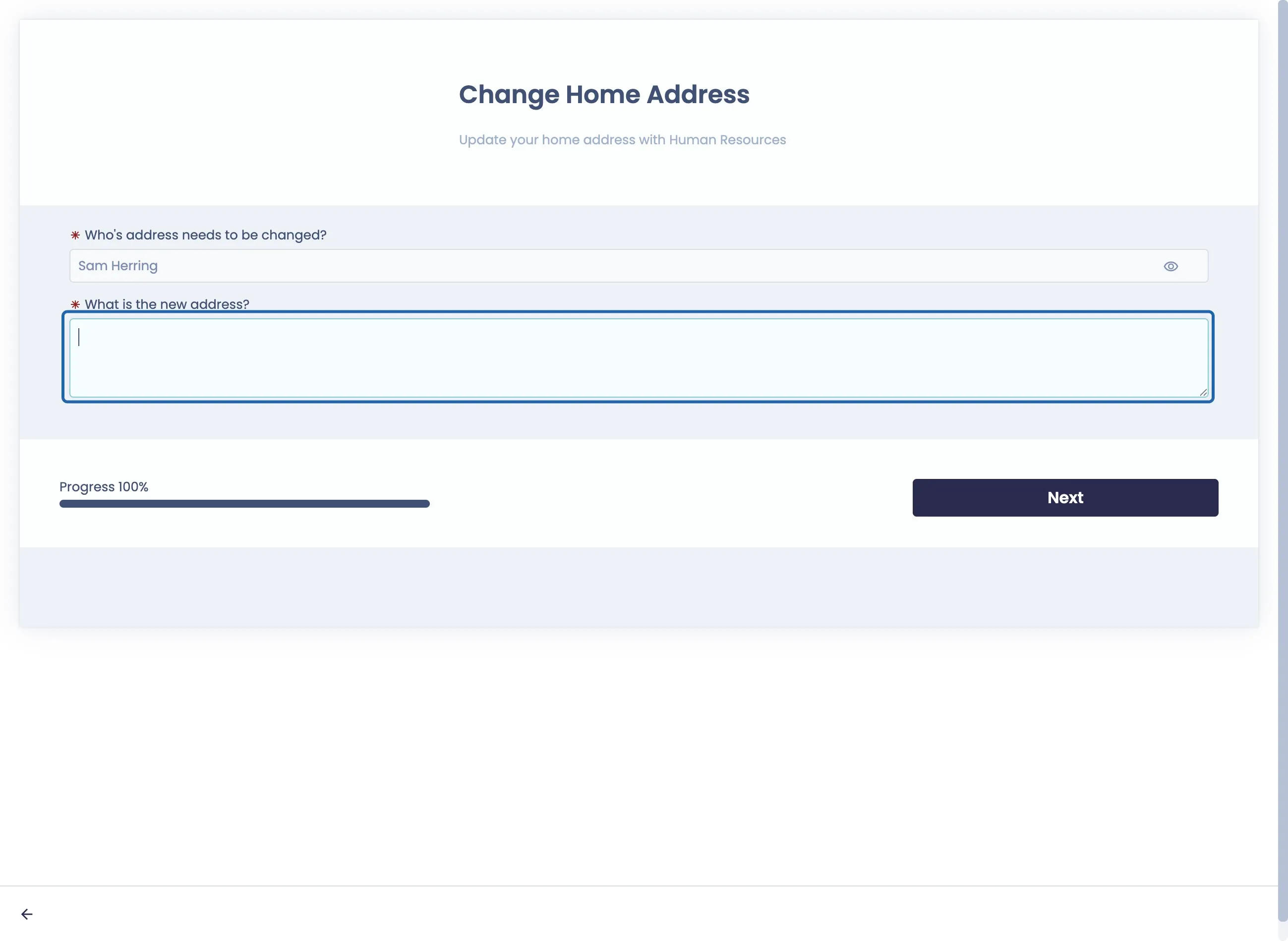
To preview your Catalog Item, click the Preview button