Templates
Within Servicely it is possible to create templates can be used for two main purposes. These purposes include: the ability to pre-set records on a record based on hardcoded values or values (such as making a record a priority 1, setting an assignment group and classification (and more)) or create a record based on a schedule (such as a Monthly security patch task). Currently these are only definable by system administrators (as they can be script) and are global for agents on that record type. Regardless of the purpose however, you will still need to create the system template definition to be used in both circumstances.
Template definition
When creating a template, one of the first steps is creating a template. To do this, you can go to either the templates list, or create a new template directly, as found in the Administration menu, under the templates section (you will notice there are some out of box examples there for some administrative purposes).
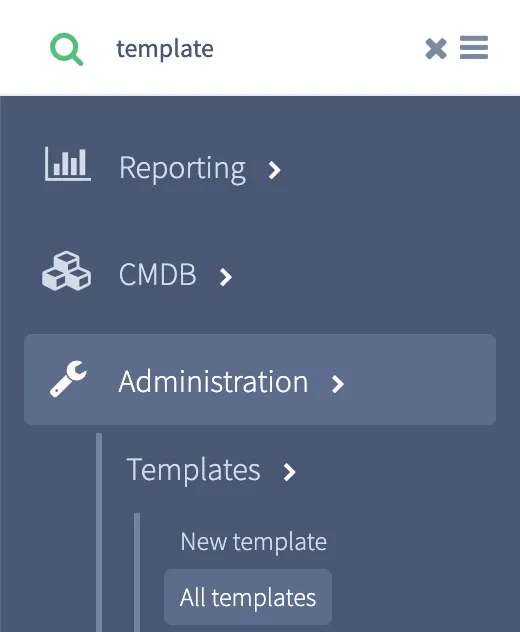
Once you are there, you can start creating your template definition with the following details:
Field name | Description | Example |
|---|---|---|
Name | This is the name of the template. This is what will be show in the dropdown when client selectable for users to select. 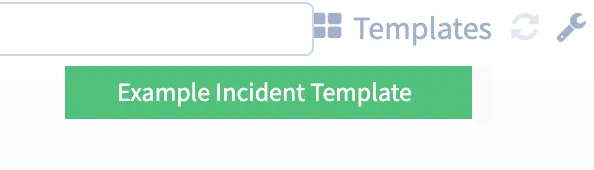 | Example Incident Template |
Table | This is the table where this template will be used. | Incident |
Active | Whether or not this template can be used | Yes (True) |
Client selectable | This decides whether or not it can be used on the form itself, or only used for scheduled templates. Note that a template can technically be used for both, when this is flagged as Yes. | Yes (True) |
Order | Where this shows up in the list (when there are multiple with the same name). Not mandatory | 1 |
Description | A short description about what this template does | This template helps set the priority and client journal based on details in the content. |
System template values | This is a list of values this template sets when being selected, or being run as a scheduled template. To have new values, press the “new” button (add/remove is only used if for whatever reason you unset the parent of the value record). | See below for details. |
System template values
To allow a system template to set the fields on the table described above. Below are the fields and their definition and how they can be used.
Field name | Description | Example |
|---|---|---|
Template | This is the template that this value is connected to. Noting that a system template value can only be connected to one system template | Example Incident Template |
Field | This is the field on the table that this value will set | ClientJournal |
Advanced | Whether or not this needs to be an advanced / scripted value. Noting that if this is ticked, it will use the last variable defined in the script field, rather than the value defined. | See below for examples. |
Active | Whether or not this template value will be used in the template when used | Yes (True) |
Overwrite existing value | Whether or not when this template is selected it will overwrite any value entered previously | Yes (True) |
Order | Not used currently, but helps when setting values from a backend processing perspective | 10 |
Value | This is the hardcoded value that can be used to set a value on a record (such as an ID, choice value, string or otherwise). In scheduled template examples, it can accept a parameter with the ${} braces. This will be exampled further in the document. | See below for examples. |
Script | This is server script script to help set the field dynamically based on values on a record. Note that the last line of the script should be the value it should equal (such as the below example). 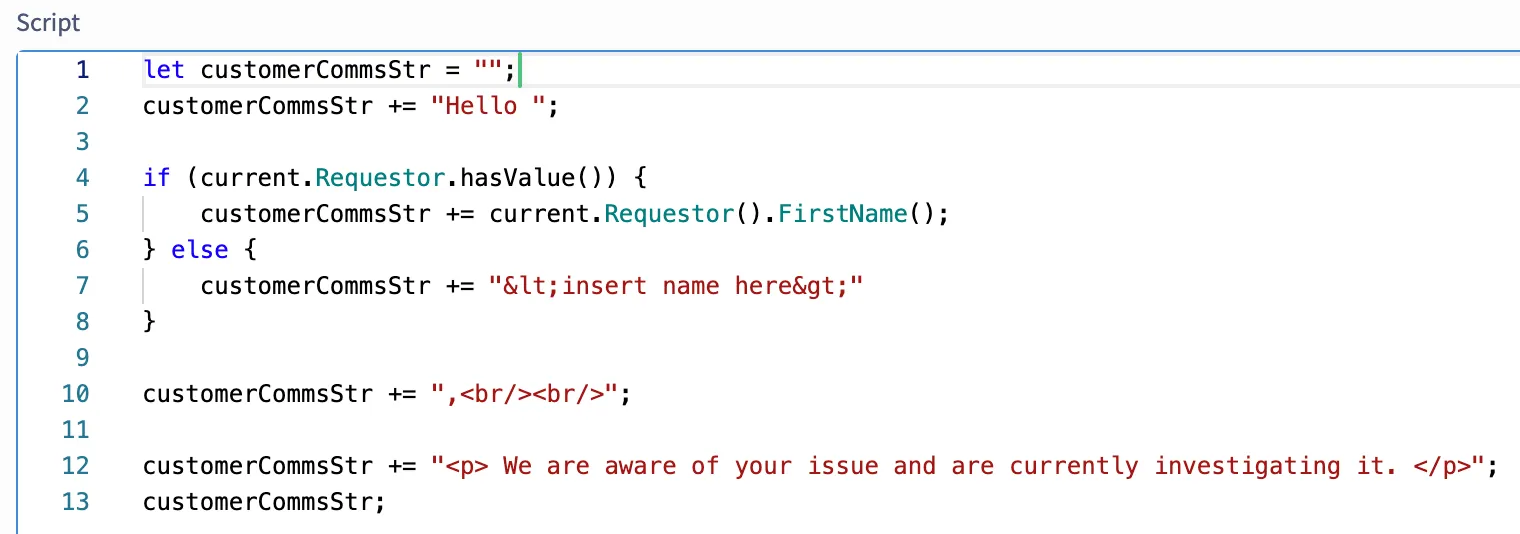 | See below for examples. |
System template value examples
As templates can be used for a variety of purposes, we have provided some examples as to what to set fields to achieve certain purposes.
Example 1: Hardcoded values for fields
In situation where you want to set a field to a “hardcoded” value (such as an assignment group to a specific value, priority to a specific priority, short description to specific text) and more. To achieve this you would want to:
- Advanced: No (false)
- Value: This will be dynamic based on what type of field. Some examples are:
- For choice fields this needs to be the choice key. You can find out the choice key by looking at the field definition and the field specific settings tab. Such as, for Priority it wouldn’t be “1 - Critical” the template value would be “1”. Or for source, it wouldn’t be “Phone”, it would be phone.
- For reference fields this would be the ID of the reference record.
- For string fields it is simple the string you want to use.
Example 2: Parameterised values from Scheduled templates
The way parameters are passed in will be described in the “Scheduled templates” section, however, to achieve this you would want to:
- Advanced: No (false)
- Value: The parameter name will be done within ${}. Noting that the parameter is specifically passed in via the scheduled templates section, which will be described below.
Example 3: Scripted values
The third example is scripted values. As this is server side scripts, you can do lookups, look at the record to template values and more. What we have typically found with customers is using this for a templated response and replacing it with items like the requestor’s name. To achieve this, you would:
- Advanced: Yes (true)
- Script: This is server side code. It should be noted that you should review Table API (Server)Table API (Server) if you want more detail, but to help describe this, you can refer to fields on the current record and you should often check if values exist. To help explain this, we have developed the example to provide this end result
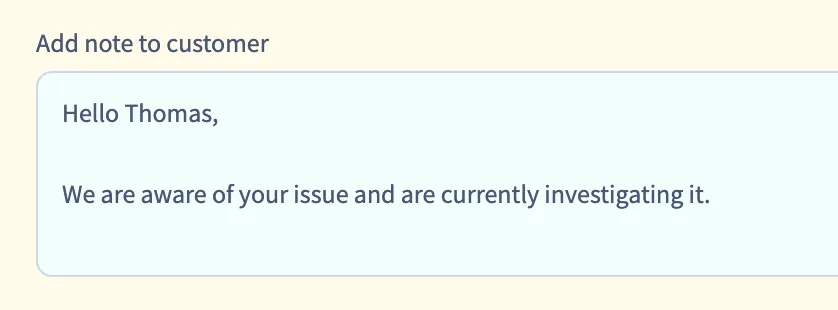
In this example, it takes the Requestor’s first name and provides a HTML string, to make sure it is formatted correctly. Also, as described above, you want to make sure that the last item in the script is the variable, as pointed out below.
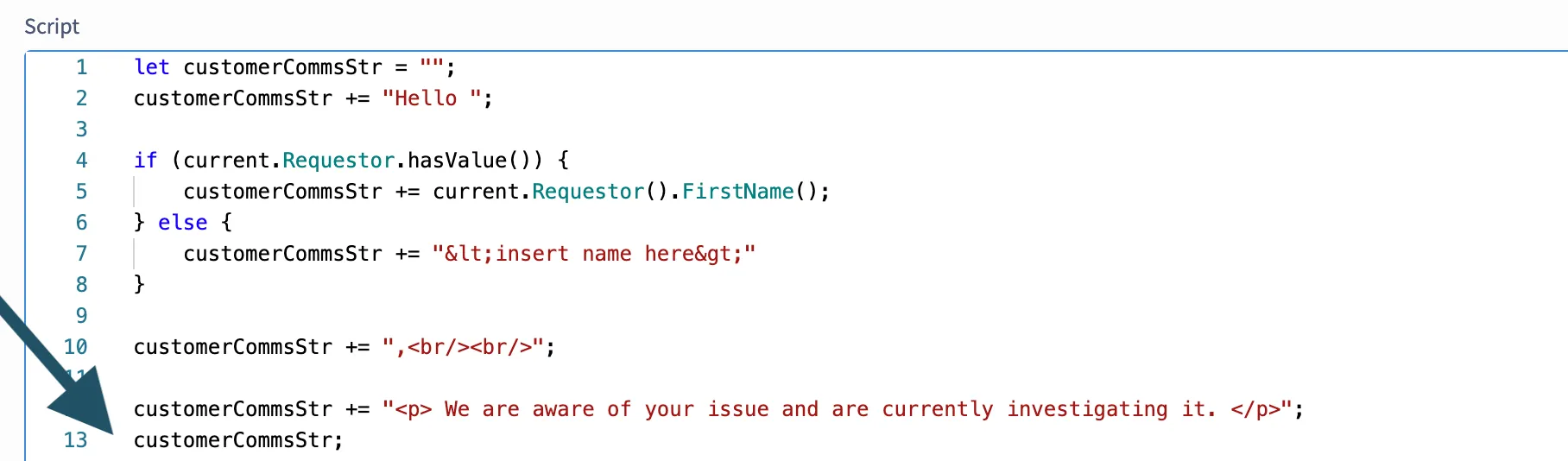
The reason as to why we have escaped some text here, is as the journal field is HTML, if we included braces, it would format it as HTML, so this ensures that in the template it would include the <> when the requestor does not exist.
You can also make use of parameters defined in a Scheduled template’s context script, on a Template value’s Script, example below mapping to a multi reference field referencing the CMDB table:
Below shows an example of a Scheduled template’s Context script returning the parameters to use on a template’s script shown above:
Scheduled templates
In addition to using templates from an agent point of view, templates can also be scheduled, which would take the template and its values and creates a record with that table name based on a schedule defined. It can also take parameters from the scheduled template, to allow it to be more dynamic (such as if you want to script it). To create a scheduled template, go to the Templates section under the Administration menu item.
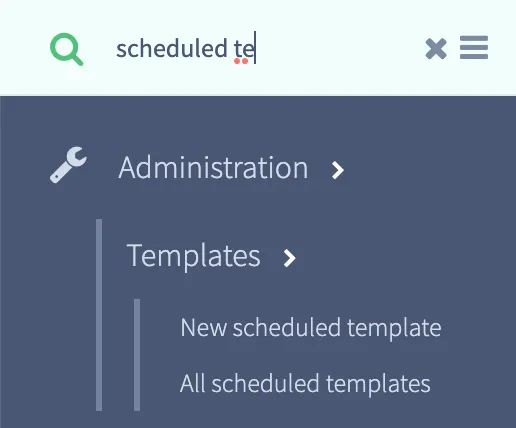
Once here, you can populate the following fields to achieve what you want to achieve.
Field name | Description | Example |
|---|---|---|
Name | This is the name of the scheduled template. This is not used for anything other than identifying what it is for. | Example Monthly Task. |
Schedule | This is the schedule as to when it runs. Such as, every day, every week, every hour, etc. Note that the value will be in the format of a “CRON” expression, but you do not need the cron expression to make it. The below example is to run this template job at 1 AM every 1st of the month. Noting that this runs in the system timezone. 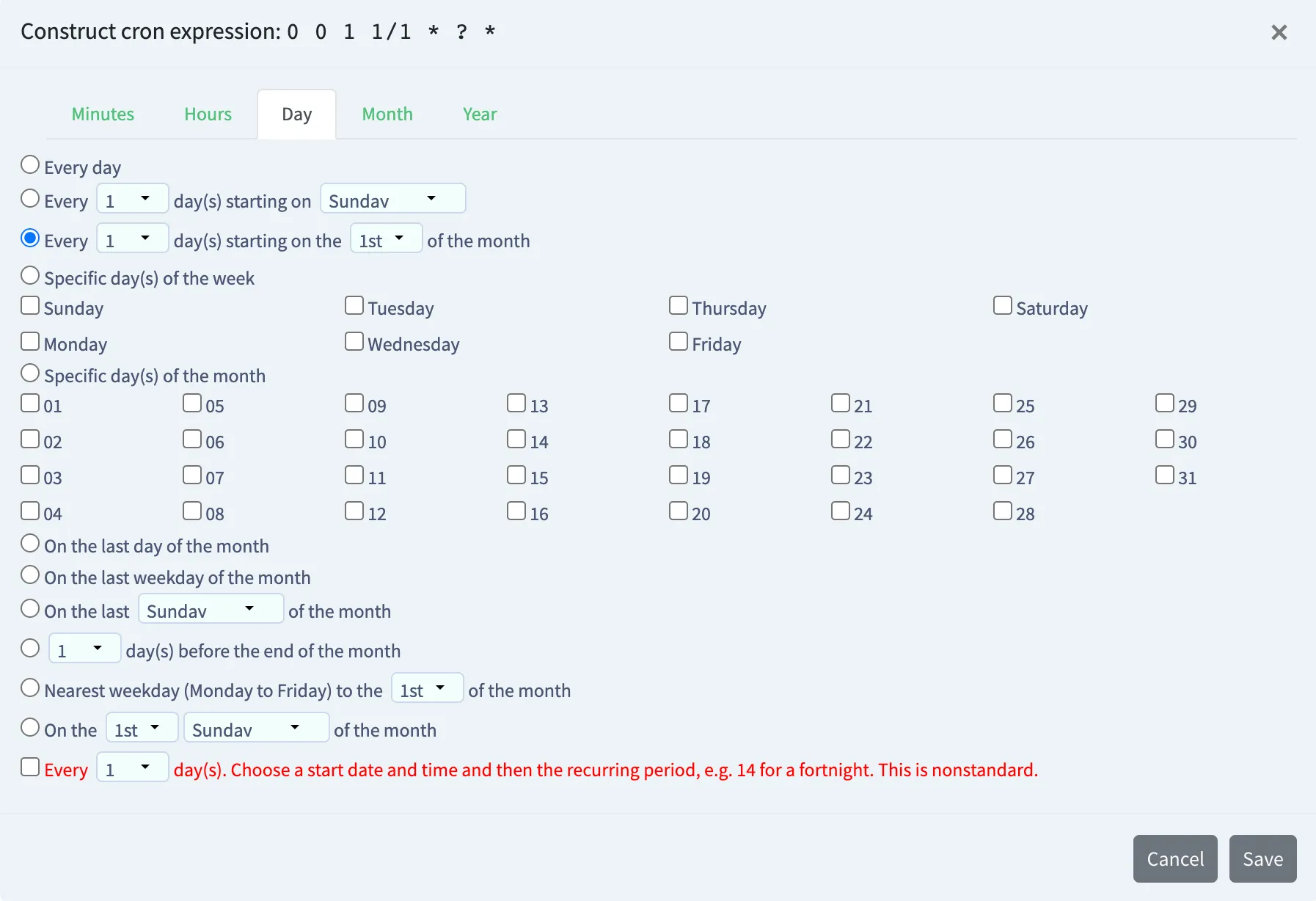 | 0 0 1 1/1 * ? * |
Active | Whether or not this scheduled template is running | Yes (true) |
Run as | This is the user which this template runs. Noting that they need to have permission to make that record and will be used as the person who created the generated record | Admin Administrator |
Templates | These are any of the system template definitions that you wish to run at the scheduled time. | Example Incident Template |
Context Script | This is the script that can pass parameters to the generated template. Even if no parameters are used, we suggest including answer = [{}]; If you want to add any records to the scheduled template record itself (such as a company field) you can then access these values via “current” in the context script.To describe the example, you can use each of these parameters by ${Details}, ${Group} and ${Priority} in the values field of the system templates accordingly. In this example, it is setting the short description of the generated Incident with the name of the scheduled template, setting the assignment group with the ID of the group provided and priority to 3.Also note that each included template will run once for every object in the array. If the array in the example provided here has another object with its own set of “Details”, “Group” and “Priority” parameters, then there will be two records generated using the “Example Incident Template“ template. | answer = [{Details: current.Name(), Group: "4aab47e9a5c611edbba30a6baf3a3946", Priority: "3"}] |