Enhanced Template
Overview
As part of the Enhanced Template capability, you can configure Templates that:
- Auto populate certain set of fields on a table (like Incident, Change, CMDB, etc) with pre-defined values, AND
- Require approvals before they are published / made available to use, AND
- Has version control
One common use case for this capability is the Standard Change process as part of Change ManagementChange Management. Therefore, we will be using Standard Change (Pre-approved) as the context for our example/steps below to set-up an Enhanced template.
Activation
This functionality is packaged as part of an application that needs to be activated prior to use.
Go to Application > Application > Applications menu and find and an Application definition named "template" with Namespace of "servicely.template"

Go to the Application definition record and click on "Install application" button.
Once activated, you can then proceed to configure it.
There are two parts to an Enhanced template:
- Template base
- Template
Template base
A Template base is a collection of one or more Templates and defines the following configuration for each of its Templates:
- Which role can view the and make use of the Template
- If the Template requires approval for publication
- If the Template requires approval for archival
You will need either the "template_manager" or "administrator" role to create/update a Template base
Creating a new Template base
Navigate to "Create new template base" menu
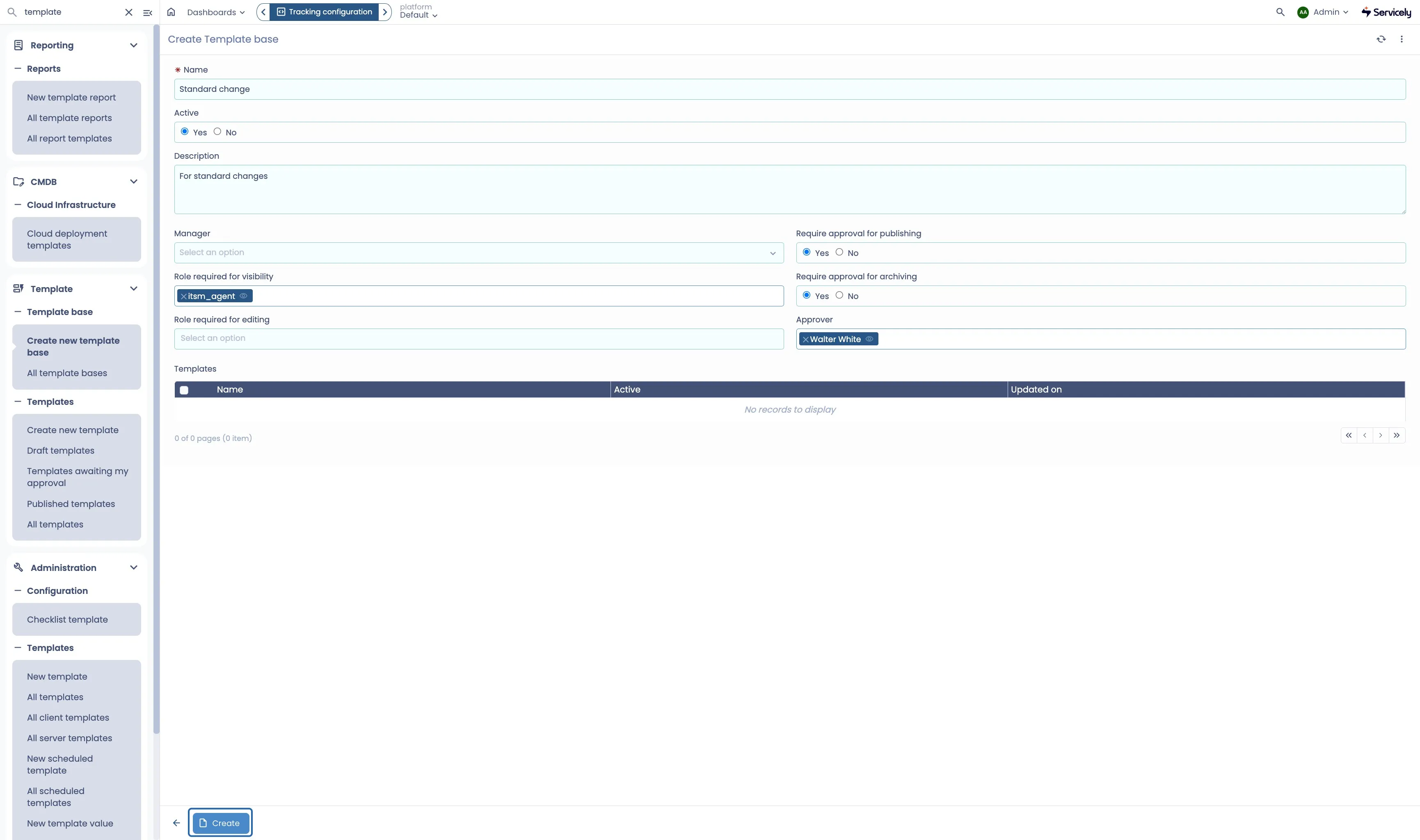
Fill in the details Note: Let's say that we want all Standard change templates to be accessible to the same role and require same approvers to approve. Therefore we can just configure one Template base for all standard change purposes. Example below (including on the screenshot):
Field name | Example value | Description |
|---|---|---|
Active | Yes | Set Yes to activate |
Role required for visibility | itsm_agent | Role needed to view / make use of the templates in the Template Base |
Require approval for publishing | Yes | If an approval is needed to publish the templates |
Require approval for archiving | Yes | If an approval is needed to archive the templates |
Approver | Bob the Builder | Who will be asked to approve publications/archival of templates |
Click "Create" to create the Template Base
Template
A Template is a configuration that defines on a target table, e.g. Change, which fields to populate and with what values. In Change management context, this can be populating Implementation plan, Test plan, Assignment group, etc.
Each Template is version controlled, with optional publication and archival approval step available to configure at the Template's Template Base. Each Template's Version holds the field-value pairs definition and the latest published version is the one that will be used when the Template is applied onto a target table.
Creating a new template
Navigate to "Create new template" menu
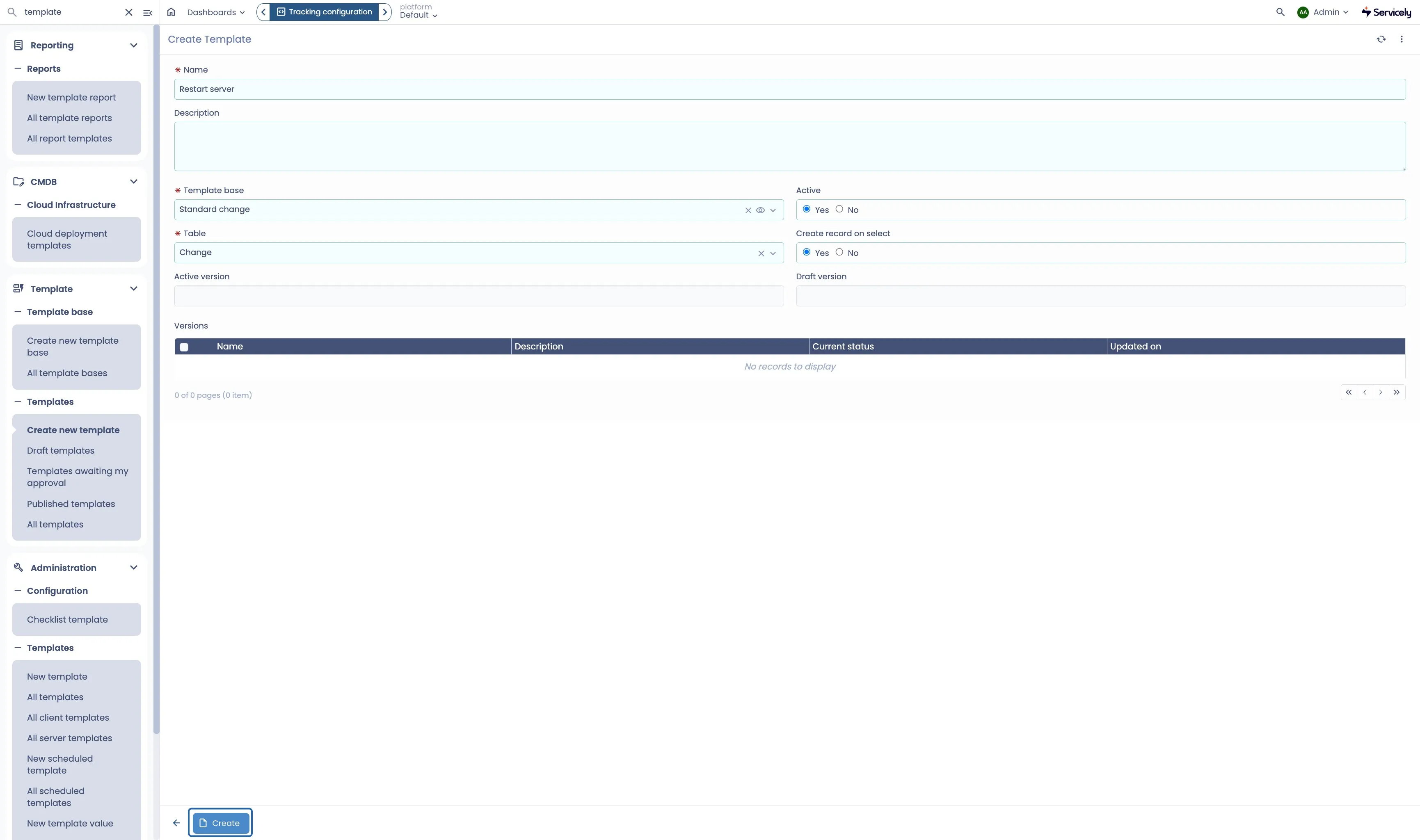
Fill in the details Note: Let's say we want to create a new Standard Change template for a server restart. You may populate the fields in similar manner outlined in the example below:
Field name | Example value | Description |
|---|---|---|
Name | Restart server | Name of the template. This will be shown in the template picker where a user that can make use of the functionality (e.g. agents) picks a template. |
Template base | Standard change | The Template Base this Template is part of |
Table | Change | Which table this template is for / available in |
Active | Yes | Set Active to be Yes to make the Template usable |
Create record on selectYes | Yes | Set to Yes so the Template can be used to create a new record, e.g. Standard Change |
Click "Create" to create the Template
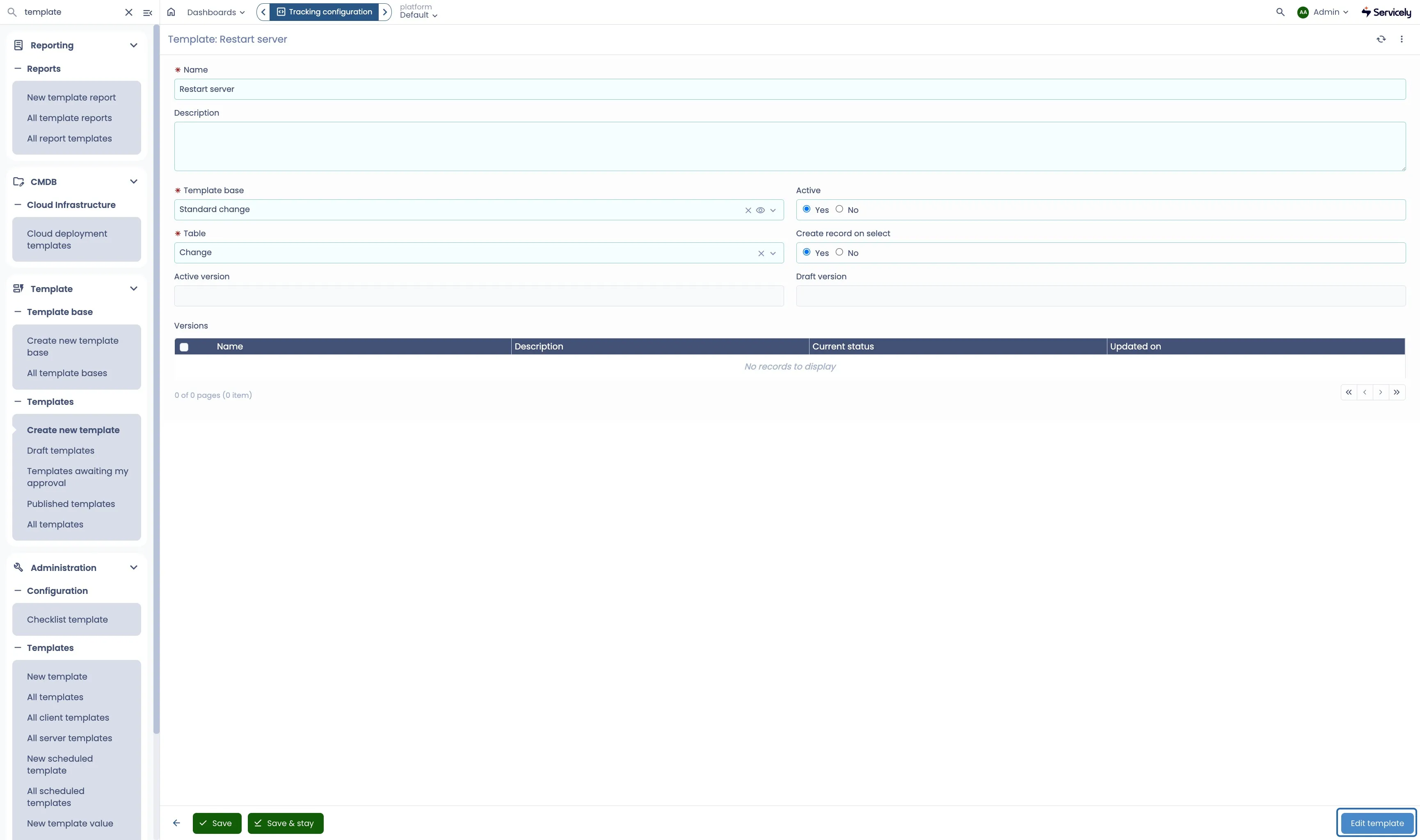
Next, you will want to configure which fields the Template will auto populate. Click on Edit template.
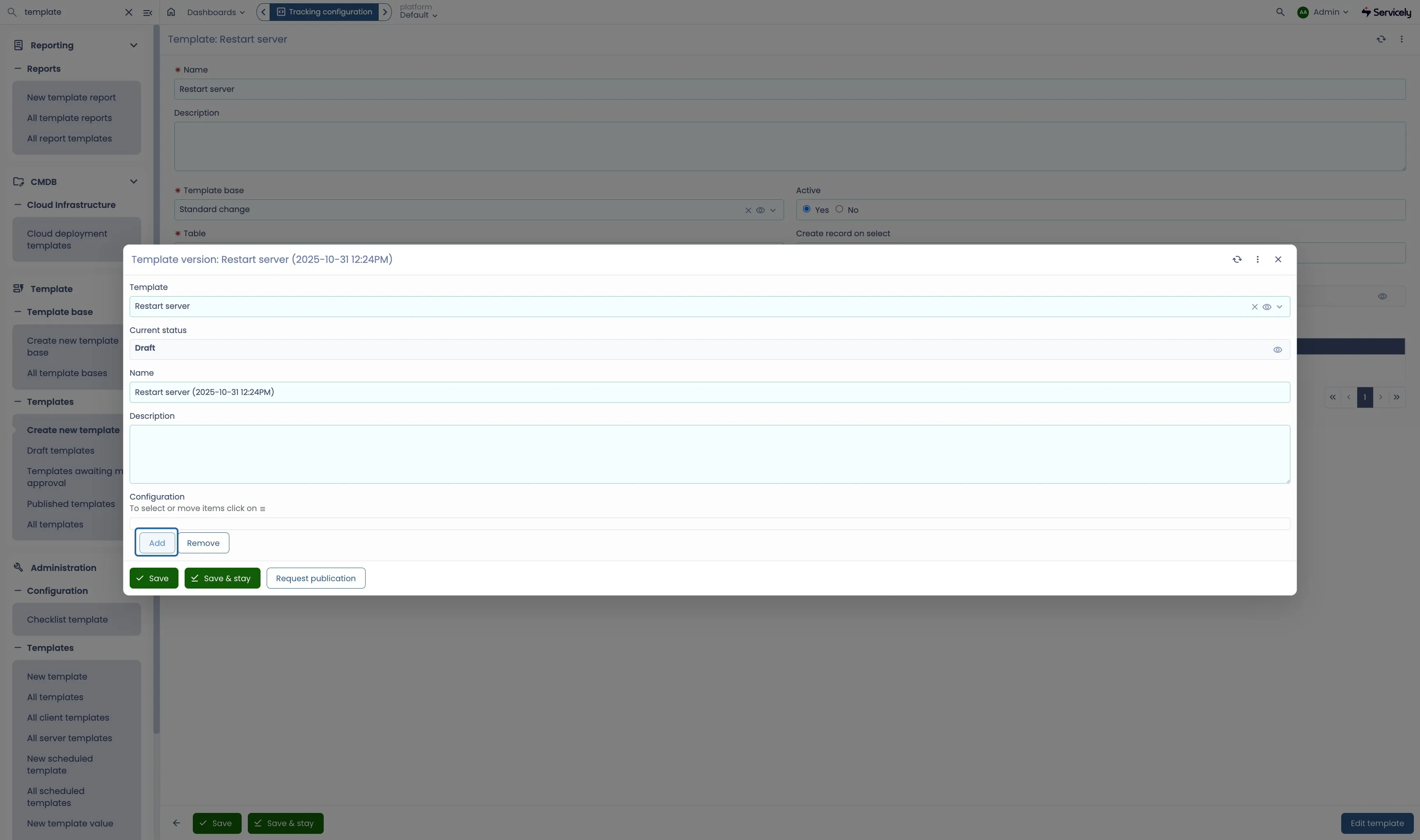
This will start the process to create a Version record on the resulting pop-up window. Click on Add and choose which field to populate and with what value. Note that when a Template is updated to either populate different field(s) and/or with different value(s), a newer Version record would be automatically created.
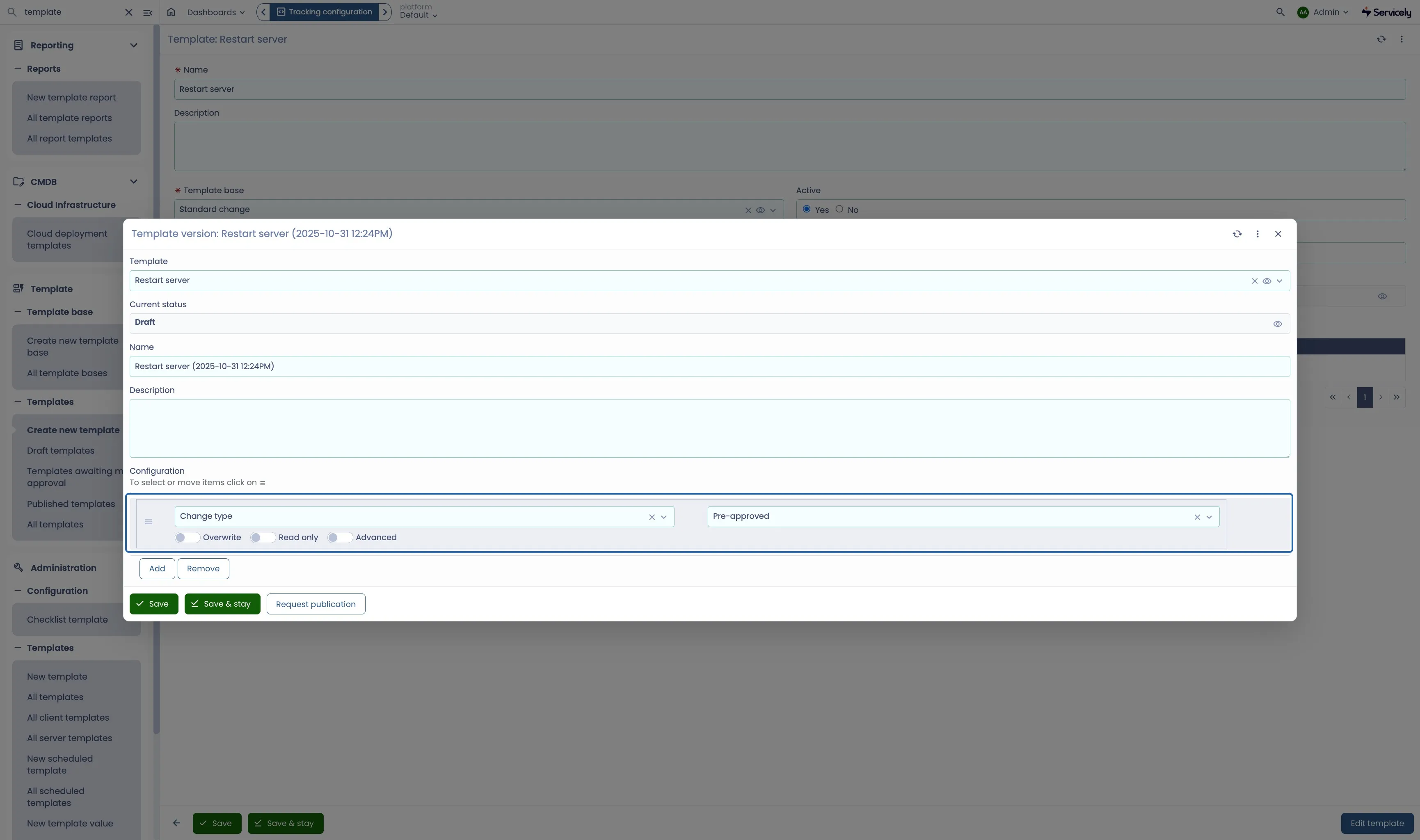
As needed, click Add again and repeat the above process for every field-value pairs. Below shows an example after adding another three field-value pairs.
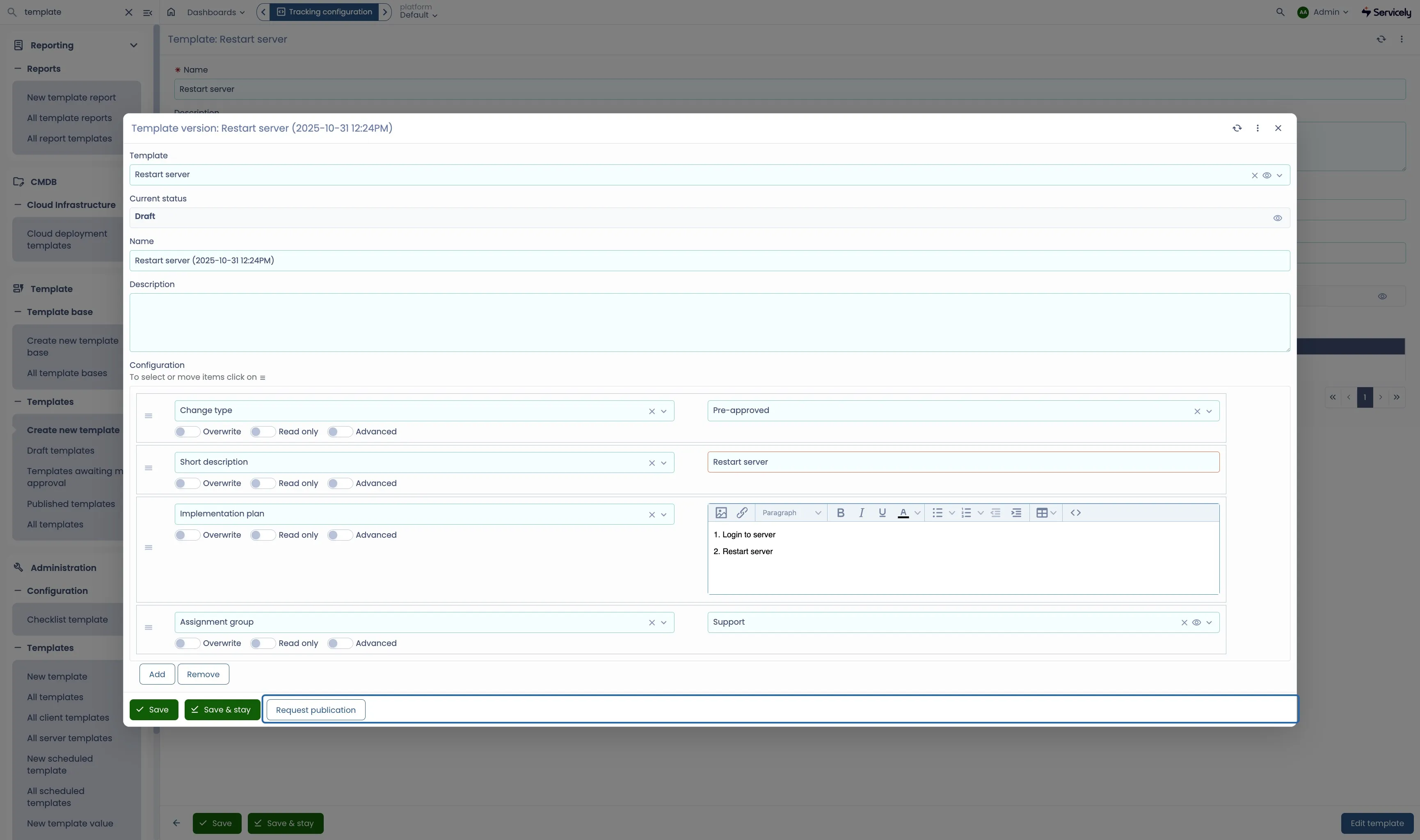
Click on Request publication (if the template's Template Base requires approval for publication). Note that in this example, we are doing this for Standard/Pre-approved Change, so we do want approval for the template's publication.
Back on the Template record, you will see a Version record created and it is Awaiting publication approval.
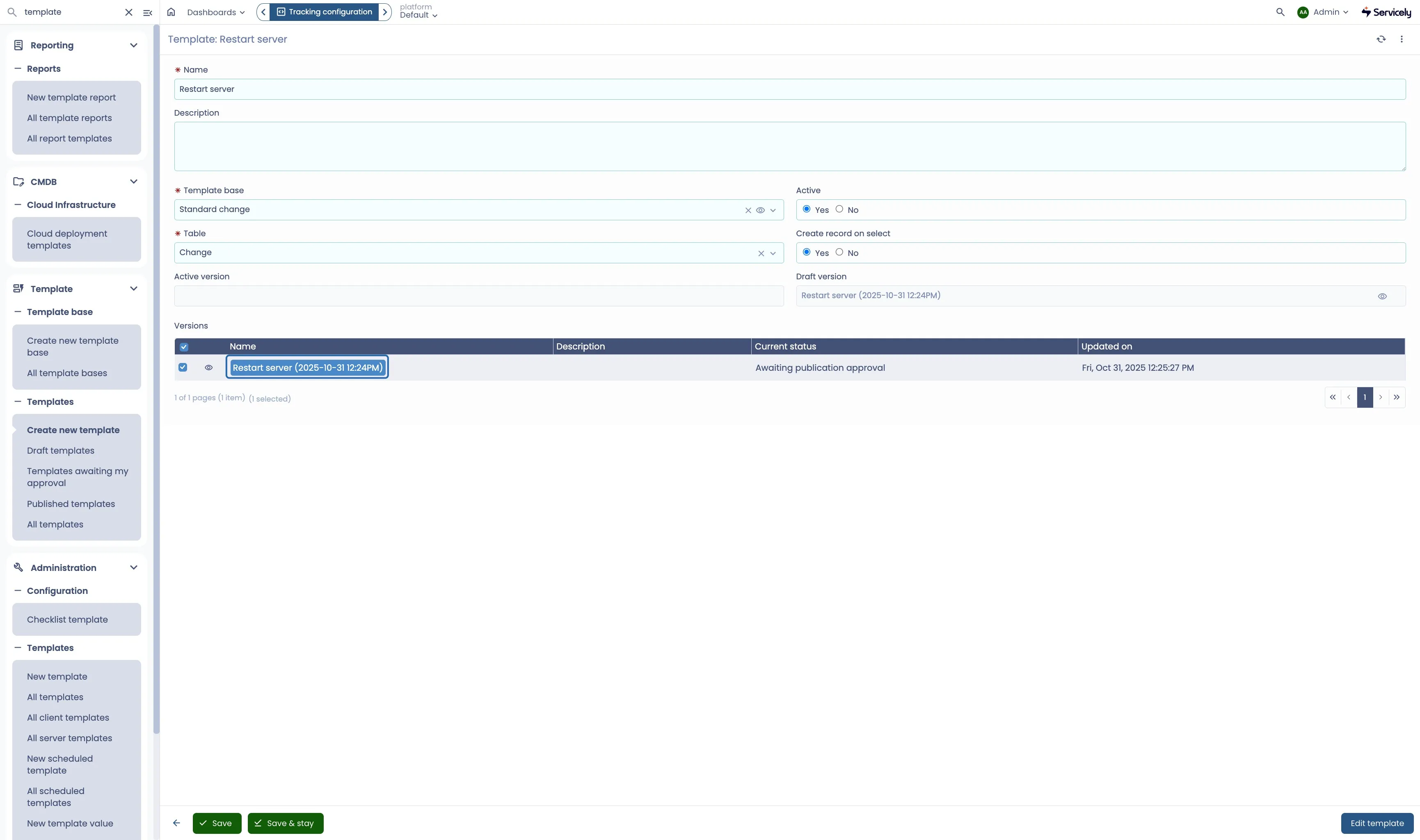
Once the Templates' submitted Version is approved, then it is available to use.
Using a Template
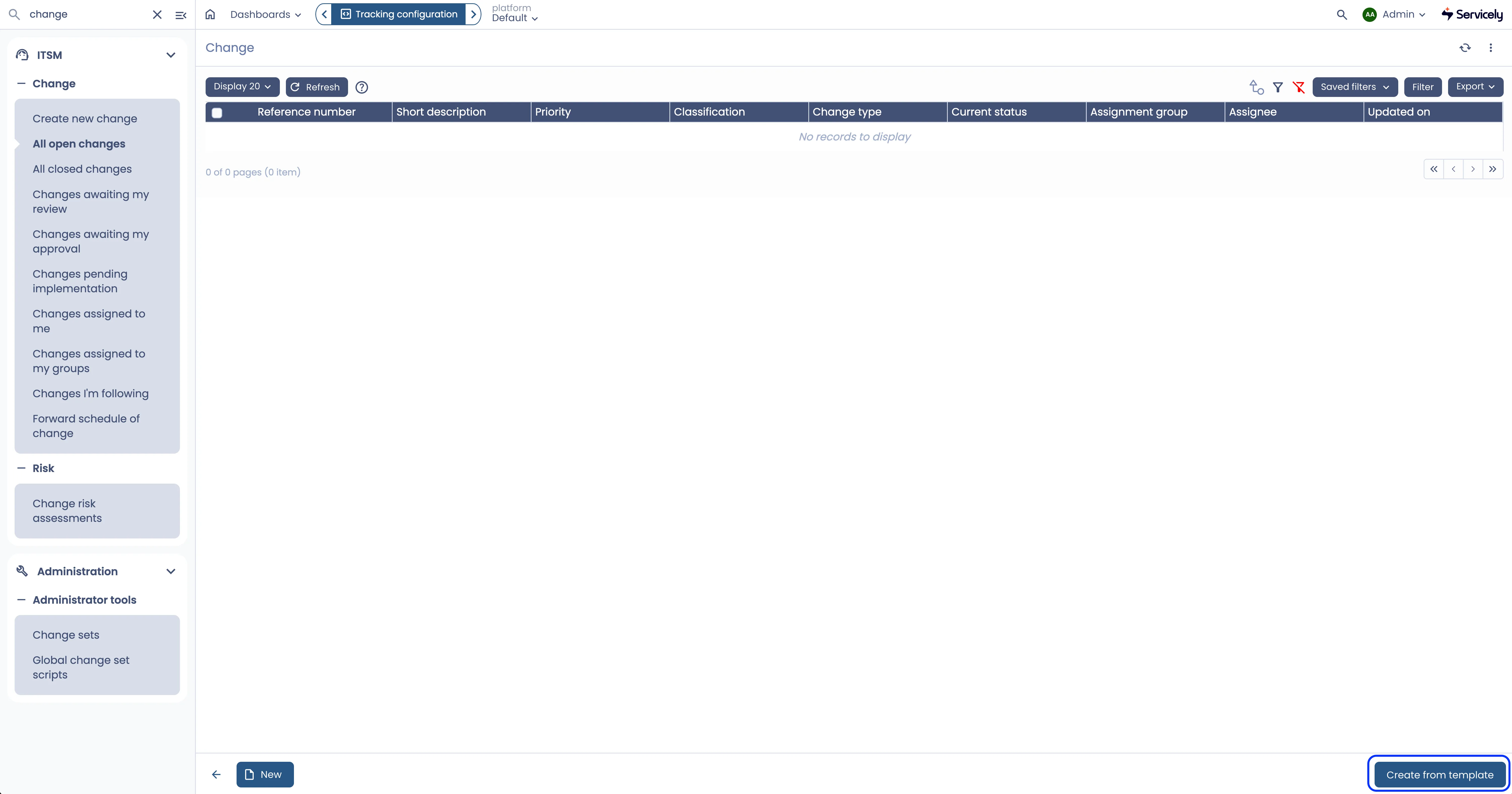
Go to the list of records in Table that we have configured the Template for. In our example, it is Change. Click on Create from template button on bottom right corner of the list view.
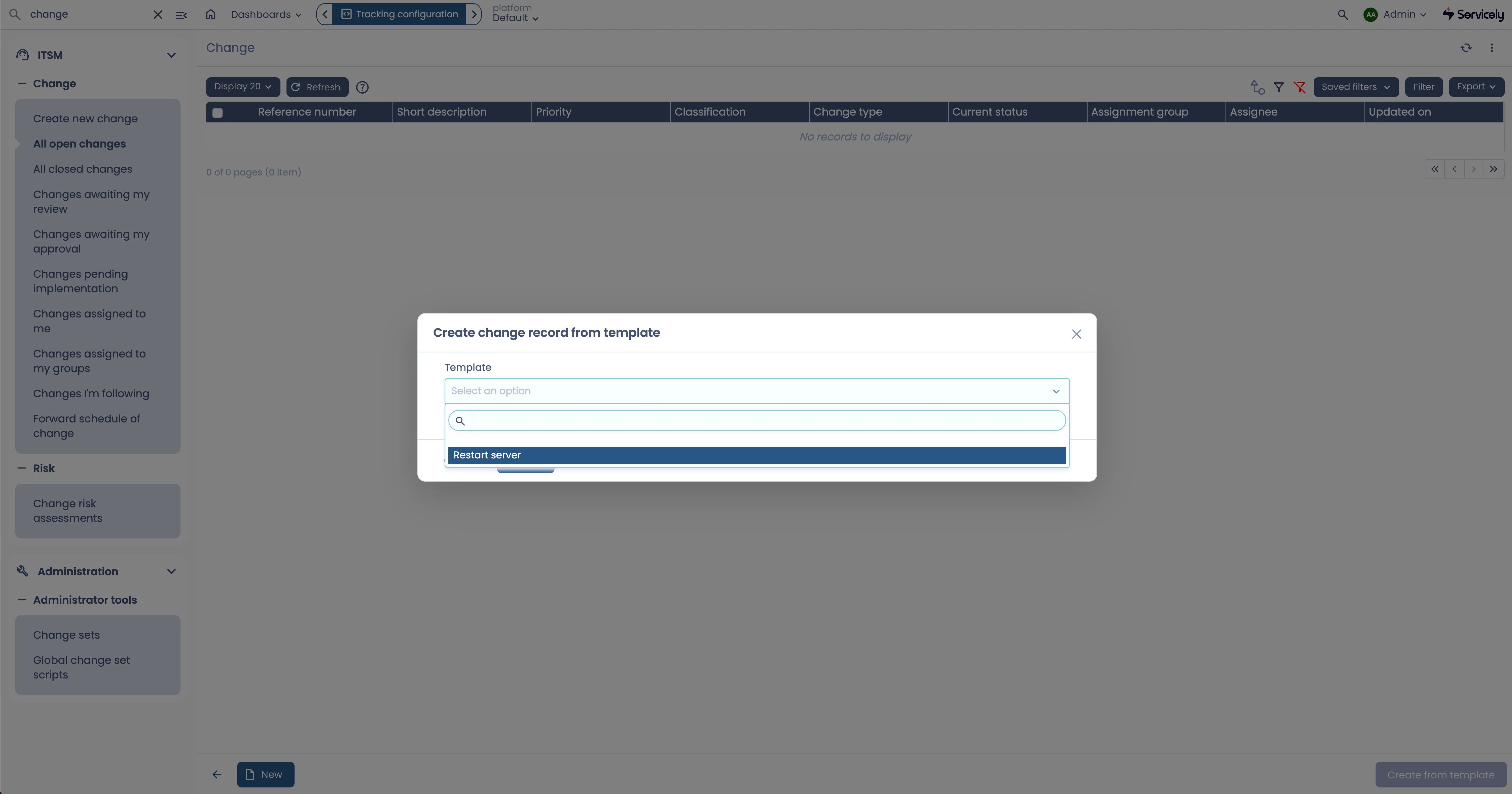
Select from a list of published Templates
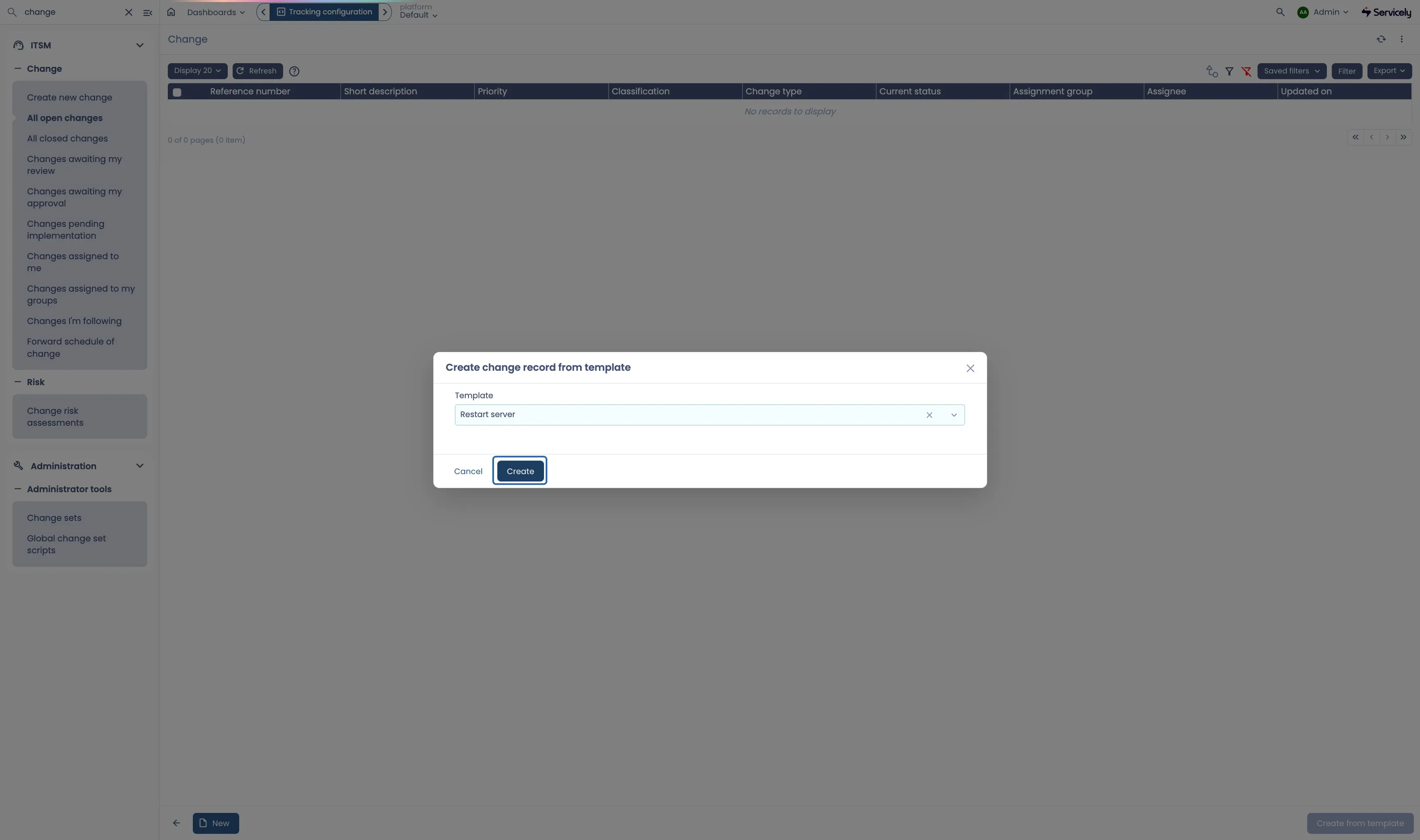
Click on Create
You should then be redirected to a newly created Change record with its fields pre-populated per the Template's latest published Version.
Editing a Template
You can edit a Template after it is published, by submitting a newer version update for it.
Go to a list of Published Templates and view the one you want to edit, and then click on "Edit template" button on bottom right corner of the form.
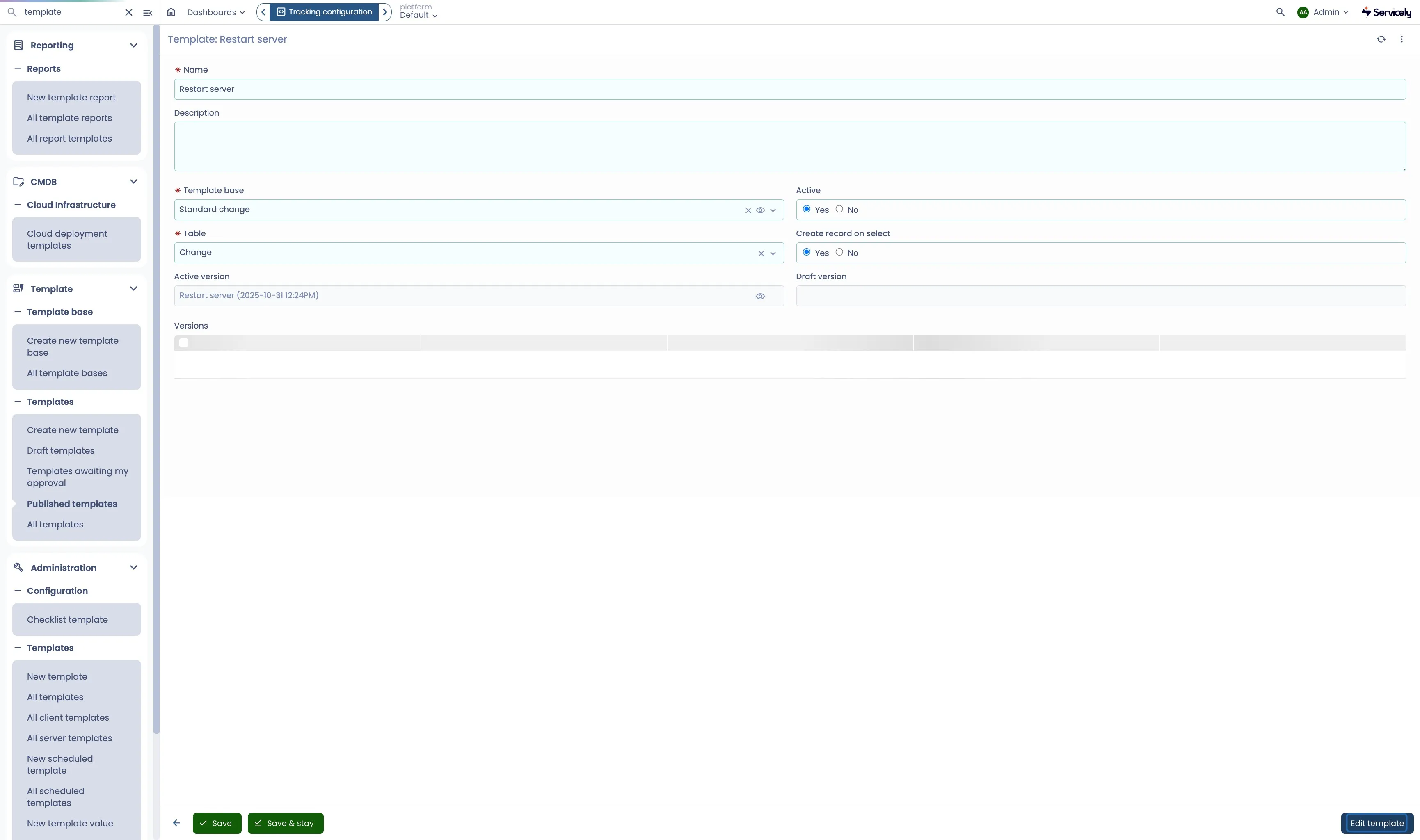
Update what you need, e.g. Add/remove existing field-value pairs and/or update the values defaulted for one or more of the fields.
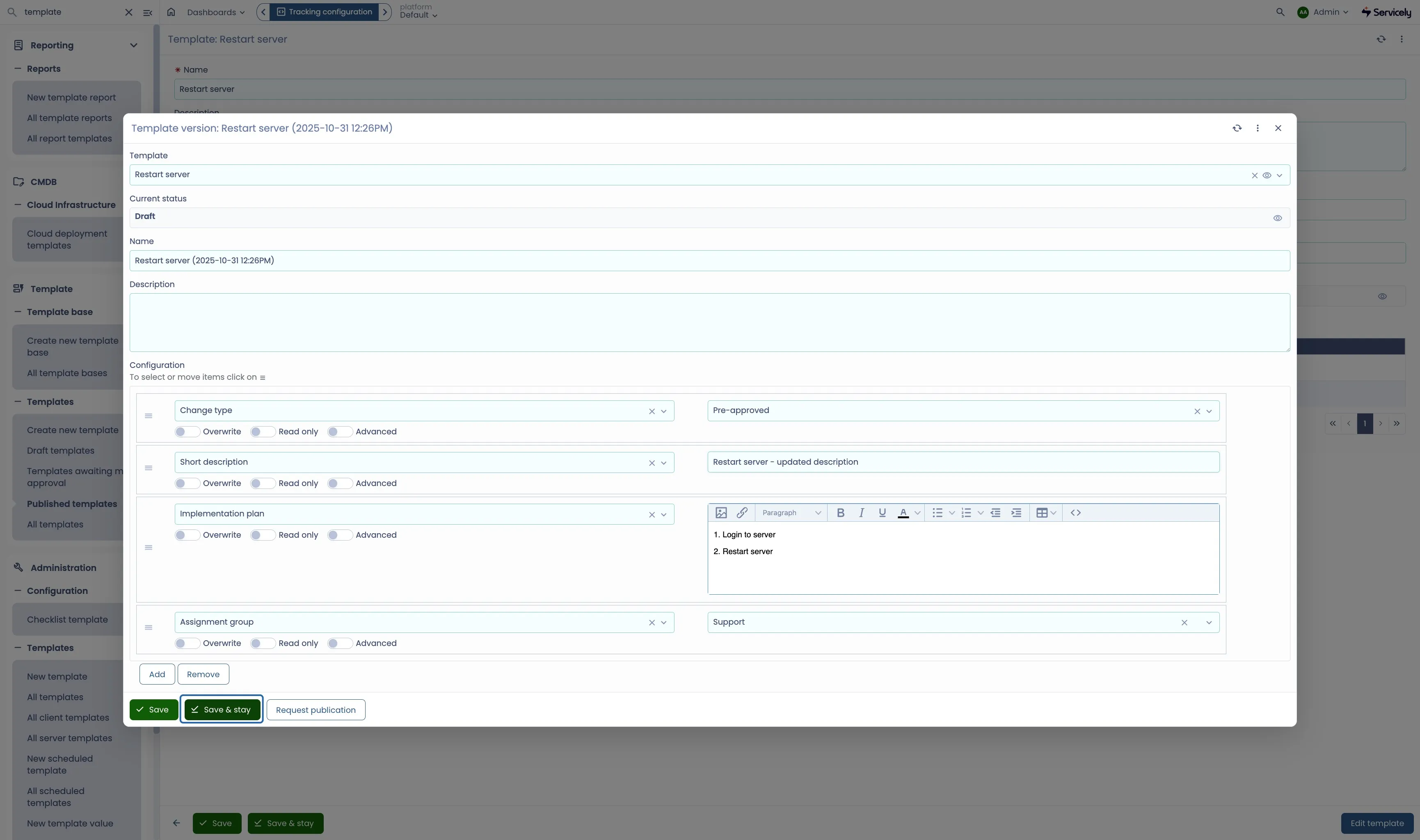
Once you are done, you can either Save your changes or submit it for publication, no different to when submitting a Template for publication for the first time.
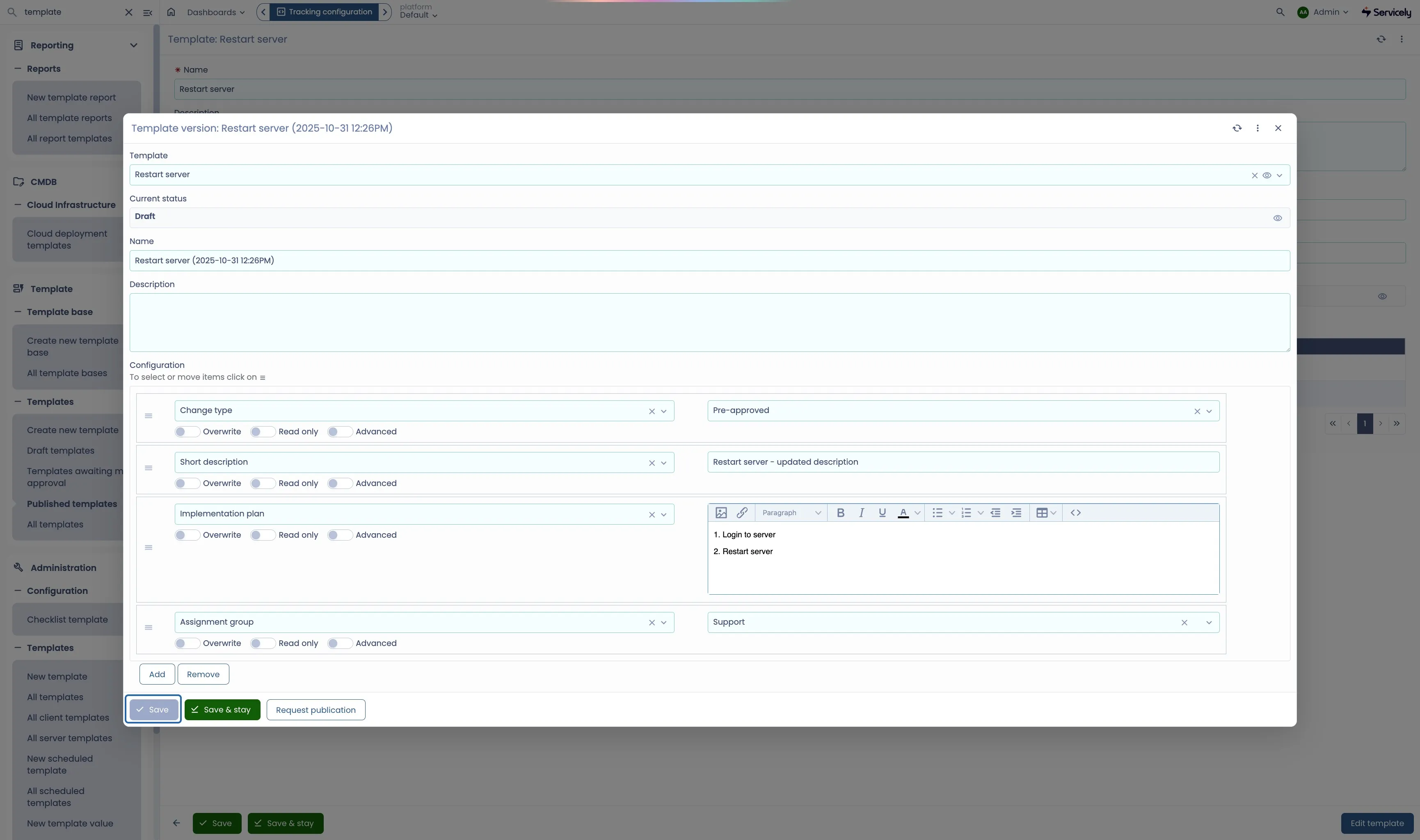
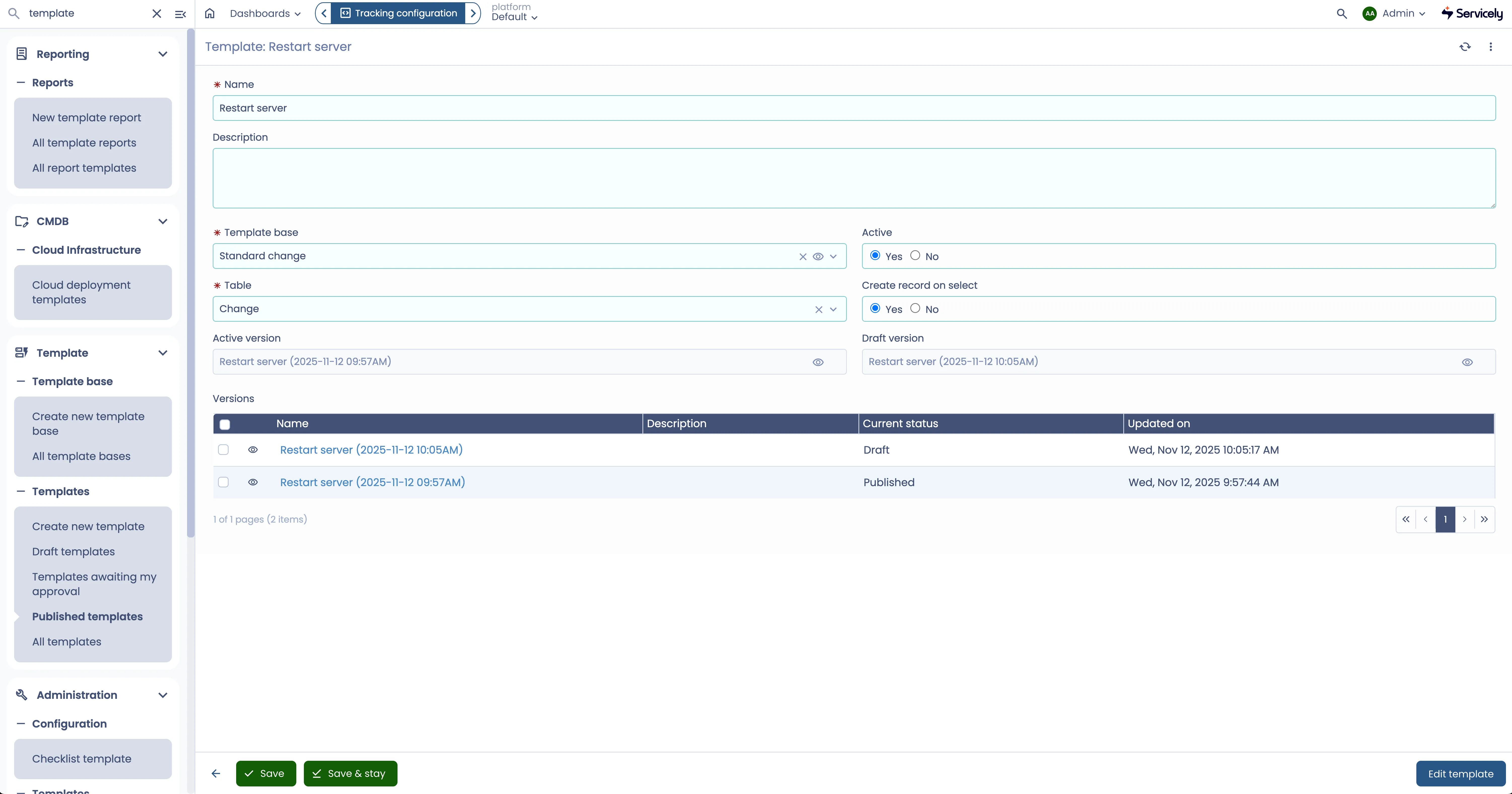
Back on the Template record, you will see another related Version record, with the newest one being the latest update you made. The latest version in Published status is the one that is applied when the Template is used to create a new record (e.g. new Change record). Example below showing a Template record with multiple versions: