Time Cards
Time Card Functionality in Servicely
Servicely provides agents with the capability to record the time spent on a variety of records, including incidents, service requests, and task-based records such as HR cases.
Enabling Time Worked on a Record
To enable the Time Worked functionality, a system administrator must ensure the following:
- The ‘Time Worked’ is available on the record
- The ‘Time Worked Total’ field is available on the record. Note: this is a read-only field that calculates the total of all time card entries.
- The ‘Work Time Cards’ related list is visible on the record.
Entering Time Worked
As an agent working on a record with Time Worked capability enabled, follow these steps to log your time:
- Insert Time Worked:
- Enter the time spent on the record in the “Time Worked” field.
- Each entry should specify time using 'd' for days, 'h' for hours, and 'm' for minutes (e.g., 4d 3h 10m).
- Each entry creates a Time Card record. (Refer to the section below for more details.)

- Save/Update Record:
- After making an entry, save or update the record. The ‘Time Worked Total’ field will automatically calculate and display the sum of all time worked entries.

Viewing Time Cards
Each ‘Time Worked’ entry creates a corresponding Time Card record.
To view Time Cards for a record:
- Navigate to the ‘Work Time Cards’ related list on the record. The example below show this is located on the ‘Related Information’ tab but the location can be modified by your system administrator.
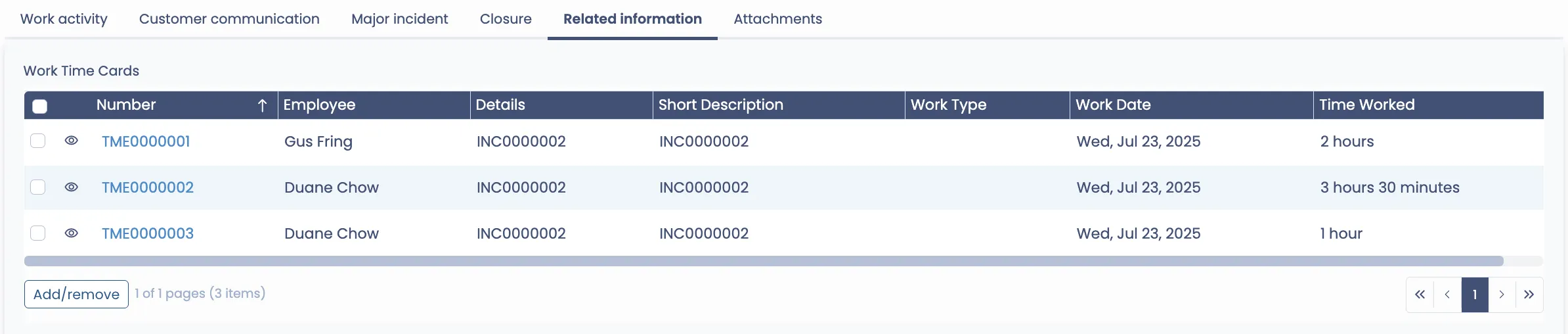
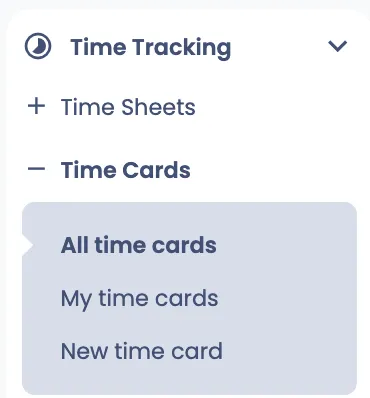
Note: System administrators and other users who have access to the ‘Time Tracking’ application can view a list of all time cards as per the example below:
Updating Time Cards
Agents can modify their time cards in two ways:
1. Clicking on the Time Card entry: Access the record directly to edit.
2. Using the ‘Eyeball’ icon: Click on the icon next to the time card number to edit the time card record. Example of this below:
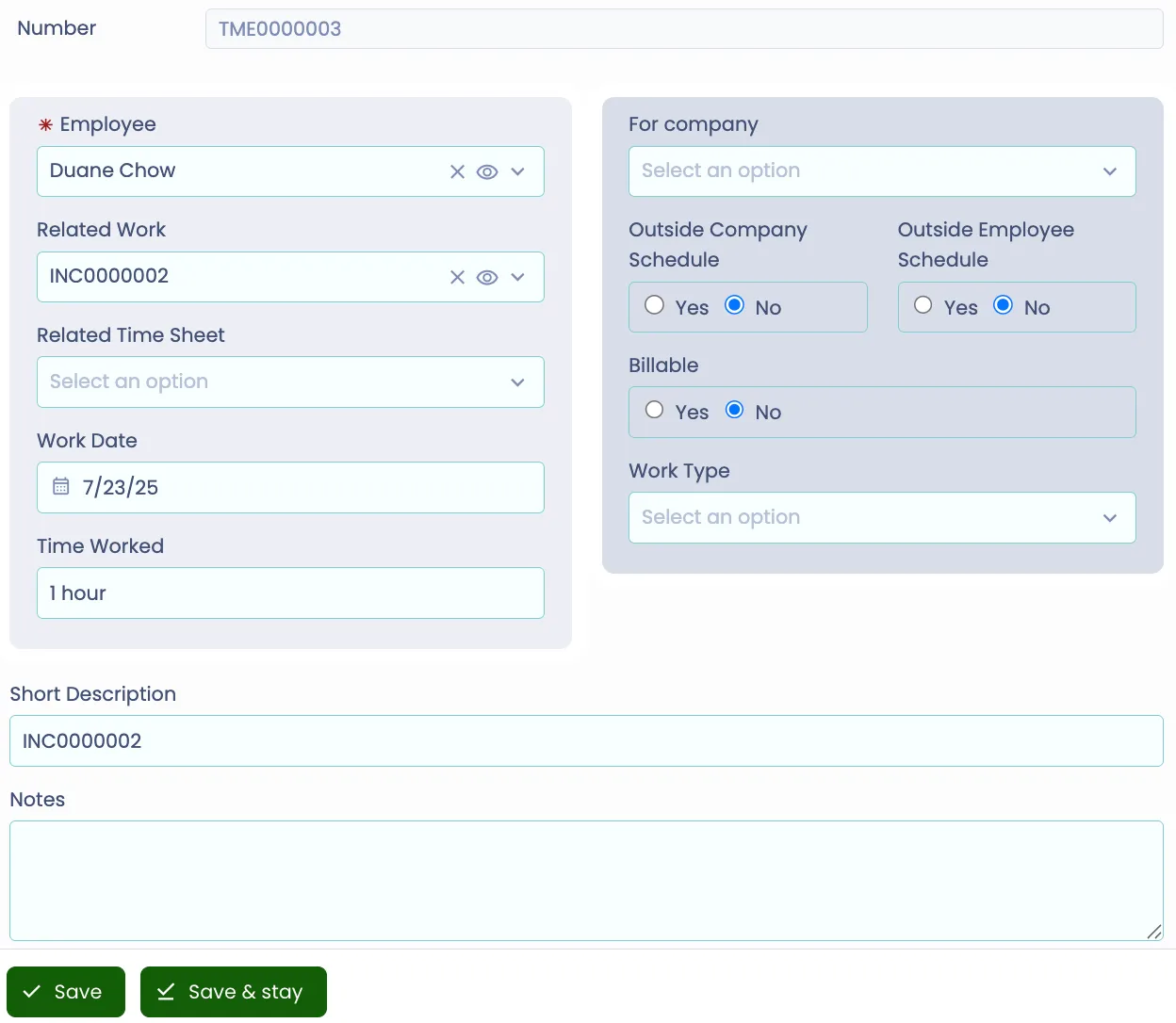
Most fields in the Time Card can be edited, except those restricted by system administrator settings. The following outlines key fields frequently updated by agents:
- Work Date:
- The date of the time card entry
- This can be adjusted to reflect when the work was actually done (e.g., a day prior).
- Time Worked:
- The value entered in the original ‘Time Worked’ field of the source record (e.g., INC0000002).
- Should the original time need to be modified (e.g. the time worked should have been 2-hours and not 1-hour) this can be updated and the Time Worked Total field will subsequently be updated.
- Short Description:
- Defaults to the associated record but can be updated by the agent to summarise the work done (e.g., "Troubleshot performance issue, further investigation required.").
- Notes:
- Additional explanations regarding the time card entry can be documented here.
An example of the Work Time Cards after the updates to the fields above:
