Other API / Javascript Scripts
Overview
To support other areas and features in the platform, there are other features in the platform that you can make use of which have a very particular purpose. As these are too small to have their own page, this page groups these items all together in one page.
Markdown to HTML Convertor
To better support integrations with other systems, we have provided access to a in platform Markdown to HTML Convertor (and visa versa). Although various platforms that use Markdown use their own flavour of it, we wanted to ensure that this convertor catered for a large number of caters.
Markdown to HTML
let newMarkDownString = MarkupConverter.htmlToMarkdown("<h1>Test</h1><p>Hello!</p>")

//This will return as the following
//# Test #
//
//Hello!
HTML to Markdown
let newHtmlString = MarkupConverter.markdownToHTML("# Test # \n Hello!");

//This will be return as the following
//<h1>Test</h1>
//<p>Hello!</p>
Extracting text out of HTML
You can strip all HTML tags out of HTML to get a text. Newlines will be replaced by \n characters.
let extractedText = HtmlUtils.extractText("<h1>Test</h1><p>Hello!<br/>World!!</p>");

// This will return
// Test
// Hello!
// World!!
Creating attachment using base 64 string
This server side scripting example can be used for inbound API purposes (on a System Controllers)
Example inbound payload
{
    "servicely_inc_number": "INC12345678",
    "data": {
        "mimeType": "image/png",
        "fileName": "testImage.PNG",
        "base64String": "string" // full attachment string
   }
}
Example Servicely Controller script to create an attachment
// below is if the attachment is meant to be linked to an Incident record + attachment field name is "Attachments"
if (servicely_inc_number && data) {
    let incRec = Table("Incident", servicely_inc_number);
    if (incRec) {
        Table("Attachment").newRecord()
            .MimeType(data.mimeType)
            .FileName(data.fileName)
            .Data(data.base64String)
            .RelatedField("Attachments")
            .ParentRecord(incRec.getID() + ":Incident")
            .create();
    }
}
Creating attachment from an external URL
This server side scripting example can be used if Servicely is to retrieve a file off a URL and then add that file as an attachment to an Incident:
let imageURL = "https://servicelyai.wpenginepowered.com/wp-content/uploads/AI-Changing-Work.jpg";
let servicelyFileName = "ServicelyRobot.png";
let servicelyIncRec = Table("Incident", "75e8611c3cc211efbfec0621814b0941"); // Replace with actual Servicely record
let attachmentFieldName = "Attachments"; // Replace with attachment field name you are using on Servicely
let responseObj = HTTP.get(imageURL).executeBinary();

// creates the attachment off the downloaded file and set the values for the other fields on the Attachment table at the same time
responseObj.toAttachment({
    RelatedField: attachmentFieldName,
    ParentRecord: servicelyIncRec,
    ExternalKey: imageURL,
    FileName: servicelyFileName
});
Sending attachment out of Servicely - in base64 format
// define the attachment record to synch outbound
// let attachmentRec =
let tokenName = "SomeTokenName"; // Replace with Servicely outbound token name that you have configured, to use to authenticate with the target system
let targetURL = "https://someurl"; // replace with API endpoint of your choosing
HTTP.post(targetURL)
    .accept("application/json")
    .contentType(attachmentRec.MimeType())
    .body(Base64Util.encodeBase64String(attachmentRec.Data()))
    .apiTokenAuth(tokenName)
    .execute();
Sending attachment out of Servicely - in byte array format
When an integration target system/environment needs attachments sent from Servicely in byte array format
// define the attachment record to synch outbound
// let attachmentRec =
let tokenName = "SomeTokenName"; // Replace with Servicely outbound token name that you have configured, to use to authenticate with the target system
let targetURL = "https://someurl"; // replace with API endpoint of your choosing
HTTP.post(targetURL)
    .accept("application/json")
    .contentType(attachmentRec.MimeType())
    .bodyBytes(attachmentRec.Data())
    .apiTokenAuth(tokenName)
    .execute();
Checking a condition on a record
An example is if you want to define a custom rule depending on if an Incident record meets certain criteria. One way to do that, you’ll need:
- A custom table that have fields that include a Table type and a Condition type, similar to like in the Report table. Screenshot below shows a portion of what the form layout for the custom table could look like:
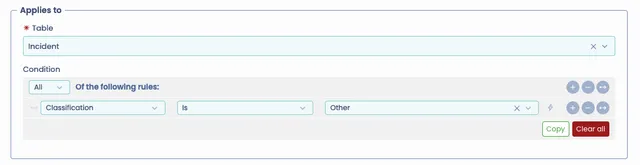
- Then, to programmatically check if an Incident record matches the condition above, you will need to run a server side script that makes use of a function called “matchesCriterion” (Note that it is applicable to a TableRecord variable).
The following is a snippet of a sample script and expected result if it is run against the example above:
/* Say you have:
 * an Incident record in a variable called incRec defined before this line, AND
 * a record on the custom table that has fields like screenshot above, placed into a variable called customRec, defined before this line AND the Condition field on the custom table is named C_Condition
 */

let incidentMatchesCondition = incRec.matchesCriterion(customRec.C_Condition()) == true;
log.info(incidentMatchesCondition); // this will output true if the Incident record we are checking, has Classification of "Other". Otherwise, the output will be false.
Moving Attachments from One Field to Another
To help in moving attachments from one field to another (without querying the Attachment table), there is a function that can be run on the server side to achieve this.
/**
 * Move attachments from one field to another on a record where the from field is a multiple reference
 * @param record the table record
 * @param fromField the from field, which may be a multiple reference
 * @param toField the to field, which may be a multiple reference
 * @param attachmentIds a list of ids of attachments in the from field, if it is a multiple reference
 */
AttachmentManager.moveAttachments(record: TableRecord, fromField: string, toField: string, attachmentIds: string[])
Client side progress/loader dialog
To show a progress/loader dialog, for example to show progress to a user when they await the result from an AI PromptsAI Prompt execution:
// Define a unique topic name, example below
let progressPopupTopic = "incident.ai_summarisation.progress.update";
// Function to call is Websocket.sendMessage() below and that can be wrapped per below
// You need to tell the sendMessage which topic the message is for, the message text and
// the percentage to show on the progress dialog
function sendProgressUpdate(message, percentage, topic) {
Websocket.sendMessage(
topic,
{
message: { text: message, type: "success" },
percentage: percentage
}
);
};
sendProgressUpdate("Summarising Incident...", 25, progressPopupTopic);